
Introduction
This manual provides essential information for the safe and efficient operation of your APC Back-UPS Pro Gaming UPS, model BGM1500B. This Uninterruptible Power Supply (UPS) is designed to protect your gaming console, PC, and other electronic equipment from power outages, surges, and voltage fluctuations, ensuring continuous power and data integrity.
Safety Information
Read these instructions carefully before installing or operating the unit. Save this manual for future reference.
- Electrical Safety: Connect the UPS to a grounded outlet only. Do not remove the grounding prong.
- Battery Safety: The battery is user-replaceable. Refer to the maintenance section for proper replacement procedures. Do not dispose of batteries in a fire; they may explode.
- Placement: Install the UPS indoors in a protected area, away from excessive moisture, heat, or conductive contaminants. Ensure adequate airflow around the unit.
- Overload: Do not overload the UPS. Ensure the total power draw of connected equipment does not exceed the UPS's capacity (900W).
Package Contents
Verify that your package contains the following items:
- APC Back-UPS Pro Gaming UPS (Model BGM1500B)
- USB Communication Cable
- Coaxial Cable
- User Manual and Safety Information
Product Features
The APC Back-UPS Pro Gaming UPS BGM1500B offers advanced features for power protection and convenience:
- 1500VA / 900W Sine Wave Output: Provides clean and stable power, ideal for sensitive electronics and Active PFC power supplies.
- Interactive LCD Display: Features a Reactor Circle that changes color to indicate power status, surges, dips, and remaining battery power.
- Customizable RGB Ambient LED Lighting: Personalize the look of your UPS to match your gaming setup.
- 10 Total Outlets: Includes 6 battery backup outlets and 4 surge-only outlets for comprehensive protection.
- 3 USB Charging Ports: Two Type-A and one Type-C port (5V/3A shared) for convenient device charging.
- Automatic Voltage Regulation (AVR): Corrects high and low voltage fluctuations without using battery power, preserving battery life.
- Surge-Protected Dataline Ports: 1 Gb dataline ports and gold-plated co-axial ports protect network and cable connections.
- Hot-Swappable, User-Replaceable Battery: Allows for easy battery replacement without powering down connected equipment.
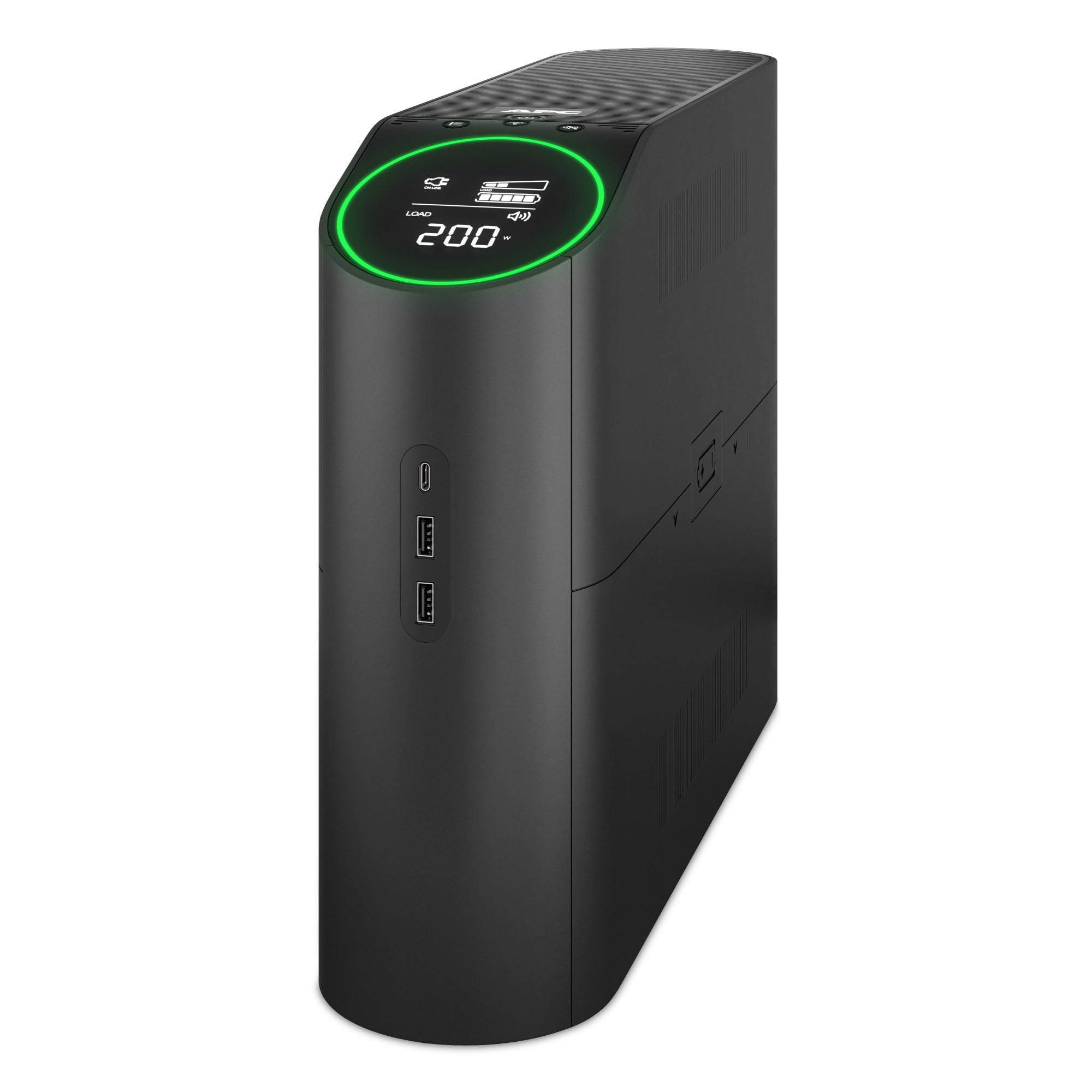
Figure 1: Front view of the APC Back-UPS Pro Gaming UPS BGM1500B, showcasing the interactive LCD display and overall design.
Video 1: An official video from APC highlighting the key features and benefits of the APC Back-UPS Pro Gaming UPS.
Setup
1. Battery Connection
The UPS is shipped with the battery disconnected for safety. Before use, you must connect the internal battery.
- Place the UPS on a stable surface.
- Locate the battery access panel, typically on the side or bottom of the unit.
- Remove the panel to access the battery compartment.
- Connect the red battery cable to the red terminal. Ensure a secure connection.
- Replace the battery access panel.
2. Placement
Choose a suitable location for your UPS:
- Avoid direct sunlight, heat sources, and areas with high humidity.
- Ensure proper ventilation by keeping at least 1 inch (2.5 cm) of space around the unit.
- Place the UPS on a flat, stable surface.
3. Connecting Equipment
Connect your devices to the appropriate outlets on the rear of the UPS.

Figure 2: Rear panel of the UPS, illustrating the battery backup and surge-only outlets, data ports, and circuit breaker.
- Battery Backup + Surge Protected Outlets: These 6 outlets provide power from the battery during outages and protect against surges. Connect your critical equipment such as your gaming PC, console, monitor, and external hard drives here.
- Surge-Only Outlets: These 4 outlets provide surge protection but no battery backup. Connect less critical devices like printers, speakers, or lamps here.
- USB Charging Ports: Use the two USB-A and one USB-C ports on the side of the unit to charge mobile devices, controllers, or other USB-powered accessories.
- Dataline Protection: Connect your network cable (RJ45) and coaxial cable to the respective IN and OUT ports for surge protection on your data lines.
4. Initial Charging
After connecting the battery and plugging the UPS into a wall outlet, allow the unit to charge for at least 16 hours before connecting any equipment. This ensures the battery is fully charged and ready to provide maximum runtime.
5. PowerChute Personal Edition Software (Optional)
For advanced monitoring and management features, install the PowerChute Personal Edition software on your PC. Connect the UPS to your computer using the provided USB communication cable. The software allows you to:
- Monitor power events and energy consumption.
- Configure alarms and notifications.
- Perform automatic and safe shutdown of your computer during extended power outages.
Operating the UPS
1. Power On/Off
- To Power On: Press the power button located on the top panel. The LCD display will illuminate.
- To Power Off: Press and hold the power button until the unit powers down.
2. LCD Display and Reactor Circle
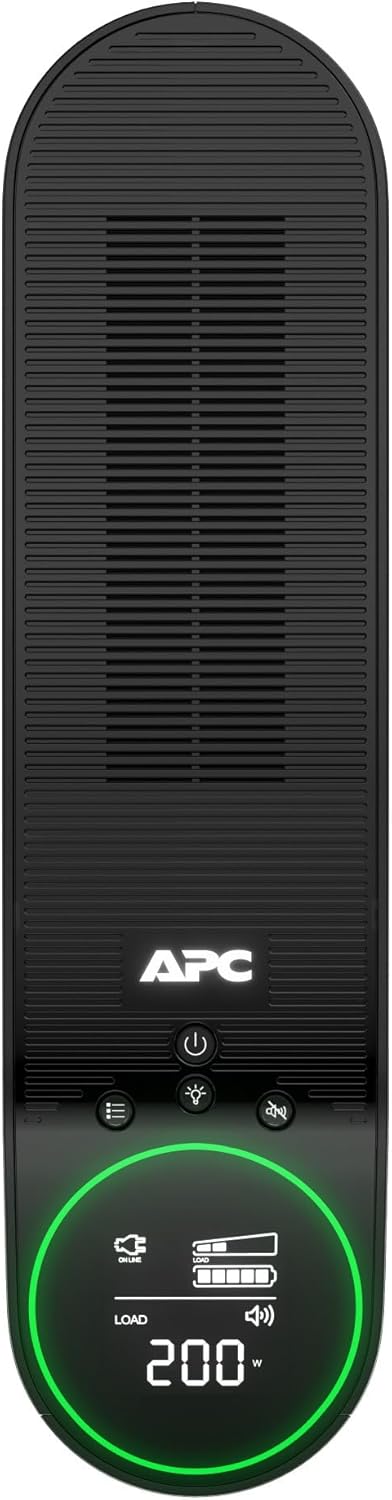
Figure 3: Top view of the UPS, highlighting the LCD display and control buttons for easy interaction.
The interactive LCD display provides real-time information about the UPS status. The Reactor Circle around the display changes color to indicate different operational states:
- Green: Normal operation, providing power.
- Yellow/Orange: Warning, indicating a power event (e.g., voltage fluctuation) or low battery.
- Red: Critical alert, indicating a significant issue or very low battery.
Use the navigation buttons next to the LCD to cycle through various display screens, showing information such as input/output voltage, load percentage, battery charge level, and estimated runtime.
3. Customizable RGB Lighting
The ambient LED lighting can be customized to match your preference. Refer to the specific controls on the unit or the PowerChute software for options to change colors and lighting effects.
4. USB Charging

Figure 4: Side view of the UPS, showing the convenient USB-A and USB-C charging ports.
The USB ports provide 5V/3A shared power for charging devices. These ports are always active when the UPS is powered on, regardless of battery backup status.
Maintenance
1. Battery Replacement
The battery in your UPS has an average life of 4 years. When the battery needs replacement, the UPS will indicate this on the LCD display. The replacement battery part number is APCRBC163.
- Ensure the UPS is powered off and disconnected from the wall outlet.
- Remove the battery access panel.
- Disconnect the battery cables (black first, then red).
- Carefully slide out the old battery.
- Insert the new battery (APCRBC163).
- Connect the battery cables (red first, then black).
- Replace the battery access panel.
- Recycle the old battery responsibly.
2. Cleaning
Periodically clean the exterior of the UPS with a soft, dry cloth. Do not use liquid cleaners or solvents. Ensure ventilation openings are free from dust and debris.
Troubleshooting
If you encounter issues with your UPS, refer to the following common problems and solutions:
| Problem | Possible Cause | Solution |
|---|---|---|
| UPS does not turn on | Battery not connected or low charge | Ensure battery cables are securely connected. Charge the UPS for 16 hours. |
| UPS beeps frequently | On battery power, low battery, or overload | Check utility power. Reduce connected load. Allow battery to recharge. |
| LCD shows 'Overload' | Too many devices connected to battery backup outlets | Disconnect non-essential equipment from battery backup outlets. |
| Building Wiring Fault indicator is lit | Wiring problem in the wall outlet | Consult a qualified electrician to inspect the building wiring. |
Specifications
Key technical specifications for the APC Back-UPS Pro Gaming UPS BGM1500B:
- Model: BGM1500B
- Capacity: 1500VA / 900W
- Input Voltage: 120 Volts
- Output Voltage: 120 Volts
- Waveform: Sine Wave
- Battery Type: Sealed Lead Acid
- Battery Charge Time: 16 Hours
- Battery Average Life: 4 years
- Surge Protection Rating: 1080 Joules
- Number of Outlets: 10 (6 Battery Backup + Surge, 4 Surge Only)
- USB Charging Ports: 2x Type-A, 1x Type-C (5V/3A shared)
- Dimensions (D x W x H): 16.06" x 4.13" x 11.45" (40.8 cm x 10.5 cm x 29.1 cm)
- Weight: 25.35 lbs (11.5 kg)
- Operating Temperature: 32°F to 104°F (0°C to 40°C)
- Certifications: Energy Star
Warranty and Support
This APC Back-UPS Pro Gaming UPS BGM1500B comes with a 3-Year Manufacturer Warranty. For warranty claims, technical support, or further assistance, please contact APC customer service or visit the official APC website. Ensure you have your product model number and serial number available when contacting support.
For the most up-to-date support information and resources, please visit: www.apc.com/support


