
1. Introduction
This manual provides detailed instructions for the setup, operation, maintenance, and troubleshooting of your JOYACCESS 1080P Full HD Webcam (Model JP-Webcam). Please read this manual thoroughly before using the product to ensure proper functionality and longevity.
2. Package Contents
Verify that all items are present in the package:
- JOYACCESS 1080P Full HD Webcam (Model JP-Webcam)
- Integrated USB Cable (1.5M/4.92ft)
- Instruction Manual
3. Setup
3.1 Physical Placement
The webcam features an adjustable universal clip designed for secure placement on various devices.
- Open the webcam clip.
- Mount the webcam on top of your computer monitor, laptop screen, or any flat surface. Ensure the base is stable.
- Adjust the angle of the webcam to achieve the desired viewing position. The webcam supports 180° rotation for flexible positioning.

Image: The webcam's adjustable base allows for easy and secure placement on various computer displays, demonstrating its 180-degree rotation feature.
3.2 Connecting the Webcam
The JOYACCESS Webcam is a Plug and Play device, requiring no additional driver installation for most operating systems.
- Locate an available USB 2.0 or higher port on your computer.
- Plug the integrated USB cable from the webcam into the USB port on your computer.
- Wait for your operating system to automatically detect and install the necessary drivers. This process usually takes a few seconds.
4. Operating Instructions
4.1 Basic Operation
Once connected, the webcam is ready for use with various video conferencing, streaming, and recording applications.
- Open your preferred application (e.g., Zoom, Skype, YouTube, OBS).
- In the application's settings, select the JOYACCESS Webcam as your video input device.
- Select the integrated microphone as your audio input device if you wish to use the webcam's microphone.
4.2 Video Quality and Features
The webcam delivers 1080P Full HD video with several advanced features:
- 1080P Full HD Resolution: Provides sharp and clear video output.
- Auto Light Balance and Color Compensation: Automatically adjusts to lighting conditions, ensuring you appear natural even in dim or bright environments.
- 105° Wide-Angle View: Captures a broader field of view, suitable for group calls or showing more of your surroundings.
- Manual Focus: For optimal clarity, the webcam supports manual focus adjustment. Rotate the lens ring to achieve a sharp image.

Image: A visual comparison illustrating the superior sharpness and clarity of 1080P Full HD video output compared to 720P.
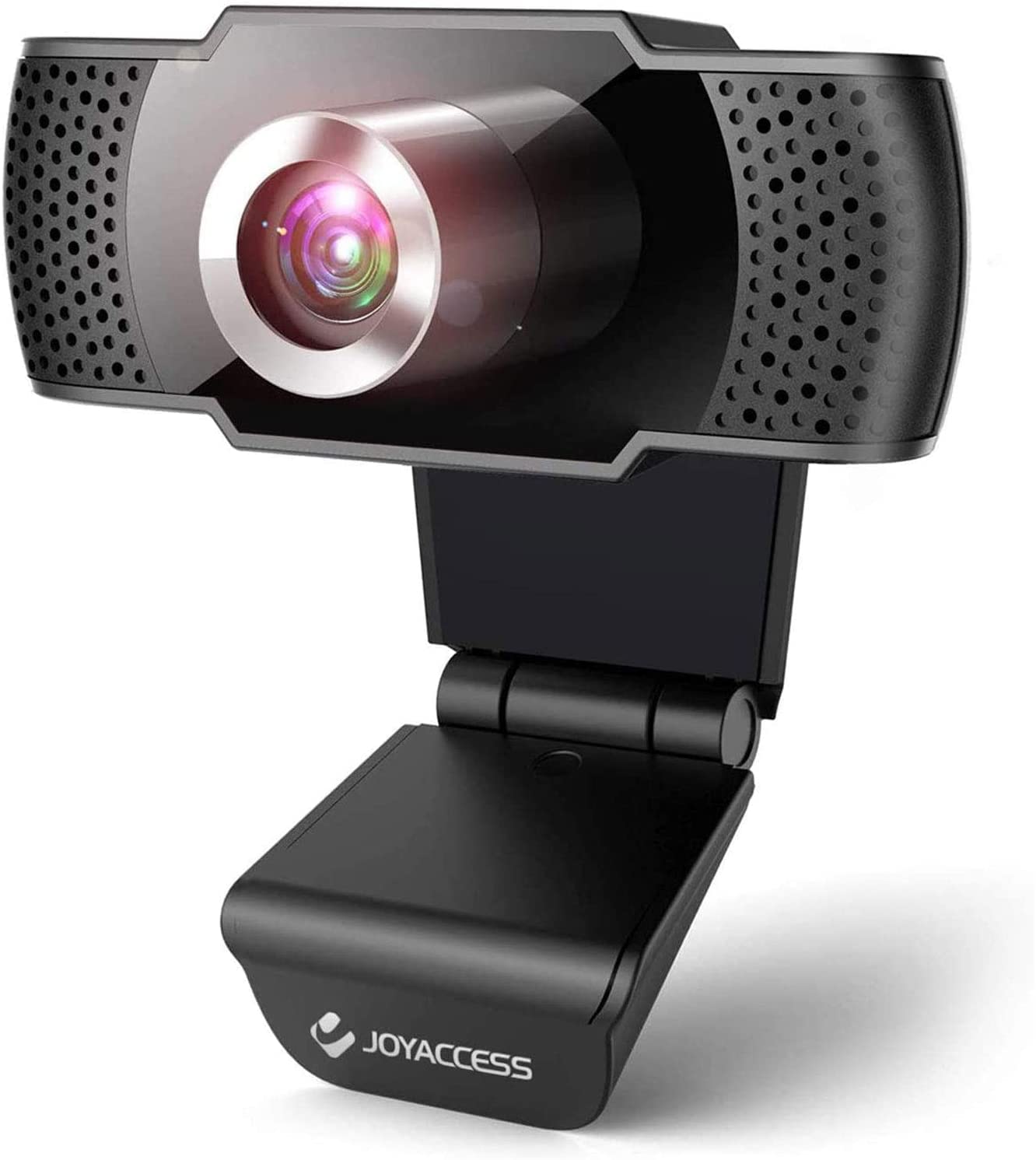
Image: Demonstrates how to manually adjust the focus ring on the webcam lens to achieve clear pictures, highlighting features like high resolution, automatic white balance, and automatic color compensation.
4.3 Built-in Microphone
The webcam includes a built-in noise-canceling microphone capable of capturing your voice clearly within 20 feet from various angles.

Image: The webcam is shown mounted on a laptop, actively used in a Skype call, with visual cues indicating its built-in digital dual stereo microphone with noise reduction technology.
4.4 Universal Compatibility
The webcam is compatible with a wide range of operating systems and applications:
- Operating Systems: Windows 7 / 8 / 10 and above, MAC OS 10.4.3 and above.
- Applications: Works with popular platforms such as Zoom, Skype, OBS, YouTube, Facebook, Yahoo, Twitch, and more.

Image: A visual representation of the webcam's universal compatibility with major operating systems and a variety of video communication and streaming applications.
4.5 Multi-functional Use
The webcam is suitable for various purposes:
- Video recording
- Family remote video calls
- Live streaming
- Online teaching and learning
- Business conferences
- Photography
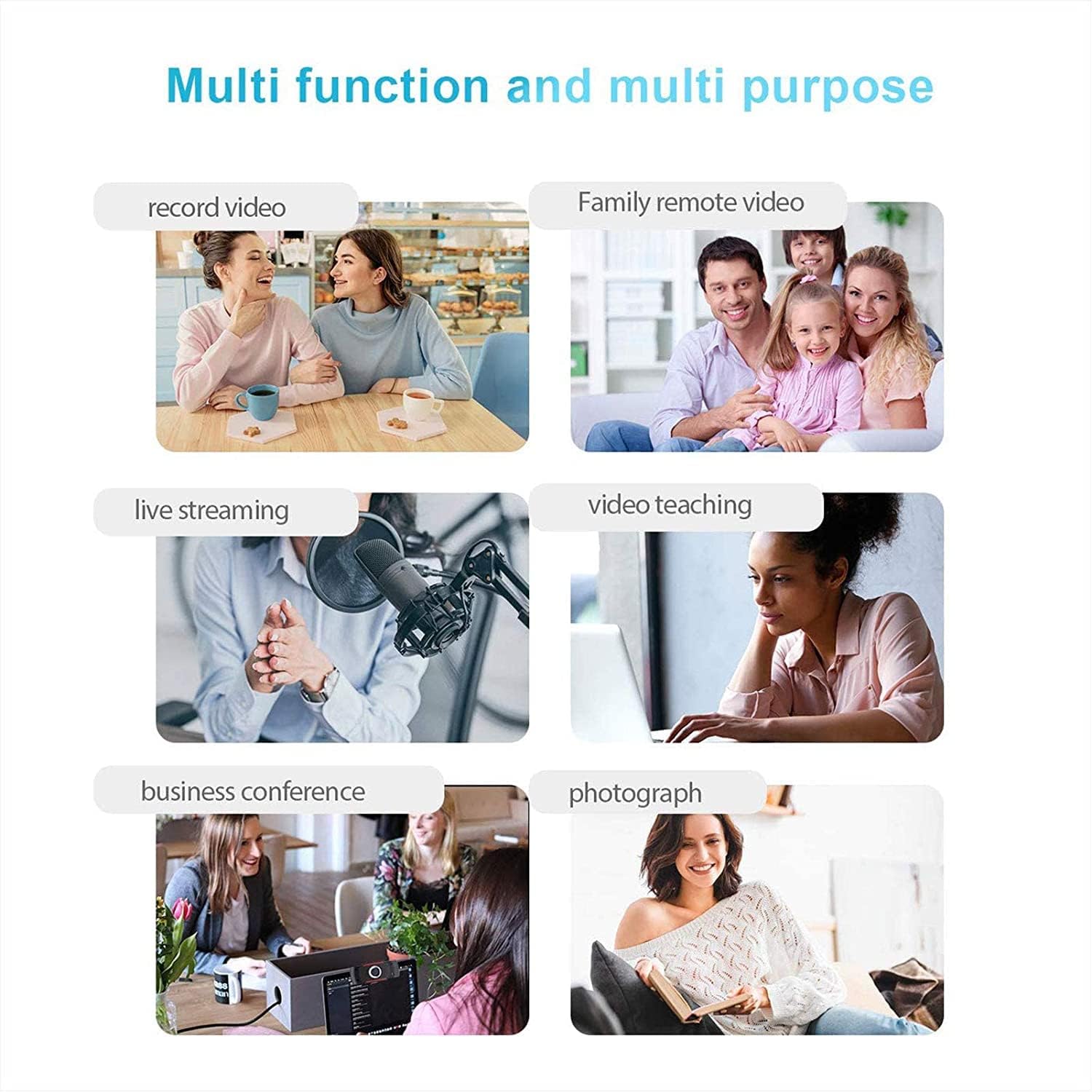
Image: A collage demonstrating the webcam's versatility across multiple functions, including video recording, family calls, live streaming, online education, business meetings, and photography.
5. Maintenance
5.1 Cleaning
To maintain optimal performance and image quality:
- Gently wipe the lens with a soft, lint-free cloth. Avoid using abrasive materials or harsh chemicals.
- Clean the body of the webcam with a slightly damp cloth. Ensure no moisture enters the device.
5.2 Storage
When not in use, store the webcam in a clean, dry place away from direct sunlight and extreme temperatures.
6. Troubleshooting
6.1 No Image or Video
- Check USB Connection: Ensure the USB cable is securely plugged into both the webcam and the computer. Try a different USB port.
- Verify Device Selection: In your application's settings, confirm that the JOYACCESS Webcam is selected as the video input device.
- Restart Application/Computer: Close and reopen the application, or restart your computer.
6.2 No Sound from Microphone
- Check Microphone Selection: In your application's audio settings, ensure the JOYACCESS Webcam's microphone is selected as the audio input device.
- Adjust Volume Settings: Check your computer's sound settings and the application's volume controls to ensure the microphone is not muted and volume is adequate.
6.3 Blurry Image
- Adjust Focus: Rotate the lens ring on the webcam to manually adjust the focus until the image is clear.
- Clean Lens: Gently clean the webcam lens with a soft, lint-free cloth to remove any dust or smudges.
- Lighting Conditions: Ensure adequate lighting in your environment. The webcam's auto light balance works best with reasonable ambient light.
7. Specifications
| Feature | Specification |
|---|---|
| Model Name | JP-Webcam |
| Video Capture Resolution | 1080p Full HD |
| Connectivity Technology | USB 2.0 |
| Microphone | Built-in Noise-Canceling |
| Focus Type | Manual Focus |
| Special Features | Auto Light Balance, Color Compensation, 105° Wide-Angle View |
| Cable Length | 1.5M (4.92ft) |
| Compatible Devices | Personal Computer, Laptop |
| Operating System Compatibility | Windows 7/8/10+, Mac OS 10.4.3+ |
| Item Weight | 121 Grams |
8. Warranty and Support
For warranty information or technical support, please refer to the contact details provided with your purchase documentation or visit the official JOYACCESS website. Keep your purchase receipt for warranty claims.