
1. Introduction
This manual provides detailed instructions for the IPEGA PG-SW023 Bluetooth Wireless Game Controller. This versatile controller is designed to enhance your gaming experience across multiple platforms, including N-S consoles, PlayStation 3 (PS3), Android devices, and personal computers running Windows 7, 8, or 10.
Please read this manual carefully before using the product to ensure proper operation and to maximize its features.
2. Product Features
- Multi-Platform Compatibility: Suitable for gaming on N-S consoles, PS3, Android devices, and PCs (Windows 7/8/10).
- Enhanced Gaming Experience: Supports vibration feedback and a six-axis gyroscope function for immersive gameplay and precise control.
- Customizable Macro Function: Rear buttons can be configured as common keys or combination keys for simplified actions.
- Continuous TURBO Function: Features a dedicated TURBO button for rapid-fire actions, compatible with N-S Pro gamepads.
- Ergonomic Design: Engineered for comfort during extended gaming sessions, fitting securely in the palm.

Image: The IPEGA PG-SW023 Wireless Game Controller highlighting its key features: two vibrating motors, six-axis design, high-sensitive buttons, and Turbo function.
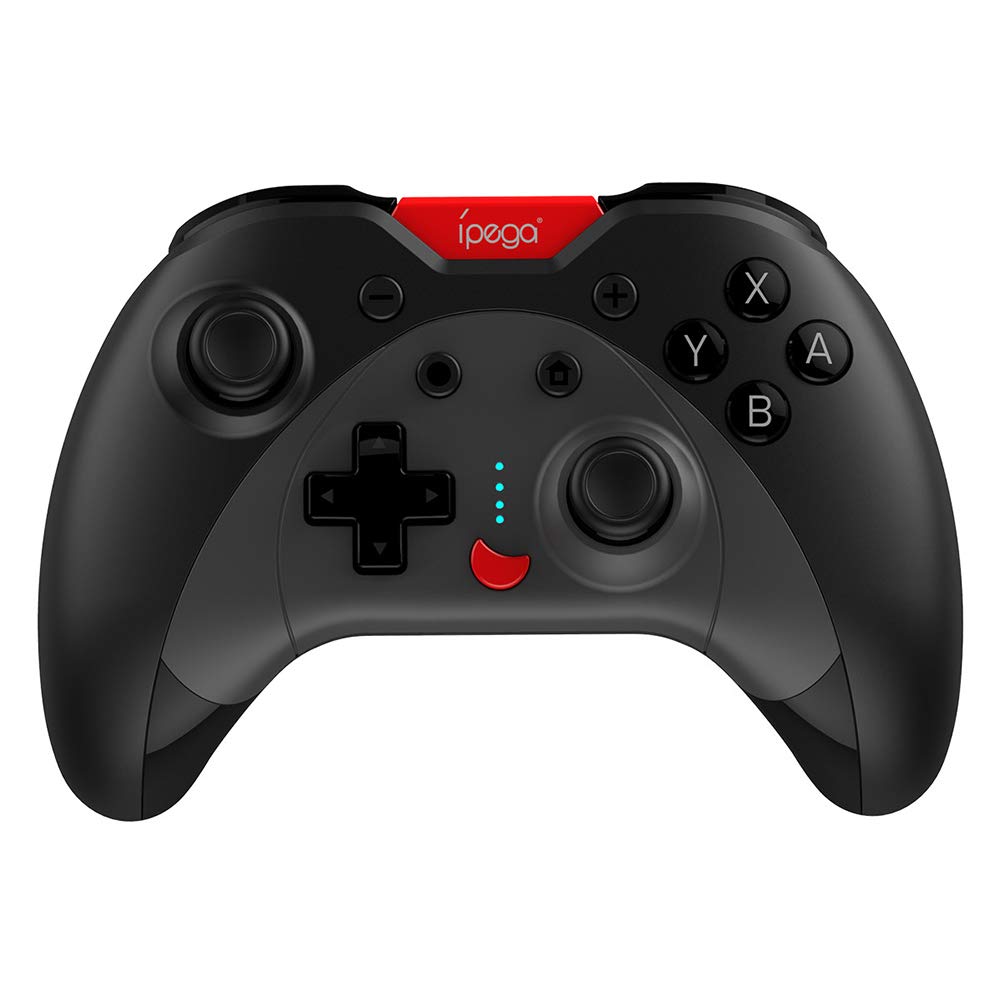
Image: A green IPEGA PG-SW023 controller illustrating its built-in six-axis gyroscope design for improved body feeling and accurate targeting.
3. Package Contents
Please verify that all items are present in the package:
- 1 x IPEGA PG-SW023 Wireless Game Controller
- 1 x Type-C Charging Cable
- 1 x User Manual
4. Specifications
| Feature | Specification |
|---|---|
| Brand | Ipega |
| Model | PG-SW023 |
| Color Options | Black, Green, Blue, Yellow |
| Operating Voltage | DC 3.7V |
| Operating Current | <30mA |
| Static Current | <20uA |
| Continuous Playtime | Approx. 15 hours |
| Input Voltage/Current | DC 5V/500mA |
| Charging Time | Approx. 2 hours |
| Bluetooth Version | 3.0 |
| Transmission Distance | ≤8 meters |
| Battery Capacity | 400mAh |
| Product Dimensions | 15 x 10 x 5.5 cm (5.91 x 3.94 x 2.17 inches) |
| Product Weight | Approx. 215g (7.58 ounces) |
| Compatible Devices | N-S Console, PS3, Android, PC (Win 7/8/10) |
| Connectivity | Wireless (Bluetooth) |
| Power Source | Battery Powered |
5. Setup
5.1 Charging the Controller
- Connect the provided Type-C charging cable to the controller's charging port.
- Connect the other end of the cable to a USB power source (e.g., PC, USB wall adapter).
- The indicator lights on the controller will show charging status. Once fully charged (approx. 2 hours), the lights will indicate completion or turn off.
5.2 Pairing with Devices
The pairing method varies slightly depending on the device. Ensure the controller is sufficiently charged before attempting to pair.

Image: A blue IPEGA PG-SW023 controller positioned in front of a Nintendo Switch, PlayStation 3, and a laptop, illustrating its multi-platform compatibility.
5.2.1 Pairing with N-S Console
- On your N-S console, go to the HOME Menu.
- Select 'Controllers' > 'Change Grip/Order'.
- Press and hold the pairing button on the IPEGA controller (refer to controller diagram for exact location) until the indicator lights begin to flash rapidly.
- The console will detect the controller. Once paired, the indicator light will become solid.
5.2.2 Pairing with PS3
- Connect the controller to the PS3 console using the Type-C cable.
- Press the HOME button on the controller.
- Once recognized, you can disconnect the cable and the controller should remain paired wirelessly.
5.2.3 Pairing with Android Devices
- Enable Bluetooth on your Android device.
- On the controller, press and hold the Android pairing button combination (refer to controller diagram or quick start guide for specific button combination, usually 'A' + HOME or 'X' + HOME) until the indicator lights flash rapidly.
- On your Android device, search for new Bluetooth devices and select 'IPEGA PG-SW023' (or similar name) from the list.
- Once paired, the indicator light on the controller will become solid.
5.2.4 Pairing with PC (Windows 7/8/10)
- Ensure your PC has Bluetooth enabled.
- Go to 'Settings' > 'Devices' > 'Bluetooth & other devices' and click 'Add Bluetooth or other device'.
- Select 'Bluetooth'.
- On the controller, press and hold the PC pairing button combination (refer to controller diagram or quick start guide for specific button combination, usually 'L1' + HOME or 'Y' + HOME) until the indicator lights flash rapidly.
- Select 'IPEGA PG-SW023' (or similar name) from the list of available devices on your PC.
- Once paired, the indicator light on the controller will become solid.
6. Operating Instructions
6.1 Basic Button Functions
The controller features standard gaming buttons including directional pad, analog sticks, action buttons (A, B, X, Y), shoulder buttons (L1, R1), and triggers (L2, R2). Specific button mapping may vary by game and platform.

Image: Hands comfortably gripping a black IPEGA PG-SW023 controller, showcasing its ergonomic design for comfortable and convenient use.
6.2 TURBO Function
The TURBO function allows for continuous rapid input of a selected button. This can be useful in games requiring fast, repeated button presses.
- To activate TURBO: Press and hold the desired action button (e.g., A, B, X, Y) and then press the TURBO button simultaneously. The button will now continuously input as long as it's held down.
- To deactivate TURBO: Repeat the same process (press the action button and TURBO button simultaneously).

Image: A yellow IPEGA PG-SW023 controller with its prominent TURBO button, shown with a Nintendo Switch console, illustrating the auto-fire feature.
6.3 Macro Function
The macro function allows you to assign a sequence of button presses or a single common button to the programmable rear buttons. This can simplify complex in-game actions.
- Refer to the specific instructions provided in the quick start guide or on the manufacturer's website for detailed steps on programming macro buttons, as this process can vary.
6.4 Vibration and Gyroscope
The controller features dual motors for vibration feedback, providing tactile sensations that correspond to in-game events. The built-in six-axis gyroscope allows for motion control in supported games, offering a more immersive and precise aiming experience.

Image: A blue IPEGA PG-SW023 controller in use, with visual cues indicating its double motor vibrating design for immersive feedback during gameplay.
7. Maintenance
Proper care will extend the life of your controller:
- Cleaning: Use a soft, dry cloth to clean the controller. For stubborn dirt, slightly dampen the cloth with water or a mild cleaning solution. Avoid harsh chemicals.
- Storage: Store the controller in a cool, dry place away from direct sunlight and extreme temperatures.
- Avoid Impact: Do not drop or subject the controller to strong impacts, as this can damage internal components.
- Liquid Exposure: Keep the controller away from liquids. If it comes into contact with liquid, power it off immediately and allow it to dry completely before attempting to use it again.
8. Troubleshooting
If you encounter issues with your IPEGA PG-SW023 controller, try the following solutions:
- Controller Not Connecting:
- Ensure the controller is fully charged.
- Verify that Bluetooth is enabled on your device.
- Try re-pairing the controller by following the setup instructions for your specific device.
- Move the controller closer to the device to ensure it is within the 8-meter transmission range.
- Restart both the controller and your gaming device.
- Buttons Not Responding:
- Check if the controller is properly connected and paired.
- Test the controller with another game or application to rule out software-specific issues.
- Ensure no debris is lodged under the buttons.
- Vibration Not Working:
- Verify that the game or system settings have vibration enabled.
- Some games may not support vibration feedback.
- Short Battery Life:
- Ensure the controller is fully charged before use.
- Battery life can vary based on usage intensity (e.g., continuous vibration).
- Avoid charging in extremely hot or cold environments.
9. Warranty and Support
For warranty information, technical support, or service inquiries regarding your IPEGA PG-SW023 Bluetooth Wireless Game Controller, please refer to the product packaging or contact the manufacturer directly through their official website or customer service channels. Keep your purchase receipt as proof of purchase for any warranty claims.


