
Amazon B07N8RPRF7
Amazon Echo Dot (3rd Gen) with Clock User Manual
Model: B07N8RPRF7
Introduction
This manual provides essential instructions for setting up, operating, maintaining, and troubleshooting your Amazon Echo Dot (3rd Gen) with Clock. The Echo Dot is a smart speaker featuring the Alexa voice assistant and an LED display that shows the time, outdoor temperature, or timers. Please read this guide thoroughly to ensure proper use and to maximize your device's capabilities.
Safety Information
- Use only the included power adapter.
- Do not expose the device to liquids or extreme temperatures.
- Keep the device away from heat sources such as radiators, heat registers, stoves, or other apparatus (including amplifiers) that produce heat.
- Do not attempt to disassemble or modify the device. This will void the warranty.
- Ensure proper ventilation around the device.
What's in the Box
- Amazon Echo Dot (3rd Gen) with Clock
- Power Adapter (15W)
- Quick Start Guide
Setup
1. Power On
Connect the included power adapter to your Echo Dot and then plug it into a wall outlet. The light ring on the top of the device will turn blue, then orange, indicating it is ready for setup.
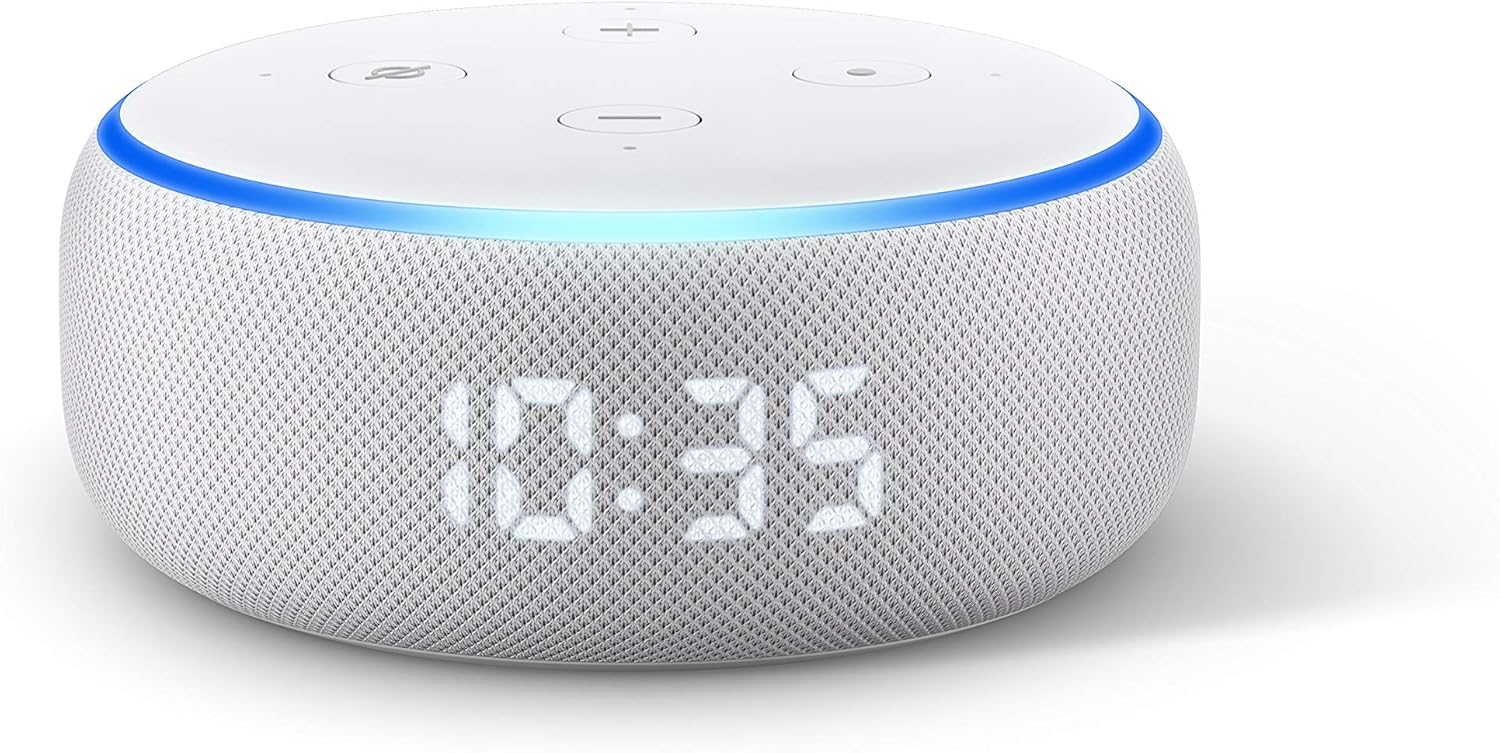
Image: The Echo Dot (3rd Gen) with Clock, displaying the time 10:35. This image illustrates the device's appearance when powered on and functioning.
2. Download the Alexa App
Download the Amazon Alexa app on your smartphone or tablet. Search for "Amazon Alexa" in your device's app store (App Store for iOS, Google Play Store for Android).
3. Connect to Wi-Fi
Open the Alexa app and follow the on-screen instructions to set up your Echo Dot. You will be prompted to connect the device to your Wi-Fi network. Ensure your phone is connected to the same Wi-Fi network you intend to use for your Echo Dot.
4. Initial Configuration
The app will guide you through personalizing your device, including setting your location, time zone, and linking music services. Once setup is complete, the light ring will turn off, and your Echo Dot will be ready to use.
Operating Your Echo Dot
Voice Commands
Your Echo Dot responds to the wake word "Alexa." Once you say the wake word, the light ring will turn blue, indicating it is listening. You can then issue commands.
- Music: "Alexa, play [artist/song/genre]." "Alexa, pause." "Alexa, next song."
- Alarms & Timers: "Alexa, set an alarm for 7 AM." "Alexa, set a timer for 15 minutes." "Alexa, stop."
- Questions: "Alexa, what's the weather?" "Alexa, how tall is Mount Everest?"
- News: "Alexa, what's the news?"

Image: The Echo Dot (3rd Gen) with Clock positioned on a nightstand, showing the time 7:00. This illustrates its use as an alarm clock and music player.

Image: The Echo Dot (3rd Gen) with Clock placed on a kitchen shelf, actively displaying a timer. This demonstrates its utility for setting kitchen timers.

Image: The Echo Dot (3rd Gen) with Clock on a wooden surface, showing the current time. This highlights its function as a music playback device.
Using the Clock Display
The LED display on your Echo Dot can show the current time, outdoor temperature, or active timers. The brightness of the display automatically adjusts based on ambient light. You can tap the top of the device to snooze an alarm.
Physical Buttons
On the top of your Echo Dot, you will find several buttons:
- Volume Up (+) / Volume Down (-): Adjusts the speaker volume.
- Microphone Off Button: Press this button to electronically disconnect the microphones. The light ring will turn red when the microphones are off, and the LED display will show a crossed-out microphone icon. Press it again to turn the microphones back on.
- Action Button (Dot icon): Wakes up Alexa without using the wake word.

Image: The Echo Dot (3rd Gen) with Clock showing a red light ring and a crossed-out microphone icon on its display, indicating the microphone is disabled for privacy.
Smart Home Control
The Echo Dot can control compatible smart home devices. Link your smart home devices through the Alexa app to enable voice control.
- "Alexa, turn on the living room light."
- "Alexa, set the thermostat to 72 degrees."

Image: The Echo Dot (3rd Gen) with Clock on a table, demonstrating its integration with smart home devices like a lamp and a wall-mounted thermostat.
Maintenance
- Cleaning: Unplug the device before cleaning. Use a soft, dry, lint-free cloth to wipe the exterior. Do not use abrasive cleaners or sprays.
- Software Updates: Your Echo Dot automatically receives software updates over Wi-Fi. Ensure your device is connected to the internet for these updates.
Troubleshooting
Common Issues and Solutions:
- Device Not Responding:
- Ensure the microphone is not turned off (red light ring).
- Check if the device is powered on and connected to Wi-Fi.
- Try unplugging the device for 30 seconds and plugging it back in.
- Wi-Fi Connectivity Issues:
- Verify your Wi-Fi password is correct in the Alexa app.
- Move the Echo Dot closer to your Wi-Fi router.
- Restart your Wi-Fi router and modem.
- Sound Problems:
- Adjust the volume using voice commands or the physical buttons.
- Check if the device is muted.
- Ensure no external speakers are connected if you intend to use the internal speaker.
- Resetting Your Echo Dot:
To factory reset your Echo Dot (3rd Gen), press and hold the Action button (the button with the dot icon) for 25 seconds. The light ring will turn orange, then blue, then orange again. Release the button when the light ring turns orange. The device will then enter setup mode.
Specifications
| Model Number | B07N8RPRF7 |
| Dimensions | 99 mm x 99 mm x 43 mm (3.9” x 3.9” x 1.7”) |
| Weight | 300 grams (10.6 oz) |
| Connectivity | Dual-band Wi-Fi (2.4 and 5 GHz), Bluetooth |
| Audio | 1.6” speaker, 3.5 mm audio output |
| Power | 15W power adapter |
Warranty Information
Your Amazon Echo Dot (3rd Gen) with Clock is covered by a limited warranty. Details of the warranty are available on the Amazon website or through the Alexa app. This warranty typically covers defects in materials and workmanship under normal use.
Support
For further assistance, technical support, or to view frequently asked questions, please visit the official Amazon Device Support page:
You can also contact Amazon Customer Service directly through the Alexa app or the Amazon website.
Related documentsB07N8RPRF7


Ask a question about this manual
Ask about setup, troubleshooting, compatibility, parts, safety, or missing instructions. Manuals+ will review the question and use this page’s manual context to help answer it.