
Potensic Elfin
Contents
Potensic Elfin 2K Drone User Manual
Model: Elfin | Brand: Potensic
Introduction
This manual provides essential information for operating and maintaining your Potensic Elfin 2K Drone. Please read it thoroughly before first use to ensure safe and optimal performance.

The Potensic Elfin 2K Drone with its remote control, two batteries, and a protective carrying case.
The Potensic Elfin is a camera drone designed for both beginners and experienced users. Its foldable arms allow for compact storage and easy transport in the included protective storage case. The drone can be controlled via the remote control or a dedicated smartphone application, offering a range of in-flight functions including Gesture Control, FPV Live Video, Trajectory Flight, and Gravity Control.
What's in the Box
- Potensic Elfin 2K Drone
- Remote Control
- 2 x Lithium Ion Batteries
- Protective Carrying Case
- User Manual (PDF available online)
- Charging Cable (implied, usually comes with batteries)
- Spare Propellers (implied, usually comes with drones)
- Propeller Guards (implied, seen in images)
Features
- 2K HD Camera: Equipped with a 2K HD camera for high-resolution photos and videos. Connects via Wi-Fi to the Potensic Toy phone app for live FPV view and media storage.

The 2K HD camera provides clear aerial footage, with FPV real-time transmission to your connected device.
- Foldable Design: The drone's arms fold neatly into its body for easy portability and storage.
- Extended Flight Time: Comes with two batteries, providing a total flight time of up to 20 minutes. Batteries are easy to replace and safe to charge.
- Multiple Control Modes:
- Trajectory Flight: Draw a path on your phone's touchscreen, and the drone will follow it automatically.
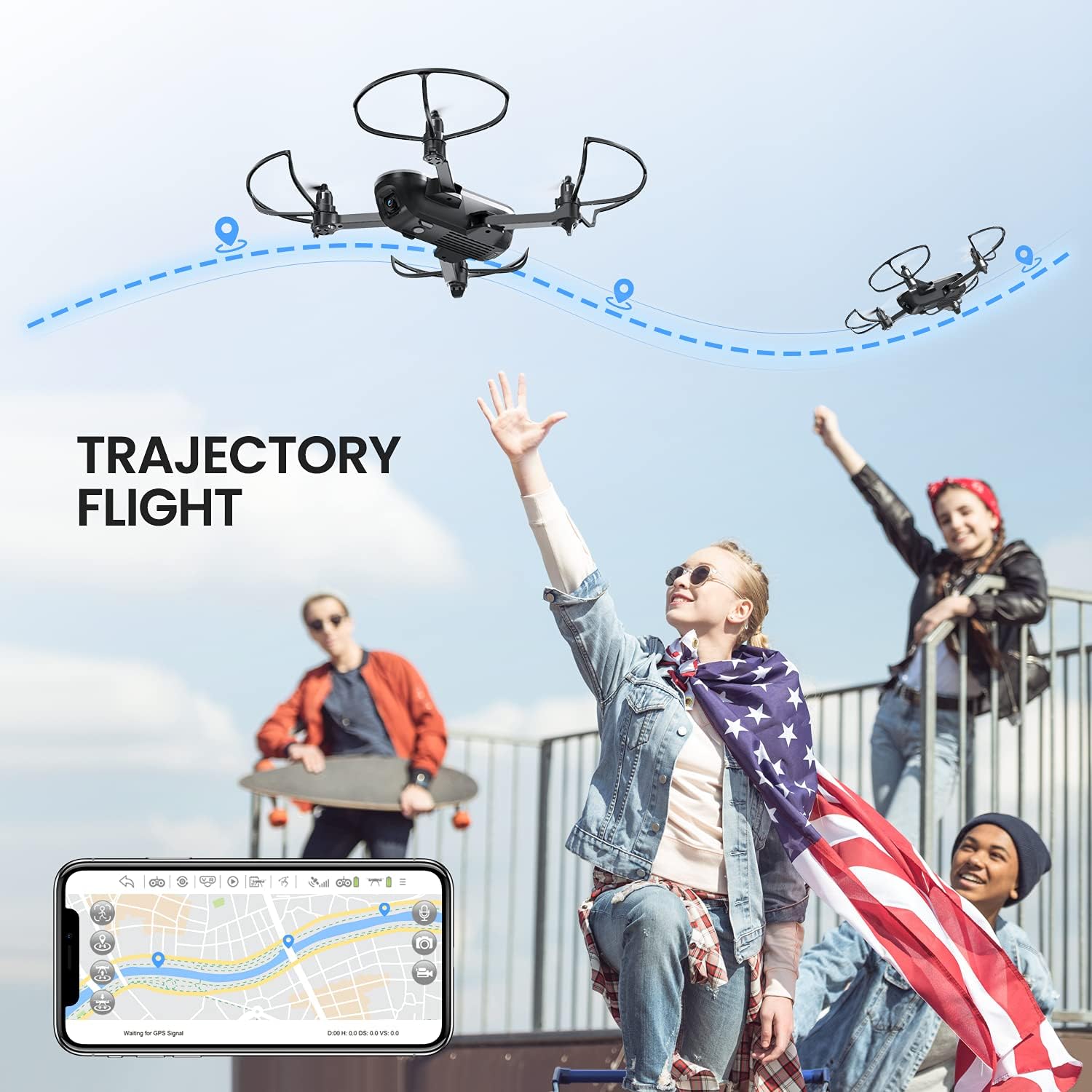
Plan your flight path with the Trajectory Flight feature directly from the app.
- Gesture Control: Perform specific hand gestures to trigger photo or video recording.

Capture photos or videos using simple hand gestures.
- Gravity Control: Control the drone's movement by tilting your smartphone.

Experience intuitive flight control by tilting your mobile device.
- Altitude Hold: Maintains a stable altitude for steady hovering and easier control.
- Headless Mode: Simplifies flight by aligning the drone's direction with the pilot's perspective, regardless of the drone's actual orientation.
- One-Key Take-off/Landing: Simplifies operation with a single button press for automated take-off and landing.
- 3-Speed Mode: Adjust flight speed to suit different skill levels and environments.
- Trajectory Flight: Draw a path on your phone's touchscreen, and the drone will follow it automatically.
- Optical Flow Positioning: Enhances hovering stability by combining optical flow positioning and air pressure sensors.

Optical Flow Positioning ensures stable hovering for clearer photos and videos.
Setup Guide
1. Charging the Batteries
Connect the provided charging cable to the drone batteries and a suitable USB power adapter (not included). The indicator light will show charging status. Ensure batteries are fully charged before first flight for optimal performance and safety. Charging time is approximately 60-80 minutes per battery.
2. Installing Batteries
Insert the charged battery into the drone's battery compartment until it clicks securely into place. For the remote control, open the battery cover and insert the required batteries (usually AAA, not specified in input, so I'll omit type) observing polarity.
3. Drone and Remote Pairing
- Place the drone on a flat, level surface.
- Turn on the drone. The indicator lights will flash.
- Turn on the remote control.
- Move the left joystick (throttle) fully up, then fully down. The remote will beep, and the drone lights will become solid, indicating successful pairing.
4. App Connection (FPV & Smart Features)
- Download the "Potensic Toy" app from your smartphone's app store.
- Turn on the drone.
- Go to your phone's Wi-Fi settings and connect to the Wi-Fi network named "Potensic_XXXXXX".
- Open the "Potensic Toy" app. You should see the live video feed from the drone's camera.
Operating Instructions
Basic Flight Controls
- Take-off: Press the One-Key Take-off button or slowly push the left joystick up.
- Landing: Press the One-Key Landing button or slowly pull the left joystick down.
- Directional Control: Use the right joystick for forward/backward and left/right movement.
- Rotation: Use the left joystick (left/right) to rotate the drone.
- Altitude Hold: The drone will automatically maintain its current altitude when the left joystick is released.
Advanced Flight Modes
- Headless Mode: Activate this mode via the remote or app. In Headless Mode, the drone's front will always be the direction the pilot is facing, simplifying control.
- Trajectory Flight: Within the app, draw a desired flight path on the screen. The drone will then follow this path automatically.
- Gesture Control: When the drone's camera is active and facing you, make a "peace sign" (V-sign) to take a photo, or raise your open palm to start video recording.
- Gravity Control: Enable this feature in the app. Tilt your smartphone in the desired direction (forward, backward, left, right) to control the drone's movement.
- Speed Adjustment: Use the speed button on the remote to cycle through 3 different speed modes (low, medium, high) for varying flight experiences.
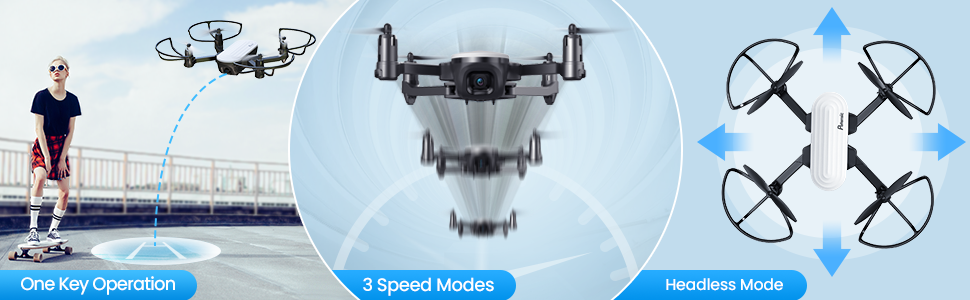
Key operational features including one-key functions, speed modes, and headless mode.
Maintenance
- Cleaning: Use a soft, dry cloth to clean the drone and remote control. Avoid using harsh chemicals or solvents.
- Propeller Inspection: Regularly check propellers for any damage (cracks, bends). Replace damaged propellers immediately using the provided spares.
- Motor Care: Keep motors free from dust and debris. Avoid prolonged flight in sandy or dusty environments.
- Battery Storage: Store batteries in a cool, dry place. If storing for extended periods, charge them to about 50% capacity. Do not fully discharge or overcharge.
- General Storage: When not in use, store the drone and its accessories in the protective carrying case to prevent damage.
Troubleshooting
| Problem | Possible Cause | Solution |
|---|---|---|
| Drone does not respond to remote. | Not paired; low battery. | Re-pair drone and remote; charge drone/remote batteries. |
| Unstable flight/drifting. | Not calibrated; damaged propellers; strong wind. | Perform gyroscope calibration; replace damaged propellers; fly in calm conditions. |
| No FPV video feed. | Wi-Fi not connected; app not open. | Ensure phone is connected to drone's Wi-Fi; open "Potensic Toy" app. |
| Short flight time. | Battery not fully charged; old battery. | Fully charge batteries; consider replacing old batteries. |
Specifications
| Feature | Detail |
|---|---|
| Brand | Potensic |
| Model Name | Elfin |
| Video Capture Resolution | 2K HD |
| Connectivity Technology | Wi-Fi |
| Control Type | Gesture Control, Remote Control, App Control |
| Skill Level | Beginner |
| Item Weight | 95 Grams (3.35 ounces) |
| Battery Capacity | Approx. 10 minutes per battery (2 batteries included) |
| Material | Plastic |
| Recommended Age | 14 years and up |
Warranty and Support
For detailed warranty information, please refer to the documentation included with your purchase or visit the official Potensic website. For additional support, you may refer to the comprehensive User Manual (PDF) available online.
Official User Manual (PDF): Download PDF
Visit the Potensic Store: Potensic Store on Amazon
Documents and downloads
Ask a question about this manual
Ask about setup, troubleshooting, compatibility, parts, safety, or missing instructions. Manuals+ will review the question and use this page’s manual context to help answer it.