
Epson V11H980020
Epson Home Cinema 1080 Projector
Instruction Manual
Model: V11H980020
1. Product Overview
The Epson Home Cinema 1080 is a 3-chip, 3LCD 1080p projector designed to enhance your home theater experience. It delivers a bright, detailed picture suitable for streaming, gaming, and home entertainment, even in various lighting conditions.
Key Features:
- Stunning Picture Quality: Provides detailed 1080p images and fast data processing optimized for fast-action sports and gaming.
- Ultra Bright Images: 3,400 lumens of color and white brightness for outstanding quality in various lighting.
- Best-in-Class Color Brightness: Advanced 3LCD technology displays 100% of the RGB color signal for accurate and vibrant colors.
- Versatile Connectivity: Features two HDMI ports for connecting various devices.
- Easy Setup: Built-in speaker and straightforward setup for immediate HD entertainment.
- Built-in Picture Skew Sensor: Automatically analyzes and corrects keystone for a square image.
- Dynamic Contrast Ratio: Up to 16,000:1 for rich detail in dark scenes.
- Convenient Color Mode Adjustments: Four selectable color modes: Dynamic, Bright Cinema, Cinema, and Game.
What's in the Box:

Image: Epson Home Cinema 1080 Projector and its contents, including the power cable, remote control with batteries, and Quick Setup Guide.
- Epson Home Cinema 1080 Projector
- Power Cable
- Remote Control with Batteries
- Quick Setup Guide
2. Setup Guide
Initial Placement and Power:
Place the projector on a stable, flat surface or mount it securely. Ensure adequate ventilation around the unit. Connect the power cable to the projector and a power outlet.
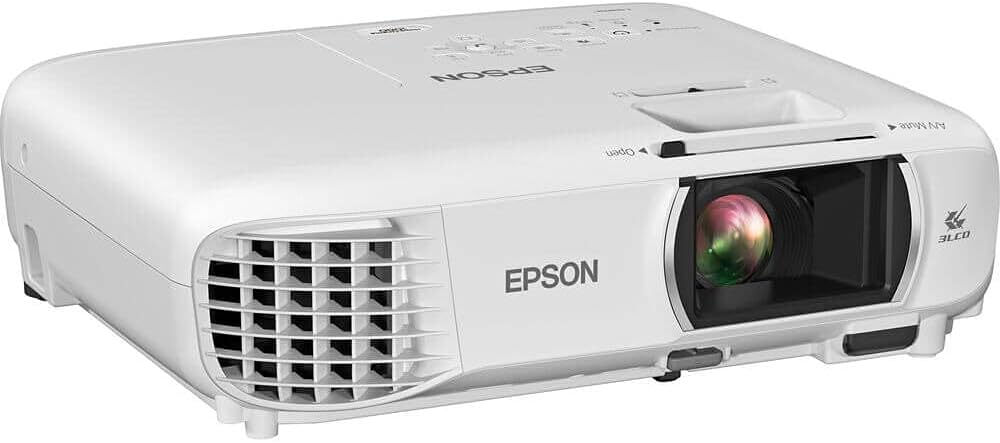
Image: Angled front view of the Epson Home Cinema 1080 Projector, showing the lens and ventilation.
Connecting Your Devices:
The Home Cinema 1080 offers versatile connectivity options. Use the HDMI ports for high-definition video and audio from sources like Blu-ray players, gaming consoles, or streaming devices.

Image: Rear panel of the projector, highlighting the USB-A, USB-B, Video (RCA), Computer (VGA), HDMI 1, HDMI 2, and Audio Out ports.
- HDMI 1 & HDMI 2: Connect your primary video sources.
- Computer (VGA): For connecting a computer with a VGA output.
- Video (RCA): For standard definition video sources.
- USB-A: For connecting USB devices.
- USB-B: For service or control.
- Audio Out: For connecting external audio systems.
Picture Adjustment:
After powering on, the projector will automatically adjust the image for a square display using its built-in picture skew sensor. You can further refine the focus and zoom using the controls on the projector or remote.

Image: Top panel of the projector, displaying the control buttons for power, menu, source search, and keystone correction, along with focus and zoom sliders.
3. Operating Instructions
Power On/Off:
Press the power button on the projector's control panel or the remote control to turn the unit on or off. Allow a few moments for the projector to warm up or cool down.
Input Selection:
Use the 'Source Search' button on the control panel or remote to cycle through available input sources (HDMI 1, HDMI 2, Computer, Video).
Color Modes:
Optimize your viewing experience by selecting one of the four convenient color modes:
- Dynamic: For maximum brightness, suitable for well-lit rooms.
- Bright Cinema: Balances brightness and color accuracy for movies in moderately lit rooms.
- Cinema: Provides the most accurate colors for dark room viewing.
- Game: Optimized for gaming with reduced input lag.
Audio:
The projector features a built-in speaker for audio output. For enhanced sound, connect external speakers or a sound system to the Audio Out port.
4. Maintenance
General Care:
- Keep the projector clean by gently wiping the exterior with a soft, dry cloth.
- Ensure ventilation openings are clear of obstructions to prevent overheating.
- When not in use, store the projector in a cool, dry place, ideally in its original packaging or a protective case.
Lamp Replacement:
The projector lamp has a finite lifespan. When the lamp indicator light illuminates or the image brightness significantly decreases, it may be time to replace the lamp. Refer to the detailed user guide (PDF) for specific lamp replacement instructions.
5. Troubleshooting
Common Issues and Solutions:
- No Image Displayed:
- Check power connections and ensure the projector is turned on.
- Verify the input source is correctly selected and the source device is active.
- Ensure all video cables are securely connected.
- Image is Blurry:
- Adjust the focus ring on the projector lens.
- Ensure the projector is at the correct distance from the screen.
- Image is Distorted (Trapezoid Shape):
- The auto picture skew sensor should correct this automatically. If not, manually adjust keystone correction using the projector's control panel or remote.
- No Sound:
- Check the volume level on the projector and the source device.
- Ensure audio cables are properly connected if using external speakers.
- Overheating Warning:
- Ensure ventilation openings are not blocked.
- Turn off the projector and allow it to cool down before restarting.
For more detailed troubleshooting steps, please consult the full User Guide PDF.
6. Technical Specifications
| Specification | Value |
|---|---|
| Product Dimensions | 14.57 x 14.96 x 7.87 inches |
| Item Weight | 8.2 pounds |
| Item Model Number | V11H980020 |
| Brand | Epson |
| Recommended Uses For Product | Gaming, Home Cinema |
| Special Feature | Built-In Speaker, Digital Keystone Correction |
| Connectivity Technology | 3.5mm Jack, HDMI, USB |
| Display Resolution | 1920 x 1080 |
| Visible Screen Diagonal | 320" / 813 cm |
7. Warranty and Support
Warranty Information:
The Epson Home Cinema 1080 Projector comes with a standard 2-year limited warranty, which includes full-unit replacement for covered issues.
Further Assistance:
For comprehensive details, advanced settings, or technical support, please refer to the official User Guide PDF available online or contact Epson customer service. Free technical phone support is available for the life of the product.
Official User Guide (PDF): Download Here
Related documentsV11H980020


Ask a question about this manual
Ask about setup, troubleshooting, compatibility, parts, safety, or missing instructions. Manuals+ will review the question and use this page’s manual context to help answer it.