
Introduction
The VXSCAN POE Ethernet Tester NF488 is a multi-functional device designed for network cable testing and Power over Ethernet (PoE) analysis. It helps identify issues such as short circuits, crossovers, and open circuits in network cables (CAT5, CAT6). Additionally, it can test standard and non-standard PoE information, including power voltages, polarity, and modes. The device also features a loop-back test and measures current, voltage, and power consumption of DC appliances. Its user-friendly design includes an LCD screen with backlight and an integrated light for use in dark environments.

Image: The VXSCAN NF488 POE Ethernet Tester main unit and its remote wiremap unit.
Package Contents
Verify that all items are present in the package:
- VXSCAN POE Ethernet Tester (Main Unit)
- Remote Unit (Wiremap Dongle)
- User Manual
- AAA Batteries (1 included)
Setup
Battery Installation
The VXSCAN NF488 requires 1 AAA battery for operation. Follow these steps to install the battery:
- Locate the battery compartment on the back of the main unit.
- Open the battery compartment cover.
- Insert 1 AAA battery, ensuring correct polarity (+/-).
- Close the battery compartment cover securely.
Video: Demonstration of battery installation for the VXSCAN NF488 tester.
Product Structure and Controls

Image: Detailed diagram showing the main unit and remote unit (wiremap dongle) of the NF488, with labels for buttons (Power, Backlight, Navigation, OK, Return) and ports (DC Out, DC In, POE Test Port, Continuity Port).
- Power Button: Turns the device on or off.
- Backlight Button: Activates or deactivates the LCD backlight.
- Navigation Buttons (Up/Down/Left/Right): Used to navigate menus and select options.
- OK Button: Confirms selections or starts tests.
- Return Button: Goes back to the previous menu or screen.
- POE Test Port: RJ45 port for connecting cables to test Power over Ethernet.
- Continuity Port: RJ45 port for connecting the main unit to the remote unit for cable continuity testing.
- DC In/Out Ports: For DC power testing.
Operating Instructions
1. POE Testing
This function allows you to test Power over Ethernet (PoE) information, including standard (af/at) and non-standard PoE devices, power voltages, polarity, and modes.
- Connect the network cable from the PoE source (e.g., PoE switch) to the "POE Test Port" on the main unit.
- The tester will automatically detect and display PoE information such as voltage, polarity, and mode.

Image: The NF488 tester performing a PoE power test, showing connection to a PoE switch and displaying power information on its screen.
2. Cable Continuity Testing (Wiremap)
This function checks for short circuits, open circuits, and crossover connections in CAT5 and CAT6 network cables.
- Connect one end of the network cable to the "Continuity Port" (RJ45) on the main unit.
- Connect the other end of the network cable to the "RJ45" port on the remote unit (wiremap dongle).
- Select the "Continuity" mode on the tester and press OK.
- The LCD screen will display the wiremap results, indicating any breaks, shorts, or crossovers.

Image: The NF488 tester connected to a network cable and its remote unit, displaying various cable fault scenarios like broken wires, crossed pairs, and short circuits.
3. Loop-back Testing
The loop-back test helps diagnose if there is a problem with the network loop or the switch port itself.
- Connect a network cable from a switch port to the "Loopback" port on the main unit.
- Select the "Loopback" mode on the tester and press OK.
- Observe the link/activity LED on the connected switch port. If the LED illuminates, the loop circuit is functioning correctly.
Video: Demonstration of performing a loop-back test using the VXSCAN NF488 tester connected to a network switch, showing the switch's indicator light confirming a functional loop.
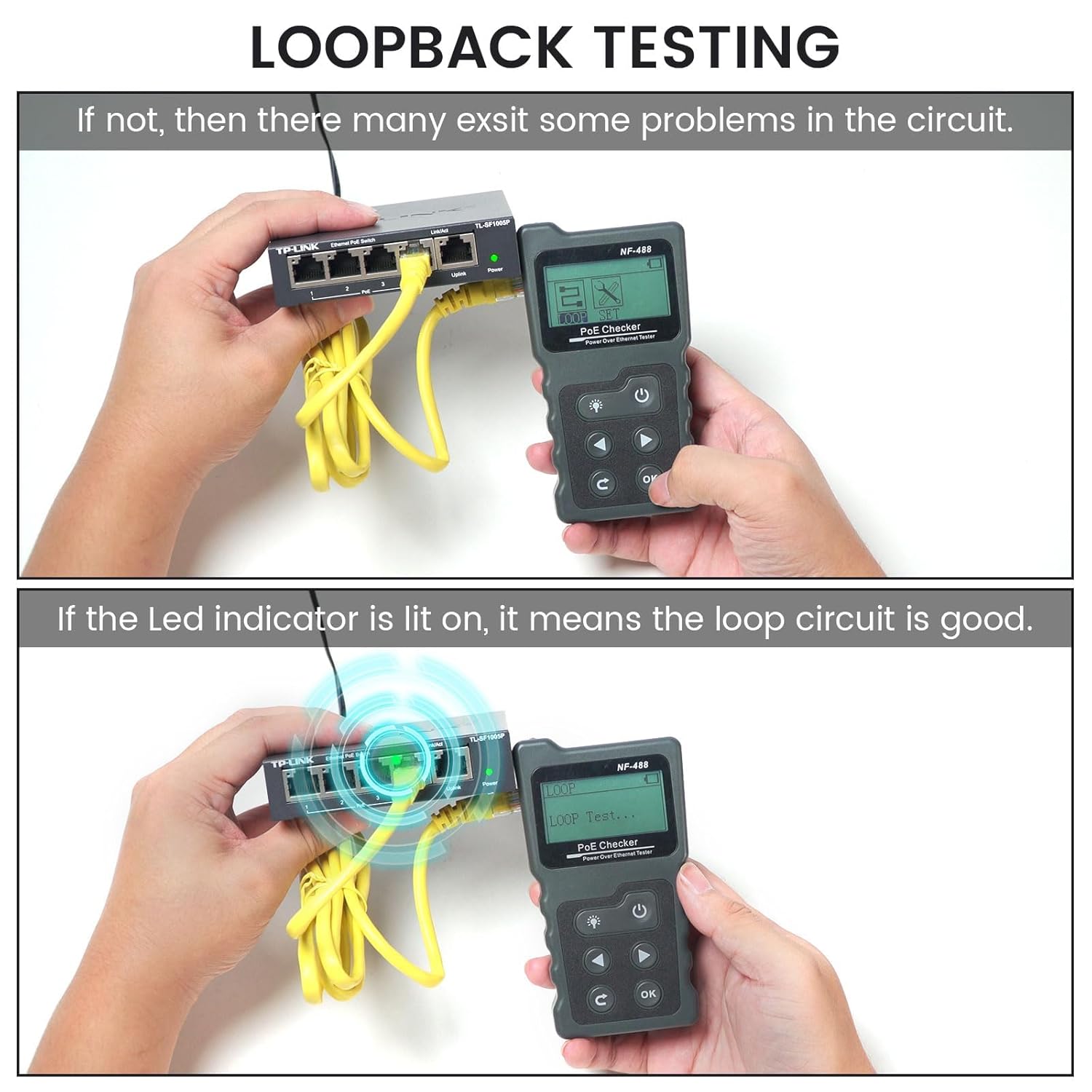
Image: Visual guide for loop-back testing, illustrating the connection to a network switch and the expected LED indicator behavior for a healthy circuit.
4. DC Power Current/Voltage/Power Testing
This function measures the current, voltage, and power consumption of DC devices.
- Connect the DC power source to the "DC In" port and the DC device to the "DC Out" port on the main unit.
- Select the "Power" mode on the tester and press OK.
- The LCD screen will display the measured voltage, current, and calculated power consumption.

Image: The NF488 tester showing its screen displaying real-time measurements for voltage, current, and power during a DC power test.
Features and Settings
LCD Display
The device features an LCD screen with a backlight, allowing for clear data readability in various lighting conditions. The backlight time and auto-off time can be adjusted through the settings menu.

Image: A close-up view of the NF488's LCD screen, highlighting its clear display of PoE parameters like voltage and power.
Integrated Lighting
An integrated light on the top of the unit assists in working effectively in dimly lit environments.

Image: The NF488 tester demonstrating its built-in light feature, illuminating a dark network cabinet for easier operation.
Specifications
| Feature | Detail |
|---|---|
| Product Dimensions | 7.48 x 4.33 x 1.77 inches |
| Weight | 11.99 ounces |
| Model Number | NF488 |
| Batteries | 1 AAA battery (included) |
| Power Source | Battery Powered |
| Voltage Detection Range | DC 0-60V |
| Current Detection Range | 0-3A |
| Power Detection Range | 0-180W |
| Cable Types Supported | CAT5, CAT6 (RJ45) |
Troubleshooting
If you encounter issues with your VXSCAN NF488 tester, consider the following common solutions:
- No Power/Display:
- Ensure the AAA battery is correctly installed with proper polarity.
- Replace the battery with a fresh one.
- Press and hold the power button for a few seconds to ensure it's fully powered on.
- Inaccurate Cable Continuity Readings:
- Verify that both ends of the network cable are securely connected to the main unit and the remote unit.
- Inspect the RJ45 connectors on the cable for damage or bent pins.
- Test with a known good cable to confirm tester functionality.
- Loop-back Test Not Indicating Success:
- Ensure the cable is connected to the "Loopback" port on the tester and a functional port on the network switch.
- Check the link/activity LED on the switch port. If it does not light up, there may be an issue with the switch port or the cable.
- POE Test Not Displaying Information:
- Confirm that the connected device is indeed a PoE source and is active.
- Ensure the cable is connected to the "POE Test Port" on the main unit.
- Verify the cable itself is not faulty (use continuity test).
Maintenance
To ensure the longevity and optimal performance of your VXSCAN NF488 tester:
- Keep the device clean and free from dust and moisture. Use a soft, dry cloth for cleaning.
- Avoid dropping the device or subjecting it to strong impacts.
- Store the device in a cool, dry place when not in use.
- Remove the battery if the device will not be used for an extended period to prevent leakage.
Warranty and Support
For warranty information or technical support, please refer to the contact details provided with your purchase or visit the official VXSCAN website. Your satisfaction is a top priority.
You can also visit the VXSCAN Store on Amazon for more product information and support resources.