
Geeni Freebird
Contents
Geeni Freebird 2K Wireless Security Camera
User Manual
Introduction
The Geeni Freebird 2K Wireless Security Camera is a versatile, battery-powered solution designed for both indoor and outdoor surveillance. It offers crystal-clear 2K HD video, smart motion detection, night vision, and two-way audio, ensuring comprehensive monitoring of your property. Its magnetic mount allows for quick and flexible installation, and the long-lasting rechargeable battery provides extended operation.

Image: The Geeni Freebird 2K Wireless Security Camera shown alongside a smartphone displaying its live video feed, highlighting its compact design and remote monitoring capabilities.
Key Features:
- 2K HD Video: Provides sharp, high-definition surveillance with night vision.
- Magnetic Mount: Enables quick and flexible installation on metal surfaces or with the included mounting kit.
- Rechargeable Battery: Up to 3 months of battery life per charge with a 9,000mAh battery.
- Smart Motion Detection: Detects movement and sends real-time notifications.
- 2-Way Audio: Allows for communication through the camera.
- Weatherproof Design: Durable construction for outdoor use in various conditions.
- Works with Alexa & Google: Integrates with smart home ecosystems for voice control.

Image: A graphic illustrating the key features of the Geeni Freebird camera, including HD Livestream, Motion Sensor, Night Vision, microSD Slot, 2-Way Audio, Rechargeable Battery, Weatherproof, and Magnetic Mount.
Setup and Installation
1. Charging the Camera
Before initial use, fully charge the Geeni Freebird camera using the provided USB-C cable and a compatible power adapter. The charging port is located at the bottom of the camera. A full charge can provide up to 3 months of battery life, depending on usage.
2. App Download and Account Creation
Download the Geeni app from the Apple App Store or Google Play Store. Follow the on-screen instructions to create an account or log in if you already have one.
3. Adding the Camera to the App
- Open the Geeni app and tap the "+" icon to add a new device.
- Select "Security Camera" or "Smart Camera" from the device list.
- Follow the in-app prompts to connect the camera to your Wi-Fi network. Ensure your Wi-Fi is 2.4GHz.
- Scan the QR code displayed on your phone with the camera lens.
- Once connected, you can name your camera and begin live viewing.
4. Mounting the Camera
The Geeni Freebird offers versatile mounting options:
- Magnetic Mount: The camera features a powerful magnetic base that allows it to be quickly attached to any metallic surface. This provides a flexible and tool-free installation.
- Standard Mount: For non-metallic surfaces, use the included mounting kit. Secure the mounting bracket to a wall, ceiling, or fence using screws, then attach the camera to the bracket.

Image: A comparison showing the Geeni Freebird camera mounted using its magnetic base on a metallic surface versus a standard screw-in mount, illustrating its versatile installation options.
Consider the camera's field of view (130° Diagonal) and potential obstructions when choosing a mounting location. The camera is designed for both indoor and outdoor use.

Image: The Geeni Freebird camera positioned on an indoor shelf next to a plant, demonstrating its suitability for indoor surveillance.
Operating the Camera
Live View and Recording
Access the live video feed of your camera anytime through the Geeni app. From the live view screen, you can:
- Record: Manually record video clips.
- Screenshot: Capture still images.
- Speak: Use the two-way audio feature to speak through the camera's speaker.
- Listen: Hear audio from the camera's microphone.
- Playback: Review recorded events and motion-triggered clips.
Motion Detection and Notifications
The camera is equipped with smart motion detection. When motion is detected, the camera will automatically record a clip and send a real-time notification to your smartphone. You can customize motion detection sensitivity and notification settings within the Geeni app.

Image: A smartphone displaying the Geeni app interface with multiple "Movement detected" notifications, demonstrating the camera's real-time alert capability.
Night Vision
The Geeni Freebird automatically switches to night vision mode in low-light conditions, providing clear black-and-white video surveillance even in complete darkness.
Voice Control Integration (Alexa & Google)
The Geeni Freebird camera can be integrated with Amazon Alexa and Google Assistant for convenient voice control. Link your Geeni account in the Alexa or Google Home app to enable commands such as "Alexa, show me the front door camera" or "Hey Google, show me the backyard camera."

Image: A smart display showing a live feed from the Geeni camera, with "Works with Alexa" and "works with Hey Google" logos, illustrating its voice control compatibility.
Maintenance
Battery Recharging
When the battery level is low, you will receive a notification from the Geeni app. To recharge, simply remove the camera from its magnetic mount or standard bracket and connect the USB-C cable to the charging port. The camera can be fully recharged in a few hours.
Cleaning the Camera
Although the camera is weatherproof, it is recommended to periodically wipe the lens and camera body with a soft, damp cloth to remove dust, dirt, or water spots that may affect image clarity. Do not use harsh chemicals or abrasive cleaners.

Image: The Geeni Freebird camera covered in water droplets, emphasizing its durable and weatherproof design suitable for outdoor conditions.
MicroSD Card Management
The camera supports local storage via a microSD card (not included). Insert a microSD card into the designated slot for continuous recording or extended event storage. You can manage and format the microSD card through the Geeni app settings.
Troubleshooting
Camera Not Connecting to Wi-Fi
- Ensure your Wi-Fi network is 2.4GHz. The camera does not support 5GHz networks.
- Check your Wi-Fi password for accuracy.
- Move the camera closer to your Wi-Fi router during setup.
- Reset the camera using the reset button (refer to the Specifications diagram for location) and try the setup process again.
Poor Video Quality
- Ensure the camera lens is clean and free from smudges or dirt.
- Check your Wi-Fi signal strength. A weak signal can lead to lower resolution streaming.
- Verify that the camera is set to 2K HD resolution in the app settings.
Motion Detection Not Working
- Check the motion detection settings in the Geeni app to ensure it is enabled and sensitivity is adjusted appropriately.
- Ensure there are no obstructions blocking the camera's view or the motion sensor.
- Verify that notifications are enabled for the Geeni app on your smartphone.
Battery Draining Quickly
- Frequent motion detection events and live viewing can consume more battery. Adjust sensitivity or recording duration.
- Ensure the camera is fully charged.
- Extreme temperatures can affect battery performance.
Specifications
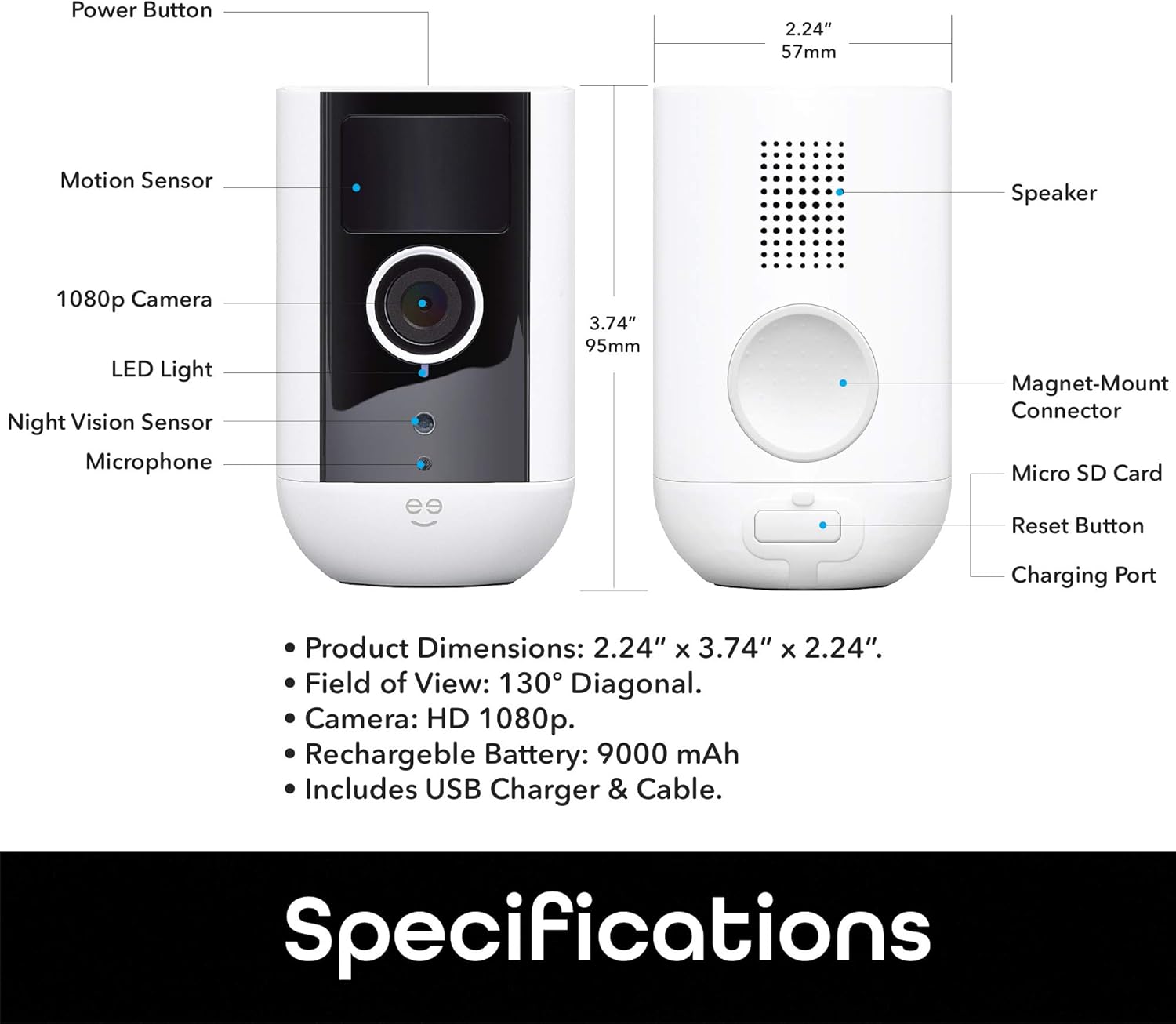
Image: A detailed diagram of the Geeni Freebird camera, labeling its components such as the Power Button, Motion Sensor, 1080p Camera, LED Light, Night Vision Sensor, Microphone, Speaker, Magnet-Mount Connector, Micro SD Card slot, Reset Button, and Charging Port, along with dimensions.
| Feature | Detail |
|---|---|
| Model Name | Freebird |
| Brand | Geeni |
| Recommended Uses | Indoor surveillance, Outdoor surveillance |
| Connectivity Technology | Wireless (2.4GHz Wi-Fi) |
| Video Resolution | 2K HD (Note: Diagram says 1080p, but product title says 2K. Prioritizing product title for overall resolution, but acknowledging diagram for specific camera component label.) |
| Special Features | HD Resolution, Motion Sensor, Night Vision, 2-Way Audio, Magnetic Mount, Weatherproof |
| Rechargeable Battery | 9,000 mAh (Up to 3 months battery life) |
| Field of View | 130° Diagonal |
| Product Dimensions | 2.24" x 3.74" x 2.24" (57mm x 95mm x 57mm) |
| Included | USB Charger & Cable, Mounting Kit |
Warranty and Support
For information regarding product warranty, please refer to the warranty card included with your purchase or visit the official Geeni website. For technical support, frequently asked questions, or to contact customer service, please visit www.geeni.com/support or refer to the contact information provided in the Geeni app.
Ask a question about this manual
Ask about setup, troubleshooting, compatibility, parts, safety, or missing instructions. Manuals+ will review the question and use this page’s manual context to help answer it.