
1. Introduction
The rockspace AC2100 Dual Band WiFi Range Extender is designed to expand your existing WiFi network coverage, eliminate dead zones, and provide a stable, high-speed internet connection throughout your home or office. This device supports both 2.4 GHz and 5 GHz bands, offering versatile connectivity options for various devices.
What's in the Box:
- 1 x rockspace AC2100 WiFi Extender
- 1 x Quick Start Guide

Figure 1: rockspace AC2100 WiFi Range Extender
2. Setup Instructions
The rockspace AC2100 WiFi Range Extender offers two primary methods for setup: WPS (Wi-Fi Protected Setup) and Web Browser Setup.
2.1. WPS Setup (Recommended for quick setup)
- Plug In: Plug the extender into an electrical outlet in the same room as your WiFi router.
- Wait for Power LED: Wait until the Power LED on the extender turns solid blue.
- Press WPS on Router: Press the WPS button on your main WiFi router.
- Press WPS on Extender: Within 2 minutes, press the WPS button on the rockspace extender.
- Observe Signal LED: The Signal LED on the extender will start blinking. Once it turns solid blue, the connection is successful.
- Relocate Extender: Unplug the extender and move it to a location halfway between your router and the WiFi dead zone. Ensure the Signal LED remains solid blue for optimal performance.

Figure 2: Easy setup using the WPS button
2.2. Web Browser Setup
- Plug In: Plug the extender into an electrical outlet in the same room as your WiFi router.
- Connect to Extender's WiFi: On your computer or mobile device, connect to the WiFi network named "rockspace_EXT" or "rockspace_EXT_5G". Do not enter any password.
- Open Web Browser: Open a web browser (e.g., Chrome, Firefox) and type re.rockspace.local or 192.168.0.254 into the address bar.
- Login: Create a new login password when prompted.
- Select Mode: Choose "Repeater Mode" or "Access Point Mode" based on your needs.
- Select Network: Select your existing WiFi network (SSID) from the list and enter its password.
- Confirm Settings: Follow the on-screen instructions to complete the setup. The extender's WiFi name will typically be your original network name with "_EXT" appended.
- Relocate Extender: Unplug the extender and move it to a suitable location. Ensure the Signal LED is solid blue for a good connection.
3. Operating Modes
The rockspace AC2100 WiFi Range Extender supports two main operating modes:
3.1. Repeater Mode (Default)
In Repeater Mode, the extender wirelessly connects to your existing router and amplifies its signal, extending coverage to areas with weak or no signal. This is ideal for eliminating WiFi dead zones.
3.2. Access Point (AP) Mode
In AP Mode, the extender connects to your router via an Ethernet cable and broadcasts a new wireless network. This is ideal for converting a wired network into a wireless one or for providing a dedicated wireless access point in a specific area.

Figure 3: Extender operating in Repeater and Access Point modes
4. Key Features
- Dual-Band Connectivity: Supports both 2.4 GHz (up to 300 Mbps) and 5 GHz (up to 1734 Mbps) bands for a combined speed of up to 2100 Mbps, optimizing WiFi network transmission.
- Extended Coverage: Boosts WiFi signal to wider coverage areas, up to 1292 sq.ft, effectively eliminating WiFi dead zones.
- Smart Signal Switch (4T4R MU-MIMO): Equipped with high-quality PCB dual-band antennas and 4T4R MU-MIMO technology, the repeater automatically selects the high-quality channel for stable, reliable, and fast internet. It switches to networks with stronger signals to keep devices connected even when moving.
- Strong Wall Penetration: Works effectively with optical routers for strong signal penetration on the 5 GHz band, suitable for multi-storey houses or large bungalows.
- Gigabit Ethernet Port: Features a full Gigabit port for high-speed wired connections, allowing you to connect devices like smart TVs, gaming consoles, or Blu-ray players directly for enhanced speeds. Supports IPv6 protocol for smooth HD streaming and gaming.
- Universal Compatibility: Compatible with any wireless WiFi Router, Gateway, or Access Point. Extends WiFi signal to various devices including mobile phones, PCs, and smart home devices.
- Visual Signal Lights: Blue indicates a good connection, while red indicates a weak connection, guiding you to find the perfect location for installation.
- Adjustable Antennas: The upper antennas can rotate by 270 degrees, and the lower ones by 180 degrees, allowing for optimized signal direction.
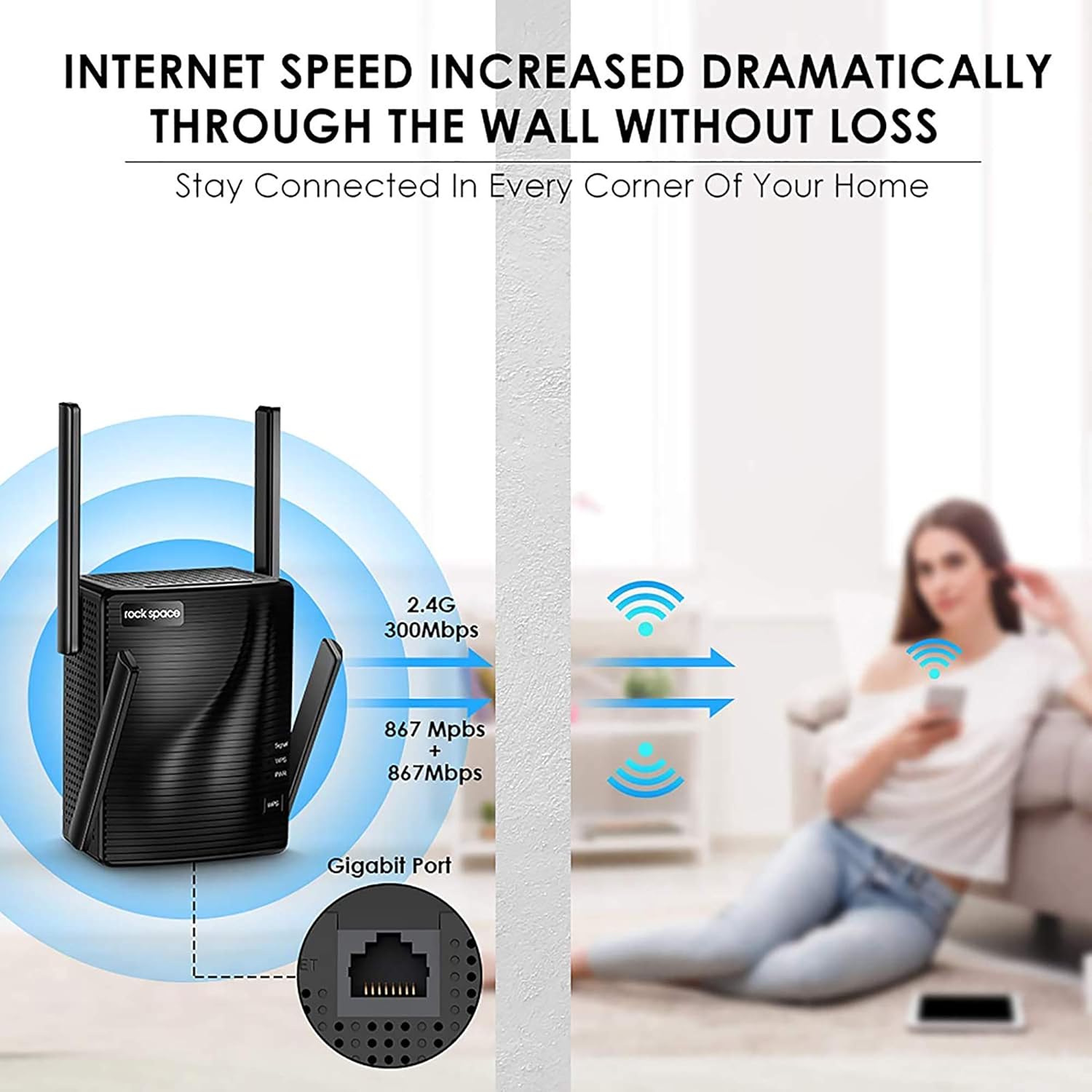
Figure 4: Enhanced internet speed and wall penetration

Figure 5: 4T4R MU-MIMO technology for ultimate Wi-Fi signal
5. Maintenance
- Optimal Placement: For best performance, place the extender in an open area, away from obstructions like large metal objects, thick walls, or other electronic devices that may cause interference.
- Regular Cleaning: Keep the device clean and free from dust to ensure proper ventilation and prevent overheating.
- Firmware Updates: Periodically check the rockspace official website for any available firmware updates to ensure optimal performance and security.
- Resetting the Extender: If you experience persistent issues or wish to reconfigure the extender, you can perform a factory reset. Locate the Reset button (usually a small pinhole) on the device. Use a paperclip or a thin object to press and hold the button for about 8-10 seconds until the LEDs flash. The extender will then reboot with factory default settings.
6. Troubleshooting
- No Internet Access After Setup:
- Check the Signal LED: If it's red, the extender is too far from the router. Relocate it closer.
- Verify Router Password: Ensure you entered the correct WiFi password during setup.
- Restart Devices: Restart your router, extender, and connected devices.
- Weak Signal or Frequent Disconnections:
- Relocate Extender: Move the extender closer to your router or to a more central location.
- Adjust Antennas: Orient the external antennas for better signal reception.
- Check for Interference: Avoid placing the extender near large electronic appliances (microwaves, refrigerators) or metal objects.
- Cannot Access Web Management Page:
- Verify Connection: Ensure your device is connected to the extender's WiFi network (e.g., "rockspace_EXT").
- Clear Browser Cache: Clear your web browser's cache and cookies, or try a different browser.
- Reset Extender: Perform a factory reset if the issue persists.
7. Specifications
| Feature | Detail |
|---|---|
| Brand | rockspace |
| Model Number | RSD0617 |
| Wireless Type | 802.11a/b/g/n |
| Data Transfer Rate | 2100 Megabits Per Second |
| Frequency Band Class | Dual-Band (2.4 GHz & 5 GHz) |
| Coverage Area | Up to 1292 sq.ft |
| Ethernet Port | Gigabit Ethernet Port |
| Antennas | 4 High Performance External Antennas |
| Dimensions (LxWxH) | 4.6 x 4.25 x 5.8 inches |
| Weight | 13.1 ounces |
8. Important Information
8.1. Safety Information
Please be careful when using electricity. Always ensure the device is plugged into a suitable power outlet and avoid overloading circuits.
8.2. Legal Disclaimer
Please note that the Wi-Fi extender only extends the Wi-Fi coverage; it cannot boost the speed of your original router or maintain the exact same speed as the original router.
9. Warranty and Support
For warranty information, technical support, or further assistance, please refer to the contact details provided in your product packaging or visit the official rockspace website. Keep your purchase receipt for warranty claims.
Technical Support Phone: +1-833-816-6558 (EST: 9:00-17:00 / PDT: 06:00-14:00 Monday to Friday)
Email: techsupport@rockspace.cc
Website: www.rockspace.cc


