1. Introduction
This manual provides essential information for the safe and efficient operation of your Panasonic DMP-BD77 Blu-ray Disc Player. Please read these instructions carefully before using the unit and retain them for future reference. The DMP-BD77 offers high-quality Blu-ray playback, DVD playback, CD playback, Wi-Fi connectivity, and streaming video-on-demand (VOD) content access, featuring ultra-fast booting and loading times.
2. Safety Information
- Do not expose this unit to rain or moisture.
- Do not remove the cover. Refer servicing to qualified personnel only.
- Ensure proper ventilation around the unit to prevent overheating.
- Avoid placing the unit on unstable surfaces.
- Use only the specified power supply.
- Keep batteries out of reach of children.
3. Setup
3.1 Unpacking
Carefully remove the Blu-ray Disc player and all accessories from the packaging. Verify that all components are present:
- Panasonic DMP-BD77 Blu-ray Disc Player
- Remote Control
- AA Batteries (2)
- Power Cord
- Instruction Manual (this document)
3.2 Connecting to a Television
For optimal video and audio quality, connect the Blu-ray Disc player to your television using an HDMI cable (not included).
- Connect one end of the HDMI cable to the HDMI OUT port on the rear of the DMP-BD77.
- Connect the other end of the HDMI cable to an available HDMI INPUT port on your television.
- Note the HDMI input number on your TV for later selection.
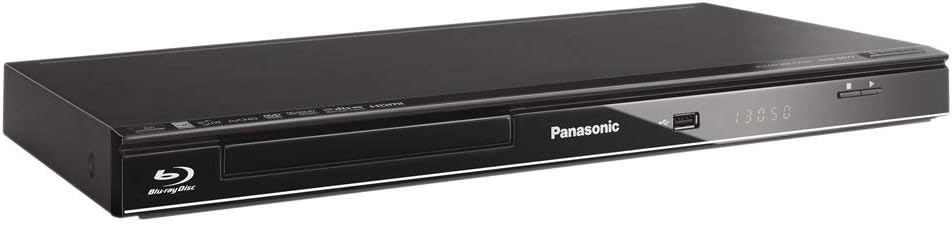
Figure 3.2.1: Angled view of the Panasonic DMP-BD77 Blu-ray Disc Player, illustrating the compact design and front panel layout. This view helps identify the disc tray and front USB port.
3.3 Power Connection
Connect the power cord to the AC IN terminal on the rear of the player, then plug the other end into a wall outlet.
3.4 Network Connection (Wi-Fi)
The DMP-BD77 supports Wi-Fi connectivity for accessing streaming services and firmware updates.
- After initial power-on, navigate to the "Network Settings" menu.
- Select "Wireless Connection" and follow the on-screen prompts to scan for available Wi-Fi networks.
- Select your network and enter the password if required.
3.5 Initial Setup Wizard
Upon first power-on, the unit will guide you through an initial setup wizard. This includes language selection, video output settings, and network configuration. Follow the on-screen instructions to complete the setup.
4. Operating Instructions
4.1 Basic Disc Playback
- Press the POWER button on the unit or remote control to turn on the player.
- Press the OPEN/CLOSE button to open the disc tray.
- Place a Blu-ray Disc, DVD, or CD onto the disc tray with the label side facing up.
- Press the OPEN/CLOSE button again to close the disc tray.
- Playback will typically begin automatically. If not, select PLAY from the on-screen menu or press the PLAY button on the remote control.

Figure 4.1.1: Front view of the Panasonic DMP-BD77 Blu-ray Disc Player, showing the disc tray, display, and basic controls. This image highlights the sleek design and accessible front panel.
4.2 Using the Remote Control
The included remote control provides full functionality for your Blu-ray Disc player. Insert the two AA batteries into the remote control, ensuring correct polarity.

Figure 4.2.1: The remote control for the Panasonic Blu-ray Disc Player, featuring dedicated buttons for power, disc tray, navigation, playback controls, and streaming services like Netflix.
Key remote control functions:
- POWER: Turns the unit on or off.
- OPEN/CLOSE: Opens and closes the disc tray.
- PLAY, PAUSE, STOP, SKIP: Standard playback controls.
- NAVIGATION (Arrow buttons, OK): Used to navigate menus and make selections.
- HOME: Accesses the player's main menu.
- NETFLIX: Direct access button for the Netflix streaming service.
4.3 Streaming VOD Content
With a stable internet connection via Wi-Fi, you can access various streaming video-on-demand services. Navigate to the "Network" or "VOD" section from the Home menu to select your desired service. You may need to log in with your account credentials for each service.
4.4 Ultra-Fast Booting and Loading
The DMP-BD77 is designed for quick startup and disc loading. To utilize the ultra-fast booting feature, ensure the unit is in standby mode (not completely powered off from the wall). Disc loading times are optimized for a seamless viewing experience.
5. Maintenance
5.1 Cleaning the Unit
Wipe the exterior of the unit with a soft, dry cloth. Do not use liquid or aerosol cleaners, as they may damage the finish or internal components. Avoid blocking ventilation openings.
5.2 Disc Handling
- Handle discs by their edges to avoid fingerprints and scratches.
- Clean discs with a soft, lint-free cloth, wiping from the center outwards.
- Store discs in their cases when not in use.
6. Troubleshooting
| Problem | Possible Cause | Solution |
|---|---|---|
| No power | Power cord not securely connected. | Check power cord connection to the unit and wall outlet. |
| No picture or sound | Incorrect TV input selected; HDMI cable loose or faulty. | Select the correct HDMI input on your TV. Ensure HDMI cable is securely connected. |
| Disc does not play | Disc is dirty, scratched, or incompatible format. | Clean the disc. Try a different disc. Ensure the disc format is supported (Blu-ray, DVD, CD). |
| Cannot connect to Wi-Fi | Incorrect password; router too far; network issue. | Verify Wi-Fi password. Move player closer to router or check router status. |
| Remote control not working | Batteries depleted or inserted incorrectly. | Replace batteries with new AA batteries, ensuring correct polarity. |
7. Specifications
| Feature | Detail |
|---|---|
| Model | DMP-BD77 |
| Dimensions (W x D x H) | 16.9 x 7.9 x 1.5 inches (approx.) |
| Weight | 4.55 pounds (approx.) |
| Media Type | Blu-Ray Disc, DVD, CD |
| Connectivity | HDMI, Wi-Fi |
| Audio Output Mode | Surround |
| Supported Audio Format | Dolby Digital |
| Surround Sound Channel Configuration | 5.1 |
| Power Supply | AC 120V, 60Hz (North America) |
| Included Accessories | Remote control, 2 AA batteries, Power cord |
8. Warranty and Support
For warranty information and customer support, please refer to the warranty card included with your product or visit the official Panasonic support website. Keep your purchase receipt as proof of purchase for warranty claims.
Online resources may include:
- Frequently Asked Questions (FAQs)
- Driver and firmware updates
- Contact information for technical assistance


