Introduction
This manual provides detailed instructions for the operation and maintenance of your ZOSHING 14-inch Portable TV (Model: NS-1139). This device features a 14-inch HD LED screen, a built-in ATSC digital TV tuner for free over-the-air broadcasts, and versatile power options (AC/DC 12V) for use in various environments, including home, RV, camping, and outdoor settings. Please read this manual thoroughly before using the product to ensure proper function and longevity.

Image: The ZOSHING 14-inch Portable TV, showcasing its screen, included remote control, and a small antenna. The screen displays a vibrant, colorful pattern.
Package Contents
Verify that all items are present in the package:
- 1x Portable TV
- 1x AC Adapter
- 1x Car Charger
- 1x TV Antenna
- 1x Remote Control
- 1x Holder (Stand)
- 1x User Guide (English)
Setup
1. Power Connection
The ZOSHING Portable TV supports both AC and DC 12V power inputs. Choose the appropriate power source for your environment.
- AC Power: Connect the provided AC adapter to the "DC 12V in" port on the TV and then plug it into a standard wall outlet (AC110-240V).
- DC 12V Power (Car/RV): Connect the provided car charger adapter to the "DC 12V in" port on the TV and then plug it into your vehicle's 12V power socket.
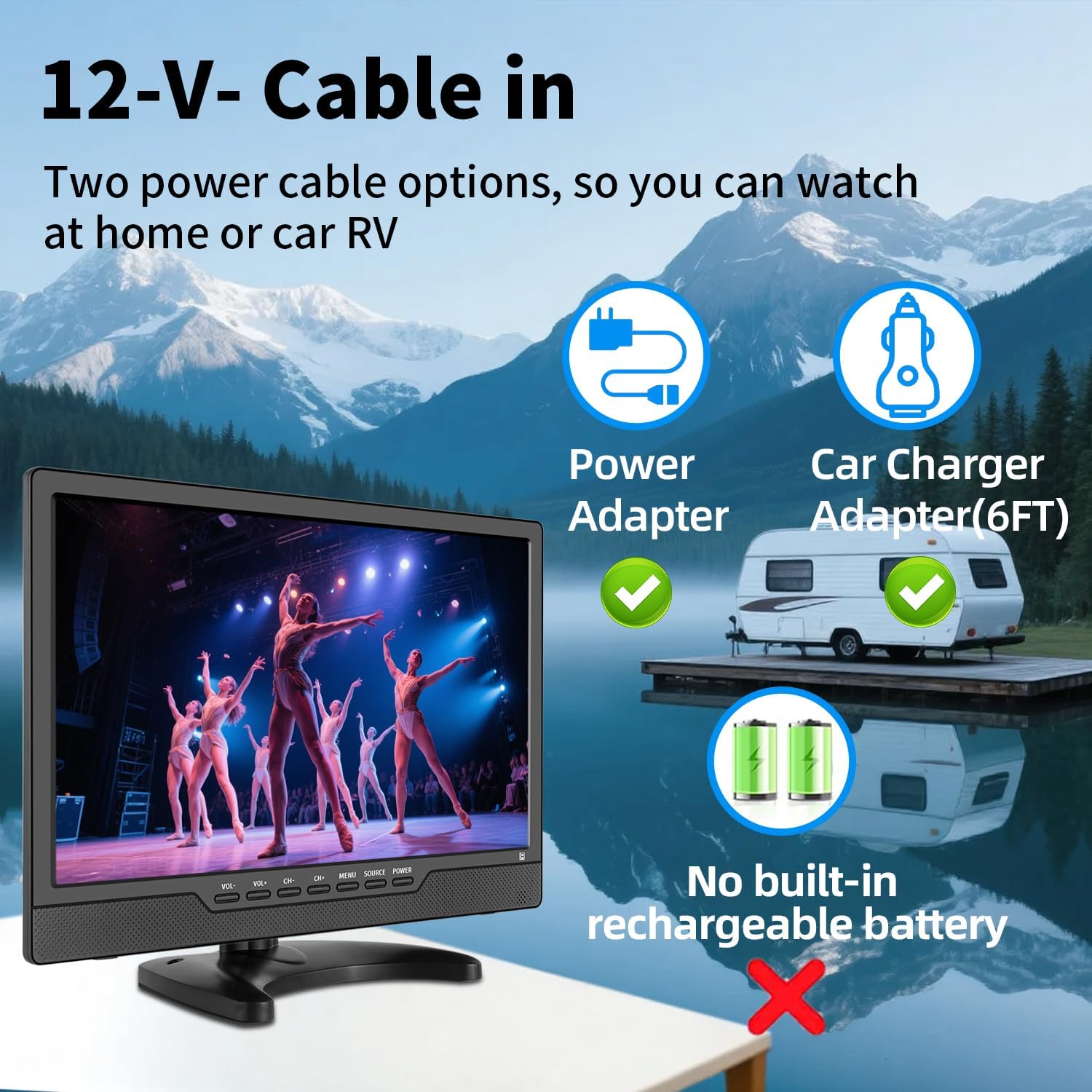
Image: Diagram illustrating the two power options for the ZOSHING Portable TV: a power adapter for home use and a car charger adapter for vehicle use. The image also clarifies that the TV does not have a built-in rechargeable battery.
Note: This TV does not include a built-in rechargeable battery. It requires continuous power from an external source.
2. Antenna Connection
To receive over-the-air digital TV channels, connect the included TV antenna to the "RF" input port on the back of the TV.
- For optimal reception, position the antenna in an area with clear line of sight to broadcast towers.
- If local signal coverage is weak, a stronger outdoor antenna may be required.

Image: The ZOSHING Portable TV connected to a small indoor antenna, demonstrating how to receive free local HD channels. An illustration of a larger outdoor antenna is shown in the background, with a note about checking TV signal coverage and considering a stronger antenna if needed.
3. Initial Setup Wizard
Upon first power-on, the TV will guide you through an initial setup wizard. Follow the on-screen prompts to select your language, antenna type, and perform an automatic channel scan. This process typically takes a few minutes.
4. Connecting External Devices
The TV features multiple input ports for connecting external devices:
- HDMI In: Connect gaming consoles, DVD players, streaming devices (e.g., TV sticks), or other HDMI-enabled devices.
- AV In: Connect older devices such as VCRs, some cameras, or security CCTV systems using RCA cables.
- USB/TF Port: Insert a USB drive or TF (microSD) card (up to 32GB) to play stored videos, music, or view photos.
- 3.5mm Headphone Out: Connect headphones for private listening.

Image: Rear view of the ZOSHING Portable TV, highlighting various input and output ports: DC 12V in, OFF/ON switch, 3.5mm Headphone out, AV in, HDMI in, RF (antenna) input, and built-in speakers.
Operating Instructions
1. Power On/Off
- Use the physical ON/OFF switch located on the back of the TV to power the unit.
- Once powered on, use the remote control or the front panel buttons to turn the screen on/off or put it into standby mode.
2. Remote Control Functions
The included remote control provides full functionality for navigating menus, changing channels, adjusting volume, and selecting input sources.
- VOL +/-: Adjust volume.
- CH +/-: Change channels.
- MENU: Access the main menu for settings adjustments.
- SOURCE: Switch between input sources (TV, HDMI, AV, USB/TF).
- ENTER/OK: Confirm selections.
- Directional Buttons: Navigate through menus.

Image: The ZOSHING Portable TV displaying content, with its dedicated remote control shown in the foreground. A separate streaming device remote is also pictured, indicating that two remotes may be needed when using an external streaming stick.
Note: If using an external streaming device (e.g., TV stick) connected via HDMI, you may need to use both the TV's remote and the streaming device's remote for full control.
3. Media Playback (USB/TF)
Insert a USB flash drive or TF card into the respective port. Select the USB or TF source from the input menu. The TV supports various media formats:
- Video: AVI, MOV, MPEG 1/2/3/4, XVID, AVC, MP4, H.264, HEVC (H.265), FLV, MKV, WMV, RMVB, 3GP
- Audio: MP3, WMA, M4A, AAC
- Image: JPG, JPEG, BMP, PNG
- Text: TXT

Image: The ZOSHING Portable TV displaying a scenic image, with icons and text indicating its compatibility with multiple media formats including video (AVI, MP4, MOV, MKV, etc.), audio (MP3, WMA, M4A, AAC), images (JPG, BMP, PNG), and text files, accessible via the USB port.
Maintenance
- Cleaning: Use a soft, dry cloth to clean the screen and exterior of the TV. For stubborn marks, slightly dampen the cloth with water. Avoid harsh chemicals or abrasive cleaners.
- Storage: When not in use for extended periods, store the TV in a cool, dry place, away from direct sunlight and extreme temperatures.
- Ventilation: Ensure the ventilation openings on the TV are not blocked to prevent overheating.
- Power Disconnection: Always disconnect the power adapter from the wall outlet or car socket when cleaning or moving the TV.
Troubleshooting
No Power
- Ensure the AC adapter or car charger is securely connected to both the TV and the power source.
- Verify that the power outlet or car socket is functional.
- Check the ON/OFF switch on the back of the TV is in the "ON" position.
No Signal / Poor Picture Quality (TV Mode)
- Ensure the antenna is properly connected to the "RF" input.
- Adjust the antenna's position for better reception. Try moving it closer to a window or higher up.
- Perform a channel scan again through the TV's menu.
- Check local signal coverage in your area. A stronger outdoor antenna may be necessary if signals are weak.
No Sound
- Increase the volume using the remote control or front panel buttons.
- Check if the TV is muted. Press the MUTE button on the remote.
- If headphones are connected, disconnect them to check speaker output.
Remote Control Not Responding
- Ensure there are no obstructions between the remote and the TV's IR sensor.
- Replace the batteries in the remote control.
Cannot Play Media from USB/TF
- Ensure the USB drive or TF card is properly inserted.
- Verify that the media files are in a supported format (refer to "Media Playback" section).
- Check if the USB drive or TF card is formatted correctly (FAT32 is generally recommended).
- The maximum supported capacity for USB/TF is 32GB.
Specifications
| Brand | ZOSHING |
| Model Number | NS-1139 |
| Display Size | 14 Inches (36 cm visible screen diagonal) |
| Display Technology | LCD Widescreen |
| Resolution | 1366 x 768 (768p) |
| Aspect Ratio | 16:9 |
| Refresh Rate | 60 Hz |
| Tuner | Built-in ATSC and NTSC |
| Connectivity | HDMI, AV input, RF (Antenna), USB, TF Card, 3.5mm Headphone Out |
| Speaker Type | Dual Speaker |
| Power Source | AC110-240V, DC-12V |
| On-mode Power Consumption | 12.0 Watts |
| Product Dimensions (L x W x H) | 11.42 x 0.98 x 7.28 inches (approx. 29 x 2.5 x 18.5 cm) |
| Item Weight | 4.62 pounds (approx. 2.1 kg) |
| Color | Black |

Image: A diagram illustrating the dimensions of the ZOSHING 14-inch Portable TV, showing its width as 336mm (13.23 inches) and height as 223mm (8.78 inches), with the screen size indicated as 14 inches.
Warranty and Support
Specific warranty details are typically provided with your purchase documentation or on the manufacturer's official website. For technical support, troubleshooting assistance beyond this manual, or warranty claims, please contact ZOSHING customer service through the retailer where the product was purchased or refer to the contact information provided in your product packaging.
Please retain your proof of purchase for warranty purposes.


