
CHAMBERLAIN MYQ-G0401-ES
CHAMBERLAIN Smart Garage Control User Manual
Model: MYQ-G0401-ES
Introduction
The CHAMBERLAIN Smart Garage Control system provides a convenient way to manage your garage door from anywhere using your smartphone. This wireless hub and sensor kit connects to your existing garage door opener, offering enhanced security and control features.
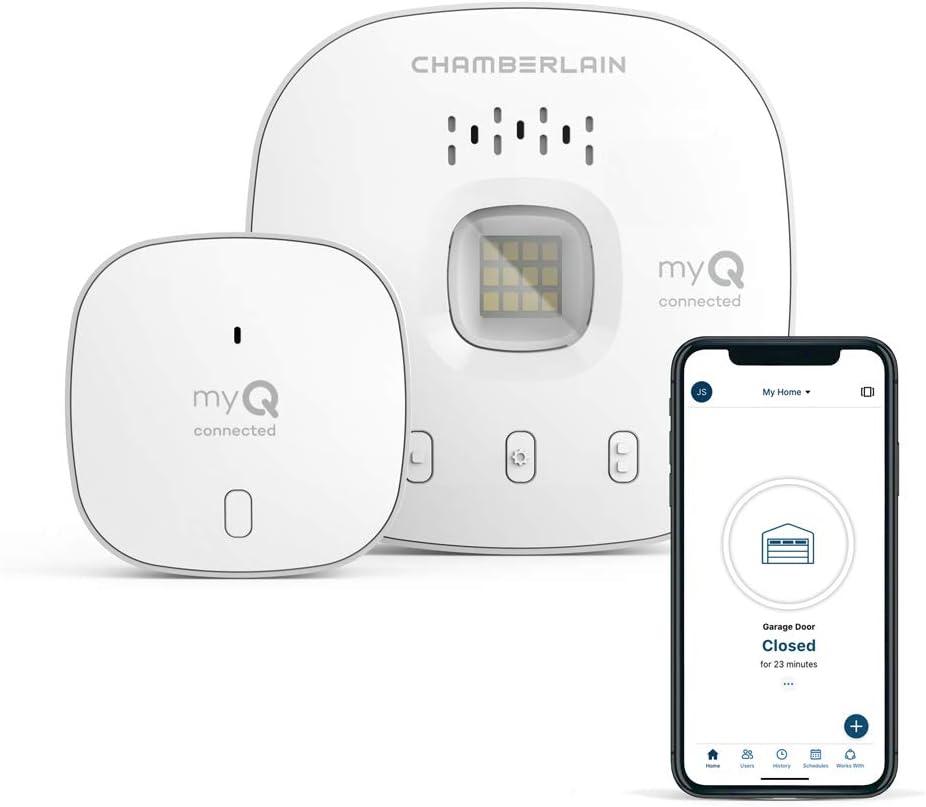
Image: The CHAMBERLAIN Smart Garage Control hub, a door sensor, and a smartphone displaying the myQ app interface, showing the garage door status as 'Closed'.
What's in the Box
- Smart Garage Control Hub
- Door Sensor
- Mounting Plate
- Power Adapter
- Anchors and Screws for Hub
- Screws for Door Sensor
- Hook and Loop Adhesive Strips for Door Sensor
- Warning Placard

Image: A detailed diagram illustrating the contents of the product box, including the Wi-Fi hub, door sensor, mounting plate, power adapter, screws, and warning placard.
Setup Guide
Follow these steps to set up your CHAMBERLAIN Smart Garage Control:
1. Download the myQ App
Download the free myQ app from your smartphone's app store (available for iPhone and Android). Create an account or sign in if you already have one. Ensure Bluetooth is enabled on your phone for initial setup.

Image: A woman in a car looking concerned, with a smartphone displaying the myQ app asking if the garage door is closed, highlighting a common user concern.
2. Power Up the Hub
Plug the Smart Garage Control Hub into any standard wall outlet in your garage. The light on the hub should start blinking blue, indicating it's ready for pairing.
3. Pair the Hub with the App
In the myQ app, select 'Smart Garage Hub' from the device setup options. The app will search for and discover your hub. Follow the on-screen prompts to pair the hub via Bluetooth and connect it to your home's 2.4 GHz Wi-Fi network. Ensure you have a strong Wi-Fi signal in your garage.
4. Install the Door Sensor
Remove the battery tab from the door sensor. Push the button on the sensor once; a red light should appear. Attach the door sensor to the top panel of your garage door using the provided hook and loop adhesive strips or screws. Ensure the 'TOP' indicator on the sensor faces upwards.
5. Pair the Door Sensor to the Hub
Press the button on the door sensor again and immediately press the learn button on the Smart Garage Control Hub. The hub's light should flash, indicating successful pairing between the sensor and the hub.
6. Connect to your Garage Door Opener
In the myQ app, select the brand of your garage door opener from the provided list. Locate the learn/program button on your garage door opener (its location and color may vary by brand and model). Press and release this button (like a doorbell) to sync your opener with the myQ system. The app will confirm successful pairing.
7. Test and Name Your Garage Door
Once paired, test the functionality by opening and closing your garage door through the app. You will hear a series of loud beeps and see a flashing light from the hub before the door closes, serving as a safety alert. Finally, give your garage door a custom name in the app for easy identification.

Image: A chart detailing compatibility of the myQ Smart Garage Control with different garage door opener brands like Chamberlain, Craftsman, LiftMaster, Genie, Overhead Door, Raynor, Stanley, and Wayne Dalton, along with specific requirements and exclusions.
Operating Your Smart Garage Control
Remote Access
Open or close your garage door from anywhere using the myQ app. This feature is ideal for granting access to family, friends, or service personnel when you're away.

Image: A woman outdoors, looking at her smartphone and controlling her garage door remotely, emphasizing the convenience of the myQ app.
Real-Time Alerts
Receive instant notifications on your smartphone whenever your garage door opens or closes, providing peace of mind and enhanced security.
Scheduling
Set custom schedules for your garage door, such as automatically closing it at a specific time every night. This ensures your garage is never left open unintentionally.

Image: A smartphone displaying the myQ app's scheduling interface, showing an option to set the garage door to close at a specific time, such as 9:30 PM.
Amazon Key In-Garage Delivery
For eligible Amazon Prime members, the system integrates with Amazon Key for secure in-garage package delivery. Packages are placed safely inside your garage, reducing the risk of theft.

Image: An Amazon delivery driver placing packages inside an open garage, illustrating the convenience and security of in-garage delivery via Amazon Key integration.
Specifications
- Brand: CHAMBERLAIN
- Model: MYQ-G0401-ES
- Dimensions (L x W x H): 2.6 x 2.6 x 0.8 inches
- Item Weight: 13.1 ounces
- Mounting Type: Ceiling Mount (for hub)
- Output Type: Push Button
- Upper Temperature Rating: 65 Degrees Celsius
- UPC: 012381195473
- Batteries: 1 Lithium Metal battery required (included for sensor)
- Connectivity: 2.4 GHz Wi-Fi (802.11 B/G/N), Bluetooth
- Compatibility: Most garage door openers manufactured after 1993 with standard safety sensors.
Maintenance
To ensure optimal performance and longevity of your Smart Garage Control system, consider the following:
- Cleaning: Periodically wipe down the hub and sensor with a soft, dry cloth to remove dust and debris.
- Sensor Battery: The door sensor is battery-powered. If the sensor's red LED does not light up when pressed, or if you experience inconsistent readings, the battery may need replacement. Refer to the user manual for specific battery replacement instructions.
- Connectivity: Ensure your Wi-Fi router is within 50 feet of the Smart Garage Control hub for a strong and stable connection.
Troubleshooting
If you encounter issues with your Smart Garage Control, consider these common solutions:
- No Connection: Verify that the hub is properly plugged into a working outlet and its light is blinking blue. Check your Wi-Fi network status and ensure your phone's Bluetooth is enabled during setup.
- Door Not Responding: Confirm that the door sensor is correctly installed with the 'TOP' facing up and its battery is functional. Ensure the hub is within range of your garage door opener and that the opener's learn button was successfully paired.
- App Issues: Try restarting the myQ app or reinstalling it. Ensure your smartphone's operating system is up to date.
- Compatibility: Double-check your garage door opener's compatibility with the myQ system, especially regarding safety sensors and manufacturing date.
Warranty & Support
For detailed warranty information and further support, please refer to the official User Manual provided with your product or visit the CHAMBERLAIN website.
You can access the User Manual (PDF) here.
Related documentsMYQ-G0401-ES


Ask a question about this manual
Ask about setup, troubleshooting, compatibility, parts, safety, or missing instructions. Manuals+ will review the question and use this page’s manual context to help answer it.