1. Product Overview
The SmartSee 4K/1080P Dual Band Wireless Display Receiver is designed to mirror content from your mobile devices (iOS, Android, Mac, Windows) to a larger display such as an HDTV, projector, or monitor. It supports 4K and 1080P resolutions and operates on both 2.4GHz and 5GHz Wi-Fi bands for stable and high-speed transmission. This device is compatible with Miracast, AirPlay, and DLNA protocols.
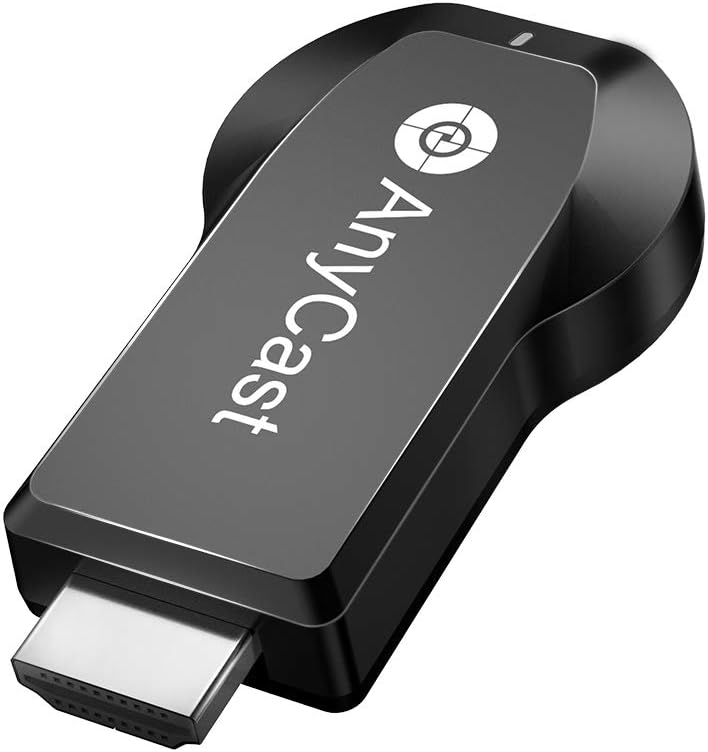
Image: The SmartSee Wireless Display Receiver, a compact black dongle with an HDMI connector on one end and a micro-USB port for power, featuring the 'AnyCast' logo.
2. Setup Instructions
2.1 Package Contents
- 1 x SmartSee HD Wireless Display Adapter
- 1 x WiFi Antenna Cable (with USB power connector)
- 1 x English User Manual
2.2 Hardware Connection
- Connect to Display: Plug the SmartSee Wireless Display Adapter directly into an available HDMI port on your TV, projector, or monitor.
- Connect Power: Connect the USB end of the WiFi Antenna Cable to a USB power adapter (minimum 5V/1A, not included) or a USB port on your display that provides sufficient power. Connect the micro-USB end of the cable to the adapter. Ensure the adapter receives stable power.
- Select HDMI Input: Use your display's remote control to select the corresponding HDMI input source to which the adapter is connected. You should see the SmartSee setup screen.

Image: A diagram illustrating the connection process: 1. Connect the WiFi antenna cable to the AnyCast dongle. 2. Plug the USB power cable into a 5V/1A power source. 3. Insert the AnyCast dongle into an HDMI port on the display. 4. Select the correct HDMI input on the display.
2.3 Initial Setup (Connecting to Wi-Fi)
Once connected, the display will show a setup screen with the device's Wi-Fi name (SSID) and password. You will need to connect your mobile device to this Wi-Fi network first to configure the adapter.
- Connect Mobile Device: On your smartphone, tablet, or laptop, go to Wi-Fi settings and connect to the Wi-Fi network displayed on your TV screen (e.g., "AnyCast-XXXX"). Enter the password if prompted.
- Access Web Interface: Open a web browser on your mobile device and enter the IP address shown on the TV screen (e.g., 192.168.49.1). This will open the adapter's settings page.
- Connect to Home Wi-Fi: On the settings page, select "Internet" or "Wi-Fi Setup." Choose your home Wi-Fi network from the list and enter its password. The adapter will then connect to your home Wi-Fi network.
- Confirm Connection: Once connected, the adapter's setup screen on your TV will update to show it's connected to your home Wi-Fi. Your mobile device will automatically reconnect to your home Wi-Fi.
3. Operating Instructions
The SmartSee Wireless Display Receiver supports AirPlay for iOS/macOS, Miracast for Android/Windows, and DLNA for various devices. No manual mode switching is required.
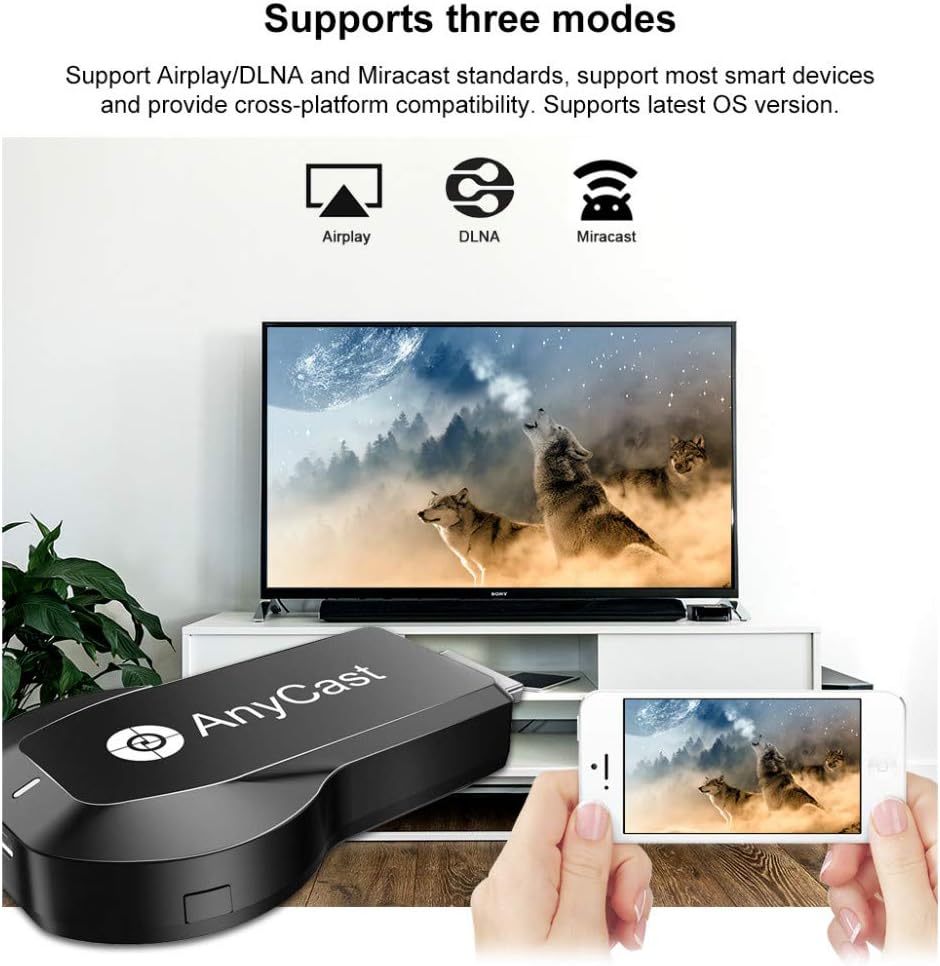
Image: An illustration showing the SmartSee Wireless Display Receiver supporting three modes: Airplay, DLNA, and Miracast, with a smartphone mirroring content to a TV.
3.1 Screen Mirroring for iOS Devices (AirPlay)
For iPhone, iPad, and Mac devices:
- Ensure your iOS device is connected to the same Wi-Fi network as the SmartSee adapter.
- Swipe down from the top-right corner (or up from the bottom for older models) to open Control Center.
- Tap on "Screen Mirroring" or "AirPlay Mirroring."
- Select the SmartSee adapter from the list of available devices (e.g., "AnyCast-XXXX").
- Your iOS device screen will now be mirrored to the connected display.
3.2 Screen Mirroring for Android Devices (Miracast/Google Home)
For Android smartphones and tablets (Android 4.4 and above):
- Ensure your Android device is connected to the same Wi-Fi network as the SmartSee adapter.
- Access the screen mirroring feature on your Android device. This feature may be named differently depending on the device manufacturer (e.g., "Smart View," "Screen Cast," "Wireless Display," "MirrorShare," "Cast"). It is usually found in the quick settings panel or display settings.
- Select the SmartSee adapter from the list of available devices.
- Your Android device screen will now be mirrored to the connected display.
- Alternatively, you can download the "EZMira" app for direct mirroring.
3.3 Screen Mirroring for Windows Devices
For Windows laptops/tablets (Windows 8.1 and above, Miracast enabled):
- Ensure your Windows device is connected to the same Wi-Fi network as the SmartSee adapter.
- Press the Windows key + P on your keyboard.
- Select "Connect to a wireless display" or "Duplicate/Extend" and then choose the SmartSee adapter from the list.
- Your Windows device screen will now be mirrored or extended to the connected display.

Image: A meeting room setting where a tablet is mirroring a presentation to a large screen via the SmartSee Wireless Display Receiver, demonstrating its use for business or educational purposes.
3.4 Important Notes on Content Compatibility
The SmartSee Wireless Display Receiver is designed for general screen mirroring. It is not compatible with applications that have protocol protection (DRM), such as Netflix, Amazon Video, HBO Go, Hulu Plus, Sky Go, or DIRECTV. These applications typically block mirroring to external displays.
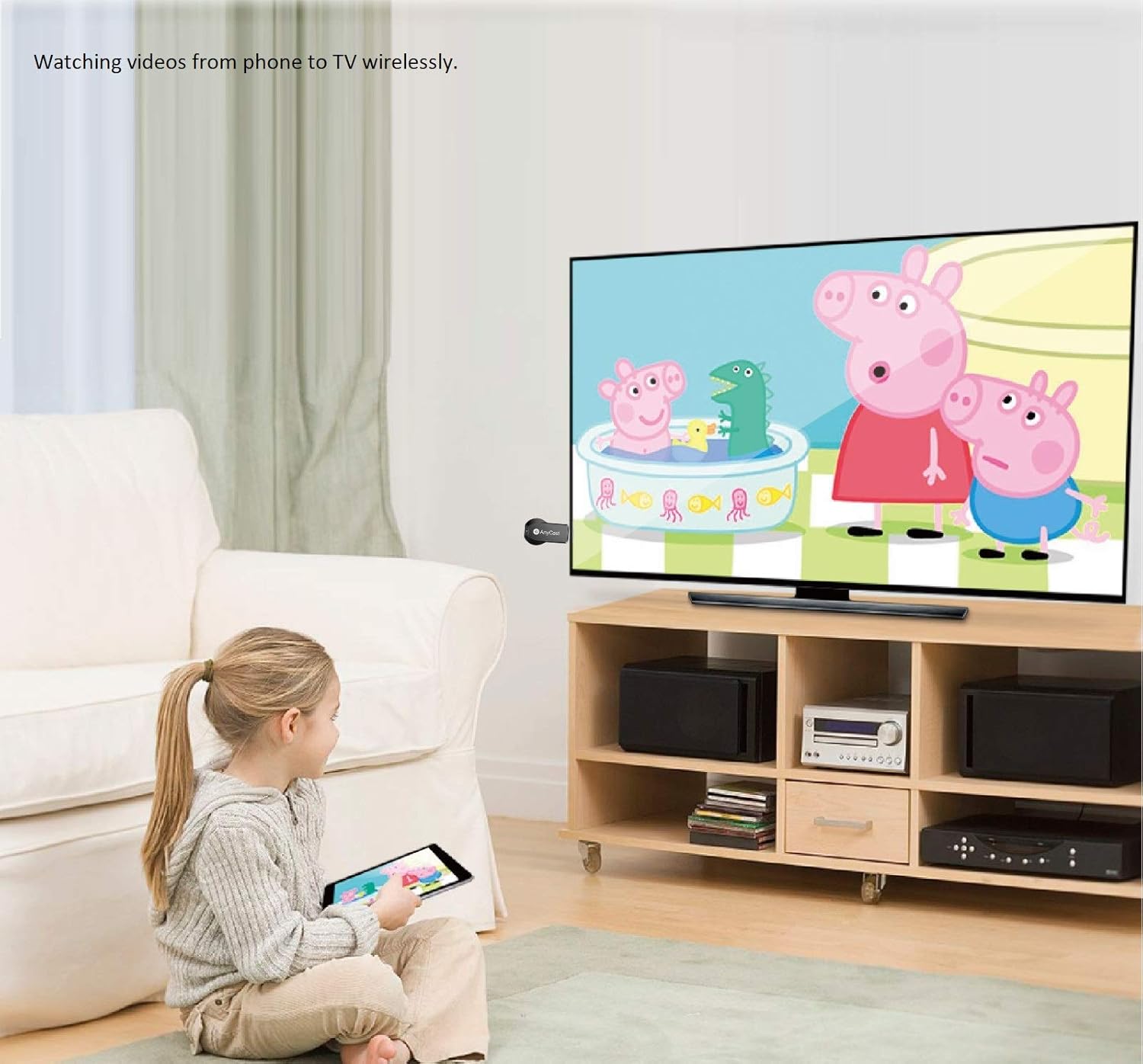
Image: A child sitting on the floor, holding a tablet, watching a cartoon mirrored wirelessly from the tablet to a television screen using the SmartSee Wireless Display Receiver.
4. Maintenance
4.1 Firmware Updates (OTA)
The SmartSee Wireless Display Receiver supports Over-The-Air (OTA) firmware updates. When connected to your home Wi-Fi network, the device will automatically check for and install the latest firmware to ensure compatibility with the newest versions of iOS, Android, and Windows operating systems and to add new features or improvements.
4.2 Care and Handling
- Keep the device in a dry environment and avoid exposure to extreme temperatures.
- Do not attempt to disassemble or modify the device, as this will void any potential warranty.
- Clean the device with a soft, dry cloth. Avoid using liquid cleaners.
5. Troubleshooting
5.1 Common Issues and Solutions
| Issue | Possible Cause | Solution |
|---|---|---|
| No display on TV/monitor | Incorrect HDMI input selected; insufficient power; loose connection. | Ensure the correct HDMI input is selected. Verify the USB power adapter provides at least 5V/1A. Check all cable connections. |
| Cannot connect to adapter's Wi-Fi | Incorrect password; device too far from adapter. | Double-check the Wi-Fi password displayed on the TV. Move your mobile device closer to the adapter. |
| Mirroring is laggy or unstable | Weak Wi-Fi signal; network congestion; distance from router. | Ensure the adapter is connected to a 5GHz Wi-Fi network if available for better performance. Reduce distance between the adapter, router, and mirroring device. Minimize other network activity. |
| Cannot mirror protected content (e.g., Netflix) | DRM (Digital Rights Management) restrictions. | This is expected behavior. The adapter cannot bypass DRM protection. Use the native app on your smart TV or a dedicated streaming device for such content. |
| Android Miracast not working | Device not Miracast-enabled; software issue. | Verify your Android device supports Miracast. Try restarting both the adapter and your Android device. Consider using the EZMira app. |
6. Specifications
6.1 Technical Specifications
| Feature | Detail |
|---|---|
| Model Name | Dongle (2.4G&5G) |
| Color | Black |
| Connectivity Technology | Wi-Fi 802.11ac (2.4 GHz/5 GHz Dual Band) |
| Resolution Support | Up to 4K (3840x2160) and 1080P |
| Video Decoder | H.265/HEVC |
| Supported Protocols | Miracast, AirPlay, DLNA |
| Supported Operating Systems | Android 4.4+, iOS 9.0+, MacOS 10+, Windows 8.1+ (Miracast enabled) |
| Power Input | 5V/1A (via Micro-USB) |
| Dimensions | Approximately 6.06 x 3.98 x 1.22 inches |
| Weight | Approximately 2 ounces |
7. Warranty and Support
7.1 Warranty Information
Please refer to the retailer's return policy or any included warranty card for specific warranty details. Protection plans may be available for purchase separately.
7.2 Customer Support
For further assistance or technical support, please contact SmartSee customer service through the retailer's platform or the contact information provided with your purchase. Ensure you have your product model and purchase details ready.


