1. Introduction
This user manual provides comprehensive instructions for the installation, operation, and maintenance of your AMOCAM 7-inch Wired Video Door Phone Doorbell Kit. This system is designed to enhance security and convenience for villas, houses, offices, and apartments by allowing you to see, hear, and speak to visitors before granting access.
1.1. Product Overview
The AMOCAM Video Intercom System includes a 7-inch color LCD indoor monitor and an outdoor HD camera unit. It supports essential functions such as answering calls, monitoring the outdoor area, and unlocking doors. The system facilitates dual-way intercom communication and features a mute function for privacy.

Figure 1.1: AMOCAM Video Intercom System, showing the outdoor camera unit and the indoor monitor.
1.2. What's in the Box
Upon unboxing your AMOCAM Video Intercom System, please verify that all the following components are included:
- Doorbell (Outdoor Camera Unit)
- Monitor (Indoor Display Unit)
- Power supply
- Connection cable
- Accessories (including mounting hardware and wiring connectors)
Video 1.1: Unboxing and initial setup overview of the AMOCAM Video Intercom System.
2. Key Features
- Dual-Way Intercom: Communicate with visitors at your door from the indoor monitor.
- Remote Unlocking: Easily unlock the door for visitors directly from the indoor monitor (requires compatible electronic lock).
- Night Vision: Equipped with IR LED lights, the outdoor camera provides clear images even in low-light conditions or darkness.
- Durable Design: The outdoor unit features an aluminum alloy shell with a rain cover, offering protection against vandalism and weather elements (rainproof and anti-vandal).
- 7-inch LCD Monitor: A large, clear display with touch-key design for intuitive operation.
- Multiple Ringtones: Choose from 24 selectable ringtones.
- Monitoring Function: View the outside area at any time using the indoor monitor.
- Wired Connection: Ensures stable and clear vision for home security.

Figure 2.1: Visual representation of the system's core features, including HD camera, IR night vision, two-way intercom, one-key unlock, wide 92-degree view, and rainproof design.

Figure 2.2: The indoor monitor features a touch-key design for easy and modern operation.
3. Setup and Installation
The AMOCAM Video Intercom System is designed for surface mounting and uses a 4-wired connection for stability. Please follow these steps carefully for proper installation.
3.1. Component Identification
Before installation, familiarize yourself with the outdoor unit's components and the indoor monitor's connections.
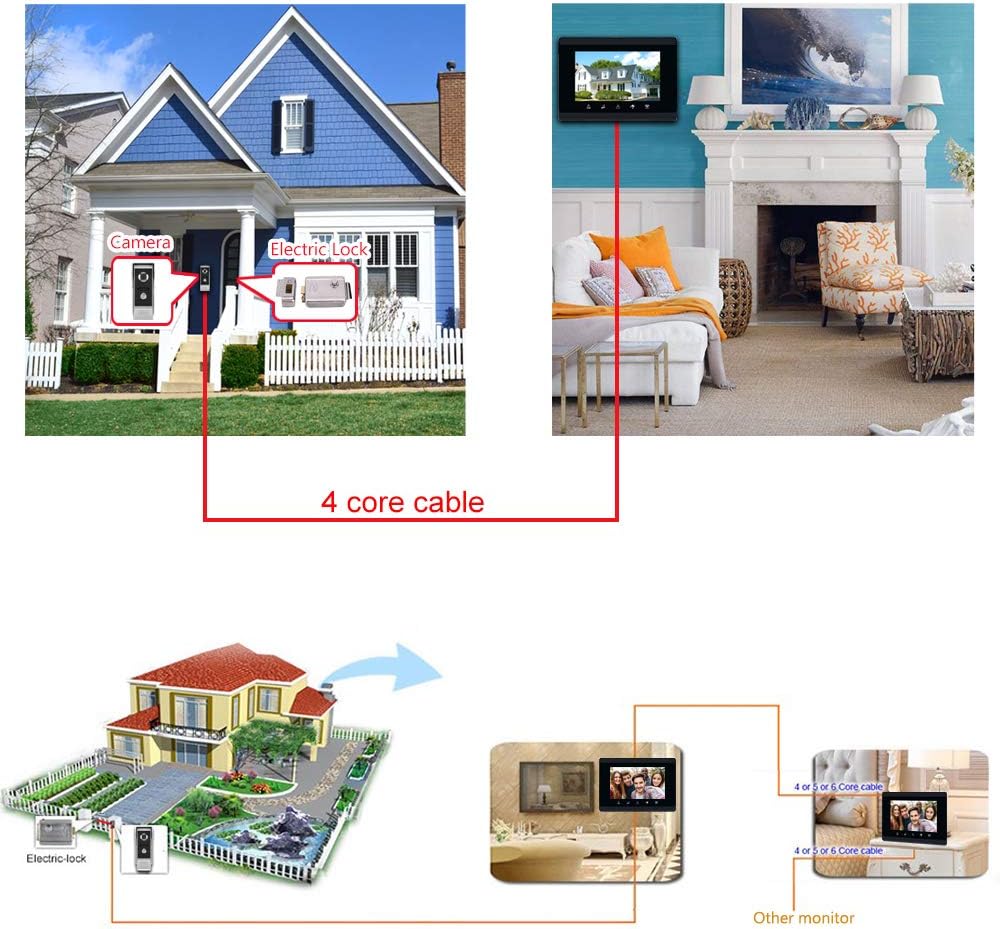
Figure 3.1: Detailed view of the outdoor unit and indoor monitor, highlighting key components and connection points.
3.2. Wiring Diagram
The system requires a 4-core cable for connection between the outdoor camera unit and the indoor monitor. Ensure all connections are secure before powering on the system.

Figure 3.2: Basic wiring diagram for connecting the outdoor unit to the indoor monitor. This diagram also illustrates how to connect an electric lock and additional monitors if desired.
3.3. Electric Lock Connection (Optional)
If you wish to use the unlock function, an electronic lock must be connected. Please note that only electronic locks can be opened directly from the indoor monitor. If using a strike lock, bolt lock, or magnetic lock, an additional power supply control unit is required to work with the system.

Figure 3.3: Connection diagram for an electronic lock. An external power supply may be needed for certain lock types.
4. Operating Instructions
Once installed, your AMOCAM Video Intercom System is ready for use. Here are the primary operating functions:
4.1. Answering a Call
When a visitor presses the call button on the outdoor unit, the indoor monitor will ring and display the visitor's image. To answer the call, simply press the "Answer" button on the monitor. You can then engage in two-way communication.
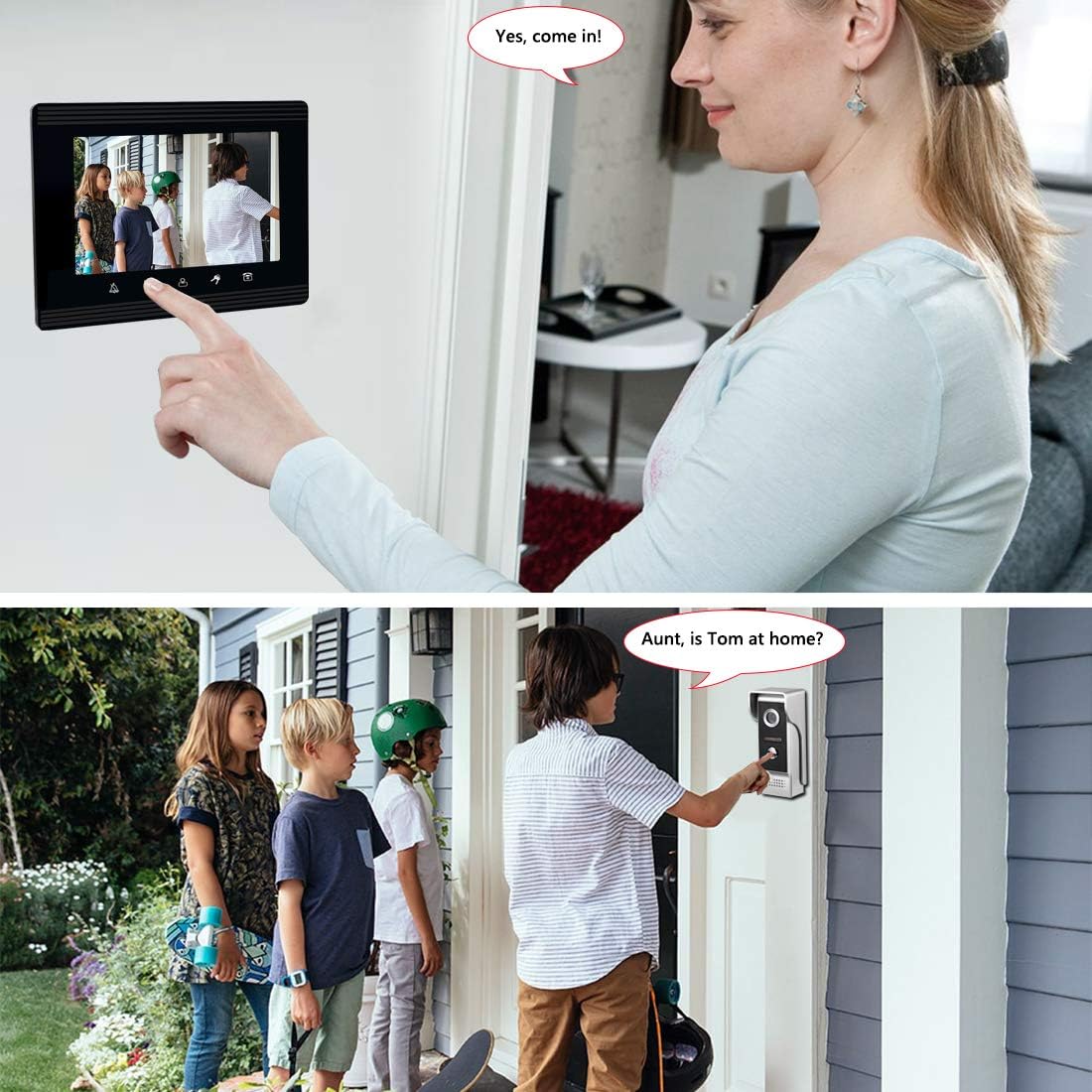
Figure 4.1: Answering a call and communicating with visitors through the indoor monitor.
4.2. Monitoring the Outside
To view the area outside your door without a visitor initiating a call, press the "Monitor" button on the indoor unit. This will activate the outdoor camera and display the live feed on your monitor.
4.3. Unlocking the Door
During an active call or while monitoring, you can unlock the connected electronic door lock by pressing the "Unlock" button on the indoor monitor. Ensure your lock is compatible and correctly wired as per Section 3.3.
4.4. Adjusting Ringtones
The indoor monitor offers 24 different ringtones. Refer to the monitor's on-screen menu or the specific button labeled for ringtone adjustment to cycle through and select your preferred chime.

Figure 4.2: The indoor monitor allows for selection from 24 different ringtones.
Video 4.1: Demonstration of the intercom system's call, monitoring, and unlock functions.
5. Maintenance
To ensure the longevity and optimal performance of your AMOCAM Video Intercom System, regular maintenance is recommended:
- Cleaning: Gently wipe the indoor monitor and outdoor camera lens with a soft, dry cloth. For stubborn smudges, a slightly damp cloth can be used, followed by a dry wipe. Avoid abrasive cleaners or solvents.
- Outdoor Unit Inspection: Periodically check the outdoor unit for any debris, spiderwebs, or obstructions that might block the camera lens or microphone. Ensure the rain cover is securely in place.
- Cable Integrity: Inspect the wiring for any signs of wear, damage, or loose connections. Secure any loose cables to prevent accidental disconnections.
- Software Updates: Check the manufacturer's website or contact support for any available firmware updates that might improve performance or add new features.
6. Troubleshooting
If you encounter issues with your AMOCAM Video Intercom System, please refer to the following common troubleshooting steps before contacting support:
| Problem | Possible Cause | Solution |
|---|---|---|
| No image on indoor monitor. | Power supply disconnected; loose wiring; camera malfunction. | Check power connection. Verify all 4-core cables are securely connected. If problem persists, contact support. |
| No sound during intercom. | Microphone/speaker obstruction; loose wiring; volume too low. | Clear any obstructions from microphone/speaker. Check wiring connections. Adjust volume settings on the monitor. |
| Door unlock function not working. | Incompatible lock type; incorrect wiring; insufficient power. | Ensure you are using an electronic lock. Verify lock wiring as per manual. If using other lock types, confirm external power supply control is correctly installed. |
| Poor image quality at night. | IR LEDs obstructed or malfunctioning. | Clean the camera lens and ensure IR LEDs are not blocked. |
7. Product Specifications
| Feature | Detail |
|---|---|
| Model Number | 70W-M4 |
| Brand | AMOCAM |
| Monitor Size | 7 Inches |
| Connectivity Technology | Wired |
| Video Capture Resolution | 480p |
| Viewing Angle | 92 Degrees |
| Material | Aluminum (Outdoor Unit) |
| Power Source | Battery Powered (likely refers to internal battery for memory/settings, main power is wired) |
| Voltage | 15 Volts (DC) |
| Wattage | 4 watts |
| Item Dimensions (L x W x H) | 9 x 3.8 x 6.5 inches |
| Item Weight | 2.62 pounds |
| International Protection Rating | IP54 |
| Control Method | Touch |
| Photo Sensor Technology | CMOS |
| UPC | 190373224483 |
8. Warranty and Support
AMOCAM Technology Inc. is committed to providing high-quality products and excellent customer service. We offer after-sales support and services to all our customers worldwide.
For technical assistance, warranty claims, or any inquiries regarding your Video Intercom System, please contact AMOCAM customer support through the official channels provided at the point of purchase or on the AMOCAM brand store on Amazon. Privacy and security are our top priorities, and we are dedicated to ensuring your data is always secure.
For more information, visit the AMOCAM Store.