
Introduction
The SteelSeries Rival 3 Wireless Gaming Mouse is engineered for performance and versatility. It features Quantum 2.0 Dual Wireless technology, offering ultra-low latency connectivity via both 2.4 GHz and Bluetooth 5.0. Designed for power efficiency, this mouse delivers over 400 hours of battery life. Equipped with an 18,000 CPI TrueMove Air Optical Sensor, on-board memory, and customizable RGB notifications, it caters to diverse user needs. Its construction utilizes hyper-durable materials and 60 million click mechanical switches, ensuring long-lasting performance and reliability.
Package Contents
- SteelSeries Rival 3 Wireless Gaming Mouse
- USB Wireless Dongle
- 2x AAA Batteries
Product Overview
Familiarize yourself with the components of your SteelSeries Rival 3 Wireless Gaming Mouse.
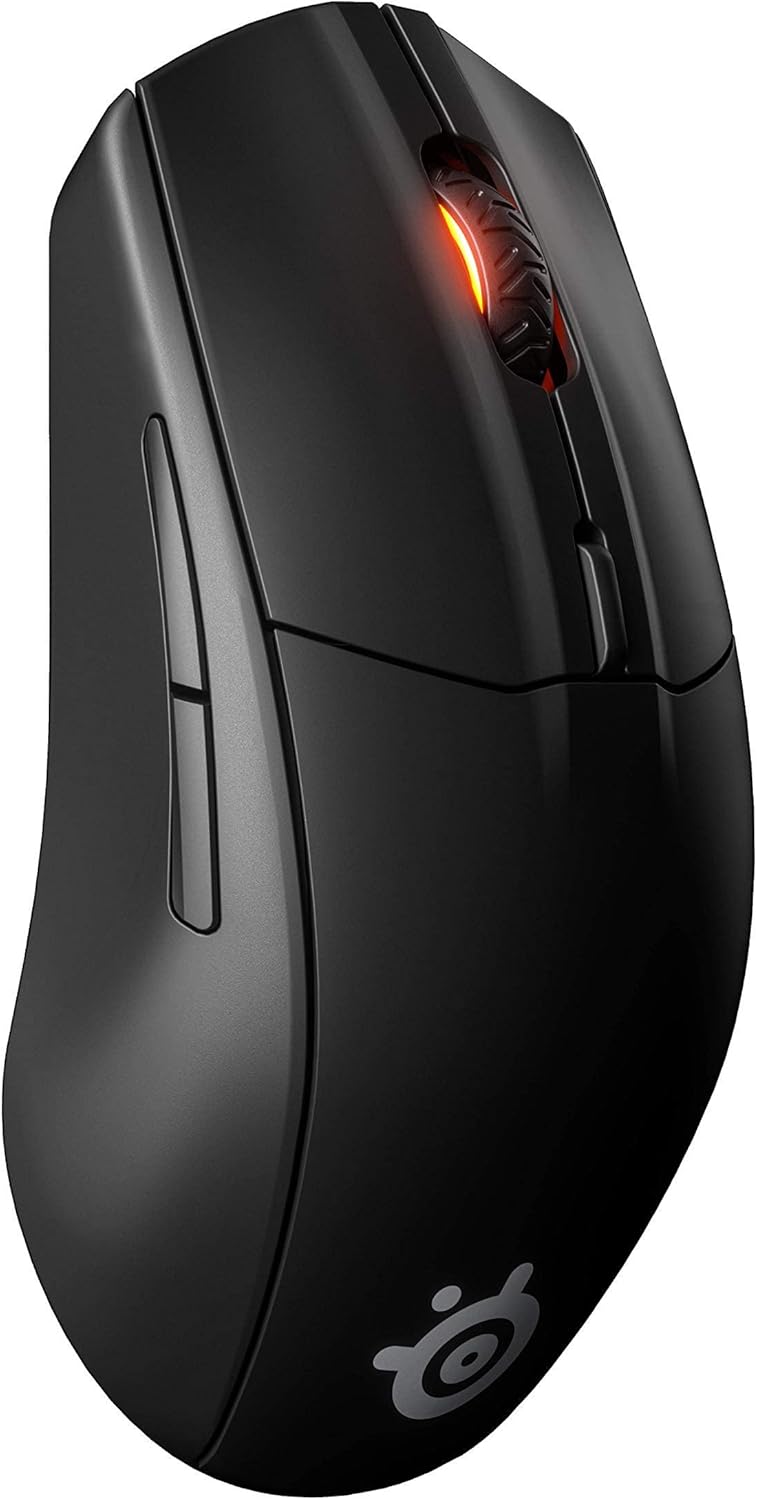
Figure 1: Top-front view of the SteelSeries Rival 3 Wireless Gaming Mouse. This image displays the overall ergonomic design, the left and right click buttons, the scroll wheel with RGB lighting, and the CPI adjustment button located behind the scroll wheel.

Figure 2: Internal view of the SteelSeries Rival 3 Wireless Gaming Mouse with the top cover removed. This reveals the two AAA battery compartments and the dedicated storage slot for the USB wireless dongle, facilitating easy transport and setup.

Figure 3: Underside of the SteelSeries Rival 3 Wireless Gaming Mouse. Visible components include the TrueMove Air optical sensor, the power switch with 'OFF', 'Bluetooth', and '2.4G' modes, and the PTFE glide feet for smooth movement.
Setup
1. Battery Installation
- Gently remove the top cover of the mouse by lifting it from the rear.
- Insert the two included AAA batteries into the designated compartments, ensuring correct polarity (+/-). Refer to Figure 2.
- Replace the top cover, ensuring it clicks securely into place.
2. Connecting the Mouse
2.1. 2.4 GHz Wireless Connection (Recommended for Gaming)
- Locate the USB wireless dongle stored inside the mouse (refer to Figure 2).
- Plug the USB wireless dongle into an available USB port on your computer.
- On the underside of the mouse, slide the power/connectivity switch to the '2.4G' position (refer to Figure 3).
- The mouse should automatically connect to your computer.
2.2. Bluetooth 5.0 Connection
- On the underside of the mouse, slide the power/connectivity switch to the 'Bluetooth' position (refer to Figure 3).
- On your computer or device, navigate to Bluetooth settings and enable Bluetooth.
- Search for available devices and select 'Rival 3 Wireless' to pair.
- Follow any on-screen prompts to complete the pairing process.
Operating Instructions
1. DPI Adjustment
The Rival 3 Wireless features an 18,000 CPI TrueMove Air Optical Sensor. You can adjust the mouse sensitivity (DPI/CPI) on-the-fly using the dedicated CPI button located behind the scroll wheel (refer to Figure 1). Pressing this button cycles through pre-set sensitivity levels. These levels can be customized further using the SteelSeries Engine software.
2. Customizing Settings (SteelSeries Engine)
For advanced customization, including button remapping, RGB lighting effects, and precise CPI adjustments, download and install the SteelSeries Engine software from the official SteelSeries website. This software allows you to personalize your mouse settings to suit your preferences and gaming style.
Maintenance
1. Cleaning
To maintain optimal performance, regularly clean your mouse. Use a soft, dry cloth to wipe the exterior. For the optical sensor, use a cotton swab lightly dampened with isopropyl alcohol, ensuring no liquid enters the mouse's internal components.
2. Battery Replacement
The Rival 3 Wireless uses two AAA batteries. When the battery life indicator (often visible through the scroll wheel's RGB lighting or via SteelSeries Engine software) suggests low power, replace both batteries with new AAA alkaline or rechargeable batteries. Refer to the battery installation steps in the Setup section.
Troubleshooting
Common Issues and Solutions
- Mouse not responding:
- Ensure the mouse is powered on and the connectivity switch is set to the correct mode (2.4G or Bluetooth).
- Check battery levels and replace if necessary.
- For 2.4 GHz, ensure the USB dongle is securely plugged into a working USB port. Try a different USB port.
- For Bluetooth, ensure Bluetooth is enabled on your device and the mouse is paired. Try unpairing and re-pairing.
- Intermittent connection or lag:
- Ensure the mouse is within range of the USB dongle or Bluetooth device.
- Minimize interference from other wireless devices (e.g., Wi-Fi routers, cordless phones).
- Update mouse firmware using SteelSeries Engine software.
- Scroll wheel issues:
- Clean around the scroll wheel to remove any dust or debris.
- Ensure SteelSeries Engine software is up to date.
- Excessive battery drain:
- Reduce RGB lighting brightness or disable it via SteelSeries Engine.
- Ensure the mouse is switched off when not in use.
- Use high-quality alkaline or rechargeable batteries.
Specifications

Figure 4: Dimensions of the SteelSeries Rival 3 Wireless Gaming Mouse, showing a length of 4.75 inches and a width of 2.64 inches.
| Feature | Detail |
|---|---|
| Brand | SteelSeries |
| Model | Rival 3 Wireless (62521) |
| Connectivity | Quantum 2.0 Dual Wireless (2.4 GHz, Bluetooth 5.0) |
| Sensor | TrueMove Air Optical Sensor |
| CPI/DPI Range | 100-18,000 CPI (adjustable in 100 CPI increments) |
| IPS | 400 IPS |
| Acceleration | 40G |
| Switch Type | 60 Million Click Mechanical Switches |
| Battery Life | 400+ hours (with 2x AAA batteries) |
| Batteries Required | 2x AAA (included) |
| Weight | 3.84 ounces (109g) |
| Dimensions (LxWxH) | 4.75 x 2.64 x 1.5 inches (120.6 x 67 x 38.1 mm) |
| Operating System Compatibility | Windows 7 or later, macOS 10.13 or later, iOS 13.7 or later, Chrome OS, PlayStation 4/5, Xbox One/Series S/X (USB port required for dongle) |
Warranty and Support
1. Warranty Information
The SteelSeries Rival 3 Wireless Gaming Mouse comes with a 1-Year Limited Warranty. This warranty covers defects in materials and workmanship under normal use. For specific terms and conditions, please refer to the official SteelSeries warranty policy available on their website.
2. Customer Support
For technical assistance, troubleshooting, or warranty claims, please visit the official SteelSeries support website. You can find FAQs, driver downloads, and contact information for their customer service team.


