
1. Introduction
This instruction manual provides detailed information on the setup, operation, maintenance, and specifications for the iPega PG-SW020 Wireless Game Controller. This controller is designed for an enhanced gaming experience across multiple platforms, including N-Switch, Android devices, PlayStation 3 (PS3), and PC (Windows 7/8/10).
2. Product Overview
The iPega PG-SW020 is a versatile wireless game controller featuring a comfortable design and advanced functionalities to provide an immersive gaming experience.

Image: iPega PG-SW020 Wireless Game Controller showing its main features: Dual-motor Vibration, Six-axis Gyroscope, High-sensitive Buttons, and Repeating Turbo function.
Key Features:
- Dual-Motor Vibration: Provides real-time haptic feedback based on in-game events for an immersive experience.
- Six-Axis Gyroscope: Built-in chip for precise aiming and motion-sensing control, allowing for tangible interaction in games.
- High-Sensitive 3D Joysticks: Well-crafted joysticks offer smooth and accurate control over movement and direction.
- Repeating Turbo Function: Allows for rapid, continuous input of a button press.
- Comfortable Grip: Ergonomically designed with a fine mesh texture on the sides for extended comfortable use.
Available Colors:
The iPega PG-SW020 controller is available in multiple color options.

Image: Three iPega PG-SW020 controllers displayed in blue, black, and yellow color variants.
3. Setup
3.1. Charging the Controller
Before initial use, fully charge the controller. Connect the provided Type-C charging cable to the controller's charging port and the other end to a USB power source (e.g., a computer USB port, a USB wall adapter). The charging indicator lights will provide feedback on the charging status. A full charge typically takes about 3 hours.
3.2. Pairing the Controller
The iPega PG-SW020 controller uses Bluetooth 3.0 for wireless connection. The transmission distance is up to 8 meters. Follow the specific pairing instructions for your desired platform:
- N-Switch:
- On your N-Switch console, go to "Controllers" > "Change Grip/Order".
- Press and hold the Y button + HOME button on the iPega controller simultaneously for a few seconds until the LED indicators start flashing rapidly.
- The controller will appear on the N-Switch screen. Select it to complete the pairing process. The LED indicators will become solid once connected.
- Android Devices:
- Enable Bluetooth on your Android device.
- Press and hold the X button + HOME button on the iPega controller simultaneously for a few seconds until the LED indicators start flashing rapidly.
- On your Android device, search for new Bluetooth devices and select "PG-SW020" (or similar) from the list. The LED indicators will become solid once connected.
- Note: Vibration and six-axis gyroscope features are not available when operating in Android mode.
- PS3 Console:
- Connect the controller to the PS3 console using the Type-C charging cable.
- Press the HOME button on the controller. The controller should be recognized and paired.
- Once paired, you may disconnect the cable for wireless play.
- PC (Windows 7/8/10):
- Connect the controller to your PC using the Type-C charging cable. The PC should automatically detect and install the necessary drivers.
- Alternatively, for wireless connection, ensure your PC has Bluetooth enabled.
- Press and hold the A button + HOME button on the iPega controller simultaneously for a few seconds until the LED indicators start flashing rapidly.
- On your PC, go to Bluetooth settings, search for new devices, and select "PG-SW020" (or similar) to pair. The LED indicators will become solid once connected.
Important: If you encounter issues with pairing, please refer to the physical user manual included in the package for specific button combinations or troubleshooting steps, as these may vary slightly by firmware version.
4. Operating Instructions
4.1. Dual-Motor Vibration
The controller features dual motors that provide vibration feedback during gameplay. This feature enhances immersion by simulating in-game actions such as impacts, explosions, or environmental effects. The intensity of the vibration is dynamically adjusted based on the game scene.

Image: A yellow iPega PG-SW020 controller shown with vibration waves, illustrating the dual-motor vibration feature providing real-time feedback based on the game scene.
4.2. Six-Axis Gyroscope
An integrated six-axis gyroscope chip enables precise motion sensing and directional control. This allows for fine-tuned aiming and character movement by tilting and rotating the controller, providing a more interactive gaming experience.

Image: A blue iPega PG-SW020 controller with a circular motion graphic, highlighting the six-axis gyroscope for precise aiming and motion-sensing directional control.
Note: The six-axis gyroscope feature is not available when operating in Android mode.
4.3. High-Sensitive 3D Joysticks
The controller is equipped with high-sensitive 3D joysticks designed for smooth and accurate input. These joysticks allow for precise control over in-game camera movements, character navigation, and other directional commands.
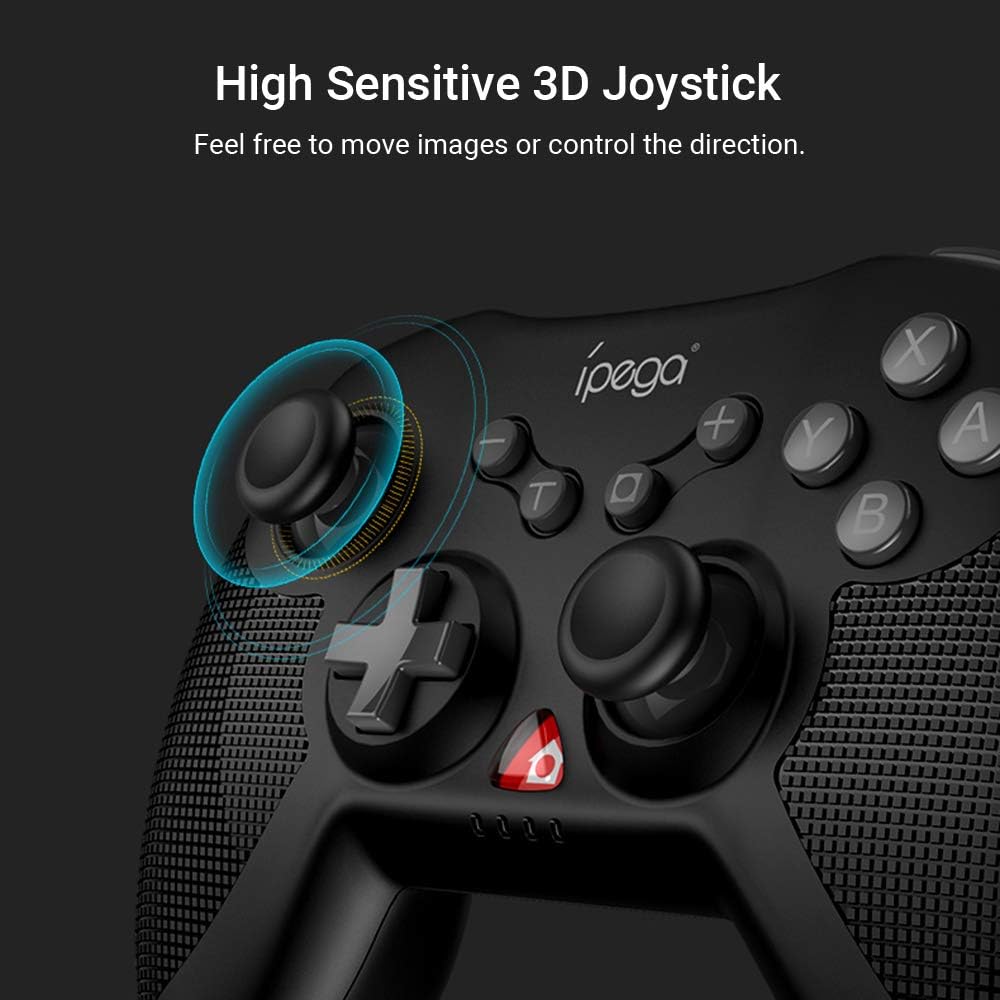
Image: A close-up view of the iPega PG-SW020 controller's left joystick, emphasizing its high sensitivity and smooth operation for precise control.
4.4. Repeating Turbo Function
The Turbo function allows a button to be pressed repeatedly as long as it is held down, which can be advantageous in certain games. To activate the Turbo function:
- Press and hold the Turbo button.
- While holding Turbo, press the desired action button (e.g., A, B, X, Y, L1, R1, etc.) that you wish to set for auto-fire.
- Release both buttons. The selected action button will now activate the Turbo function when pressed.
To clear the Turbo function for a specific button, repeat the steps above. To clear all Turbo settings, press and hold the Turbo button for 5 seconds.
5. Maintenance
- Cleaning: Use a soft, dry cloth to clean the controller. Do not use harsh chemicals or abrasive materials.
- Storage: Store the controller in a cool, dry place away from direct sunlight and extreme temperatures.
- Battery Care: Avoid fully discharging the battery frequently. Charge the controller regularly, even if not in use, to maintain battery health.
- Avoid Drops: Protect the controller from drops and impacts, which can damage internal components.
6. Troubleshooting
- Controller does not turn on:
- Ensure the controller is fully charged. Connect it to a power source using the Type-C cable.
- If the issue persists, try resetting the controller (if a reset button is available, typically a small pinhole on the back).
- Unable to pair the controller:
- Ensure Bluetooth is enabled on your device (N-Switch, Android, PC).
- Make sure the controller is in the correct pairing mode for your platform (refer to Section 3.2).
- Move the controller closer to the device.
- Clear previous Bluetooth connections on your device and try pairing again.
- Restart both the controller and your device.
- Buttons or joysticks are unresponsive:
- Ensure the controller is properly connected and charged.
- Test the controller in a different game or application to rule out software issues.
- If possible, connect the controller via cable to a PC to check for driver issues or perform calibration.
- Vibration or Gyroscope not working:
- Confirm that the game you are playing supports these features.
- Remember that vibration and six-axis gyroscope features are not available in Android mode.
7. Specifications
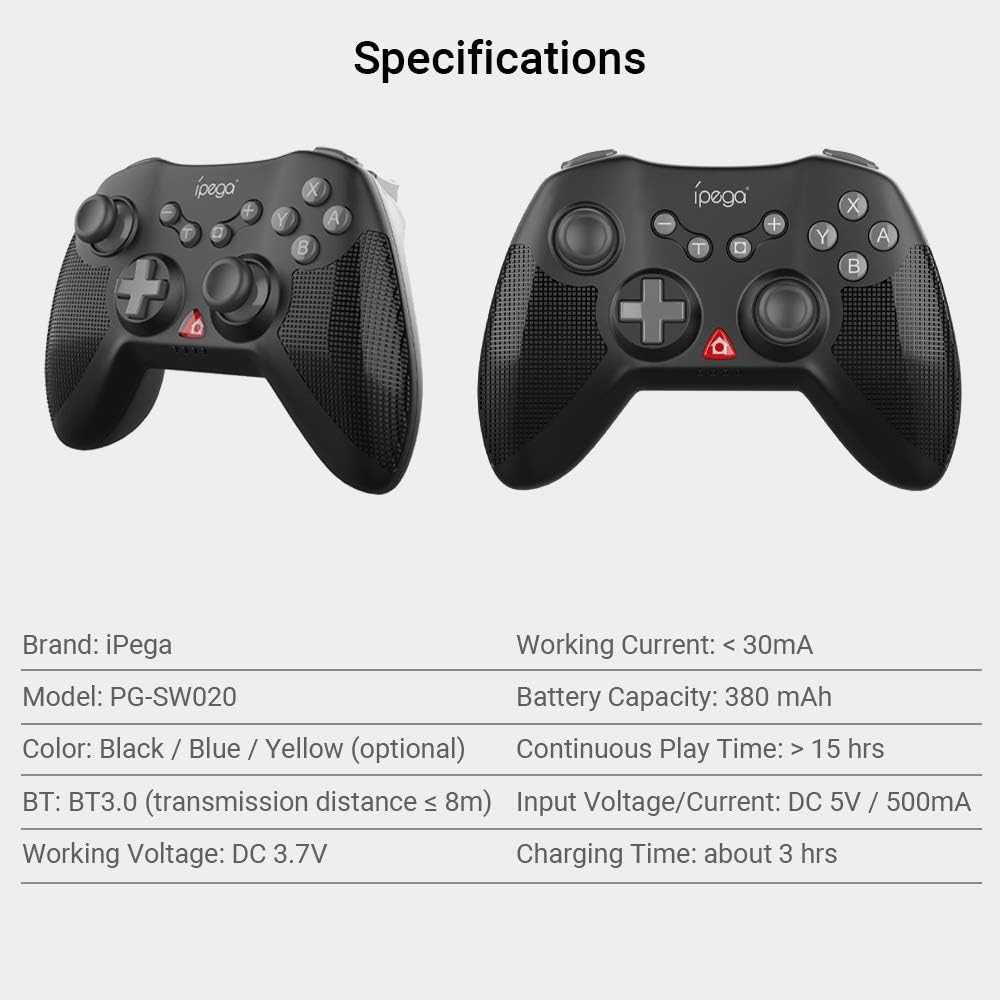
Image: A table summarizing the technical specifications of the iPega PG-SW020 Wireless Game Controller.
| Feature | Detail |
|---|---|
| Brand | iPega |
| Model | PG-SW020 |
| Materials | ABS |
| Color Options | Black, Blue, Yellow |
| Bluetooth Version | BT3.0 |
| Transmission Distance | ≤ 8 meters |
| Working Voltage | DC 3.7V |
| Operating Current | < 30mA |
| Battery Capacity | 380mAh |
| Continuous Play Time | > 15 hours |
| Input Voltage/Current | DC 5V / 500mA |
| Charging Time | Approximately 3 hours |
| Product Size | 14.5 × 11 × 6 cm (5.7 × 4.33 × 2.36 inches) |
| Product Weight | 212g (7.47oz) |
| Package Size | 17.5 × 13.5 × 6.5 cm (6.88 × 5.31 × 2.55 inches) |
| Package Weight | 309g (10.89oz) |
8. Package Contents
The following items are included in your iPega PG-SW020 Wireless Game Controller package:
- 1 × iPega PG-SW020 Wireless Game Controller
- 1 × Type-C Charging Cable
- 1 × User Manual (this document)
9. Warranty and Support
For warranty information, technical support, or any inquiries regarding your iPega PG-SW020 Wireless Game Controller, please refer to the contact information provided on the product packaging or the official iPega website. Keep your purchase receipt for warranty claims.