
1. Introduction
This manual provides instructions for the installation, operation, and maintenance of the Hombli Smart Indoor Camera (Model HBCI-0309). This device is designed to enhance home security with features such as 1080P Full HD video, motion detection, night vision, and two-way audio. It integrates with smart home ecosystems like Amazon Alexa and Google Assistant for convenient control.

The Hombli Smart Indoor Camera, model HBCI-0309, shown alongside its retail packaging. The packaging highlights features such as 'Easy install & User friendly' and compatibility with Google Assistant and Alexa.
2. Product Overview
2.1 Key Features
- 1080P Full HD Video: Provides clear video quality with a 130-degree wide-angle view.
- Motion and Audio Detection: Sends notifications to your smartphone upon detecting activity.
- Night Vision: Ensures visibility in low-light conditions up to 7 meters.
- Two-Way Audio: Built-in microphone and speaker for direct communication.
- Local Storage: Supports Micro SD card for video recording.
- Hombli App Control: Live video streaming and remote management via the Hombli app (Android and iOS).
- Voice Control: Compatible with Amazon Alexa and Google Assistant.
- Easy Installation: Designed for user-friendly setup.
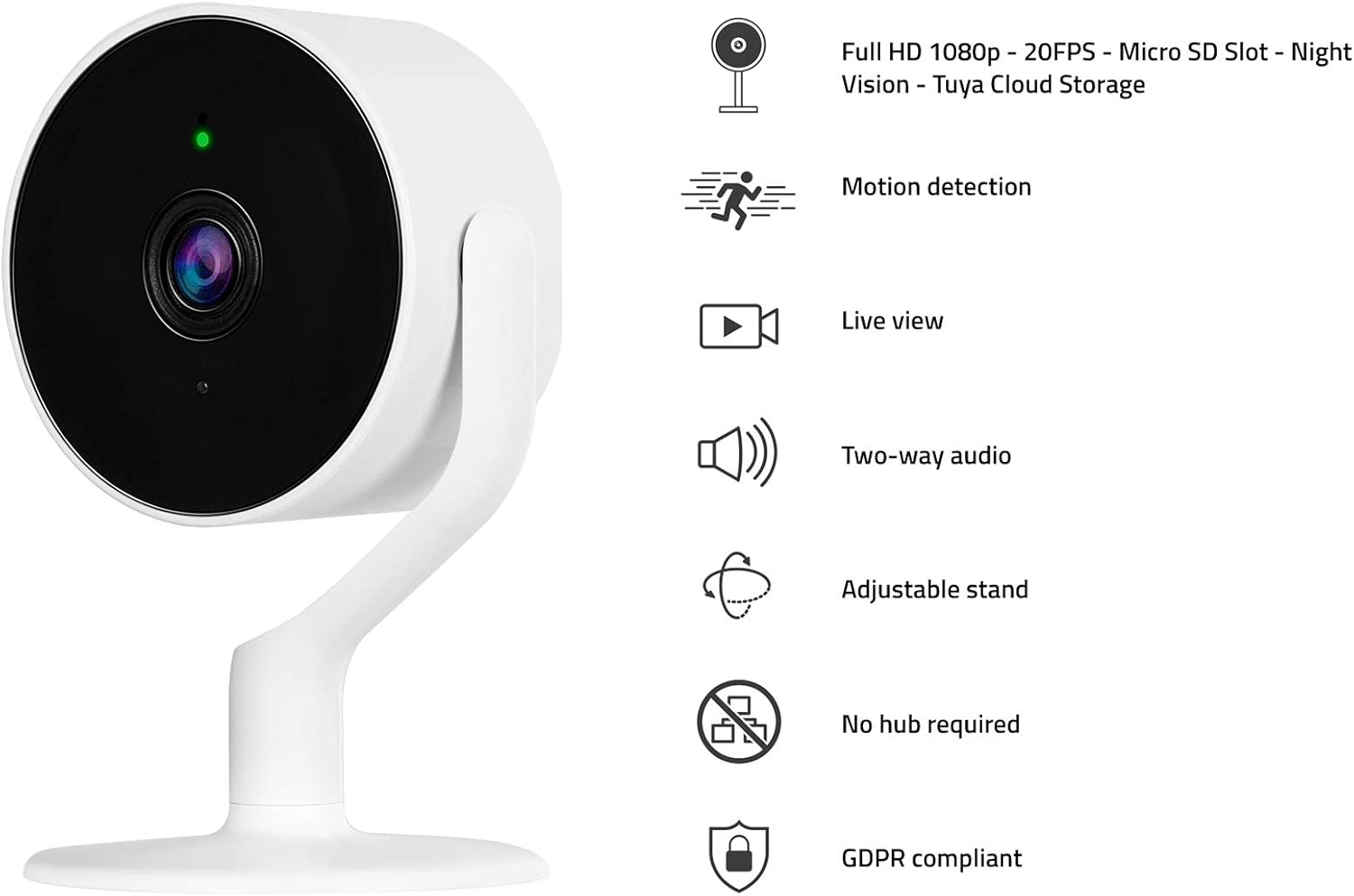
The Hombli Smart Indoor Camera with a visual representation of its key features: Full HD 1080p video, motion detection, live view, two-way audio, adjustable stand, no hub required, and GDPR compliance.
2.2 Package Contents
- Hombli Smart Indoor Camera (HBCI-0309)
- Power Adapter
- Mounting Accessories (e.g., self-adhesive base)
- User Manual (this document)
3. Setup Guide
3.1 Physical Installation
- Choose a Location: Select an indoor location with a clear view of the area you wish to monitor and within range of your Wi-Fi network. The camera can be placed on a flat surface or mounted to a wall.
- Prepare for Mounting (Optional): If mounting, ensure the surface is clean and dry. Peel the protective film from the self-adhesive base.
- Mount the Camera: Secure the camera to the desired surface. The adjustable stand allows for flexible positioning.
- Connect Power: Plug the included power adapter into the camera's power port and then into a standard electrical outlet. The camera will power on and indicate its status with an LED light.

A close-up of hands peeling the protective film from the self-adhesive base, preparing the camera for installation.
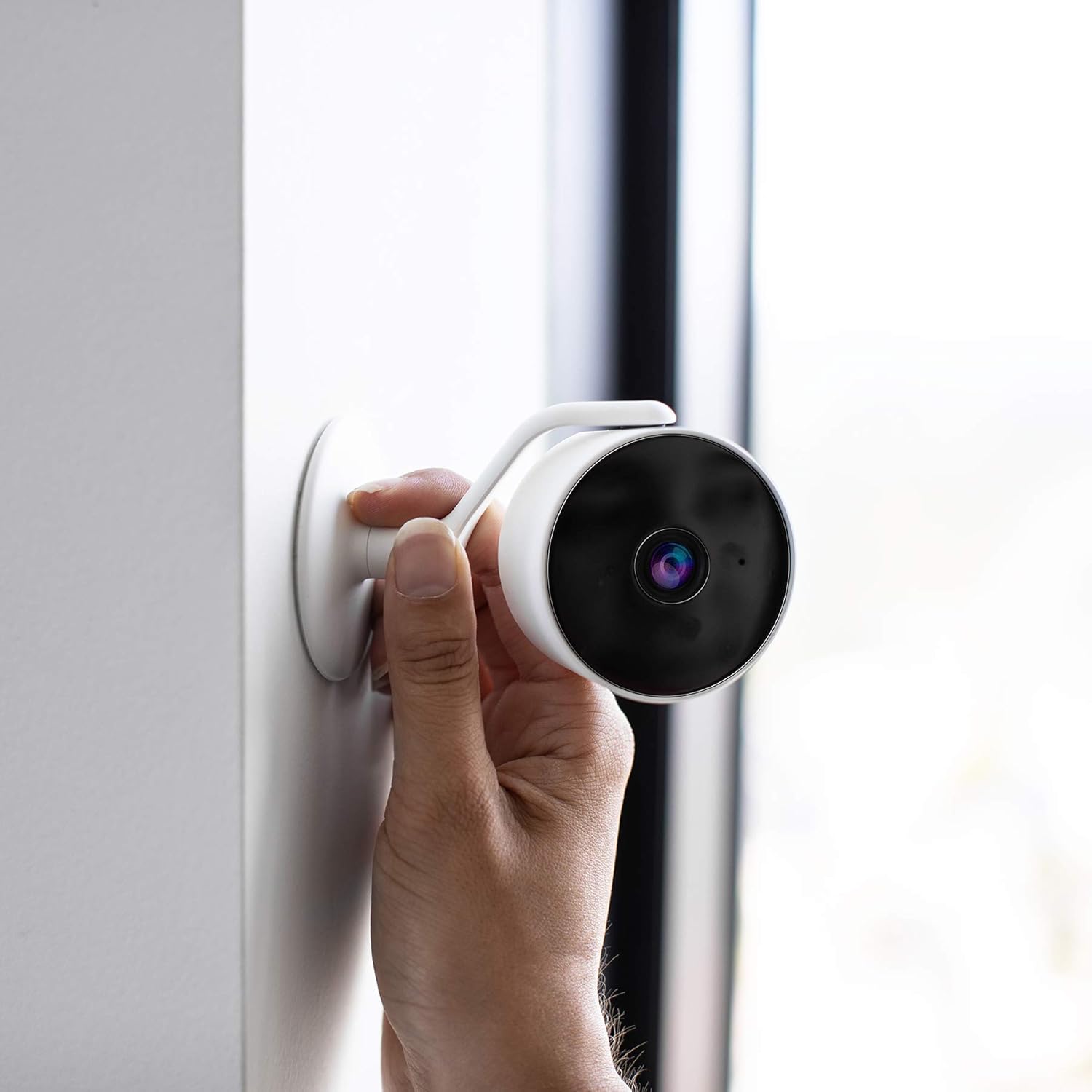
A hand positioning the Hombli Smart Indoor Camera against a wall, illustrating its flexible mounting options.
3.2 App Installation and Pairing
- Download the Hombli App: Search for "Hombli" in the Apple App Store (for iOS) or Google Play Store (for Android) and download the application.
- Create an Account: Open the Hombli app and follow the on-screen instructions to create a new user account or log in if you already have one.
- Add Device: In the Hombli app, tap the "+" icon to add a new device. Select "Smart Indoor Camera" from the list of available devices.
- Follow In-App Instructions: The app will guide you through the pairing process, which typically involves connecting the camera to your 2.4 GHz Wi-Fi network. Ensure your smartphone is connected to the same Wi-Fi network during setup.
- Name Your Camera: Once successfully paired, you can assign a name to your camera (e.g., "Living Room Camera") for easy identification.
4. Operating Instructions
4.1 Live View
Open the Hombli app and select your camera from the device list to view the live video feed. You can monitor your space in real-time from anywhere with an internet connection.

The Hombli Smart Indoor Camera positioned next to a smartphone, which shows the live feed and motion detection alerts within the Hombli application.

A user viewing the Hombli app on their smartphone, observing the live video feed from the Smart Indoor Camera.
4.2 Motion and Audio Detection
The camera is equipped with sensors to detect motion and sound. When an event is detected, the camera will send a notification to your smartphone via the Hombli app. You can customize detection sensitivity and notification settings within the app.
4.3 Two-Way Audio
Utilize the two-way audio feature to communicate through the camera. Tap the microphone icon in the live view interface of the Hombli app to speak, and listen through the camera's built-in speaker.
4.4 Night Vision
The camera automatically switches to night vision mode in low-light conditions, providing clear black and white video up to 7 meters. This feature ensures continuous monitoring around the clock.
4.5 SD Card Storage
Insert a Micro SD card (not included) into the designated slot on the camera for local video storage. The camera supports continuous recording or event-based recording, configurable through the Hombli app. Ensure the SD card is formatted correctly via the app.

A detailed diagram illustrating the physical dimensions of the Hombli Smart Indoor Camera (6.1 x 6.1 x 10.2 cm) and indicating the location of the Micro SD card slot for local storage.
4.6 Voice Control Integration
The Hombli Smart Indoor Camera can be integrated with Amazon Alexa and Google Assistant. Follow the instructions in the respective smart assistant apps to link your Hombli account. Once linked, you can use voice commands to view live feeds on compatible smart displays.

The Hombli Smart Indoor Camera highlighting its compatibility with Google Assistant and Amazon Alexa for voice control.
5. Maintenance
- Cleaning: Use a soft, dry cloth to clean the camera lens and body. Avoid using harsh chemicals or abrasive materials.
- Firmware Updates: Regularly check the Hombli app for available firmware updates to ensure optimal performance and security.
- Network Stability: Ensure your Wi-Fi network is stable and provides sufficient signal strength to the camera for uninterrupted operation.
6. Troubleshooting
- Camera Offline:
- Check if the camera is powered on and the power adapter is securely connected.
- Verify your Wi-Fi network is active and the camera is within range.
- Restart the camera by unplugging and replugging the power adapter.
- If issues persist, try re-pairing the camera with the Hombli app.
- Poor Video Quality:
- Ensure the camera lens is clean and free from dust or smudges.
- Check your Wi-Fi signal strength; a weak signal can affect video streaming quality.
- Motion/Audio Detection Not Working:
- Verify that motion and audio detection are enabled in the Hombli app settings for the camera.
- Adjust the sensitivity settings in the app.
- Ensure app notifications are enabled on your smartphone.
- SD Card Not Recording:
- Ensure the SD card is inserted correctly.
- Format the SD card through the Hombli app.
- Check if the SD card has sufficient free space or if it's corrupted.
7. Specifications
| Model Number | HBCI-0309 |
| Video Capture Resolution | 1080p Full HD |
| Viewing Angle | 130 Degrees |
| Night Vision Range | 7 Metres |
| Wireless Technology | Wi-Fi (2.4 GHz) |
| Audio | Two-Way Audio |
| Storage | Micro SD Card (up to 128GB, not included) |
| Power Source | 5V Adapter |
| Dimensions (L x W x H) | 6.1 x 6.1 x 10.2 cm |
| Weight | 200 g |
| Material | Plastic |
| Color | White |
| Indoor/Outdoor Usage | Indoor |
| Compatible Devices | Smartphone (Android/iOS), Amazon Alexa, Google Assistant |
8. Warranty and Support
For warranty information and technical support, please refer to the official Hombli website or contact Hombli customer service directly. Details are typically provided on the product packaging or within the Hombli app's support section.


