
Introduction
This manual provides essential information for the safe and efficient use of your Motorola moto g5G plus smartphone. Please read this guide thoroughly before operating your device.
Important Note: This device is designed for international markets and DOES NOT WORK IN THE USA MARKET. It is unlocked worldwide.
Package Contents
Verify that your package contains the following items:
- Motorola moto g5G plus Smartphone
- Power Adapter
- USB Cable
- Handsfree (Earphones)
If any items are missing or damaged, please contact your retailer.
Device Overview
Familiarize yourself with the physical components of your moto g5G plus.

Image: Front and back view of the Motorola moto g5G plus smartphone, showcasing the display with the Motorola logo and the quad-camera setup on the rear. The phone is in a surfing blue color.
- Front Display: 6.7-inch screen with dual punch-hole cameras.
- Rear Camera System: Quad-camera setup with flash.
- Fingerprint Sensor: Integrated into the power button on the side.
- Volume Buttons: Located on the side.
- USB Type-C Port: For charging and data transfer.
- 3.5mm Headphone Jack: For audio accessories.
- SIM/microSD Card Tray: Located on the side.
Setup
Inserting SIM and microSD Cards
- Power off your device.
- Locate the SIM/microSD card tray on the side of the phone.
- Insert the SIM ejector tool (not included, but typically comes with phones) into the small hole next to the tray to pop it open.
- Carefully pull out the tray.
- Place your Nano-SIM card(s) and/or microSD card into the designated slots on the tray. Ensure the gold contacts face down. This device supports Dual SIM functionality.
- Gently push the tray back into the phone until it clicks into place.

Image: Close-up side view of the Motorola moto g5G plus, showing the SIM card tray slot.
Initial Power On and Setup
- Press and hold the Power button (located on the side) until the Motorola logo appears.
- Follow the on-screen prompts to select your language, connect to a Wi-Fi network, and set up your Google account.
- You will be guided through setting up a screen lock (PIN, pattern, password, or fingerprint).
Charging the Battery
Before first use, fully charge the device.
- Connect the USB cable to the power adapter.
- Plug the USB cable into the USB Type-C port at the bottom of your phone.
- Plug the power adapter into a wall outlet.
- The charging indicator will appear on the screen.
Note: Use only Motorola-approved chargers and cables.
Operating Your Device
Basic Navigation
- Power On/Off: Press and hold the Power button. Select "Power off" or "Restart".
- Screen Lock/Unlock: Press the Power button briefly. Use your chosen screen lock method to unlock.
- Volume Control: Use the Volume Up/Down buttons on the side.
- Home Screen: Swipe up from the bottom to access the app drawer. Swipe left/right to navigate home screen panels.
- Notifications & Quick Settings: Swipe down from the top of the screen.
Making Calls
- Tap the Phone icon.
- Enter the phone number or select a contact.
- Tap the Call button.
Sending Messages
- Tap the Messages icon.
- Tap Start chat or the + icon.
- Enter the recipient's name or number and type your message.
- Tap the Send button.
Camera Usage
Your device features a versatile quad-camera system.
- Tap the Camera icon.
- Select your desired mode (Photo, Video, Portrait, Night Vision, etc.).
- Tap the Shutter button to capture.
- Use the front camera for selfies.
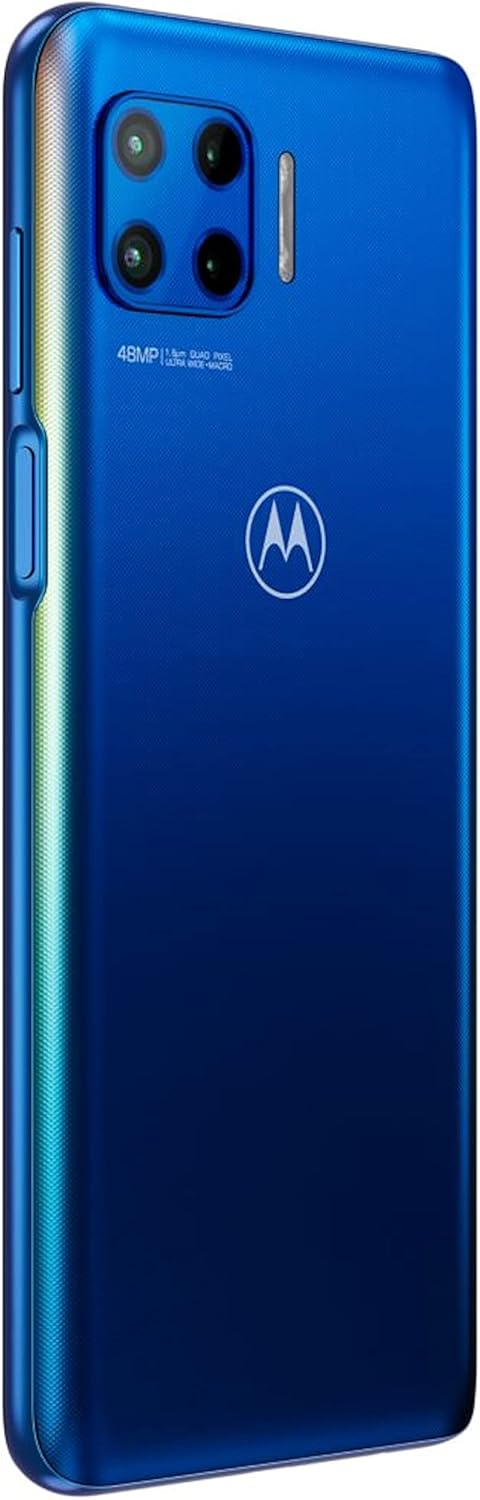
Image: Rear view of the Motorola moto g5G plus, highlighting the 48MP quad-camera system with flash.
Connectivity
- Wi-Fi: Go to Settings > Network & internet > Wi-Fi to connect to available networks.
- Bluetooth: Go to Settings > Connected devices > Connection preferences > Bluetooth to pair with other devices.
- Mobile Data: Ensure mobile data is enabled in Quick Settings or Settings > Network & internet > Mobile network. This device supports 5G connectivity where available.
Maintenance
Cleaning Your Device
- Use a soft, lint-free cloth to clean the screen and body.
- Avoid using harsh chemicals, abrasive cleaners, or compressed air.
- Do not expose the device to excessive moisture.
Battery Care
- Avoid extreme temperatures.
- Do not fully discharge the battery regularly.
- Use only original or certified chargers and cables.
Software Updates
Keep your device's software updated for optimal performance and security.
- Go to Settings > System > System updates.
- Check for available updates and follow the on-screen instructions.
Ensure your device is connected to Wi-Fi and has sufficient battery charge before starting an update.
Troubleshooting
Device Not Turning On
- Ensure the battery is charged. Connect to a charger for at least 15 minutes.
- Try a force restart: Press and hold the Power button for 10-15 seconds.
Apps Crashing or Freezing
- Close and reopen the app.
- Clear the app's cache: Settings > Apps & notifications > See all apps > [App Name] > Storage & cache > Clear cache.
- Restart the phone.
Poor Network Connectivity
- Check if Airplane mode is off.
- Restart the device.
- Reinsert the SIM card.
- Reset network settings: Settings > System > Reset options > Reset Wi-Fi, mobile & Bluetooth.
Battery Draining Quickly
- Reduce screen brightness.
- Close unused apps running in the background.
- Turn off Wi-Fi, Bluetooth, and GPS when not in use.
- Check battery usage in Settings > Battery to identify power-hungry apps.
Specifications
| Feature | Detail |
|---|---|
| Model Number | XT2075-3 (Item model number: 0840023205491) |
| Dimensions | 0.35 x 2.91 x 6.61 inches (8.9 x 73.9 x 167.9 mm) |
| Weight | 7.3 ounces (207 grams) |
| Display | 6.7 Inches, 2400 x 1080 Resolution |
| RAM | 4 GB |
| Battery Capacity | 5000 Milliamp Hours (Li-Ion) |
| SIM Card Slot Count | Dual SIM |
| Connectivity | USB Type-C, 3.5mm Jack, CDMA, GSM, LTE, 5G |
| Wireless Carrier | Unlocked for All Carriers (excluding USA market) |
Warranty and Support
For warranty information, please refer to the warranty card included with your product or visit the official Motorola website for your region.
For technical support, frequently asked questions, or to download the full user manual, please visit the Motorola support website: www.motorola.com/support.
You can also contact Motorola customer service directly through their website or local contact numbers.


