
ORICO M.2 NVME
ORICO M.2 NVMe SSD Enclosure User Manual
Model: M.2 NVME
Product Overview
The ORICO M.2 NVMe SSD Enclosure is designed to convert an M.2 NVMe SSD into a portable external storage device. It features a USB 3.1 Gen 2 Type-C interface, supporting data transfer speeds of up to 10Gbps. This enclosure is compatible with various M.2 NVMe SSD sizes and offers broad operating system support, making it a versatile solution for expanding storage or repurposing existing SSDs.
Key features include:
- 10 Gbps High Speed: Utilizes a Realtek RTL 9210 control chip and USB 3.1 Gen 2 Type-C interface with UASP acceleration protocol, achieving read/write performance exceeding 900 Mbytes/sec.
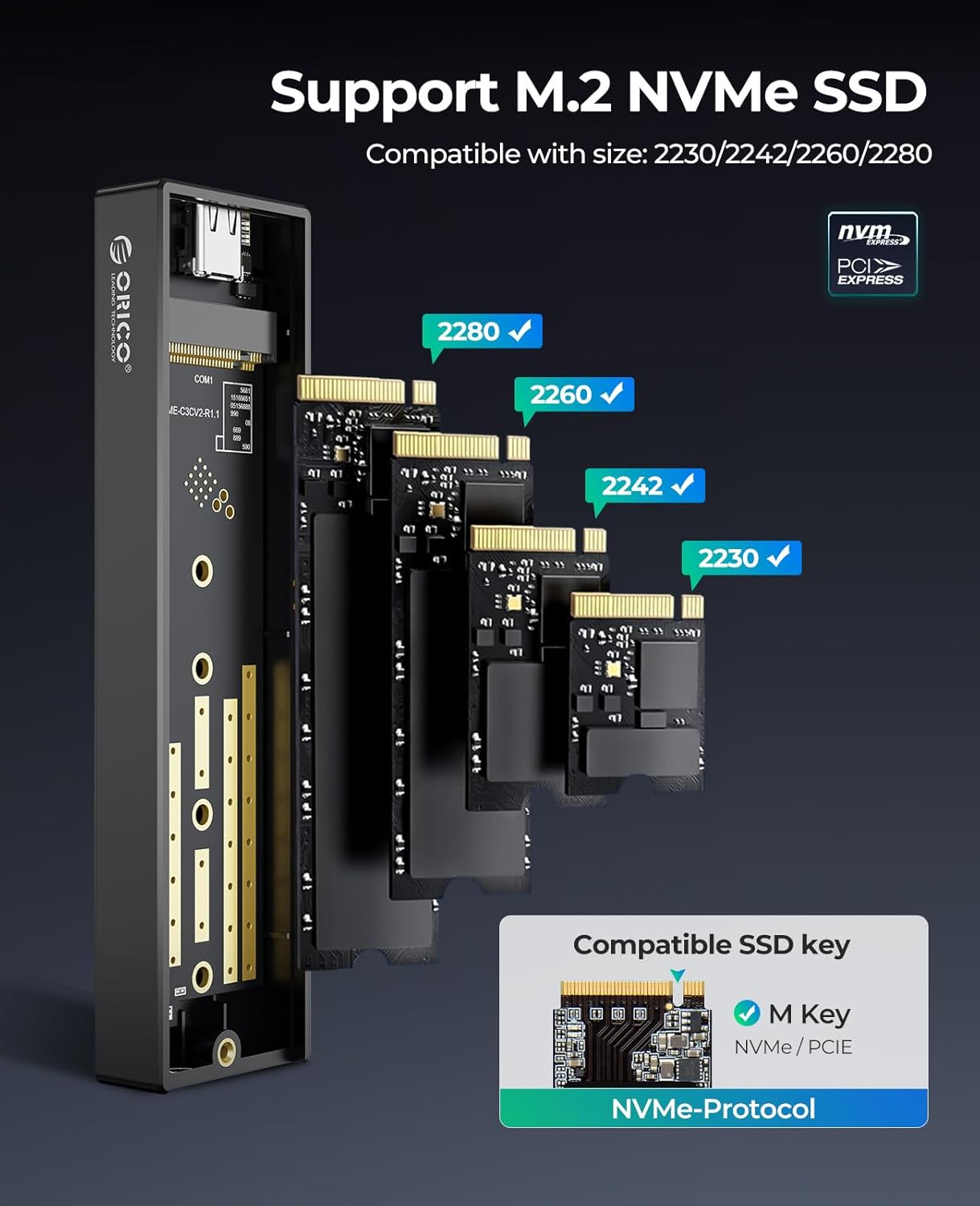
- NVMe M-Key SSD Compatibility: Specifically designed for NVMe M-Key M.2 SSDs (PCIe-based) up to 2TB, supporting sizes 2230, 2242, 2260, and 2280. Note: Does not support M.2 SATA based SSDs, M.2 PCIe AHCI SSDs, or any SSD from Mac.
- Multi-OS Support: Plug and Play functionality with no drivers required for Windows, Mac, and Linux operating systems. Compatible with computers, smartphones, laptops, and PS4.
- Portable Design: Constructed with an aluminum top and plastic bottom for durability and effective heat dissipation. Compact dimensions (108mm x 29.5mm x 13.5mm) for easy portability.

What's in the Box
Upon opening the package, please verify that all the following components are present:
- 1 x M.2 SSD Enclosure
- 1 x USB C to C cable
- 1 x USB A to C cable
- 1 x Thermal Pad
- 2 x Rubber Fasteners (for securing SSD)
- 1 x Screwdriver (for opening enclosure)
- 1 x Instruction Book (User Manual)

Setup and Installation
Follow these steps to install your M.2 NVMe SSD into the enclosure:
- Open the Enclosure: Use the provided screwdriver to open the enclosure. The top aluminum cover will hinge open.
- Insert Rubber Fastener: Locate the half-round hole on the enclosure's PCB that corresponds to the length of your M.2 SSD (2230, 2242, 2260, or 2280). Snap one of the rubber fasteners into this hole.
- Install SSD: Gently insert your M.2 NVMe SSD into the card slot at a 45-degree angle. Once seated, press the SSD down until it is flat against the PCB. The rubber fastener will secure the SSD in place.
- Apply Thermal Pad: Peel off the protective film from both sides of the thermal pad. Carefully place the thermal pad onto the SSD, ensuring it covers the main chips for optimal heat transfer to the aluminum fin.
- Close Enclosure: Close the aluminum top cover and secure it with the screw using the screwdriver.
Important Note: For new SSDs, they must be formatted before use. Connect the enclosure to your computer and use your operating system's disk management utility to initialize and format the drive.

Operating Instructions
Once your SSD is installed and the enclosure is connected to a compatible device, it functions as a high-speed external storage drive.
- Connection: Use the provided USB-C to USB-C or USB-C to USB-A cable to connect the enclosure to your computer, laptop, smartphone, Smart TV, or game console.
- Data Transfer: The enclosure supports USB 3.1 Gen 2 (10Gbps) for rapid data transfer. Ensure your host device also supports USB 3.1 Gen 2 or higher for optimal performance.
- Plug and Play: No additional drivers are required for Windows, macOS, or Linux operating systems. The device will be recognized automatically.
- Automatic Sleep: The enclosure features an automatic sleep design, which activates after 10 minutes of inactivity. This helps to increase the lifespan of your SSD and conserve power.


Maintenance
Proper maintenance ensures the longevity and optimal performance of your ORICO M.2 NVMe SSD Enclosure.
- Heat Dissipation: The enclosure's aluminum top and silicone thermal pad are designed for efficient heat dissipation. Ensure proper airflow around the device during extended use, especially during large file transfers.
- Cleaning: Use a soft, dry cloth to clean the exterior of the enclosure. Avoid using liquid cleaners or abrasive materials.
- Storage: When not in use, store the enclosure in a cool, dry place away from direct sunlight and extreme temperatures.

Troubleshooting
If you encounter issues with your ORICO M.2 NVMe SSD Enclosure, consider the following common solutions:
- Device Not Recognized:
- Ensure the USB cable is securely connected to both the enclosure and the host device.
- Try a different USB port on your computer.
- Test with the alternative USB cable provided (USB-C to USB-A or USB-C to USB-C).
- For new SSDs, verify that the drive has been initialized and formatted using your operating system's Disk Management (Windows) or Disk Utility (macOS).
- Confirm that the SSD is correctly seated within the enclosure and secured by the rubber fastener.
- Slow Transfer Speeds:
- Ensure you are connecting the enclosure to a USB 3.1 Gen 2 (10Gbps) compatible port on your host device. Older USB 2.0 or 3.0 ports will result in lower speeds.
- Verify that your M.2 SSD is indeed an NVMe (PCIe-based) drive, not a SATA-based M.2 SSD, as this enclosure only supports NVMe.
- Close other applications that might be consuming system resources or disk I/O.
- Enclosure Overheating:
- Ensure the thermal pad is correctly applied to the SSD's main chips and that the aluminum top cover is making good contact.
- Avoid placing the enclosure in confined spaces that restrict airflow.
- During prolonged heavy use, it is normal for the enclosure to become warm due to heat transfer from the SSD. If it becomes excessively hot, disconnect it and allow it to cool down.
Specifications
| Feature | Detail |
|---|---|
| Brand | ORICO |
| Model Number | M.2 NVME |
| Material | Aluminum Alloy (top), Plastic (bottom) |
| Compatible SSD Type | M-Key NVMe (PCIe-based) M.2 SSDs (2230, 2242, 2260, 2280) |
| Max Storage Capacity | Up to 4 TB |
| Interface | USB 3.1 Gen 2 Type-C (10 Gbps) |
| Data Transfer Rate | 10 Gigabits Per Second |
| UASP Support | Yes |
| Product Dimensions | 4.25"L x 1.16"W x 0.53"H (108mm x 29.5mm x 13.5mm) |
| Item Weight | 3.52 ounces (0.1 Kilograms) |
| Compatible Operating Systems | Windows, macOS, Linux |
| Manufacturer | ORICO Technologies Co.,Ltd |
Warranty and Support
ORICO products are designed for reliability and performance. For warranty information or technical support, please refer to the official ORICO website or contact their customer service directly.
You can typically find support resources, FAQs, and contact details on the manufacturer's official website:
Please have your product model number (M.2 NVME) and purchase details ready when contacting support.
Related documentsM.2 NVME


Ask a question about this manual
Ask about setup, troubleshooting, compatibility, parts, safety, or missing instructions. Manuals+ will review the question and use this page’s manual context to help answer it.