
1. Introduction
This manual provides detailed instructions for the ATK 68 RX Hall Effect Gaming Keyboard. The ATK 68 RX is a 65% esports keyboard designed for precision and durability. It features Hall Effect magnetic switches for non-contact actuation, which contributes to a longer lifespan and consistent input. The keyboard allows for adjustable actuation from 0.005 mm to 3.3 mm in 0.001 mm increments, enabling customization for various uses. Constructed with a tray-mount chassis and an aluminum plate, it offers stable keystrokes and reduced vibration. The Cherry-profile frosted PC keycaps are designed to enhance RGB lighting diffusion while maintaining durability.

Image: The ATK 68 RX Hall Effect Gaming Keyboard, showcasing its compact 65% layout and translucent keycaps.
2. Package Contents
Verify that all items listed below are present in your ATK 68 RX keyboard package:

Image: An overview of the ATK 68 RX keyboard and its included accessories, neatly arranged.
- Outer Package
- Warranty Certificate
- ATK 68 RX Keyboard
- Matching Wrist Rest (Plastic Replacement)
- M2 Cross Screwdriver
- Keycap & Switch Puller
- 8K USB Cable (USB-C to USB-A)
- Replaceable Strap Plate
- Strap
- Matching Add-on Keycaps
3. Key Features
- Hall Effect Switch Technology: Utilizes magnetic sensing for ultra-high precision, faster response, and extended switch lifespan by eliminating physical contact points found in traditional mechanical switches.
- Adjustable Actuation Range: Customize key sensitivity from 0.005 mm to 3.3 mm in 0.001 mm increments. This allows for fine-tuning performance for competitive gaming or precise typing tasks.
- 65% / 68-Key Compact Layout: This layout retains essential keys and arrow keys while minimizing the keyboard's footprint, ideal for users requiring more desk space for mouse movement.
- Tray-Mount Structure with Aluminum Plate: Provides consistent keystroke stability, reduces vibration, and offers a more rigid typing experience compared to standard plastic-mounted keyboards.
- Cherry-Profile Frosted PC Keycaps: Designed to improve RGB diffusion for enhanced lighting effects while maintaining durability.
- Innovative Wrist Rest Design: Features a detachable aluminum wrist rest, allowing for customization and ergonomic support.
- One-Click Preset Switch: Supports three customizable presets via driver software, enabling seamless switching between different configurations for work and gaming modes.

Image: The ATK 68 RX keyboard shown at an angle, highlighting its compact form factor.

Image: A graphic illustrating the 0.005mm step precision of the ATK 68 RX's adjustable actuation.
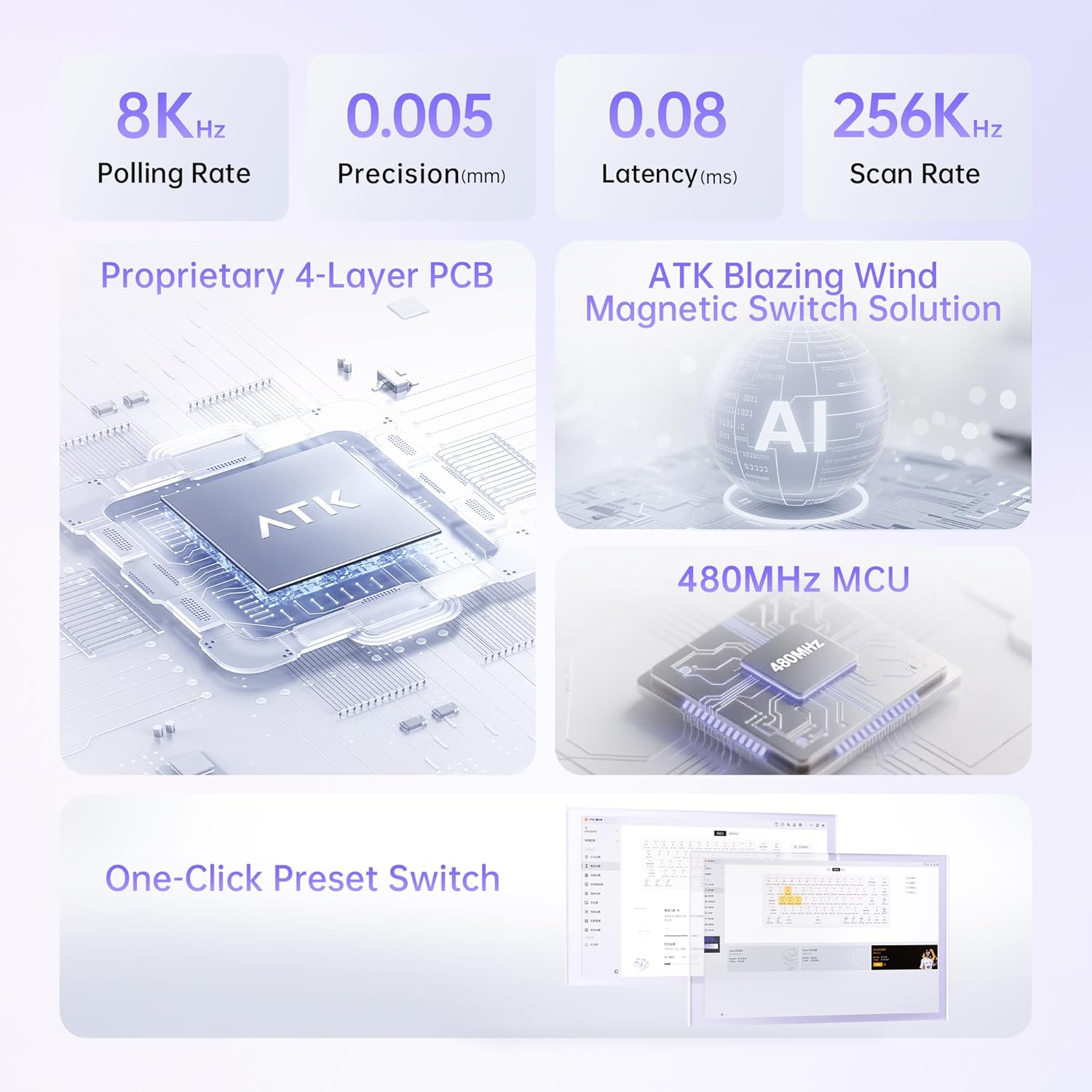
Image: Visual representation of the keyboard's internal technical components, including the 4-layer PCB, magnetic switch solution, and MCU.

Image: The ATK 68 RX keyboard with its detachable wrist rest, showing different color options for customization.

Image: A close-up of the keyboard's side, showing the Type-C port and a switch, illustrating the one-click preset functionality.
4. Setup Guide
4.1 Connecting the Keyboard
- Unpack the ATK 68 RX keyboard and the 8K USB Cable from the package.
- Connect the USB-C end of the cable to the USB-C port located on the left side of the keyboard.
- Connect the USB-A end of the cable to an available USB port on your computer.
- The keyboard should be automatically recognized by your operating system (Windows, macOS, Linux).
4.2 Driver Installation (Optional for Advanced Features)
To access advanced customization features such as adjustable actuation, Rapid Trigger, Dynamic Key Stroke (DKS), Macro settings, and custom lighting effects, download and install the official ATK driver software from the ATK website. Refer to the website for the latest software version and installation instructions.
5. Operating Instructions
5.1 Basic Keyboard Use
The ATK 68 RX functions as a standard 65% keyboard upon connection. All keys perform their labeled functions. The compact layout requires the use of the Function (Fn) key for accessing certain secondary functions, typically indicated on the keycaps.
5.2 Customizing Actuation and Rapid Trigger
Using the ATK driver software, you can precisely adjust the actuation point for each key from 0.005 mm to 3.3 mm. This allows for personalized sensitivity. The software also enables Rapid Trigger functionality, where keys react to both press and release, and Dynamic Key Stroke (DKS) for multi-action key presses based on depth.
- Open the ATK driver software.
- Navigate to the "Actuation" or "Key Settings" section.
- Select the desired key(s) or apply a global setting.
- Adjust the actuation depth using the provided slider or input field.
- Enable or configure Rapid Trigger and DKS as needed.
- Save your settings to the keyboard's onboard memory.
5.3 Using Presets
The keyboard supports three customizable presets. These can be configured via the ATK driver software to store different actuation profiles, keybindings, and lighting effects. You can switch between these presets using a dedicated button on the keyboard or through the software.
- Configure your desired settings for each preset within the ATK driver software.
- Use the physical preset switch on the keyboard (refer to the image in the Features section) to cycle through your saved profiles.
5.4 RGB Lighting Control
The ATK 68 RX features south-facing 16.8M RGB lighting with 22 pre-set lighting effects. These effects can be cycled through using onboard shortcuts (refer to the keyboard's quick guide or the driver software for specific key combinations) or customized extensively via the ATK driver software.
6. Maintenance
6.1 Cleaning the Keyboard
- Disconnect the keyboard from your computer before cleaning.
- Use a soft, lint-free cloth slightly dampened with water or a mild cleaning solution to wipe down the keycaps and chassis.
- For dust and debris between keycaps, use compressed air.
- Avoid using harsh chemicals or abrasive materials, as these can damage the keyboard's finish.
6.2 Keycap and Switch Replacement
The ATK 68 RX is designed with hot-swappable switches, allowing for easy replacement of keycaps and switches. Use the included keycap and switch puller tool for this process.
- To remove a keycap, gently hook the keycap puller under the edges of the keycap and pull upwards evenly.
- To remove a switch, use the switch puller to grip the top and bottom clips of the switch and pull upwards.
- To install a new switch, align the pins of the new switch with the holes on the PCB and press down firmly until it clicks into place. Ensure the pins are not bent.
- To install a new keycap, align it over the switch stem and press down gently until it is seated.
7. Troubleshooting
- Keyboard not responding:
- Ensure the USB cable is securely connected to both the keyboard and the computer.
- Try connecting the keyboard to a different USB port on your computer.
- Test the keyboard on another computer to rule out system-specific issues.
- Restart your computer.
- If using a USB hub, try connecting directly to the computer.
- Keys not registering or double-typing:
- This could indicate an issue with the switch. Try replacing the affected switch using the provided switch puller.
- Ensure the ATK driver software is up to date.
- Reset the keyboard settings to default via the driver software.
- RGB lighting not working or incorrect:
- Check the lighting settings in the ATK driver software.
- Ensure no conflicting software is running that might control RGB lighting.
- Try cycling through the onboard lighting effects using the keyboard shortcuts.
- Actuation settings not applying:
- Ensure the ATK driver software is running and the settings have been saved to the keyboard.
- Verify that the correct preset is active.
- Update the driver software to the latest version.
8. Specifications

Image: A detailed table outlining the technical specifications of the ATK 68 RX keyboard.
| Feature | Detail |
|---|---|
| Product Name | ATK 68 RX esports Hall Effect Keyboard |
| Color | Pink (also available in White, Black) |
| Switch Type | Wolf Switch / Primordial Switch (Magnetic Hall Effect) |
| Stabilizer | V1 Demagnetized Stabilizer |
| Actuation Range (RT Range) | 0.005 mm – 3.3 mm |
| Actuation Step Precision (RT Step Precision) | 0.001 mm |
| Latency | 0.08 ms |
| Scan Rate | 256K Hz |
| Polling Rate | 8000 Hz |
| Keycaps | PC Frosted Keycaps (Cherry-profile) |
| Padding | Silicone Base Pad, Poron Foam, EPDM Foam, PET Film, IXPE Pad, Silicone Plate Foam |
| Wrist Rest Material | CNC Aluminum |
| Wrist Rest Color (for Pink model) | Pink (also Champagne Gold, Gray options for other models) |
| Wrist Rest Finish (for Pink model) | Electrostatic Powder Coating (also Anodized Sandblasting for other models) |
| Lighting | South-Facing 16.8M RGB with 22 Pre-set Lighting Effects |
| Positioning Plate | Aluminum Positioning Plate |
| Functions | Supports RT/DKS/MT/TGL/Adjustable Deadzone and Key Remapping |
| Connectivity | Wired (USB-C) |
| System Compatibility | Windows / macOS / Linux |
| Product Dimensions | 12.5"L x 4.5"W x 1.2"H (31.75 x 11.43 x 3.05 cm) |
| Item Weight | 2 pounds (0.91 kg) |
9. Warranty and Support
9.1 Warranty Information
The ATK 68 RX Hall Effect Gaming Keyboard comes with a manufacturer's warranty. Please refer to the included Warranty Certificate in your package for specific terms, conditions, and duration of the warranty. Retain your proof of purchase for warranty claims.
9.2 Customer Support
For technical assistance, troubleshooting, or warranty inquiries, please visit the official ATK website or contact ATK customer support. You can find contact information and additional resources on the ATK brand store page: ATK Official Store.


