
Introduction
This manual provides detailed instructions for the setup, operation, and maintenance of your A4 Tech 4200N Wireless Keyboard and Mouse combo. Please read this manual thoroughly before using the product to ensure optimal performance and longevity.
The A4 Tech 4200N offers constant wireless stability, convenient multimedia shortcut keys, and anti-latency technology for a smooth user experience.
Package Contents
- Wireless Keyboard
- Wireless Mouse
- USB Receiver
- 2 AAA Alkaline Batteries (pre-installed or included separately)
- User Manual (this document)
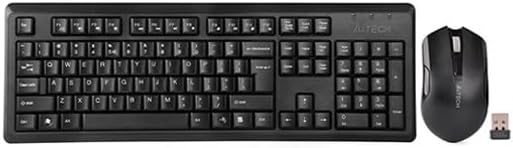
Image: The A4 Tech 4200N wireless keyboard and mouse, shown alongside the compact USB receiver.
Setup Instructions
- Install Batteries:
- For the keyboard: Open the battery compartment cover on the underside of the keyboard. Insert the AAA batteries, ensuring correct polarity (+/-). Close the cover.
- For the mouse: Open the battery compartment cover on the underside of the mouse. Insert the AAA batteries, ensuring correct polarity (+/-). Close the cover.
- Connect USB Receiver: Locate an available USB port on your personal computer. Insert the USB receiver firmly into the USB port.
- Power On:
- For the keyboard: Most wireless keyboards do not have a separate power switch. It will activate automatically once batteries are installed and the receiver is connected.
- For the mouse: Locate the power switch on the underside of the mouse and slide it to the "ON" position.
- Automatic Connection: The keyboard and mouse should automatically connect to your computer. No additional drivers are typically required for standard functionality on compatible operating systems.

Image: The A4 Tech 4200N wireless keyboard and mouse, ready for use after setup.
Operating Instructions
Keyboard Usage
- Standard Typing: Use the QWERTY layout for standard text input.
- Multimedia Shortcut Keys: The keyboard features dedicated multimedia keys for quick access to functions like volume control, play/pause, and track skipping. Refer to the key legends for specific functions.
- Function Keys (F1-F12): These keys may have secondary functions accessible by pressing the "Fn" key simultaneously.
Mouse Usage
- Basic Navigation: The mouse uses optical motion detection technology for precise cursor control.
- Left/Right Click: Standard left and right click buttons for selection and context menus.
- Scroll Wheel: Use the scroll wheel for vertical scrolling in documents and web pages. The scroll wheel may also function as a middle click button.
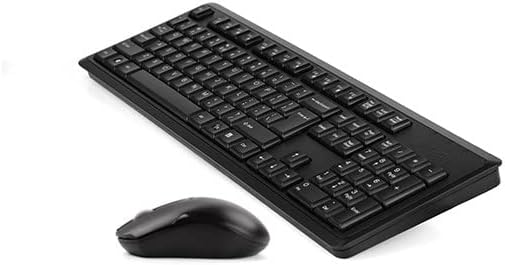
Image: An angled view of the A4 Tech 4200N wireless keyboard and mouse, highlighting their ergonomic design.
Maintenance
- Cleaning: Use a soft, dry cloth to clean the surfaces of the keyboard and mouse. For stubborn dirt, a slightly damp cloth with mild soap can be used, ensuring no liquid enters the devices.
- Battery Replacement: When performance degrades or the low battery indicator (if present) illuminates, replace the AAA batteries in both the keyboard and mouse. Dispose of old batteries responsibly according to local regulations.
- Storage: If storing the devices for an extended period, remove the batteries to prevent leakage. Store in a cool, dry place.
Troubleshooting
| Problem | Possible Cause | Solution |
|---|---|---|
| Keyboard/Mouse not responding |
|
|
| Lag or intermittent connection |
|
|
| Mouse cursor erratic |
|
|
Specifications
| Feature | Detail |
|---|---|
| Brand | A4tech |
| Model Number | 4200N |
| Connectivity Technology | Wireless (USB Receiver, Wi-Fi) |
| Compatible Devices | Personal Computer |
| Operating System Compatibility | Multiple operating systems |
| Keyboard Layout | QWERTY |
| Mouse Motion Detection | Optical |
| Power Source | Battery (Wireless) |
| Batteries Required | Yes, 2 x AAA (included) |
| Special Features | Portable, Multimedia Shortcut Keys, Anti-latency Technology, Constant Wireless Stability |
| Recommended Use | Office Use |
Warranty and Support
Information regarding specific warranty terms and conditions for the A4 Tech 4200N Wireless Keyboard and Mouse is not available in this document. For warranty details, please refer to the warranty card included with your product or visit the official A4 Tech website.
For technical support or further assistance, please contact A4 Tech customer service through their official channels. Contact information can typically be found on the product packaging or the manufacturer's website.


