1. Product Overview
The GAOMON M106K PRO is a digital graphics tablet designed for drawing, online teaching, and various creative applications. It features a large active area, customizable shortcut keys, and a battery-free passive pen with high pressure sensitivity.
Package Contents
The GAOMON M106K PRO package includes the following items:
- Pen Tablet M106K Pro
- Digital Pen AP32
- USB Cable
- Pen Case
- Pen Nib Pack (includes 8 replacement nibs)
- Pen Nib Clip
- Quick Start Guide
- Type-C Adapter (Gift)

Image: All items included in the GAOMON M106K PRO package, neatly arranged.
Unboxing Video
Video: An unboxing demonstration of the GAOMON M106K PRO drawing tablet, showing the contents and initial setup.
2. Setup Instructions
Connecting the Tablet
The M106K PRO can be connected to a computer (Windows/macOS) or an Android device.
- For Computer Connection: Connect the Mini USB end of the provided USB cable to the tablet and the standard USB-A end to an available USB port on your computer.
- For Android Device Connection: Ensure your Android device (phone or tablet) runs Android 6.0 or above and supports OTG function. Use the provided USB cable and the Type-C OTG adapter to connect the tablet to your Android device. The tablet will automatically adjust its working area to a 16:9 aspect ratio to prevent display distortion.

Image: The GAOMON M106K PRO drawing tablet connected to a laptop via USB cable.

Image: The GAOMON M106K PRO drawing tablet connected to an Android smartphone using an OTG adapter.
Driver Installation
To ensure proper functionality and customization options, install the latest driver for your operating system.
- Visit the official GAOMON website: www.gaomon.net.
- Navigate to the 'Support' section and select 'Driver Download'.
- Choose 'M106K PRO' from the model list and select your operating system (Windows or macOS).
- Download and run the appropriate driver installer. Follow the on-screen prompts to complete the installation. It is recommended to close all drawing programs before installation.
- After successful installation, restart your computer if prompted.
Driver Installation and Usage Video
Video: A demonstration of the GAOMON M106K PRO, including driver installation steps and basic usage.
3. Operating the Tablet
Digital Pen AP32
The GAOMON M106K PRO comes with a battery-free Digital Pen AP32. This pen offers 8192 levels of pressure sensitivity and ±60° tilt support, allowing for precise control and natural drawing experience. It features two customizable buttons for quick access to functions.

Image: Detailed view of the Digital Pen AP32, highlighting its battery-free design, 8192 pressure levels, and tilt support.
Customizable Keys
The tablet is equipped with 12 physical shortcut keys and 16 soft keys. These keys can be customized through the driver software to perform various functions such as brush enhance/weaken, zoom-in/out, undo, hand tool, brush tool, erase, and more. This customization enhances workflow efficiency.

Image: Close-up of the GAOMON M106K PRO tablet showing the 12 physical shortcut keys and 16 soft keys.
Working Area and Orientation
The tablet offers a generous working area. For PC use, the active area is 10 x 6.25 inches. When connected to an Android mobile device, the working area adjusts to 6.3 x 3.5 inches to match the screen aspect ratio.
The tablet supports both right-handed and left-handed modes. You can configure the orientation in the driver settings to suit your preference, allowing the shortcut keys to be positioned on either the left or right side.

Image: Diagram illustrating the dimensions of the GAOMON M106K PRO tablet and its active working areas for PC and mobile use.
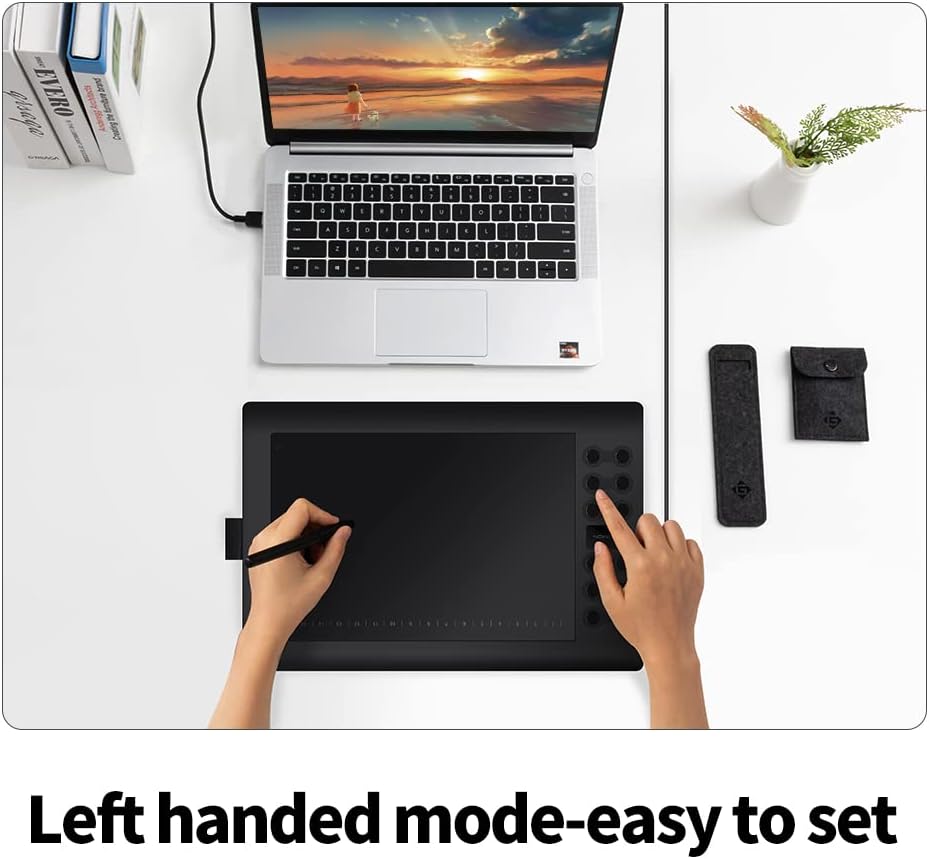
Image: A user operating the GAOMON M106K PRO tablet in left-handed mode, with the shortcut keys positioned on the right.
Software Compatibility
The M106K PRO is compatible with various operating systems including Windows 7/8/8.1/10 or above, Mac OS 10.12 or above, and Android 6.0 or above. It supports major design and creative software applications.

Image: Visual representation of various applications and uses for the GAOMON M106K PRO, including 3D art, sketching, photo editing, drawing, online teaching, meetings, and e-signatures.
4. Maintenance
Pen Nib Replacement
The Digital Pen AP32 uses replaceable nibs. When the nib wears down, use the included pen nib clip to carefully remove the old nib and insert a new one from the pen nib pack. Ensure the new nib is securely seated.
Cleaning the Tablet
To clean the tablet surface, use a soft, dry, lint-free cloth. For stubborn smudges, lightly dampen the cloth with water or a mild screen cleaner. Avoid using harsh chemicals or abrasive materials, as these can damage the surface.
5. Troubleshooting
- No Pen Movement: Ensure the tablet is correctly connected to your device and the driver is installed. Try restarting your computer or reconnecting the tablet.
- Pressure Sensitivity Not Working: Verify that the driver is installed and running. Check your drawing software settings to ensure pressure sensitivity is enabled.
- Custom Keys Not Responding: Open the GAOMON driver software and check if the keys are correctly assigned. Ensure no other software is conflicting with the tablet driver.
- Android Connection Issues: Confirm your Android device supports OTG function and is running Android 6.0 or higher. Try using a different OTG adapter or USB cable.
If you encounter persistent issues, refer to the GAOMON official website for updated FAQs or contact customer support.
6. Specifications
| Feature | Detail |
|---|---|
| Product Dimensions | 9.4 x 14.2 x 0.04 inches |
| Item Weight | 1.45 pounds |
| Item Model Number | M106K PRO |
| Connectivity Technology | USB |
| Pressure Sensitivity | 8192 Levels |
| Operating System Compatibility | Android 6.0 Marshmallow, MacOS 10.12 or later, Windows 7 & above |
| Special Feature | Pen |
7. Warranty and Support
Warranty Information
GAOMON provides a 1 Year Protection Plan for non-human made damages.
Customer Service
GAOMON offers lifetime technical service to all customers. We are committed to ensuring a positive user experience.
For any questions regarding the product, before or after purchase, please contact us via Amazon Message. You can reach us through your order details for prompt assistance.


