1. Introduction
This manual provides essential information for the safe and effective use of your LEXIBOOK Disney Frozen 2 Bilingual Educational Laptop, model JC598FZi3. This educational laptop is designed to offer engaging learning experiences in both English and German, featuring 124 activities across various subjects.
Please read this manual thoroughly before operating the device and retain it for future reference.
2. Product Overview
The LEXIBOOK Disney Frozen 2 Bilingual Educational Laptop is an interactive learning tool featuring a realistic laptop design with a functional keyboard and mouse. It includes a monochrome LCD screen for displaying activities and animations.
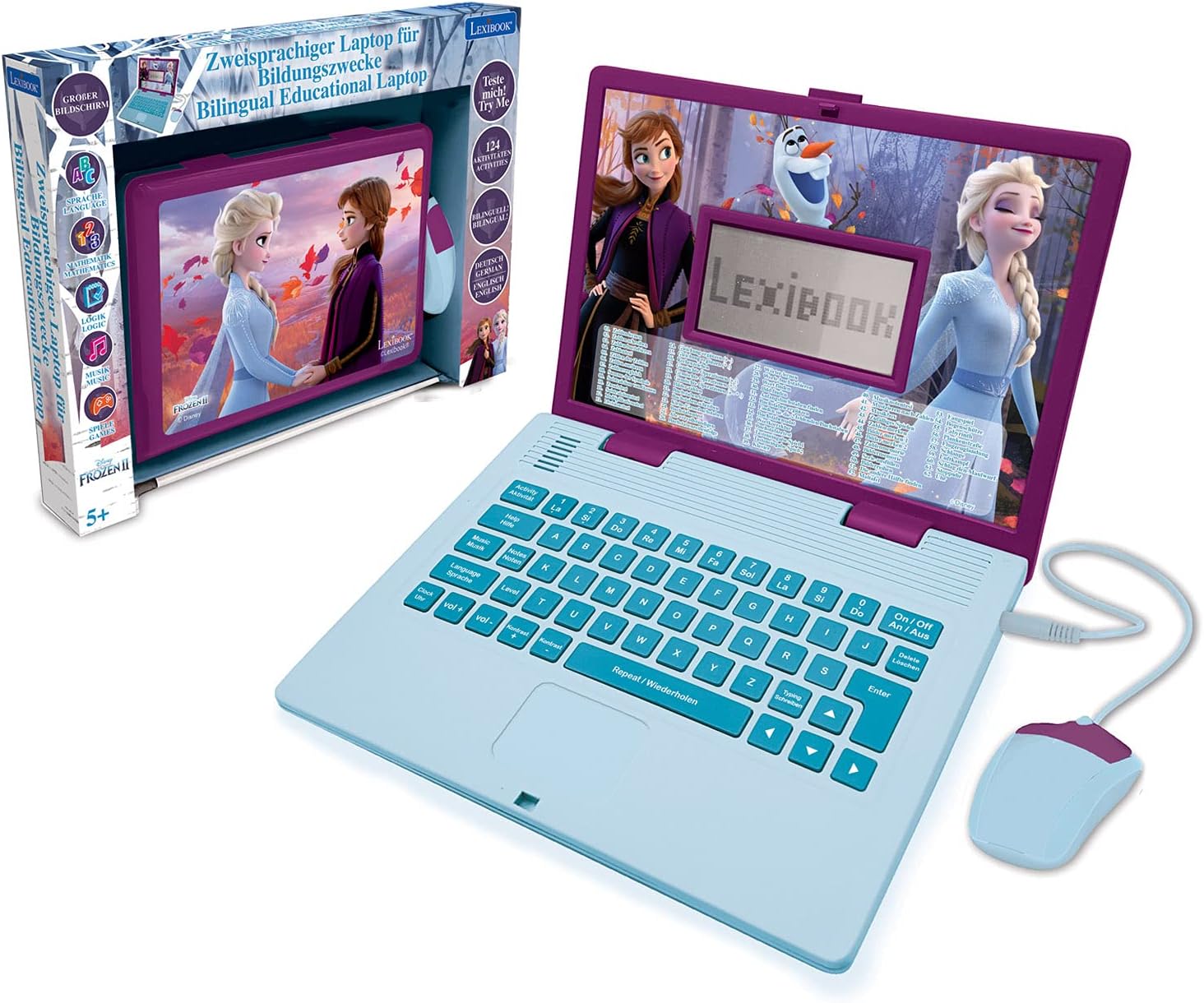
Figure 2.1: The educational laptop and its retail packaging.

Figure 2.2: Front view of the laptop with the wired mouse connected.

Figure 2.3: Detailed view of the laptop screen and mouse.
3. Setup
3.1 Battery Installation
The laptop requires 2 Alkaline batteries (not included). Follow these steps to install them:
- Locate the battery compartment on the underside of the laptop.
- Using a screwdriver, open the battery compartment cover.
- Insert 2 new Alkaline batteries, ensuring correct polarity (+/-).
- Replace the battery compartment cover and secure it with the screw.
3.2 Powering On/Off
To turn the laptop ON, press the 'On/Off' button located on the keyboard. To turn it OFF, press the 'On/Off' button again.
4. Operating Instructions
4.1 Basic Navigation
Use the integrated keyboard and the wired mouse to navigate through the menus and select activities. The keyboard features standard QWERTY layout keys and dedicated function buttons.

Figure 4.1: Detail of the laptop keyboard layout.

Figure 4.2: Detail of the wired mouse.
4.2 Language Selection
The laptop supports two languages: English and German. Use the 'Language' button to switch between the available languages. The selected language will apply to all activities and instructions.
4.3 Volume Control
Adjust the volume using the 'Vol+' and 'Vol-' buttons on the keyboard to suit your environment.
4.4 LCD Screen
The LCD screen displays animations and activity content. Its dimensions are approximately 9.7 cm x 5.1 cm.

Figure 4.3: LCD screen dimensions.

Figure 4.4: Examples of screen animations.
5. Activities
The laptop offers 124 educational activities designed to enhance various skills. These activities are categorized as follows:
- Language: Activities focusing on letters, words, typing, and spelling in both English and German.
- Mathematics: Exercises covering numbers, basic calculations (addition, subtraction, multiplication, division), and problem-solving.
- General Knowledge: Quizzes and facts to broaden understanding.
- Logic: Puzzles and challenges to develop critical thinking and memory.
- Music: Introduction to musical notes, composing simple melodies, and playing pre-programmed tunes.
- Clock Reading: Activities to learn how to tell time.
- Games: Fun and engaging games to reinforce learning and provide entertainment.
Many activities feature multiple levels to allow for progressive learning and skill development.

Figure 5.1: Partial list of available activities.

Figure 5.2: Child engaging with the laptop.
6. Maintenance
6.1 Cleaning
To clean the laptop, use a soft, dry cloth. Do not use abrasive cleaners or solvents, as these can damage the surface. Keep the device away from water and excessive moisture.
6.2 Battery Care
Remove batteries if the device will not be used for an extended period to prevent leakage. Dispose of used batteries responsibly according to local regulations.
7. Troubleshooting
- Device does not turn on: Check if the batteries are correctly installed and fully charged. Replace with new batteries if necessary.
- Screen is blank or frozen: Try turning the device off and then on again. If the issue persists, replace the batteries.
- Sound issues: Ensure the volume is not set to minimum. Check battery levels.
- Mouse or keyboard unresponsive: Ensure the mouse cable is securely plugged in. Check for any debris obstructing buttons or the mouse sensor.
8. Specifications
| Model Number | JC598FZi3 |
| Brand | Lexibook |
| Dimensions (L x W x H) | 24 x 18 x 3.6 cm |
| Weight | 830 Grams |
| Recommended Age | 5 years and up |
| Languages | German, English |
| Battery Type | Alkaline (2 required, not included) |
| Main Material | Plastic |
9. Safety Information
- This product is recommended for children aged 5 years and older.
- Adult supervision is recommended during play.
- Do not expose the device to extreme temperatures or direct sunlight.
- Keep small parts, such as batteries, out of reach of young children to prevent choking hazards.
- Do not attempt to disassemble or modify the product.
10. Warranty and Support
For warranty information or technical support, please refer to the contact details provided with your purchase or visit the official Lexibook website. Keep your proof of purchase for any warranty claims.


