
Introduction
This manual provides detailed instructions for the installation, operation, and maintenance of your Decdeal WiFi Thermostat for Gas Boilers. Please read this manual thoroughly before installation and use to ensure proper function and safety. This thermostat features a large LCD touchscreen, app control, voice control compatibility with Alexa and Google Home, and programmable scheduling for optimal comfort and energy efficiency.
Product Overview

Front view of the Decdeal WiFi Thermostat, showcasing its sleek design and large LCD display.
The Decdeal WiFi Thermostat (Model GC) is designed for gas boiler systems. It offers advanced features for managing your home's heating, including:
- Programmable Modes: 5+1+1 weekly programming for customized heating schedules.
- APP Control: Remote control via the "My Smart Life" app (or Tuya Smart app) from your mobile device.
- Voice Control: Compatible with Amazon Alexa, Google Home, and Tmall Genie.
- Modern LCD Screen: 4.8-inch backlit color LCD touchscreen for easy readability and operation.
- Multifunctional Assistant: Integrated humidity sensor display, time, and UV index.
- Child Lock: Option to fully or partially lock the touchscreen to prevent accidental changes.
Setup
1. Physical Installation and Wiring
Important: Installation should be performed by a qualified electrician. Ensure power is turned off at the main circuit breaker before beginning any wiring.

Wiring diagram for the GC model thermostat, showing connections for gas/water boiler, power supply, and optional sensor.
The GC model is specifically for water/gas boiler systems. Refer to the diagram above for correct wiring connections:
- Clean Contacts (Boiler): Connect to terminals 1 and 2.
- Neutral Line (N): Connect to terminal 3.
- Live Wire (L): Connect to terminal 4.
- Temperature Sensor (Optional): Connect to terminals 5 and 6.
The thermostat is suitable for standard wall switch boxes (86mm, European 60mm round, or 503 installation boxes).
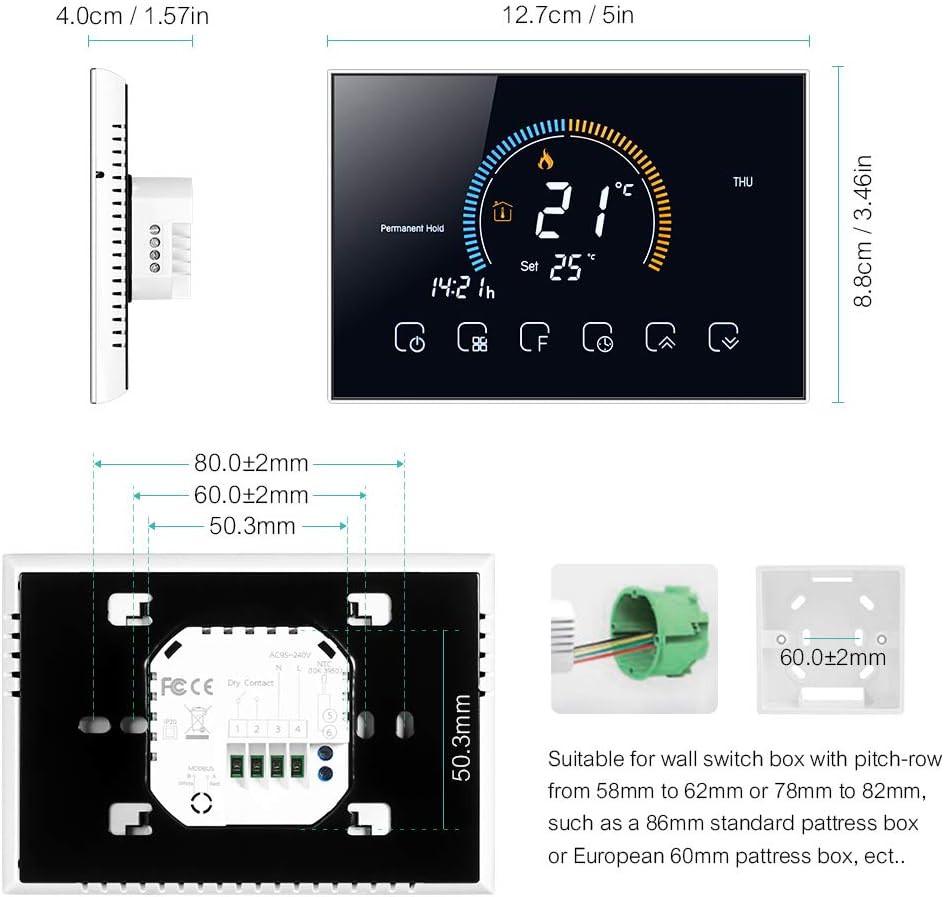
Detailed dimensions and mounting plate for the thermostat, indicating compatibility with various wall boxes.
2. App Installation and Wi-Fi Connection
The thermostat connects to your home Wi-Fi network (2.4 GHz only) for remote control via a smartphone app. Download the "My Smart Life" app (or Tuya Smart app) from your mobile app store.
- Ensure your mobile device is connected to a 2.4 GHz Wi-Fi network. The thermostat does not support 5 GHz networks.
- Turn off the thermostat screen by pressing the power button.
- Press and hold the "Up" arrow button (usually the rightmost arrow) for approximately 8 seconds until the Wi-Fi icon on the thermostat screen starts blinking rapidly. This indicates pairing mode.
- Open the "My Smart Life" app on your smartphone.
- Select "Add Device" or the "+" icon to add a new device.
- Choose the corresponding thermostat type from the list of devices (e.g., "Thermostat (Wi-Fi)").
- Follow the on-screen instructions in the app to complete the connection. You may need to confirm the Wi-Fi network and enter its password.
Video demonstrating the Wi-Fi connection process and basic app operation for the thermostat.
For a detailed multilingual manual, including Italian, scan the QR code below:

Scan this QR code to access the comprehensive multilingual user manual online.
Operating Instructions
1. LCD Display Overview

Detailed view of the thermostat's LCD display, highlighting various indicators and touch buttons.
The LCD display provides real-time information and allows interaction via touch buttons. Key elements include:
- (1) Heating On: Indicates when the heating system is active.
- (2) Periods: Shows the current programming period.
- (3) Monday to Sunday: Day of the week indicator.
- (4) External Sensor: Indicates if an external sensor is connected.
- (5) Down Button: Decreases temperature or navigates menus.
- (6) Up Button: Increases temperature or navigates menus.
- (7) Clock: Displays current time.
- (8) Advanced Options: Accesses advanced settings.
- (9) Mode: Switches between operating modes (Manual, Program, Economy).
- (10) Power: Turns the thermostat on/off.
- (11) Time: Current time display.
- (12) Set Temp: Desired temperature setting.
- (13) Menu: Accesses menu options.
- (14) Room Temp: Current room temperature.
- (15) Lock: Indicates if the screen is locked.

Close-up of the LCD display and responsive touch keys for easy interaction.
2. Operating Modes
The thermostat offers several operating modes to suit your needs:
- Manual Mode: In this mode, you can manually set the heating temperature according to your immediate needs. The thermostat will maintain this set temperature until changed.
- Programmable Mode (5+1+1): This mode allows you to set a weekly heating schedule with different temperature settings for weekdays (5 days), Saturday (1 day), and Sunday (1 day). You can define up to 6 periods per day. The thermostat will automatically follow this schedule.
- Economy Mode: In this mode, the temperature is maintained at a fixed 20°C (or other preset economy temperature) and cannot be adjusted manually. This is ideal for energy saving when you are away or during specific times.

The thermostat display showing weather information and the mobile app interface for setting a 6-period programmable schedule.
3. App Control
Control your thermostat remotely using the "My Smart Life" app. This allows you to adjust settings, change modes, and monitor your home's temperature from anywhere.

The mobile app interface showing remote control capabilities for the thermostat, including temperature adjustment and mode selection.
4. Voice Control
The thermostat is compatible with popular voice assistants like Amazon Alexa and Google Home. Once connected to your smart home system, you can use voice commands to control your heating.
- Example Command: "Alexa, set bedroom to 25 degrees."
- Example Command: "Hey Google, turn on the heating."
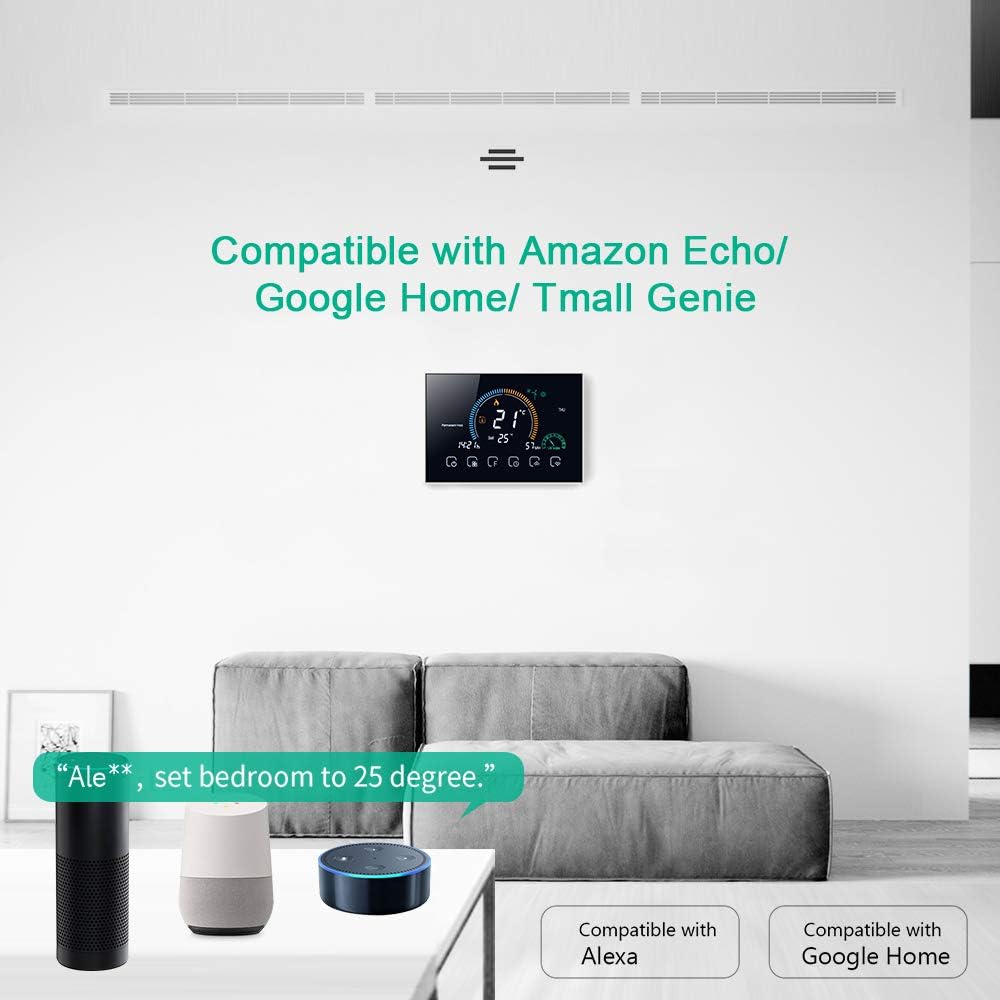
The thermostat displayed in a living room setting with Amazon Echo and Google Home devices, illustrating voice control compatibility.
5. Child Lock Function
To prevent accidental changes to settings, the thermostat features a child lock. Press and hold the lock button (usually the padlock icon) for 5 seconds to activate or deactivate the lock. You can choose between a full lock (all buttons disabled) or a partial lock (only temperature adjustment disabled).
Maintenance
- Cleaning: Wipe the screen and body with a soft, dry cloth. Do not use abrasive cleaners or solvents.
- Software Updates: Ensure your app is up-to-date for the latest features and performance improvements. Firmware updates for the thermostat may be available through the app.
- Power Cycle: If the thermostat becomes unresponsive, try turning off the power at the circuit breaker for a few minutes, then restore power.
Troubleshooting
| Problem | Possible Cause | Solution |
|---|---|---|
| Thermostat not powering on. | Incorrect wiring or no power supply. | Verify wiring connections (L and N terminals) and ensure power is supplied to the thermostat. Consult a qualified electrician if unsure. |
| Cannot connect to Wi-Fi / App. | Incorrect Wi-Fi frequency (5GHz), incorrect password, or device not in pairing mode. | Ensure your router is broadcasting a 2.4 GHz Wi-Fi signal and your phone is connected to it. Put the thermostat into pairing mode (hold Up button for 8 seconds). Re-enter Wi-Fi password carefully. |
| Flame icon flickering / High temperature protection. | External sensor not connected or incorrectly configured. | If an external sensor is not used, ensure the thermostat's sensor type setting is correct. Access advanced settings (hold 'F' button), navigate to 'AL', and adjust to 'IN' if necessary. |
| Inaccurate temperature reading. | Thermostat calibration needed. | Access advanced settings to calibrate the temperature. (Specific steps for calibration are not detailed in the provided data, refer to the full manual via QR code). |
| Clock losing time / Program not running correctly. | Internal clock drift or Wi-Fi connection issues preventing time synchronization. | Ensure a stable Wi-Fi connection for automatic time synchronization. If issues persist, a factory reset and re-pairing might be necessary. |
| Thermostat frequently loses app connection. | Unstable Wi-Fi signal or router interference. | Ensure the thermostat is within good range of your 2.4 GHz Wi-Fi router. Try restarting your router. If issues persist, consider repositioning the router or using a Wi-Fi extender. |
Specifications
| Feature | Detail |
|---|---|
| Brand | Decdeal |
| Model Name | GC |
| Product Dimensions | 4P x 12.7L x 8.8H cm |
| Controller Type | Amazon Alexa, Google Assistant, Button |
| Special Features | APP Control, Voice Control, Humidity Sensor |
| Specific Uses | Boiler |
| Connectivity Technology | Wi-Fi (2.4 GHz) |
| Power Source | AC Powered |
| Voltage | 240 Volts |
| Display Type | LCD |
| Screen Size | 4.8 Inches |
| Mounting Type | Wall Mount |
| Backlight | Yes |
| Electrical Power | 1.5 Watts |
| Item Weight | 231 Grams |
| Materials | PC + ABS |
Warranty and Support
For warranty information and technical support, please refer to the documentation included with your product or contact Decdeal customer service. You can also find additional resources by scanning the QR code provided in the Setup section.