1. Product Overview
The UGREEN M.2 NVME SATA SSD Enclosure (Model 80863) is designed to convert an M.2 NVME or SATA SSD into a portable external storage device. It features a USB-C 3.1 Gen 2 interface, offering data transfer speeds up to 10Gbps. This enclosure supports various M.2 SSD types and sizes, providing a versatile solution for data access and backup.
Key Features:
- High-Speed Data Transfer: USB 3.1 Gen 2 interface supports up to 10Gbps for NVME SSDs and 6Gbps for SATA SSDs.
- Broad Compatibility: Supports M-Key NVME, M+B Key NVME, and M+B Key SATA M.2 SSDs.
- Multiple SSD Sizes: Compatible with 2230, 2242, 2260, and 2280 form factors.
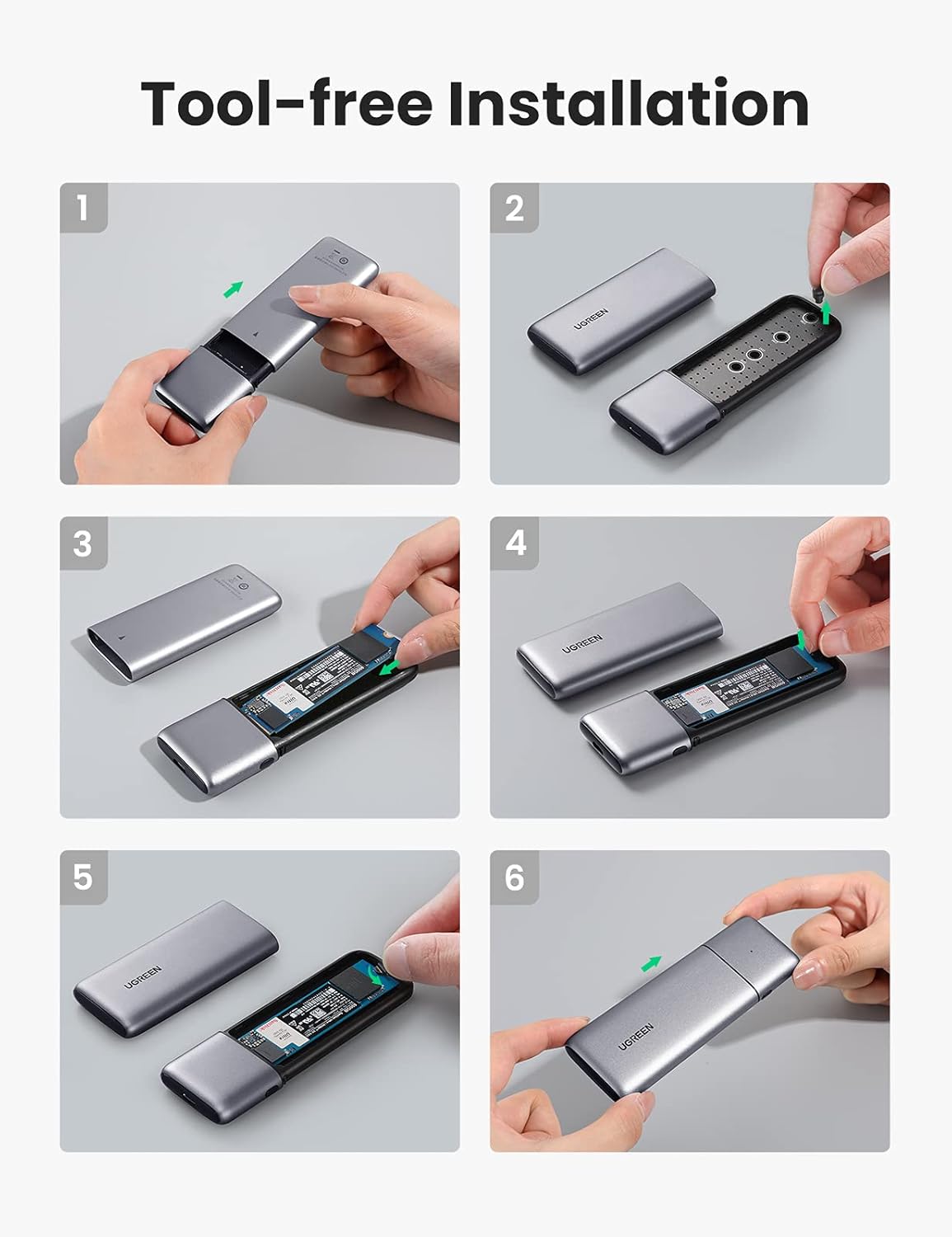
- Tool-Free Installation: Easy and quick SSD installation without the need for tools.
- Durable Design: Aluminum alloy casing for efficient heat dissipation and protection.
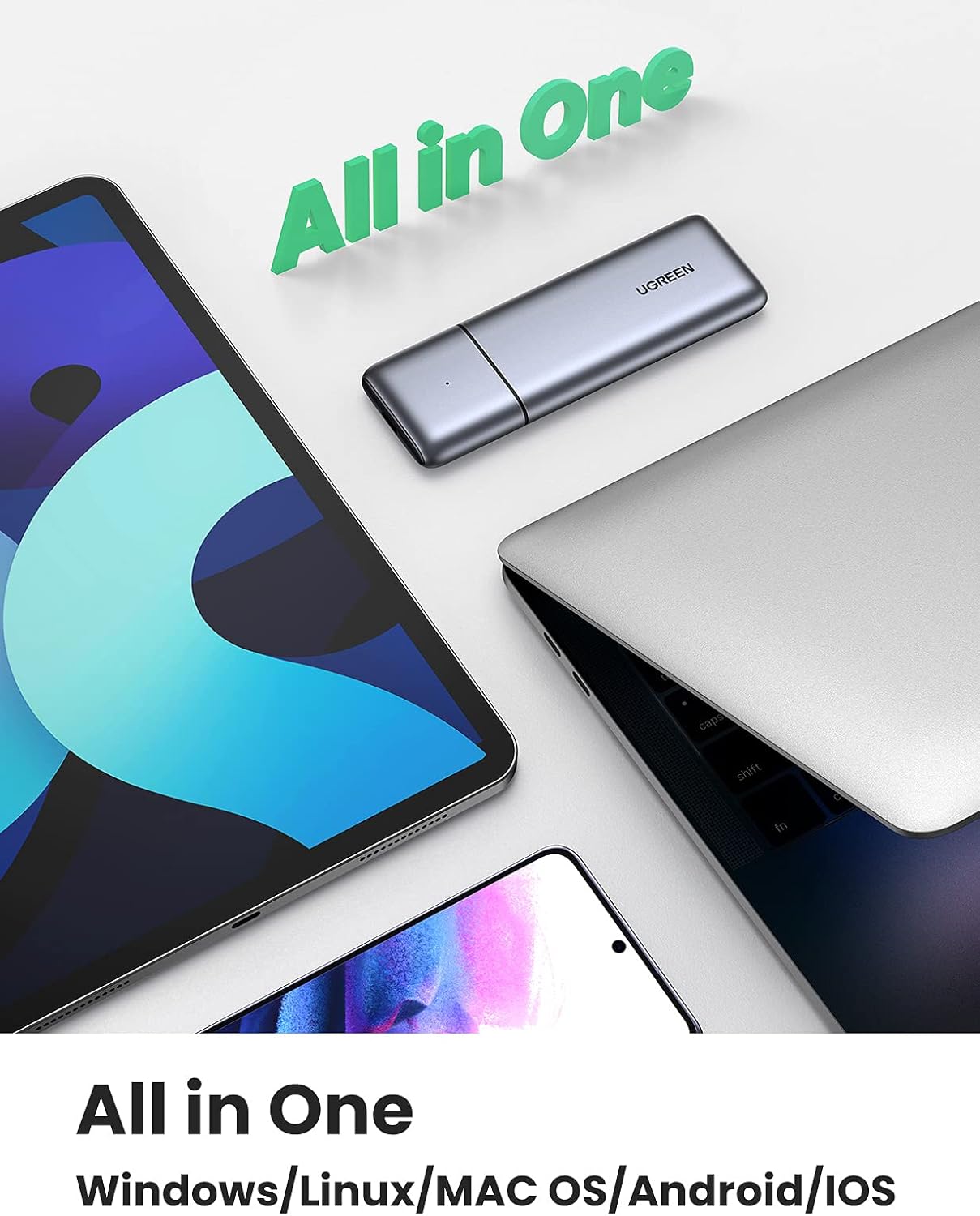
- Wide OS Support: Compatible with Windows, macOS, Linux, Android, and iOS devices.


2. Package Contents
- UGREEN M.2 NVME SATA SSD Enclosure (Model 80863)
- USB-C to USB-C Cable
- USB-C to USB-A Cable
- User Manual

3. Setup Instructions
Tool-Free SSD Installation:
- Slide Open: Gently slide the top cover of the enclosure to open it.
- Insert SSD: Align your M.2 SSD with the slot inside the enclosure and insert it firmly.
- Secure SSD: Use the provided rubber fastener to secure the M.2 SSD in place. Ensure it is properly seated.
- Close Enclosure: Slide the top cover back onto the enclosure until it clicks into place.
4. Operating Instructions
Connecting to a Device:
After installing your M.2 SSD, connect the enclosure to your computer, laptop, tablet, or smartphone using the appropriate USB-C cable (USB-C to USB-C or USB-C to USB-A). The enclosure is plug-and-play, requiring no additional drivers for most operating systems.
Data Transfer:
Once connected, your operating system should recognize the SSD as an external drive. You can then perform data transfer operations such as copying files, backing up data, or running applications directly from the SSD.
Compatibility:
The enclosure is compatible with a wide range of devices and operating systems, including:
- Windows (PC)
- macOS (Mac)
- Linux
- Android devices
- iOS devices (with appropriate adapters, if needed)

5. Maintenance
To ensure optimal performance and longevity of your UGREEN M.2 NVME SATA SSD Enclosure, follow these maintenance guidelines:
- Cleaning: Use a soft, dry cloth to clean the exterior of the enclosure. Avoid using liquid cleaners or solvents.
- Storage: Store the enclosure in a cool, dry place away from direct sunlight and extreme temperatures.
- Handling: Handle the enclosure with care to prevent physical damage. Avoid dropping it or exposing it to excessive force.
- Heat Dissipation: The aluminum casing is designed for heat dissipation. Ensure proper airflow around the enclosure during extended use to prevent overheating.

6. Troubleshooting
If you encounter issues with your UGREEN M.2 NVME SATA SSD Enclosure, refer to the following common troubleshooting steps:
- SSD Not Recognized:
- Ensure the M.2 SSD is correctly installed and seated firmly within the enclosure.
- Try connecting the enclosure to a different USB port or a different computer to rule out port or system issues.
- Verify that the M.2 SSD is properly initialized and formatted in your operating system's Disk Management (Windows) or Disk Utility (macOS). New SSDs often require initialization before use.
- Confirm your SSD is NVME or SATA M.2 and not an incompatible type like M-SATA.
- Slow Transfer Speeds:
- Ensure you are using a USB 3.1 Gen 2 compatible port on your host device to achieve maximum speeds. Older USB 2.0 or 3.0 ports will result in lower speeds.
- Check the quality of the USB cable. Use the provided UGREEN cables for optimal performance.
- Large file transfers or prolonged heavy use can cause the SSD to heat up, potentially leading to thermal throttling and reduced speeds. Ensure adequate ventilation.
- "Power Surge on USB Port" Error:
- This error typically indicates that the USB port is not supplying sufficient power or there is an electrical issue.
- Try connecting the enclosure to a different USB port, preferably a powered USB 3.0/3.1 port directly on your computer's motherboard (for desktops) or a different laptop.
- Avoid using unpowered USB hubs, which may not provide enough power.
- Ensure the SSD is correctly installed and not causing a short circuit.
- Enclosure Gets Hot:
- It is normal for the enclosure to become warm during operation, especially during intensive data transfers, as the aluminum casing acts as a heatsink to dissipate heat from the SSD.
- If it becomes excessively hot and performance drops, ensure it is in a well-ventilated area.
7. Specifications
| Feature | Specification |
|---|---|
| Model Number | 80863 |
| Material | Aluminum |
| Interface | USB-C 3.1 Gen 2 |
| Data Transfer Rate | Up to 10 Gbps (NVME), 6 Gbps (SATA) |
| Compatible SSD Types | M-Key NVME, M+B Key NVME, M+B Key SATA |
| Compatible SSD Sizes | 2230, 2242, 2260, 2280 |
| Max Storage Capacity | 2 TB |
| Compatible Devices | Laptop, PC, Mac, Android, iOS |
| Operating Systems | Windows, macOS, Linux, Android, iOS |
| Product Dimensions | 4.69 x 1.46 x 0.47 inches (11.9 x 3.7 x 1.2 cm) |
| Item Weight | 2.26 ounces (64 grams) |
8. Warranty and Support
UGREEN products come with a standard warranty. For detailed warranty information, product support, or technical assistance, please refer to the warranty card included in your package or visit the official UGREEN website. You may also contact UGREEN customer service directly through their support channels.