
Introduction
Thank you for choosing the LIFX A19 Smart Light Bulb. This manual provides essential information for the safe and efficient use of your new smart lighting product. The LIFX A19 bulb offers vibrant RGB color changing capabilities, tunable white light from 1500K to 9000K, and 1100 lumens of brightness, equivalent to a 75W incandescent bulb. It is Matter-compatible, allowing seamless integration with various smart home platforms without requiring a separate hub.

Image: The LIFX A19 Smart Light Bulb, showcasing its sleek design and color capabilities.
Safety Information
- Indoor Use Only: This product is designed for indoor use in dry locations.
- Standard Socket: Use only in E26 standard light sockets.
- Power Off Before Installation: Always turn off the power to the light fixture before installing or removing the bulb.
- Ventilation: Ensure adequate ventilation around the bulb. Do not enclose in fixtures that restrict airflow.
- Not for Emergency Lighting: This bulb is not intended for use with emergency exits or emergency lighting.
- Dimming: This bulb is software dimmable. Do not use with external hardware dimmers unless specified as compatible.
Package Contents
Your LIFX A19 Smart Light Bulb package includes:
- 2 x LIFX A19 Smart Light Bulbs
- Quick Start Guide (with Matter QR code)
Setup
1. Physical Installation
- Ensure the power to the light fixture is turned off at the switch.
- Carefully screw the LIFX A19 Smart Light Bulb into a standard E26 light socket. Do not overtighten.
- Turn the power back on at the switch. The bulb should illuminate with a default white light.

Image: Visual guide showing the simple screw-in installation process for the LIFX A19 Smart Light Bulb.
2. App Installation and Pairing
The LIFX A19 Smart Light Bulb can be controlled via the LIFX app or integrated directly with Matter-compatible smart home platforms.
Using the LIFX App:
- Download the LIFX app from your device's app store (iOS or Android).
- Open the LIFX app and follow the on-screen instructions to create an account or log in.
- The app will guide you through connecting your bulb to your 2.4GHz Wi-Fi network. No separate hub is required.
Matter Integration (Apple HomeKit, Alexa, Google Home, Samsung SmartThings):
- Ensure your smart home hub (e.g., Apple HomePod, Amazon Echo, Google Nest Hub) is Matter-compatible and updated.
- Open your preferred smart home app (e.g., Apple Home, Alexa app, Google Home app).
- Select the option to add a new device.
- Scan the Matter QR code provided in your Quick Start Guide or on the bulb itself.
- Follow the app's prompts to complete the pairing process.

Image: The LIFX A19 Smart Light Bulb is Matter-enabled, allowing integration with major smart home platforms like Apple Home, Google Home, Alexa, and SmartThings without a hub.
Video: An official LIFX video demonstrating the capabilities and smart features of LIFX lights, including color changing and smart home integration.
Operating Instructions
1. Basic Control
- On/Off: Use the LIFX app, your smart home app, or voice commands to turn the bulb on or off.
- Dimming: Adjust brightness from 1% to 100% using the app or voice commands.
2. Color and White Light Adjustment
The LIFX A19 bulb offers a vast spectrum of colors and tunable white light.
- RGB Color Changing: Select from over 1 trillion colors using the color wheel in the LIFX app.
- Tunable White: Adjust white light from warm 1500K candlelight to crisp 9000K daylight.
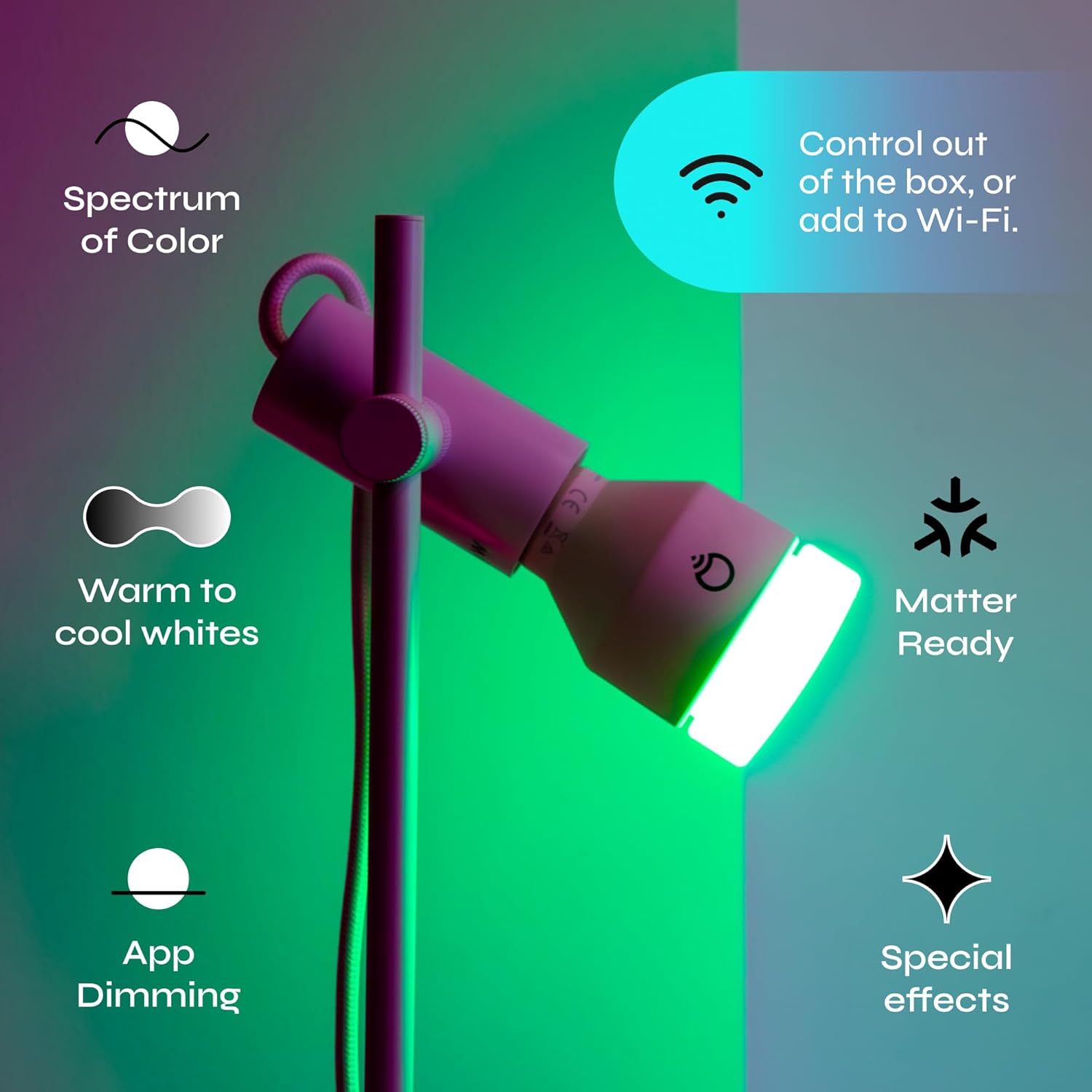
Image: Key features of the LIFX A19 Smart Light Bulb, highlighting its wide spectrum of colors, tunable white light, app dimming, Matter readiness, and special effects.
Video: A short official LIFX video demonstrating how to customize colors within the LIFX app, showcasing the color wheel and various color options.
3. Scenes and Effects
Enhance your lighting experience with pre-set scenes and dynamic effects.
- Color Blends & Gradients: Create unique color transitions.
- Designer-Curated Themes: Choose from themes like Golden Hour, Movie Night, or Holiday Glow.
- Music Sync & Visualizer: Sync your lights to music for an immersive experience.
- Special Effects: Apply effects like Strobe, Move, or Color Cycle.
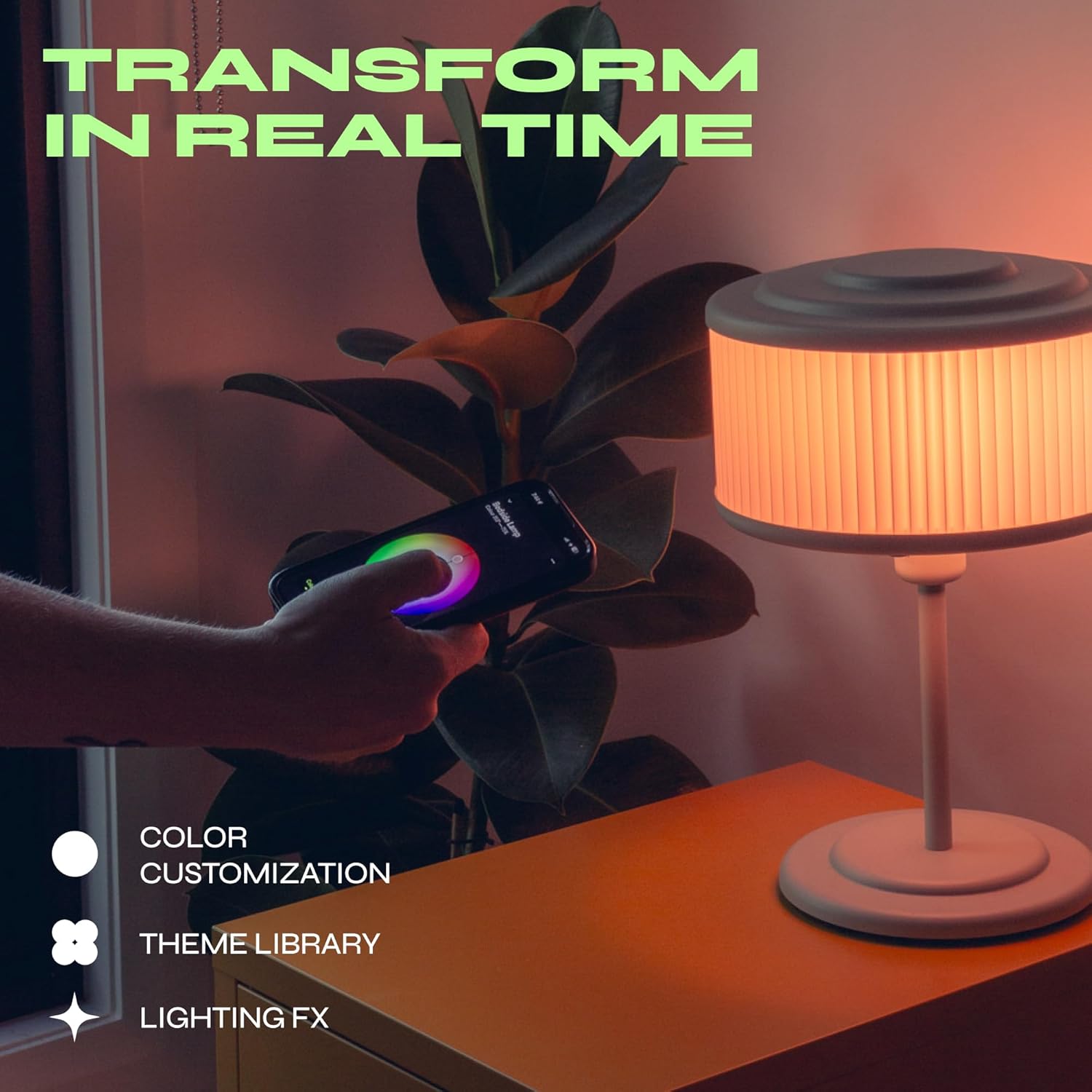
Image: The LIFX app interface displaying options for color customization, a theme library, and various lighting effects to transform your space in real-time.
Video: An official LIFX video tutorial on how to create personalized scenes within the LIFX app, demonstrating the process of saving custom lighting configurations.
4. Schedules and Automations
Automate your lighting to fit your daily routine.
- Day and Dusk Feature: Automatically shifts light from cool whites in the morning to warm tones at night to support your circadian rhythm.
- Custom Schedules: Set specific times for lights to turn on/off, change color, or adjust brightness.
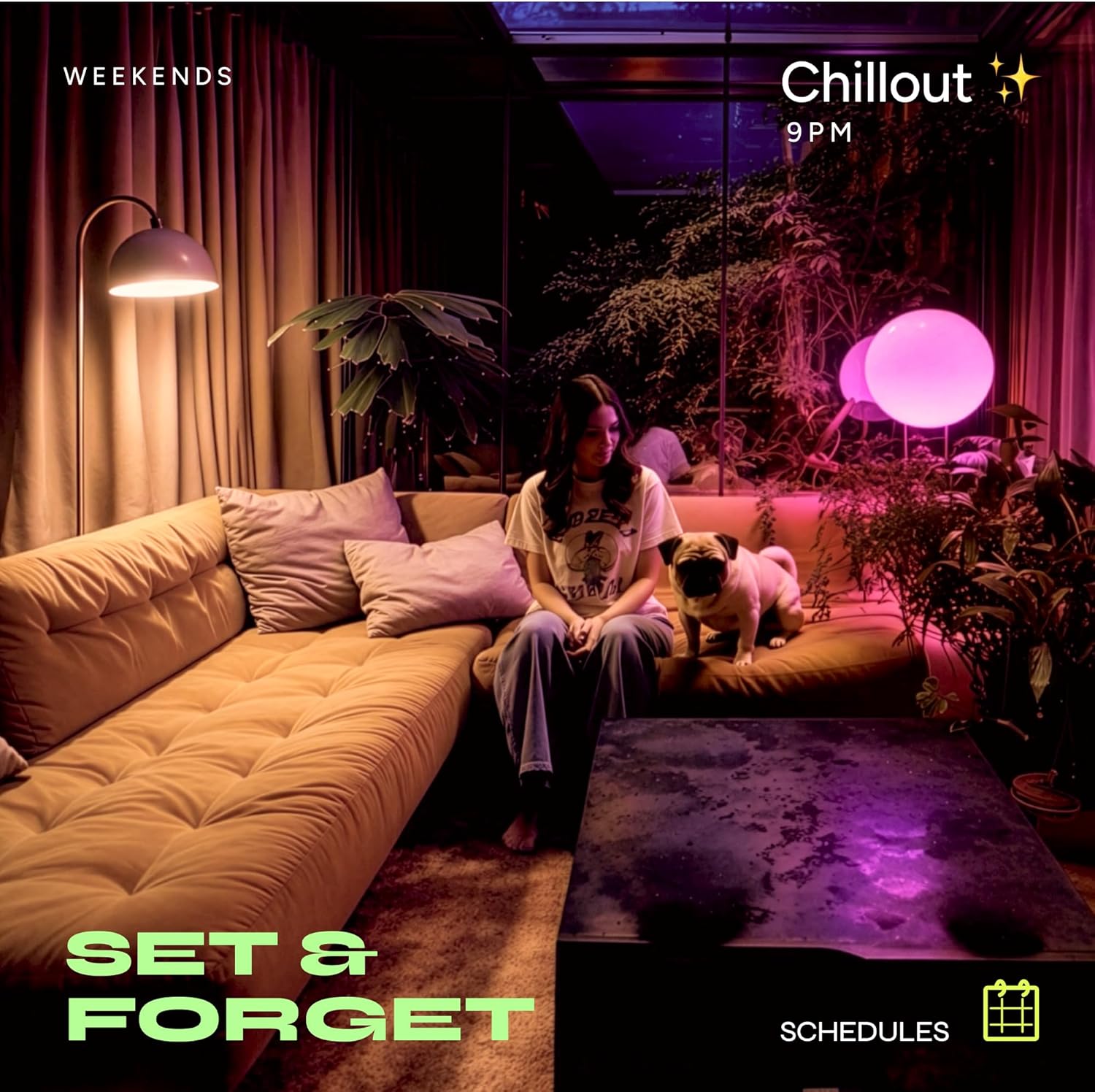
Image: A screenshot from the LIFX app illustrating how to set up schedules, such as 'Wind Down' and 'Lights Out' routines for automated lighting.

Image: The LIFX app demonstrating how cool wavelengths can be scheduled to help boost daytime focus.
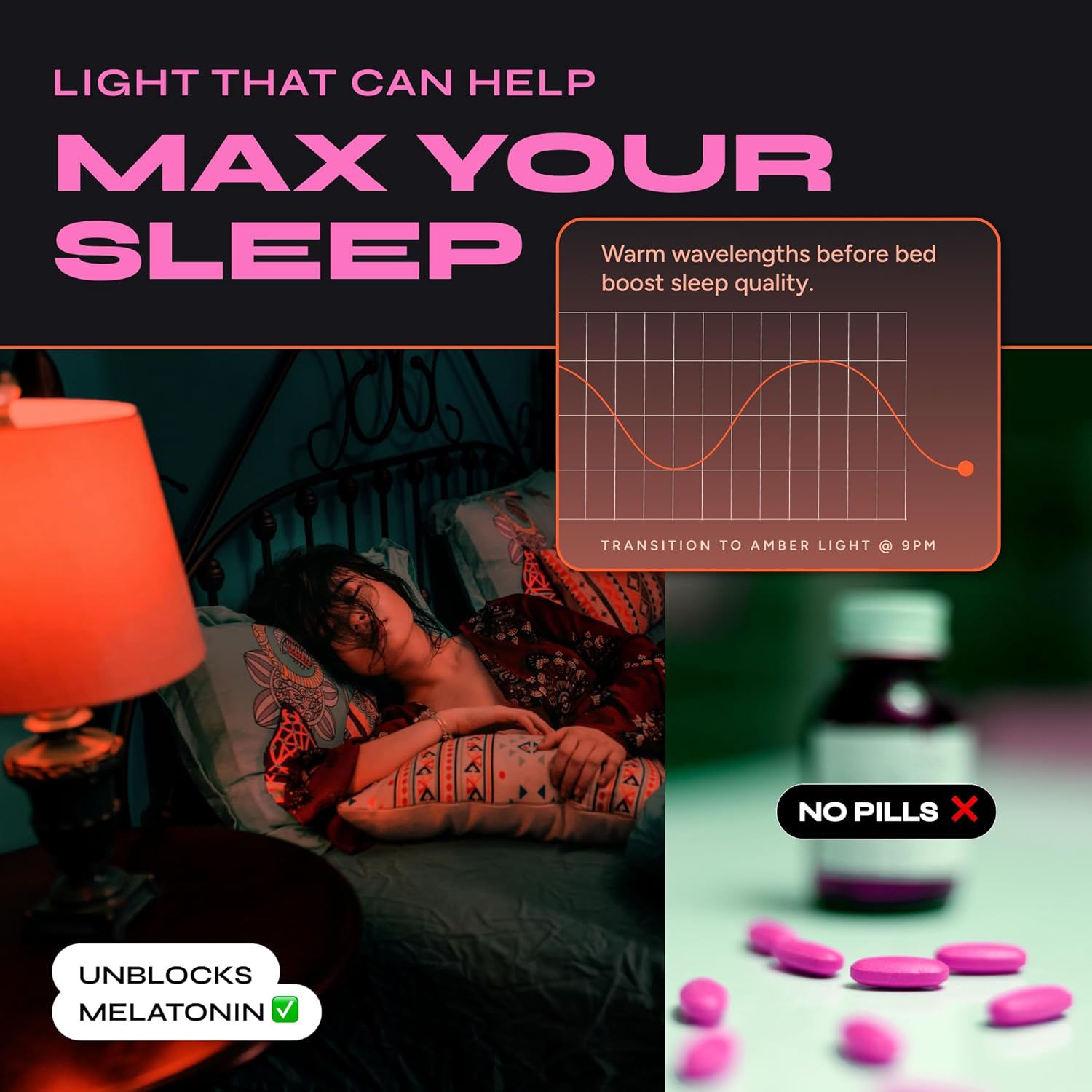
Image: The LIFX app illustrating how warm wavelengths can be scheduled before bed to improve sleep quality.
5. Voice Control
Control your LIFX bulbs using voice commands with compatible smart assistants.
- Supported Assistants: Siri, Alexa, Google Home.
- Commands: "Hey Siri, turn on the living room light," "Alexa, dim the lights to 50%," "Hey Google, change the bedroom light to blue."

Image: An example of voice control, showing an Alexa command to dim the lights to 50%.
Maintenance
- Cleaning: Ensure the bulb is off and cool before cleaning. Wipe with a soft, dry cloth. Do not use liquid cleaners.
- Software Updates: Periodically check the LIFX app for firmware updates to ensure optimal performance and access to new features.
Troubleshooting
Common Issues and Solutions:
- Bulb not connecting to Wi-Fi:
- Ensure your Wi-Fi network is 2.4GHz. LIFX bulbs do not support 5GHz networks.
- Check that your Wi-Fi signal is strong where the bulb is located.
- Restart your Wi-Fi router and try pairing again.
- Bulb not responding:
- Turn the light switch off and on to power cycle the bulb.
- Check your internet connection.
- Ensure the LIFX app or smart home app is up to date.
- Incorrect colors or brightness:
- Verify settings in the LIFX app.
- Perform a soft reset (power cycle) or a factory reset if issues persist.
Factory Reset:
To perform a factory reset, turn the bulb off and on five times in quick succession (approximately 1-2 seconds between each toggle). The bulb will flash, indicating a successful reset. You will then need to re-pair the bulb as a new device.
Specifications
| Feature | Detail |
|---|---|
| Brand | LIFX |
| Model Number | LHA19E26UC10 (HB2LHLA19E26US) |
| Light Type | LED |
| Bulb Shape Size | A19 |
| Bulb Base | E26 |
| Wattage | 11.5 watts |
| Incandescent Equivalent | 75 watts |
| Light Output (Max) | 1100 lumens |
| Color Temperature | 1500K - 9000K (Tunable White) |
| Light Color | Multicolor, RGBW |
| Color Rendering Index (CRI) | 82 |
| Voltage | AC 100–240V |
| Connectivity Protocol | Wi-Fi (2.4GHz), Matter |
| Control Method | App, Voice (Alexa, Apple HomeKit, Google Assistant) |
| Lifespan | Over 22 years (based on average daily use) |
| Material | Aluminum, Plastic |
| Item Weight | 5.6 ounces |
Warranty
LIFX A19 Smart Light Bulbs are backed by a 2-year warranty. For warranty claims or detailed information, please refer to the official LIFX website or contact customer support.
Support
For further assistance, troubleshooting, or to explore more features of your LIFX A19 Smart Light Bulb, please visit the official LIFX support resources:
- LIFX Website: www.lifx.com
- LIFX App: Access help sections and FAQs directly within the application.
- Online Support: Many common questions are answered in the support section of the LIFX website.