1. What's in the Box
Before you begin, verify that all items are present:
- CUBOT X30 Unlocked Smartphone
- Charger
- USB Type-C Cable
- User Manual
- Protector Case
- SIM Pin

Model: X30
Welcome to the CUBOT X30 Unlocked Smartphone user manual. This guide provides essential information for setting up, operating, maintaining, and troubleshooting your device. Please read this manual thoroughly to ensure optimal performance and longevity of your smartphone.

Image: Front and back view of the CUBOT X30 smartphone, showcasing its design and multi-camera setup.
Before you begin, verify that all items are present:
The CUBOT X30 supports dual Nano SIM cards or one Nano SIM card and one TF (microSD) card for expanded storage.
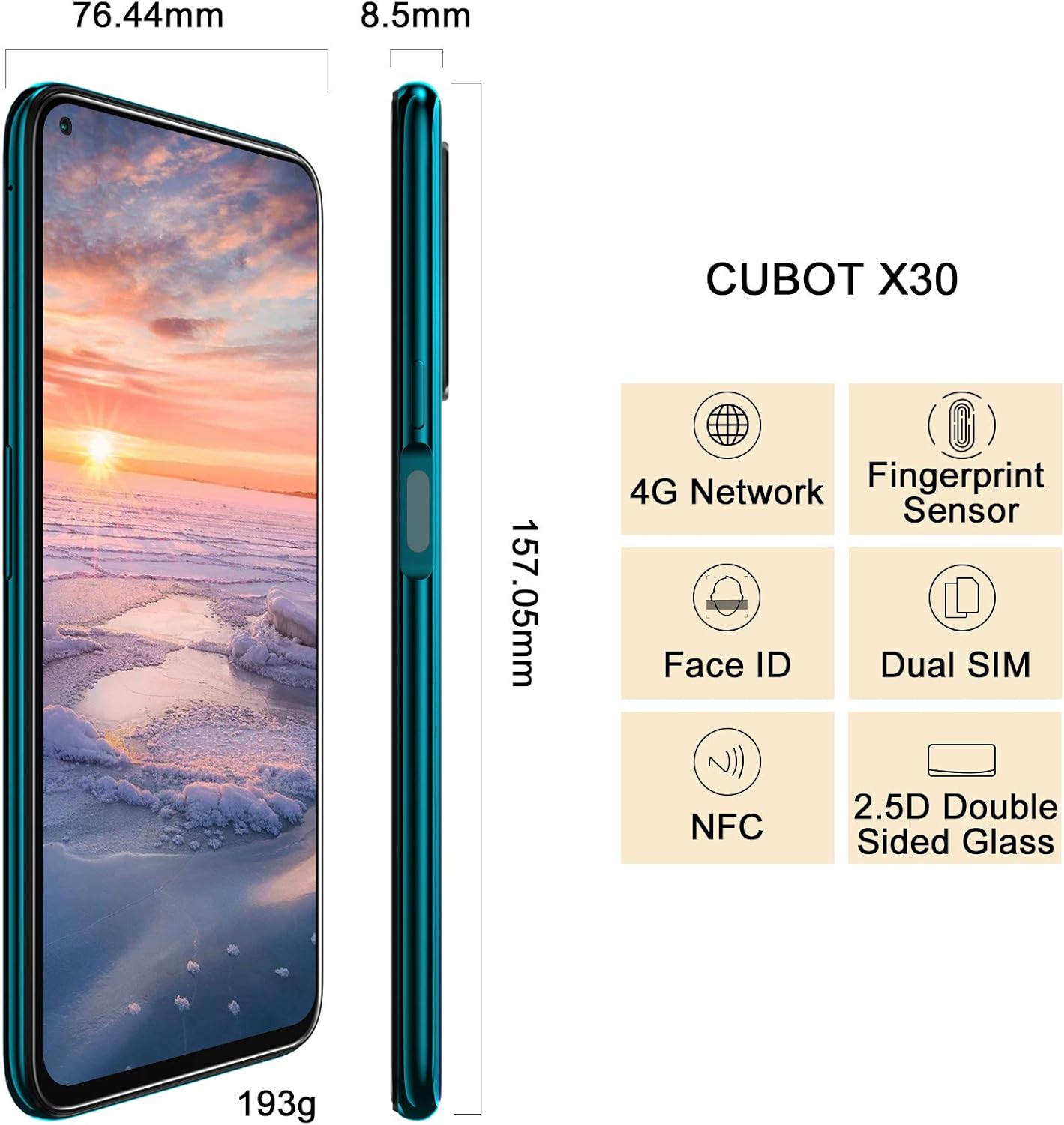
Image: Diagram showing the dimensions of the CUBOT X30 and icons representing its features like 4G Network, Fingerprint Sensor, Face ID, Dual SIM, and NFC. This image also implicitly shows the side profile where the SIM tray would be located.
To power on your device, press and hold the power button located on the side until the CUBOT logo appears. For first-time use, it is recommended to fully charge the battery.

Image: The CUBOT X30 display showing a battery charging indicator at 98%, illustrating the fast charging capability.
Your CUBOT X30 runs on Android 10. Navigation is primarily touch-based:

Image: The CUBOT X30 displaying the Android 10 interface, highlighting its operating system and the Helio P60 Octa-Core Processor.
Enhance your phone's security with biometric authentication:
The CUBOT X30 features a versatile camera system:

Image: The CUBOT X30's camera capabilities are highlighted, featuring the 48MP Samsung S5KGM1 Main Lens, AI Beauty Camera Mode, and Super Night Mode, with example photos.
Your device supports multiple connectivity options:
The CUBOT X30 comes with 8GB RAM and 256GB ROM, expandable via TF card up to 256GB.

Image: The CUBOT X30 display, emphasizing its 8GB RAM and 256GB ROM, with various application icons floating around, suggesting smooth multitasking and ample storage.
Use a soft, lint-free cloth to clean the screen and body of your phone. Avoid using harsh chemicals or abrasive materials.
To prolong battery life:
Regularly check for system updates to ensure your device has the latest features and security patches. Go to Settings > System > Advanced > System update.
Warning: A factory reset will erase all data from your phone. Back up important data before proceeding.
To perform a factory reset, go to Settings > System > Advanced > Reset options > Erase all data (factory reset). Follow the on-screen instructions.

Image: The CUBOT X30's 6.4-inch FHD+ hole-punch screen, highlighting its 90% screen-to-body ratio and 1080*2310 pixel resolution.
| CPU | MT6771 Helio P60, Octa-core, ARM Mali-G72 MP3 GPU |
| Operating System | Android 10.0 |
| Memory | 8GB RAM + 256GB ROM (expandable via TF card up to 256GB) |
| Display | 6.4-inch FHD+ hole-punch screen, 1080*2310 resolution |
| Rear Camera | 48MP Main (Samsung S5KGM1), 16MP Ultra Wide, 5MP Macro, 2MP Depth, 0.3MP Photosensitive |
| Front Camera | 32MP AI Beauty |
| Battery | 4200 mAh, Undetachable Battery, 5V/2A Fast Charge |
| Connectivity | Wi-Fi 2.4G/5.0G (802.1.1 a/b/g/n), Bluetooth 4.2, Type-C USB, OTG, NFC |
| Navigation | GPS / A-GPS, Gallileo, Glonass, Beidou |
| Sensors | Fingerprint Scanner, Face ID, Proximity, Accelerometer, Magnetic, Gyroscope, Light sensor |
| Dimensions | 6.18 x 3 x 0.33 inches (157.05 x 76.44 x 8.5 mm) |
| Weight | 6.8 ounces (193g) |
| Audio Jack | Type C (no 3.5mm headphone jack) |
Your CUBOT X30 smartphone is covered by a limited manufacturer's warranty. Please refer to the warranty card included in your product packaging or visit the official CUBOT website for detailed terms and conditions regarding warranty coverage and duration.
For further assistance, technical support, or service inquiries, please contact CUBOT customer support through their official website or the contact information provided in your product documentation. When contacting support, please have your device model (X30) and purchase information ready.
Official CUBOT Store: Visit CUBOT Store on Amazon
Ask about setup, troubleshooting, compatibility, parts, safety, or missing instructions. Manuals+ will review the question and use this page’s manual context to help answer it.


