1. Product Overview
The EZoneTronics 9-inch Android Car Radio is designed specifically for 2011, 2012, and 2013 Hyundai Elantra models, offering a significant upgrade to your vehicle's infotainment system. This unit integrates modern features such as Wireless CarPlay, Android Auto, GPS Navigation, Bluetooth 4.0, and a high-definition 1280x720 touch screen. It supports steering wheel controls, mirror link functionality, and provides a rich audio experience with a built-in digital sound processor.
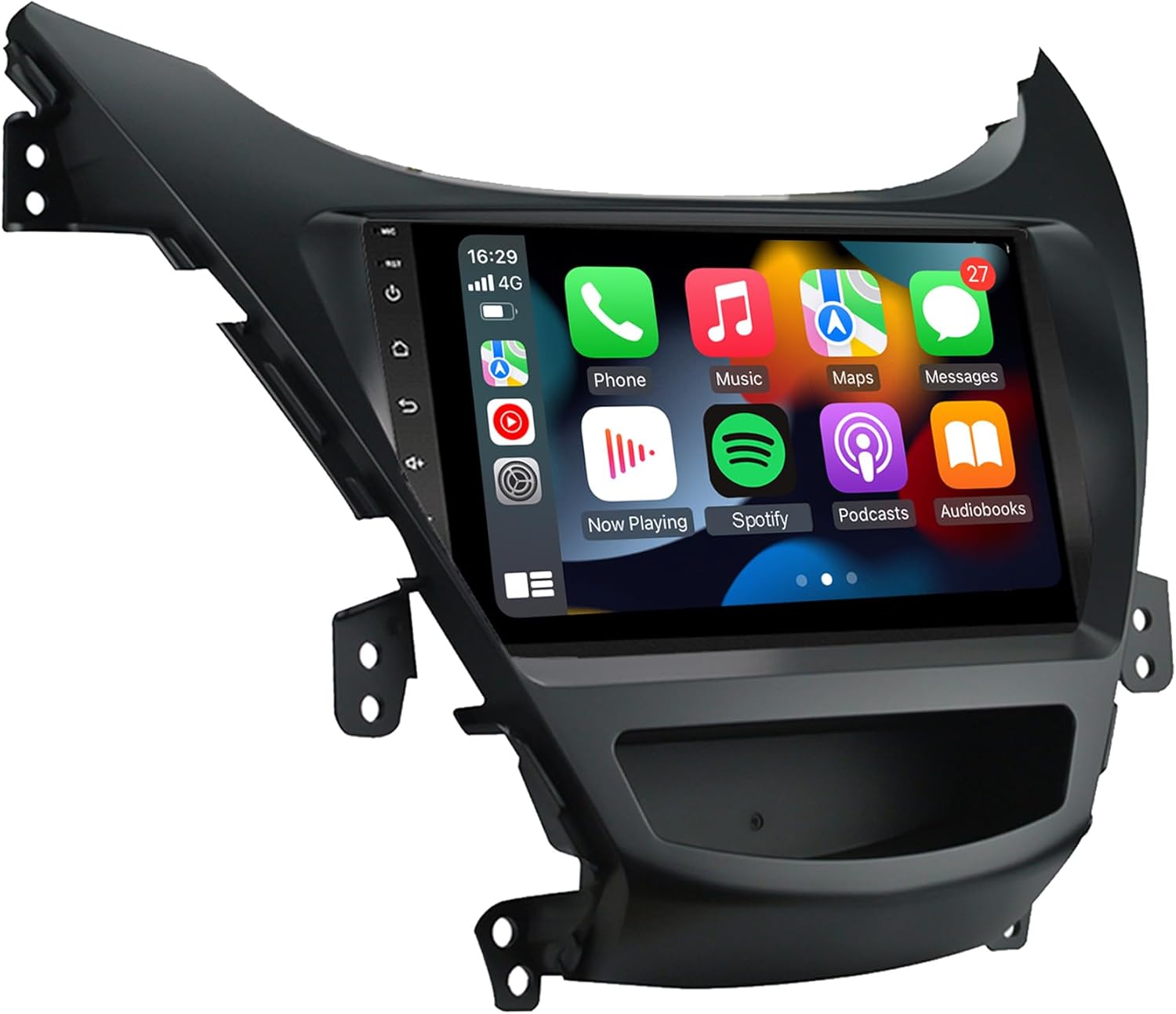
Figure 1.1: EZoneTronics 9-inch Android Car Radio Unit
This system is engineered for seamless integration, enhancing both convenience and safety during your drive.
2. Package Contents
Before installation, please verify that all components are present in your package:
- 1 x 9-inch Touch Screen CarPlay Radio with Install Kit
- 1 x Power Cord
- 1 x RCA Cable
- 1 x GPS Antenna
- 2 x USB Cables

Figure 2.1: Overview of included cables and accessories for installation.
3. Setup and Installation
This unit is designed for plug-and-play installation in 2011-2013 Hyundai Elantra vehicles. Professional installation is recommended, but if you are performing the installation yourself, please follow these general guidelines:
- Preparation: Ensure the vehicle's battery is disconnected before beginning any electrical work.
- Remove Old Unit: Carefully remove the existing factory radio unit from your Hyundai Elantra. Refer to vehicle-specific guides or videos for precise instructions on dash disassembly.
- Connect Wiring: Connect the provided power cord, RCA cable, GPS antenna, and USB cables to their corresponding ports on the new EZoneTronics unit and the vehicle's wiring harness. The unit's back panel shows clearly labeled connection points.
- Fitment Check: Before fully securing, test fit the new unit into the dash opening. Some users have reported needing to modify small clips around the original clock area for a perfect fit.
- Secure Unit: Once all connections are made and the fit is confirmed, secure the unit in place using the provided install kit.
- Reconnect Battery: Reconnect the vehicle's battery and power on the unit to test functionality.

Figure 3.1: Visual comparison of the dashboard before and after installing the EZoneTronics unit.
Ensure all cables are properly routed and secured to prevent interference or damage.
4. Operating Instructions
4.1 Wireless CarPlay & Android Auto
The unit features built-in Wireless CarPlay and Android Auto for seamless smartphone integration. Connect your compatible smartphone wirelessly to access navigation, music, calls, and messages directly from the touch screen. This feature allows for hands-free control, enhancing driving safety.

Figure 4.1: Wireless CarPlay and Android Auto functionality displayed on the unit.
4.2 Bluetooth 4.0
Pair your mobile phone via Bluetooth 4.0 for hands-free calling and audio streaming. Access your call history, dial numbers, and play music directly from your phone through the car's speakers. This feature helps reduce driving risks by keeping your hands on the wheel.

Figure 4.2: Bluetooth interface for phone calls and music playback.
4.3 GPS Navigation
The unit supports GPS navigation, allowing you to use pre-installed maps or download your preferred navigation apps from the Play Store. With Wi-Fi connectivity, Google Maps and other online navigation services can be used effectively.

Figure 4.3: GPS Navigation in action, showing a route on the display.
4.4 FM/RDS Radio
Enjoy high-quality radio reception with the built-in automotive-level chipset. The FM/RDS radio allows you to tune into your favorite stations and view station information where available.

Figure 4.4: FM/RDS Radio interface showing frequency and controls.
4.5 Steering Wheel Control
The unit supports your car's original steering wheel control functions. This allows you to adjust volume, switch music tracks, and manage calls without taking your hands off the steering wheel, promoting safer driving.

Figure 4.5: Interface for configuring steering wheel controls.
4.6 Mirror Link
Use the mirror link function to project your smartphone's screen onto the car radio display. This is ideal for viewing content like downloaded videos or specific apps directly on the larger screen.
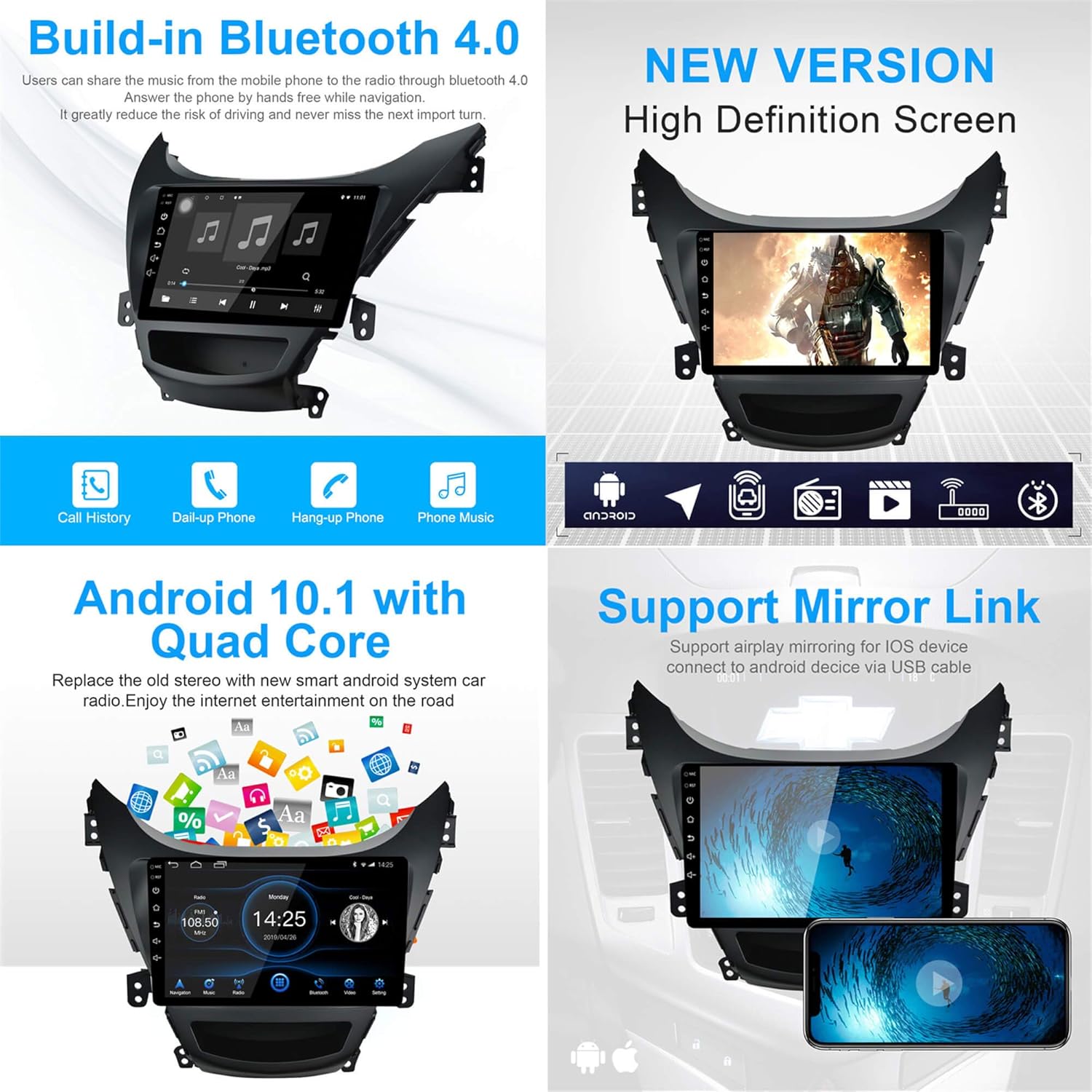
Figure 4.6: Mirror Link functionality displaying a smartphone screen on the unit.
4.7 Split Screen Function
The Android 10.1 system supports multi-tasking with a split-screen function. This allows users to operate two applications simultaneously, for example, navigating with GPS while listening to music.

Figure 4.7: Split screen mode displaying navigation and music applications concurrently.
4.8 Reverse Camera Input
The unit automatically switches to reverse camera mode when the vehicle is put into reverse gear. This provides a clear view of the area behind your car, aiding in parking and preventing accidents. (Note: Reverse camera is not included with the unit.)

Figure 4.8: Display showing the automatic switch to reverse camera view.
5. Maintenance
To ensure the longevity and optimal performance of your EZoneTronics car radio, follow these maintenance guidelines:
- Screen Cleaning: Use a soft, lint-free cloth to clean the touch screen. For stubborn smudges, slightly dampen the cloth with water or a screen-safe cleaner. Avoid abrasive materials or harsh chemicals.
- Software Updates: Periodically check for available software updates from EZoneTronics to ensure your unit has the latest features and bug fixes.
- Environmental Conditions: Avoid exposing the unit to extreme temperatures, direct sunlight for prolonged periods, or excessive moisture.
- Cable Connections: Ensure all cables remain securely connected. Loose connections can lead to intermittent functionality.
6. Troubleshooting
If you encounter issues with your EZoneTronics car radio, refer to the following common problems and solutions:
| Problem | Possible Cause | Solution |
|---|---|---|
| Unit does not power on. | Loose power connection, blown fuse. | Check power cable connections. Inspect vehicle's fuse box for blown fuses related to the radio. |
| Screen glare is excessive. | Angle of installation, direct sunlight. | Consider installing an anti-glare screen protector. Adjust vehicle's interior lighting if possible. |
| Software is slow or buggy. | Temporary software glitch, outdated firmware. | Perform a system reset (refer to unit's settings). Check for and install any available software updates. |
| USB connectivity issues. | Faulty USB cable, incompatible device, software issue. | Try a different USB cable or device. Ensure the device is compatible. Restart the unit. |
| Steering wheel controls need frequent resetting. | Software calibration issue. | Recalibrate the steering wheel controls through the unit's settings. Ensure proper wiring during installation. |
| Wi-Fi or CarPlay/Android Auto not working. | Connection issue, software bug. | Ensure Wi-Fi is enabled and connected to a stable network. Re-pair your phone for CarPlay/Android Auto. Check for software updates. |
If the problem persists after attempting these solutions, please contact EZoneTronics customer support for further assistance.
7. Specifications
| Feature | Detail |
|---|---|
| Model Name | Hyundai Elantra Carplay (2011 2012 2013 Hyundai Elantra Radio) |
| Display Size | 9 Inches |
| Resolution | 1280x720 HD |
| Operating System | Android 10.1 (with Quad Core processor) |
| RAM | 2GB |
| ROM | 32GB |
| Connectivity Technology | Android Auto, Bluetooth 4.0, USB, Wi-Fi, Wireless CarPlay |
| Special Features | Split Screen, Touchscreen, Mirror Link, Digital Sound Processor, EQ |
| Audio Output Mode | Digital, Stereo |
| Map Type | Europe, North America, South America (via GPS) |
| Item Weight | 3.59 pounds |
| Package Dimensions | 15.8 x 12.1 x 4.8 inches |
8. Warranty and Support
EZoneTronics is committed to providing reliable products and excellent customer service.
- Warranty: This product comes with a 365-day warranty from the date of purchase.
- Returns: We offer a 30-day no-reason return, refund, or replacement policy.
- Customer Service: For any inquiries or support needs, our customer service team is available 24 hours a day.

Figure 8.1: EZoneTronics customer service and warranty details.
For detailed support or to initiate a warranty claim, please visit the official EZoneTronics store or contact their customer service directly.


