
1. Introduction
This manual provides detailed instructions for the setup, operation, and maintenance of your NexiGo N680 1080P Business Webcam. Please read this manual thoroughly before using the product to ensure proper functionality and longevity. Keep this manual for future reference.
2. Package Contents
Verify that all items are present in your package:
- NexiGo N680 1080P Business Webcam
- Built-in Privacy Cover
- User Manual
3. Product Overview
Familiarize yourself with the components of your NexiGo N680 webcam.
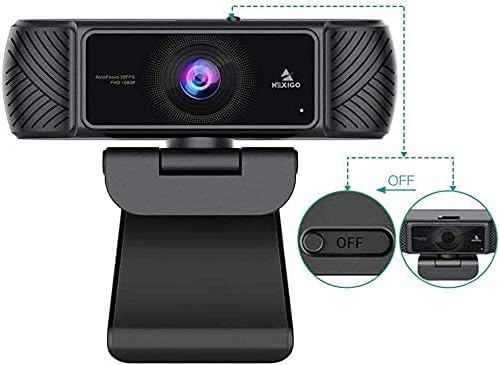
Figure 3.1: Front view of the NexiGo N680 Webcam, showing the lens, microphone, and privacy cover mechanism.

Figure 3.2: The multi-functional adjusting base of the NexiGo N680 Webcam, illustrating 360-degree rotation and 180-degree tilt capabilities.
4. Setup Guide
4.1. Connecting the Webcam (Plug & Play)
- Ensure your computer is powered on.
- Plug the USB cable from the NexiGo N680 webcam directly into an available USB port on your desktop or laptop.
- The webcam is designed for plug-and-play functionality and typically does not require additional drivers or software installation for basic use. Your operating system should automatically detect and install the necessary components.

Figure 4.1: Connecting the webcam via USB for plug-and-play setup.
4.2. Mounting the Webcam
The NexiGo N680 features an adjustable mounting clip for versatile placement.
- On a Monitor/Laptop Screen: Open the clip and place the webcam on top of your monitor or laptop screen. Adjust the clip to securely grip the top edge of the screen.
- On a Flat Surface: Fold the clip to form a stable stand and place the webcam on a desk or shelf.
- Adjusting Angle: The webcam can rotate 360 degrees horizontally and tilt up to 80 degrees vertically on its base, allowing you to achieve the desired camera angle.
5. Operating Instructions
5.1. Using the Privacy Cover
The NexiGo N680 includes a built-in privacy cover to protect your privacy and the camera lens.
- To Open: Slide the cover to the side to expose the camera lens.
- To Close: Slide the cover back over the camera lens when not in use. This physically blocks the camera view.

Figure 5.1: Demonstrating the built-in privacy cover in both open (ON) and closed (OFF) states.
5.2. Adjusting Camera Settings
For advanced adjustments, NexiGo provides optional software. This software allows you to fine-tune settings such as white balance, brightness, contrast, hue, saturation, sharpness, gamma, and backlight compensation.
- Download the NexiGo Webcam Settings software from the official NexiGo website (nexigo.com/software).
- Install the software on your computer.
- Launch the software to access and modify camera parameters. You can save and load custom presets.

Figure 5.2: The NexiGo Webcam Settings software interface for customizing video output.
5.3. Microphone Usage
The N680 features built-in dual stereo microphones with noise-canceling technology.
- The microphones automatically activate when the webcam is connected and selected as the audio input device in your communication software (e.g., Zoom, Skype, Teams).
- Noise-canceling technology helps reduce ambient background noise, providing clearer audio for your calls and recordings.

Figure 5.3: The built-in microphone with noise-canceling technology for clear audio capture.
5.4. Autofocus Functionality
The webcam is equipped with advanced autofocus to maintain sharp image clarity.
- The autofocus system automatically adjusts the lens to keep you and your subject in sharp focus, even with movement.
- This feature ensures consistent video quality without manual focus adjustments.

Figure 5.4: The autofocus feature ensures subjects remain sharp and clear.
5.5. Compatibility
The NexiGo N680 webcam is compatible with a wide range of operating systems and communication platforms:
- Operating Systems: Windows XP/7/8/10/11, Mac OS 10.6 and higher, Linux 2.6.24 and higher, Chrome OS 29.0.1547 and above, Ubuntu Version 10.04 and higher.
- Applications: Skype, Zoom, Microsoft Teams, Facetime, OBS, Facebook, and most other popular conferencing or recording applications.
Figure 5.5: The webcam's broad compatibility with operating systems and communication platforms.
6. Maintenance
6.1. Cleaning
- To clean the webcam lens, use a soft, lint-free cloth. Avoid abrasive materials or harsh chemicals.
- For the body of the webcam, wipe with a dry or slightly damp cloth.
6.2. Storage
- When not in use, close the built-in privacy cover to protect the lens from dust and scratches.
- Store the webcam in a cool, dry place away from direct sunlight and extreme temperatures.
7. Troubleshooting
If you encounter issues with your NexiGo N680 webcam, refer to the following common solutions:
| Problem | Possible Solution |
|---|---|
| Webcam not detected |
|
| No video output |
|
| No audio from microphone |
|
| Poor video quality |
|
8. Specifications
| Feature | Detail |
|---|---|
| Model | N680 |
| Video Capture Resolution | 1080P Full HD (30 fps) |
| Photo Sensor Technology | CMOS |
| Autofocus | Yes |
| Field of View (FOV) | 90° |
| Microphone | Dual Stereo with Noise-Canceling |
| Privacy Cover | Built-in |
| Connectivity | USB |
| Product Dimensions | 3.81 x 1.81 x 3.54 inches |
| Item Weight | 8.4 ounces |
| Color | Black |
| Operating System Compatibility | Windows XP/7/8/10/11, Mac OS 10.6+, Linux 2.6.24+, Chrome OS 29.0.1547+, Ubuntu 10.04+ |
9. Warranty and Support
9.1. Warranty Information
NexiGo products typically come with a manufacturer's warranty. Please refer to the warranty card included with your product or visit the official NexiGo website for specific warranty terms and conditions.
9.2. Customer Support
For technical assistance, troubleshooting, or product inquiries, please contact NexiGo customer support:
- Website: Visit the official NexiGo support page for FAQs and contact options.
- Email: Refer to your product packaging or the NexiGo website for the support email address.
10. Safety Information
- Do not attempt to disassemble or modify the webcam. This may void the warranty and cause damage.
- Avoid exposing the webcam to extreme temperatures, humidity, or direct sunlight.
- Keep the webcam away from water or other liquids.
- Use only the provided USB cable or a certified replacement.
- Keep out of reach of children.


