
1. Introduction
This manual provides essential information for the proper installation, configuration, and operation of your GIGABYTE B550 AORUS ELITE AX motherboard. This motherboard is designed to support 3rd Gen AMD Ryzen Processors and offers advanced features for high-performance computing.

Image 1.1: Overview of the GIGABYTE B550 AORUS ELITE AX Motherboard. This image displays the full motherboard with its various components, including the CPU socket, RAM slots, PCIe slots, and heatsinks.
Key features include a True 12+2 Phases Digital VRM Solution, advanced thermal design with enlarged surface heatsinks, an Ultra Durable PCIe 4.0 x16 Slot, dual ultra-fast NVMe PCIe 4.0/3.0 x4 M.2 slots with dual thermal guards, and integrated Intel WiFi 6 802.11ax with Bluetooth 5.
2. Setup and Installation
Before beginning installation, ensure your system is powered off and unplugged from the wall outlet. Always handle the motherboard by its edges to avoid static discharge.
2.1. Component Identification
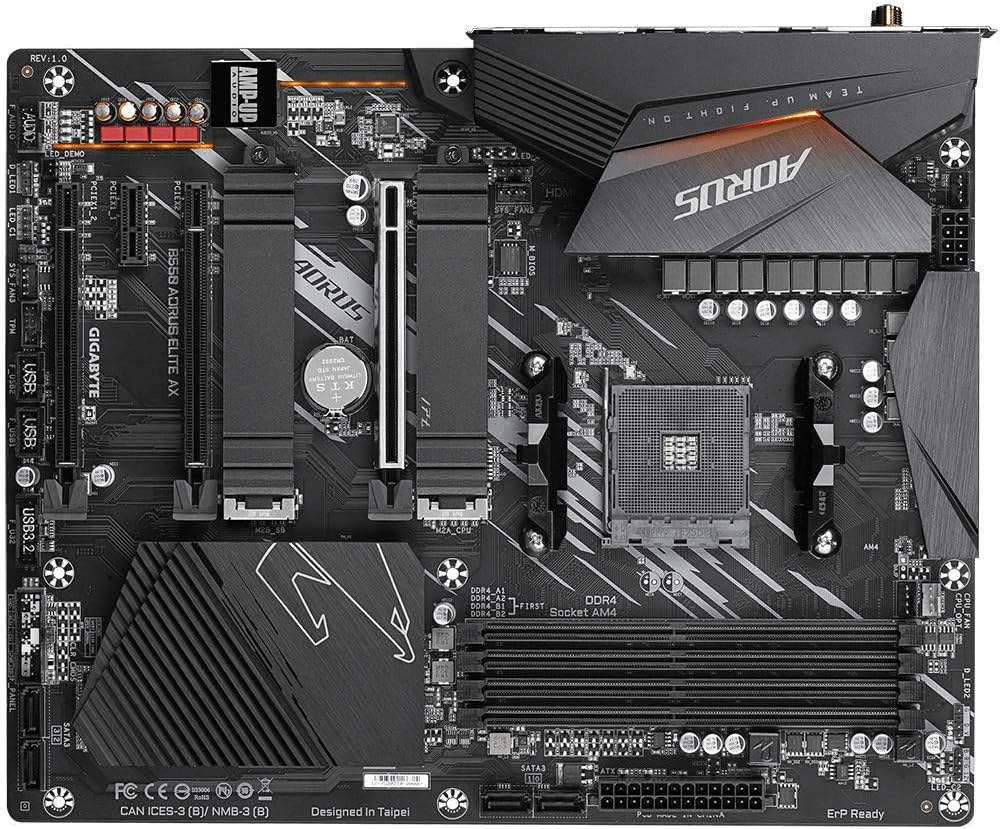
Image 2.1: Top-down view of the GIGABYTE B550 AORUS ELITE AX Motherboard. This image highlights the layout of the CPU socket, four DDR4 DIMM slots, multiple PCIe slots, and two M.2 slots with their thermal guards.
2.2. CPU Installation
- Locate the AM4 CPU socket. Lift the load lever to open the socket.
- Carefully align the triangular mark on the CPU with the mark on the socket. Gently place the CPU into the socket without forcing it.
- Lower the load lever back into place to secure the CPU.
2.3. RAM Installation
This motherboard supports Dual Channel ECC/Non-ECC Unbuffered DDR4 memory across 4 DIMM slots.
- Open the clips at both ends of the DIMM slot.
- Align the notch on the DDR4 memory module with the key on the DIMM slot.
- Press down firmly on both ends of the memory module until the clips snap into place.
2.4. M.2 SSD Installation
The motherboard features dual ultra-fast NVMe PCIe 4.0/3.0 x4 M.2 slots with dual thermal guards.
- Unscrew and remove the M.2 thermal guard from the desired slot.
- Insert the M.2 SSD into the slot at an angle.
- Gently push down the SSD and secure it with the provided screw.
- Reattach the M.2 thermal guard to ensure optimal cooling.
2.5. PCIe Card Installation
Install graphics cards or other expansion cards into the PCIe slots. The top slot is an Ultra Durable PCIe 4.0 x16 slot.
- Align the PCIe card with the chosen slot.
- Press down firmly until the card is fully seated and the retention clip engages.
2.6. Power Connections
Connect the 24-pin ATX main power connector and the 8-pin CPU power connector from your power supply to the motherboard.
2.7. Front Panel Connectors
Connect the power button, reset button, HDD LED, and USB/audio headers from your PC case to the corresponding pins on the motherboard. Refer to the motherboard diagram for exact pin locations.
2.8. Rear I/O Panel

Image 2.2: Rear I/O Panel of the GIGABYTE B550 AORUS ELITE AX Motherboard. This image shows the various ports available, including USB 3.2 Gen 1, USB 3.2 Gen 2, DisplayPort, HDMI, 2.5GbE LAN, Wi-Fi antenna connectors, and audio jacks. The pre-installed I/O shield is visible.
The motherboard features a pre-installed I/O shield for easy and quick installation. Connect your peripherals such as monitor, keyboard, mouse, and network cable to the appropriate ports on the rear I/O panel.
3. Operating Instructions
3.1. First Boot
After assembling all components and connecting power, press the power button on your PC case. The system should power on and display the GIGABYTE splash screen.
3.2. Accessing BIOS/UEFI
To enter the BIOS/UEFI setup utility, press the DEL key repeatedly during the initial boot process when the GIGABYTE logo appears. The BIOS allows you to configure system settings, boot order, and enable features like XMP for memory profiles.
3.3. Driver Installation
After installing your operating system, install the necessary drivers for the motherboard's components. These include chipset drivers, LAN drivers, Wi-Fi/Bluetooth drivers, and audio drivers. Drivers can typically be found on the GIGABYTE official website for your specific motherboard model.
4. Maintenance
4.1. System Cleaning
Regularly clean your computer's interior to prevent dust buildup, which can lead to overheating and reduced performance. Use compressed air to remove dust from fans, heatsinks, and other components. Ensure the system is powered off and unplugged before cleaning.
4.2. BIOS Updates
GIGABYTE provides BIOS updates to improve system stability, add support for new hardware, and fix bugs. The B550 AORUS ELITE AX supports Q-Flash Plus, allowing you to update the BIOS without installing the CPU, memory, or graphics card. Refer to the GIGABYTE website for detailed instructions on using Q-Flash Plus and for the latest BIOS versions.
5. Troubleshooting
This section addresses common issues you might encounter.
5.1. No Power / No Boot
- Verify all power cables (24-pin ATX, 8-pin CPU) are securely connected to the motherboard and power supply.
- Ensure the power supply switch is in the 'ON' position.
- Check that the front panel power button connector is correctly attached to the motherboard.
- Test with a different power supply if possible.
5.2. No Display Output
- Ensure your monitor is connected to the graphics card (if installed) or the motherboard's HDMI/DisplayPort (if using an APU with integrated graphics).
- Reseat the graphics card and memory modules.
- Try booting with only one RAM stick installed.
5.3. Bluetooth / Wi-Fi Connectivity Issues
- Ensure the external Wi-Fi antenna is securely connected to the rear I/O panel.
- Update your Wi-Fi and Bluetooth drivers to the latest version from the GIGABYTE website.
- If Bluetooth devices disconnect after sleep mode, try disabling USB selective suspend settings in Windows Power Options or updating the BIOS to the latest version, as this has resolved similar issues in some cases.
5.4. BIOS Reset
If you encounter issues after changing BIOS settings, you may need to reset the BIOS to default settings. This motherboard does not feature a dedicated BIOS reset button. To clear CMOS (BIOS settings), power off your system, unplug it, and remove the small circular battery (CMOS battery) from the motherboard for a few minutes. Reinsert the battery and power on the system.
6. Specifications
Below are the key technical specifications for the GIGABYTE B550 AORUS ELITE AX Motherboard:
| Feature | Specification |
|---|---|
| Brand | GIGABYTE |
| Model Name | B550 AORUS ELITE AX |
| CPU Socket | Socket AM4 |
| Compatible Processors | AMD 3rd Generation Ryzen |
| Chipset Type | AMD B550 |
| RAM Memory Technology | DDR4 |
| Memory Speed | 2133 MHz (Base), up to 4733MHz (OC) |
| Memory Storage Capacity | 128 GB (Max) |
| Wireless Type | 802.11ax (Intel WiFi 6) |
| LAN | 2.5 Gigabit Ethernet |
| PCIe Slots | 1x PCIe 4.0 x16, 2x PCIe 3.0 x16 (x4 mode), 1x PCIe 3.0 x1 |
| M.2 Slots | 2x NVMe PCIe 4.0/3.0 x4 with Thermal Guards |
| USB 2.0 Ports | 2 (Rear) |
| USB 3.2 Gen 1 Ports | 4 (Rear) |
| USB 3.2 Gen 2 Ports | 2 (Rear, Type-A) |
| Video Output | HDMI, DisplayPort |
| Audio | Realtek ALC1200 Codec, AMP-UP Audio |
| Form Factor | ATX |
| Item Weight | 4.07 pounds |
| Product Dimensions | 13.18 x 10.62 x 3.14 inches |
7. Warranty Information
GIGABYTE products are covered by a limited warranty. The specific terms and duration of the warranty may vary by region and product type. Please retain your proof of purchase for warranty claims. For detailed warranty information, including coverage, limitations, and the claims process, please visit the official GIGABYTE website or contact your local retailer.
8. Technical Support
If you encounter issues that cannot be resolved using this manual or require further assistance, please contact GIGABYTE technical support. You can find support resources, FAQs, driver downloads, and contact information on the official GIGABYTE website:
When contacting support, please have your motherboard model (B550 AORUS ELITE AX) and a detailed description of your issue ready.


