
Introduction
The Lenovo ThinkPad X1 Carbon is a high-performance ultrabook designed for productivity and durability. This flagship notebook series is known for its lightweight design, robust construction, and advanced features. This manual provides essential information for setting up, operating, maintaining, and troubleshooting your device.

Setup
Initial Power On
To power on your ThinkPad X1 Carbon for the first time, ensure it is connected to a power source using the provided AC adapter. Press the power button, typically located on the side or top right of the keyboard deck. Follow the on-screen prompts to complete the initial operating system setup.
Connecting to a Network
Your ThinkPad X1 Carbon supports WiFi 6 (802.11AX) for fast and reliable wireless connections. To connect to a Wi-Fi network:
- Click the network icon in the system tray (usually bottom-right of the screen).
- Select your desired Wi-Fi network from the list.
- Enter the network password if prompted.
- Click 'Connect'.
Ports and Connections
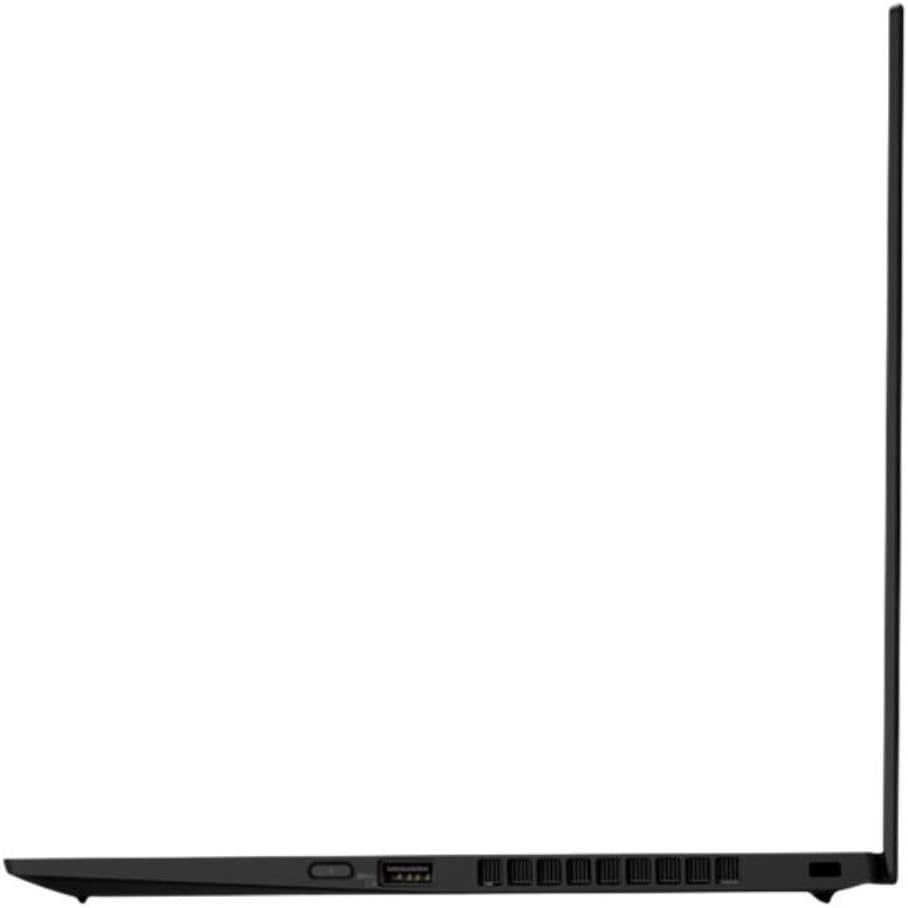
The ThinkPad X1 Carbon offers a variety of ports for connecting external devices:
- USB-C 3.2 (Gen 2) Intel Thunderbolt 3: Two ports for DisplayPort and high-speed data transfer.
- USB 3.2 (Gen 1): Two ports, one with Always On functionality for charging devices even when the laptop is off.
- HDMI 1.4: For connecting to external displays.
- Ethernet/Network Extension: For side mechanical docking.
- Headphone/Microphone Combo Jack: For audio input and output.

Operating Your ThinkPad X1 Carbon
Keyboard and Touchpad
The ThinkPad X1 Carbon features a backlit, spill-resistant US English QWERTY keyboard designed for comfortable and responsive typing. The touchpad provides smooth and precise cursor control. Ensure your hands are clean before use to maintain optimal performance.

Fingerprint Reader
For enhanced security and convenient login, your laptop includes a fingerprint reader. To set up biometric authentication, navigate to your operating system's security settings and follow the instructions to register your fingerprints.
Webcam and Privacy Shutter
The integrated HD 720p webcam is equipped with a ThinkShutter privacy cover. This physical slider allows you to block the camera lens when not in use, ensuring your privacy. The laptop also features four 360-degree far-field microphones for clear audio during calls and recordings.

Audio System
Experience rich audio with the Dolby Atmos speaker system. This technology enhances sound for an immersive listening experience, whether you're watching videos or participating in online meetings.
Battery and Charging
The ThinkPad X1 Carbon features a long-lasting battery with Rapid Charge technology, allowing you to boost battery life up to 80% in approximately one hour. For optimal battery health, avoid frequently discharging the battery completely and store the device in a cool, dry place.
Maintenance
Cleaning
To maintain the appearance and functionality of your laptop:
- Use a soft, lint-free cloth to wipe the screen and chassis.
- For stubborn marks, dampen the cloth slightly with water or a screen-safe cleaner.
- Avoid harsh chemicals, abrasive materials, and excessive moisture.
- Regularly clean the keyboard and touchpad to prevent debris buildup.
Software Updates
Keep your operating system and drivers updated to ensure optimal performance, security, and compatibility. Check for updates regularly through your operating system's settings or Lenovo's official support website.
Troubleshooting
Common Issues
- No Power: Ensure the AC adapter is securely connected to both the laptop and a working power outlet. Try a different outlet or adapter if available.
- No Wi-Fi Connection: Verify that Wi-Fi is enabled in your operating system settings. Restart your router and the laptop. Check if other devices can connect to the network.
- Slow Performance: Close unnecessary applications. Check for background processes consuming high resources. Ensure your system is updated and free of malware.
- Display Issues: If the screen is blank or flickering, try connecting an external monitor to determine if the issue is with the laptop's display or graphics card. Restart the laptop.
- Keyboard/Touchpad Unresponsive: Restart the laptop. Ensure no external devices are interfering. Check device manager for driver issues.
Technical Specifications
| Feature | Specification |
|---|---|
| Brand | Lenovo |
| Model Name | X1 Carbon 8th Generation (20U9005MUS) |
| Screen Size | 14 Inches |
| Native Resolution | 1920x1080 Pixels (LCD) |
| CPU Model | Intel Core i7-10510U (10th Generation) |
| CPU Speed | 1.8 GHz (Max 4.9 GHz) |
| RAM Memory Size | 16 GB DDR |
| Hard Disk Capacity | 1000 GB SSD |
| Graphics Hardware | Integrated Intel UHD Graphics |
| Operating System | Android 10 (Note: This specification might be an error in the source data, as ThinkPads typically run Windows. Please verify.) |
| Wireless Connectivity | Wi-Fi 6 AX201 (802.11AX), Bluetooth 5.2 |
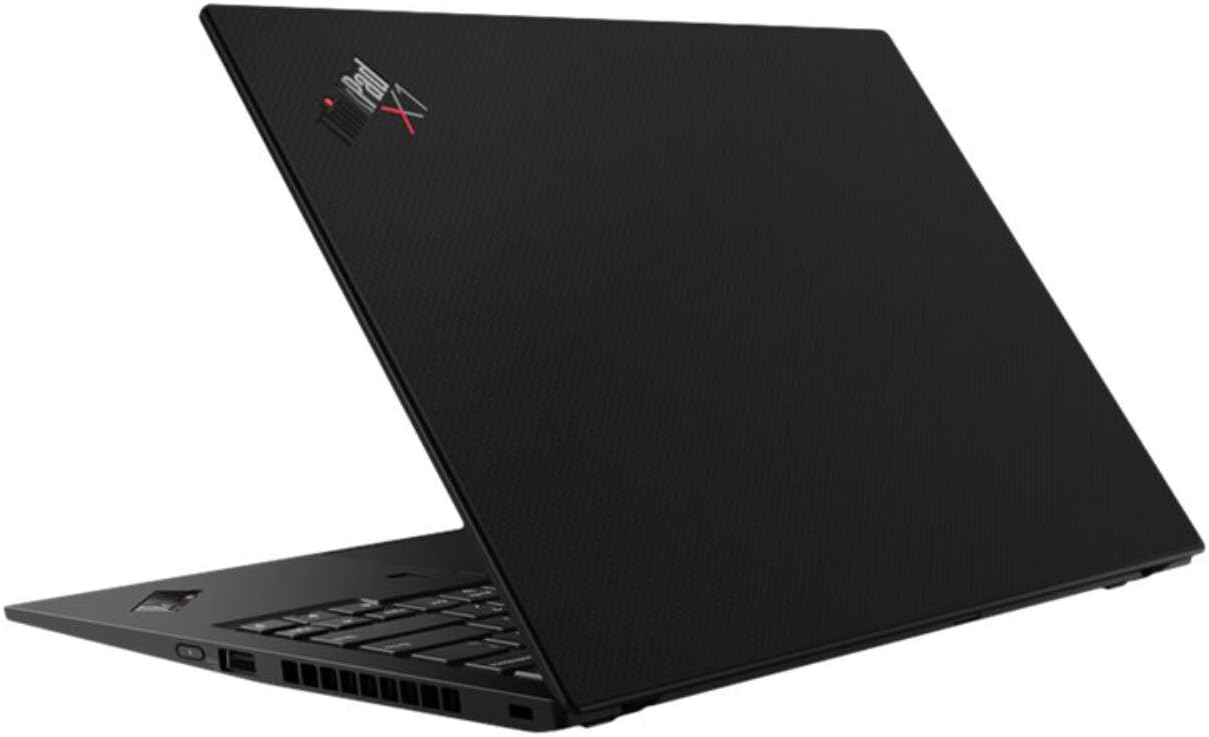
| Ports | 2x USB-C 3.2 (Gen 2) Thunderbolt 3, 2x USB 3.2 (Gen 1), 1x HDMI 1.4, Ethernet Extension, Headphone/Mic Combo |
| Webcam | HD 720p with ThinkShutter privacy cover |
| Biometric Authentication | Fingerprint Reader |
| Audio Features | Dolby Atmos Speaker System, 4x 360-degree far-field microphones |
| Battery Life | Up to 19 Hours (13.5 Hours standby) |
| Item Weight | 2.5 Pounds (approx. 1.13 kg) |
| Dimensions (LxWxH) | 32.3 x 21.7 x 1.5 cm |
Warranty Information
Your Lenovo ThinkPad X1 Carbon is covered by a standard manufacturer's warranty. The specific terms and duration of the warranty may vary by region and purchase date. Please refer to the warranty card included with your product or visit the official Lenovo support website for detailed information regarding your warranty coverage.
Customer Support
For technical assistance, troubleshooting, or service requests, please contact Lenovo customer support. You can find contact information, FAQs, and driver downloads on the official Lenovo support website. Have your product's serial number ready when contacting support to expedite the process.
Lenovo Support Website: support.lenovo.com