
ROADOM KC-809
ROADOM KC-809 Desktop CD Player User Manual
Model: KC-809
Brand: ROADOM
1. Product Overview
The ROADOM KC-809 is a versatile desktop CD player offering multiple audio playback options. It supports CD, Bluetooth (transmit and receive), FM radio, USB, and AUX connectivity, providing a comprehensive audio solution for various environments.

Image 1.1: The ROADOM KC-809 Desktop CD Player shown with its remote control.
Key Features:
- 8-in-1 Functionality: CD Playback, Bluetooth Transmit, Bluetooth Receive, FM Radio, USB Playback, AUX Input, AUX Output, Timer, Repeat.
- Hi-Fi Stereo Sound: Delivers clear audio with minimal distortion.
- Wide CD Compatibility: Supports CD, CD-R, CD-RW, MP3, WMA formats.
- Connectivity: Bluetooth 5.1, USB port for playback and charging, 3.5mm AUX input/output.
- Convenient Controls: Includes a remote control and on-device buttons.

Image 1.2: Visual representation of the 8-in-1 versatile functions of the CD player, including CD Mode, USB Mode, Line Mode, FM Mode, Bluetooth Receiving, Bluetooth Transmitting, Repeat, and Timer.
2. Package Contents
Please check the package for the following items:
- ROADOM CD Player × 1
- Remote Control × 1
- 5V/2A Power Adapter × 1
- USB - Type C Power Cable × 1
- User Manual × 1
3. Setup
3.1 Power Connection
- Connect the USB-Type C power cable to the DC 5V port on the CD player.
- Plug the 5V/2A power adapter into a standard wall outlet.
3.2 Remote Control Battery Installation
The remote control requires 2 AAA batteries (not included). To install:
- Open the battery compartment cover on the back of the remote control.
- Insert two AAA batteries, ensuring correct polarity (+/-).
- Close the battery compartment cover securely.
3.3 Placement
Place the CD player on a stable, flat surface. Ensure adequate ventilation around the unit. Avoid placing it near heat sources or in direct sunlight.

Image 3.1: The compact dimensions of the ROADOM KC-809 CD Player, measuring 7.4 x 7.4 x 1.5 inches, highlighting its portable design.
4. Operating Instructions
4.1 Basic Controls
The CD player can be operated using the buttons on the unit or the included remote control. Refer to the diagrams in the manual for specific button layouts.
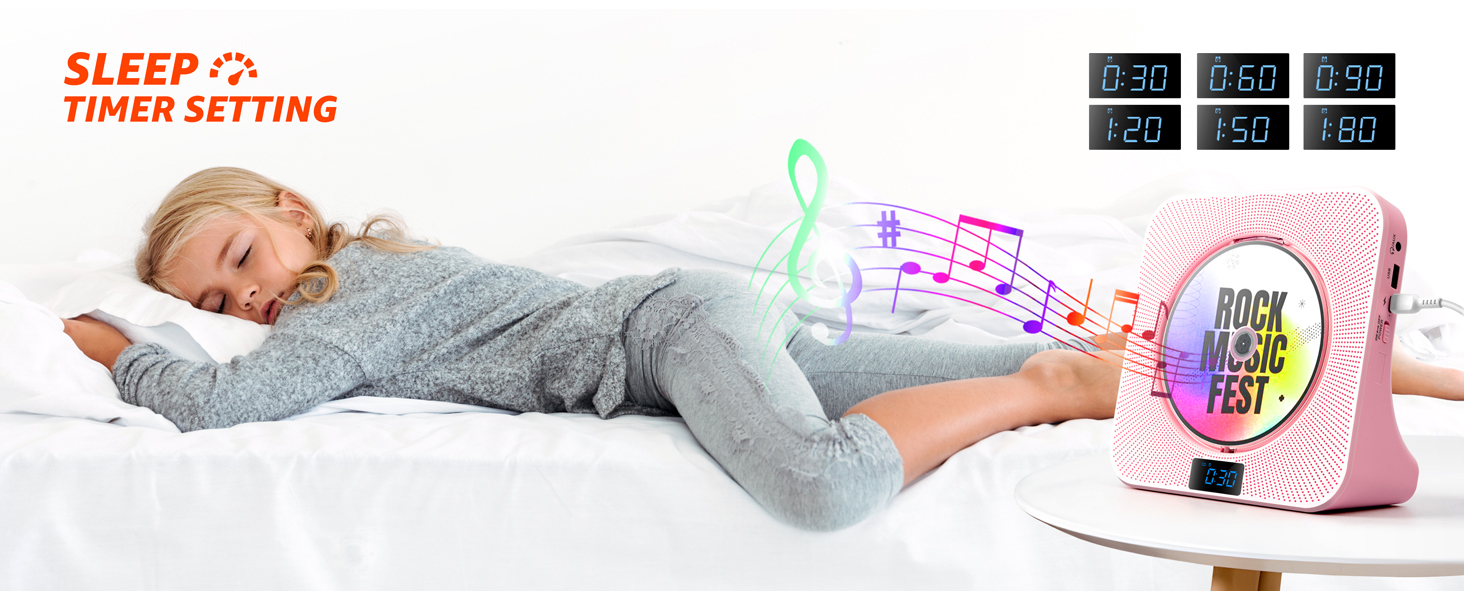
Image 4.1: The remote control for the CD player, showing various function buttons.
4.2 CD Playback
- Press the 'POWER' button to turn on the device.
- Gently slide open the dust cover.
- Place a compatible CD (CD, CD-R, CD-RW, MP3, WMA) onto the spindle, label side up.
- Close the dust cover. Playback will begin automatically or after selecting 'CD Mode'.
- Use the 'PLAY/PAUSE', 'PREV', 'NEXT', and 'STOP' buttons to control playback.
Note: Playback will automatically stop if the dust cover is opened during operation to protect the CD.
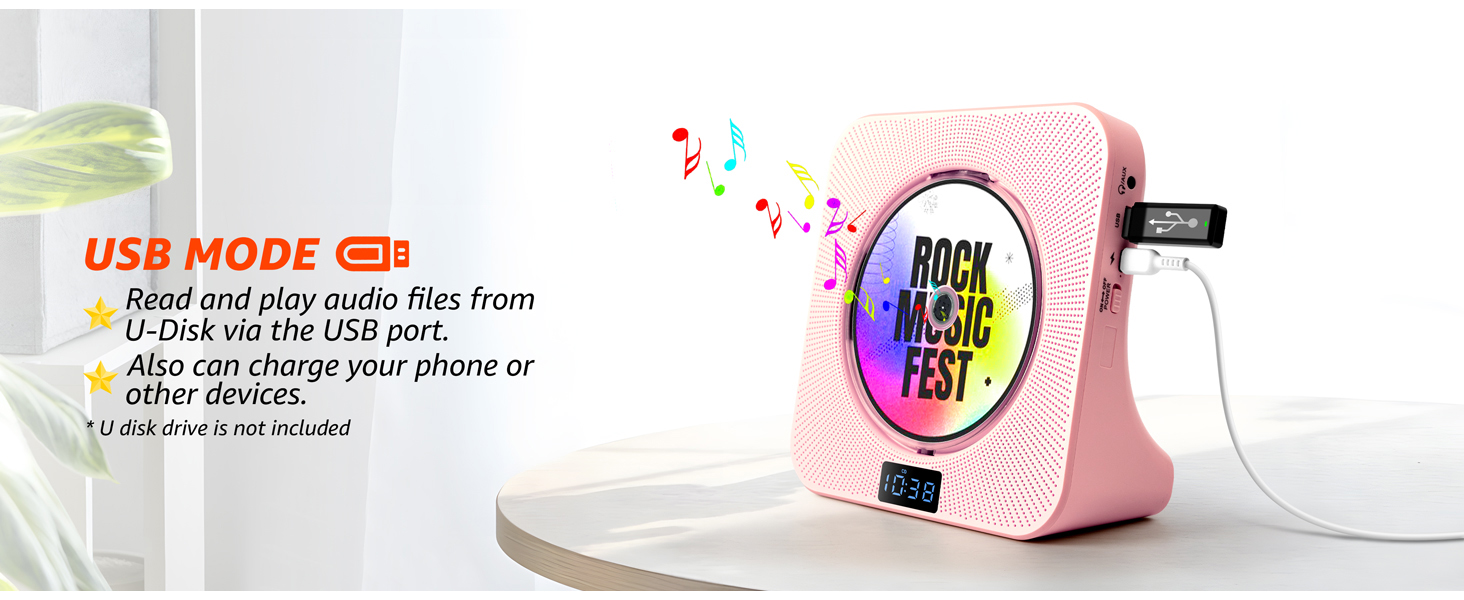
Image 4.2: The CD player with its dust cover open, illustrating how to insert a CD.
4.3 Bluetooth Functionality
4.3.1 Bluetooth Receiving Mode
In this mode, the CD player acts as a Bluetooth speaker, receiving audio from your Bluetooth-enabled devices.
- Select 'Bluetooth Receive' mode on the CD player. The LED display will show 'BLUE'.
- On your smartphone, tablet, or computer, enable Bluetooth and search for available devices.
- Select 'KC-809' from the list to pair. Once connected, you can play audio from your device through the CD player's speakers.

Image 4.3: A user connecting their smartphone to the CD player in Bluetooth receiving mode.
4.3.2 Bluetooth Transmitting Mode
In this mode, the CD player transmits audio (from CD, USB, or AUX) to your Bluetooth headphones or speakers.
- Ensure your Bluetooth headphones or speaker are in pairing mode.
- Select 'Bluetooth Transmit' mode on the CD player. The player will automatically search for nearby Bluetooth devices.
- Once connected, audio from the CD player will be routed to your paired Bluetooth device.

Image 4.4: A user enjoying music through Bluetooth headphones connected to the CD player in transmitting mode.
4.4 FM Radio
- Select 'FM Mode' on the CD player.
- Press the 'SCAN' button to automatically scan and save available FM stations.
- Use the 'PREV' and 'NEXT' buttons to navigate through saved stations.
Frequency Range: 76.0-108.0MHz.

Image 4.5: An elderly woman listening to the FM radio function of the CD player.
4.5 USB Playback
- Insert a USB flash drive containing audio files into the USB port.
- Select 'USB Mode' on the CD player.
- The player will automatically detect and begin playing audio files from the USB drive.
The USB port can also be used to charge compatible devices.
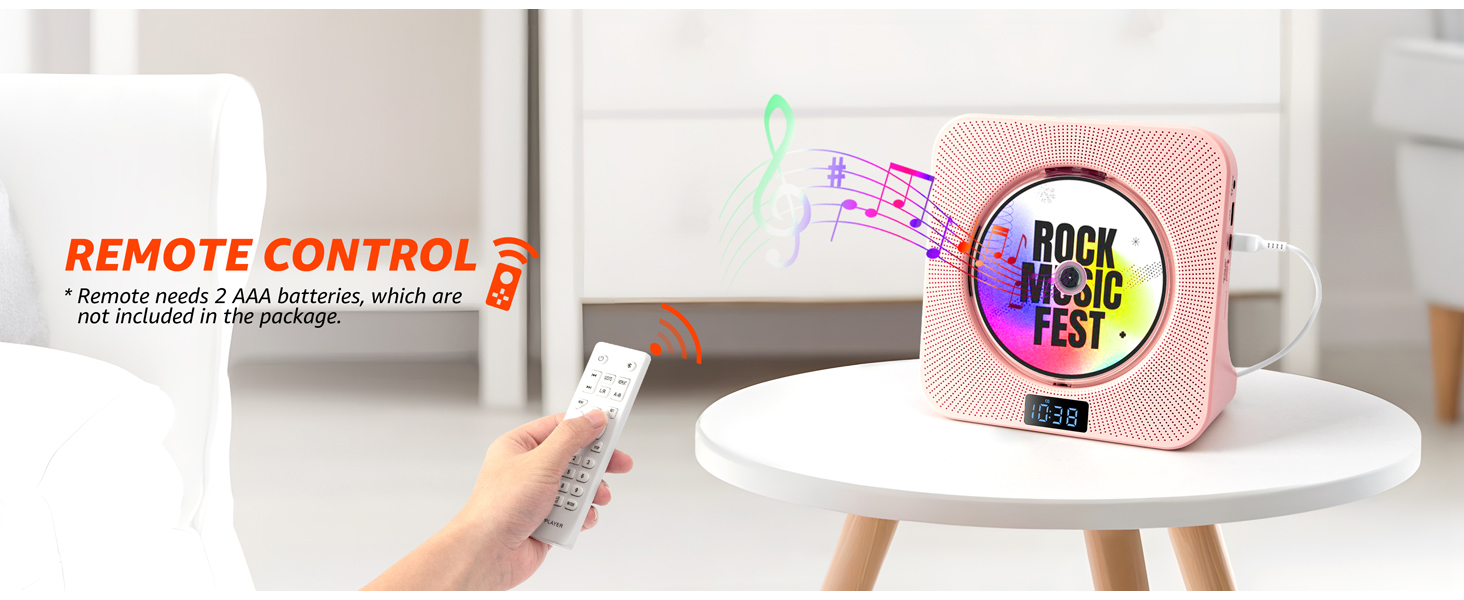
Image 4.6: The CD player with a USB drive connected, demonstrating USB playback and charging capabilities.
4.6 AUX Connectivity
The 3.5mm AUX port allows for both input and output connections.
- AUX Input: Connect external audio devices (e.g., computer, phone) to the CD player using a 3.5mm audio cable. Select 'AUX Mode' to play audio from the external device through the CD player's speakers.
- AUX Output: Connect the CD player to external speakers or headphones using a 3.5mm audio cable to output the player's audio.
4.7 Timer Function
The sleep timer allows you to set a duration after which the player will automatically turn off.
- Press the 'TIMER' button on the remote control.
- Repeatedly press 'TIMER' to cycle through available sleep durations (e.g., 30, 60, 90 minutes).
- The selected time will be displayed, and the player will power off after the set duration.
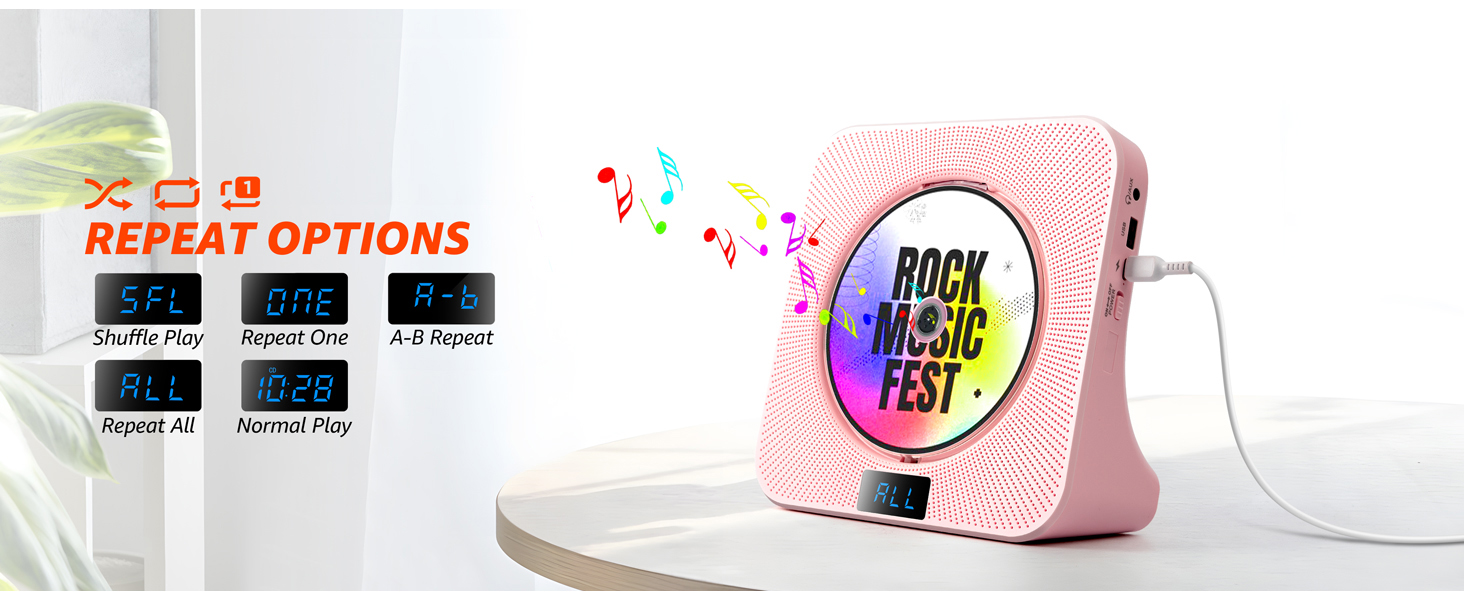
Image 4.7: A child sleeping peacefully while the CD player's sleep timer is active.
4.8 Repeat Options
Control playback order with various repeat modes:
- SFL (Shuffle Play): Plays tracks in a random order.
- ONE (Repeat One): Repeats the current track.
- A-B (A-B Repeat): Repeats a specific segment of a track.
- ALL (Repeat All): Repeats all tracks on the CD/USB.
- Normal Play: Plays tracks in sequential order without repeating.
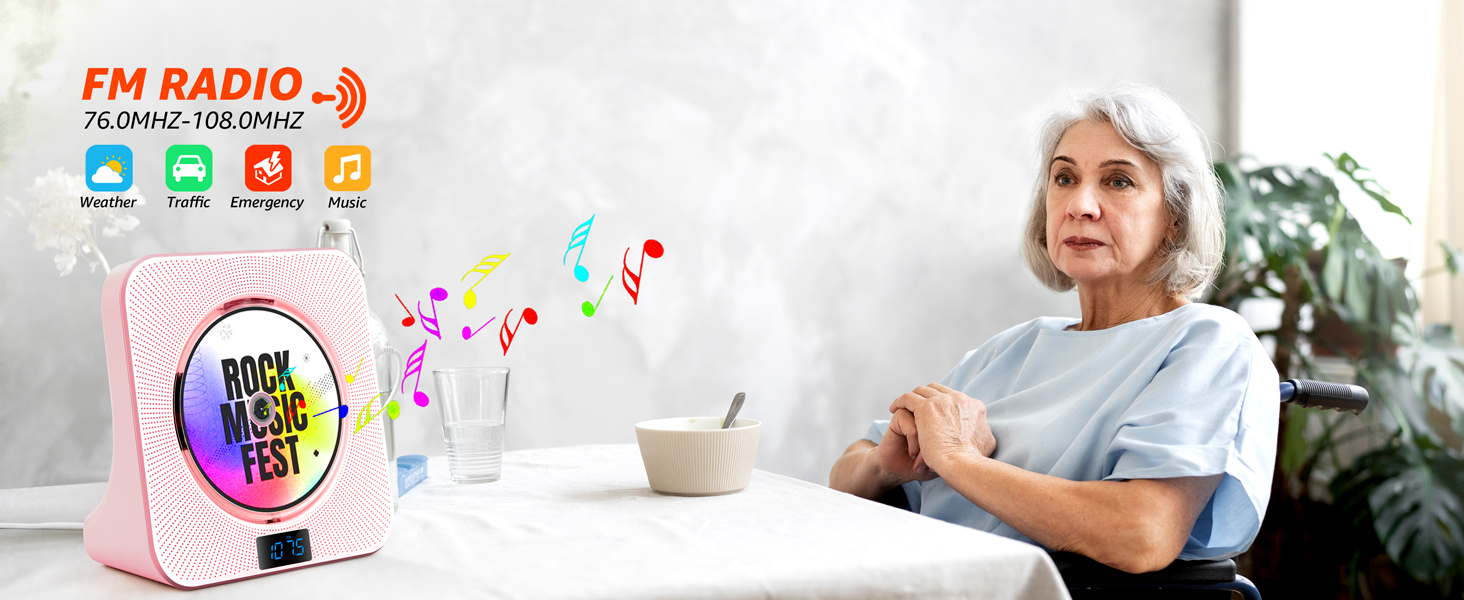
Image 4.8: The LED display showing different repeat options available on the CD player.
5. Maintenance
5.1 Cleaning the Unit
To maintain the appearance and functionality of your CD player:
- Wipe the exterior with a soft, dry cloth.
- Do not use abrasive cleaners, waxes, or solvents.
- Keep the CD compartment clean and free of dust.
5.2 Dust Cover Care
The transparent dust cover protects the CD and internal components. Handle it gently to avoid scratches or damage. Ensure it closes properly to prevent dust accumulation.
6. Troubleshooting
If you encounter issues with your ROADOM KC-809 CD player, please refer to the following common problems and solutions:
| Problem | Possible Cause | Solution |
|---|---|---|
| No power | Power cable not connected; Power outlet not working. | Ensure power cable is securely connected; Try a different power outlet. |
| CD not playing / Disc error | CD inserted incorrectly; Disc is dirty or scratched; Incompatible disc format; Dust cover open. | Reinsert CD correctly; Clean or replace disc; Ensure disc is compatible (CD, CD-R, CD-RW, MP3, WMA); Close dust cover completely. |
| No sound | Volume too low; Mute function active; Incorrect mode selected; External speakers/headphones not connected properly. | Increase volume; Deactivate mute; Select correct playback mode (CD, Bluetooth, FM, USB, AUX); Check connections for external audio devices. |
| Bluetooth pairing issues | Device too far; Pairing mode not active; Interference. | Move devices closer; Ensure both devices are in pairing mode; Restart Bluetooth on both devices; Avoid strong interference sources. |
| Turning/Cranking noise during CD playback | Disc imbalance; Internal mechanism issue. | Ensure CD is placed perfectly flat on the spindle; Try a different CD; If issue persists, contact customer support. |
| Remote control not working | Batteries drained or inserted incorrectly; Obstruction between remote and player. | Replace batteries; Check battery polarity; Remove any obstructions; Ensure remote is pointed at the player. |
7. Specifications
- Model Number: KC-809
- Product Dimensions: 7.4 x 7.4 x 1.5 inches (L x W x H)
- Item Weight: 1.2 pounds
- Connectivity Technology: Auxiliary, Bluetooth 5.1
- Speaker Type: Stereo
- Compatible CD Formats: CD, CD-R, CD-RW, MP3, WMA
- FM Radio Frequency: 76.0-108.0MHz
- Power Input: DC 5V/2A
8. Warranty and Support
ROADOM is committed to providing high-quality products and customer satisfaction.
- Product Warranty: 12 Months
- Returns: 30 Days Free Returns
- After-sale Service: 24 Hours Support
For any questions, technical assistance, or warranty claims, please contact ROADOM customer support through the retailer where you purchased the product or visit the official ROADOM website.

Image 8.1: Overview of ROADOM's warranty and support commitments.
Related documentsKC-809

Ask a question about this manual
Ask about setup, troubleshooting, compatibility, parts, safety, or missing instructions. Manuals+ will review the question and use this page’s manual context to help answer it.