
1. Introduction
The Razer BlackShark V2 Pro is a high-performance wireless gaming headset designed for competitive gaming. It offers superior audio clarity, microphone quality, and supreme sound isolation, making it an ideal choice for immersive gaming experiences across multiple platforms.
2. Product Features
- Advanced Passive Noise Cancellation: Sturdy closed earcups fully cover ears to prevent noise from leaking into the headset, with its cushions providing a closer seal for more sound isolation.
- THX 7.1 Spatial Surround Sound: Provides industry-leading audio realism for in-game immersion by providing accurate spatial audio information beyond standard 7.1 surround sound directional cues.
- Comfort-Prioritized, Lightweight Design with Memory Foam Ear Cushions: Wrapped in plush leatherette, the foam’s improved density greatly reduces the headset’s clamping force, while a breathable fabric minimizes sweat and heat build-up generated by skin contact.
- Triforce Titanium 50mm High-End Sound Drivers: With titanium-coated diaphragms for added clarity, this cutting-edge proprietary design divides the driver into 3 parts for the individual tuning of highs, mids, and lows—producing brighter, clearer audio with richer highs and more powerful lows.
- Detachable Razer HyperClear Cardioid Mic: Tuned to have a more focused voice pickup area, get the most out of the mic with advanced voice tweaking options via Razer Synapse.
- Up to 24-Hour Battery Life: Works on PC wirelessly for up to 24 hours at extremely low latency; 3.5mm headphone jack available for console gaming use.

Figure 2.1: The Razer BlackShark V2 Pro headset with its USB wireless transceiver and detachable microphone.

Figure 2.2: Illustration of the Razer Triforce Titanium 50mm Drivers for high-end audio performance.

Figure 2.3: The headset utilizing Razer HyperSpeed Wireless Technology for lossless, low-latency gaming.

Figure 2.4: The Razer HyperClear Supercardioid Mic, designed for ultra-clear voice quality and advanced controls.

Figure 2.5: The headset's advanced passive noise cancellation for uninterrupted focus during gameplay.

Figure 2.6: Ultra-soft breathable memory foam ear cushions for premium comfort during extended use.

Figure 2.7: THX Spatial Audio provides pinpoint positional accuracy for greater immersion and competitive gaming.
3. Package Contents
The following items are included in your Razer BlackShark V2 Pro package:
- Razer BlackShark V2 Pro Headset
- Removable Razer HyperClear Supercardioid Mic
- USB Wireless Transceiver
- Charging Cable (USB-A to USB-C)
- User Manual (Digital PDF available here)
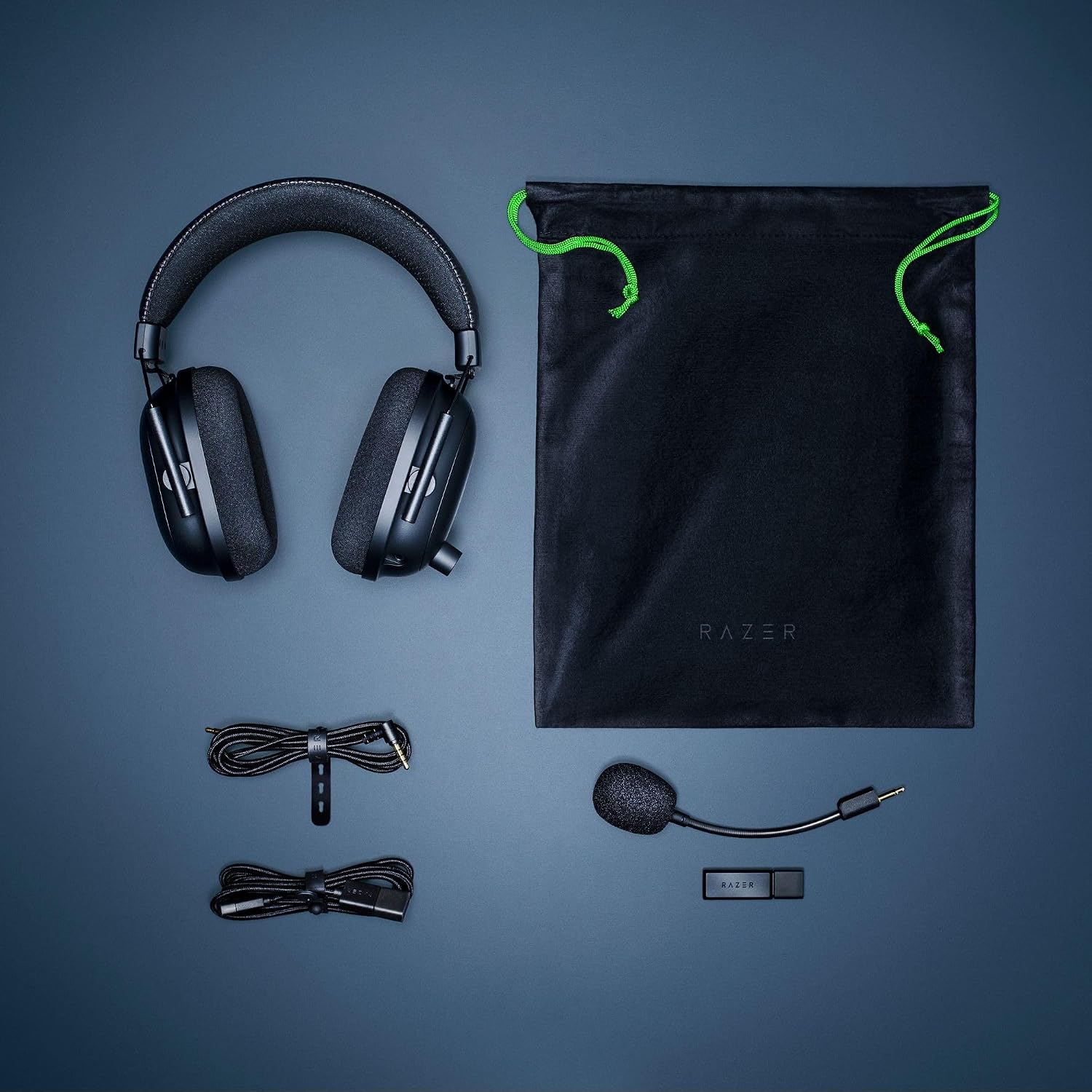
Figure 3.1: All components included in the Razer BlackShark V2 Pro package.
4. Setup
4.1 Wireless Setup (PC, PS5, PS4, Switch, Mac)
- Insert the USB Wireless Transceiver into an available USB port on your PC, PlayStation console (PS4/PS5), or Nintendo Switch dock.
- Power on your Razer BlackShark V2 Pro headset by pressing and holding the Power button until the LED indicator lights up.
- The headset should automatically pair with the transceiver. A solid green LED on the headset indicates a successful connection.
- On your device, ensure the Razer BlackShark V2 Pro is selected as the default audio input and output device.
4.2 Wired Setup (3.5mm Jack)
For devices supporting a 3.5mm audio jack, you can connect the headset directly:
- Connect the included 3.5mm audio cable to the headset's 3.5mm port.
- Connect the other end of the 3.5mm audio cable to your console controller or compatible device.
- Note that some advanced features like THX Spatial Audio may require a USB connection and Razer Synapse software.
4.3 Microphone Setup
- To attach the microphone, align the 3.5mm jack of the Removable Razer HyperClear Supercardioid Mic with the microphone port on the left earcup and push firmly until it clicks into place.
- To detach, gently pull the microphone straight out from the port.
- For optimal voice clarity, position the microphone approximately two finger-widths from your mouth.
- Utilize Razer Synapse software on PC for advanced microphone settings, including noise gate, volume normalization, and vocal clarity enhancements.
5. Operating Instructions
5.1 Controls Overview
The Razer BlackShark V2 Pro features intuitive controls located on the earcups:
- Volume Control Knob: Located on the left earcup, rotate to adjust the headset's master volume.
- Mic Mute Button: A dedicated button on the left earcup to quickly mute/unmute the microphone.
- Power Button: Located on the left earcup, press and hold to power on/off the headset. A short press can check battery status.
- Game/Chat Balance Dial: Adjusts the balance between game audio and chat audio (PC only, requires Razer Synapse).
5.2 Audio Settings
Leverage the headset's advanced audio capabilities for an enhanced experience:
- THX Spatial Audio: On PC, enable THX Spatial Audio via Razer Synapse for precise positional audio, crucial for competitive gaming. This feature provides a realistic soundstage, allowing you to pinpoint enemy locations and environmental cues.
- Audio Profiles: Razer Synapse allows you to create and switch between custom audio profiles optimized for different game genres, music, or movies.
5.3 Battery Management
The headset offers up to 24 hours of wireless usage on a single charge.
- Charging: Connect the headset to a USB power source using the provided USB-A to USB-C charging cable. The LED indicator will show charging status.
- Battery Indicator: The LED on the headset will change color to indicate battery level (e.g., green for high, yellow for medium, red for low).
- Power Saving: The headset may automatically power off after a period of inactivity to conserve battery life.
6. Maintenance
To ensure the longevity and optimal performance of your Razer BlackShark V2 Pro headset, follow these maintenance guidelines:
- Cleaning Ear Cushions: Gently wipe the memory foam ear cushions with a soft, damp cloth. Avoid using harsh chemicals or abrasive materials.
- Headset Body: Use a dry, soft cloth to clean the headset's exterior.
- Microphone: Keep the microphone clean and free of debris. If detached, store it in a safe place to prevent damage.
- Storage: When not in use, store the headset in a cool, dry place, away from direct sunlight and extreme temperatures.
7. Troubleshooting
7.1 No Audio / Low Audio
- Check Volume: Ensure the volume control knob on the headset is turned up.
- Device Volume: Verify that the audio output volume on your connected device (PC, console) is not muted or set too low.
- Connectivity: For wireless, ensure the USB Wireless Transceiver is properly inserted and the headset is paired (solid green LED). For wired, ensure the 3.5mm cable is fully inserted into both the headset and the device.
- Default Device: On PC, check your sound settings to ensure "Razer BlackShark V2 Pro" is set as the default playback device.
- Razer Synapse: If on PC, open Razer Synapse and check audio settings, profiles, and ensure the headset is recognized.
7.2 Microphone Not Working
- Mic Mute: Ensure the Mic Mute button on the headset is not activated (LED indicator for mute may be present).
- Microphone Connection: Verify the detachable microphone is securely inserted into the headset's port.
- Device Input: On your connected device, check sound settings to ensure "Razer BlackShark V2 Pro" is selected as the default recording/input device.
- Application Settings: Check microphone settings within the specific game or communication application you are using.
- Razer Synapse: On PC, use Razer Synapse to check microphone levels, sensitivity, and ensure no enhancements are causing issues.
7.3 Connectivity Issues (Wireless)
- Re-pair: If the headset loses connection, try re-pairing by powering off and on the headset, and re-inserting the USB Wireless Transceiver.
- Interference: Move away from other wireless devices (e.g., Wi-Fi routers, cordless phones) that might cause interference.
- Range: Ensure you are within the effective wireless range of the transceiver.
8. Specifications
| Feature | Specification |
|---|---|
| Model Name | BlackShark V2 Pro (2020) |
| Connectivity Technology | Wireless - 2.4GHz with USB dongle, 3.5 mm Jack |
| Audio Driver Type | Dynamic Driver (Triforce Titanium) |
| Audio Driver Size | 50 Millimeters |
| Frequency Range | 12 - 28000 Hz |
| Sensitivity | 100 dB |
| Impedance | 32 Ohm |
| Noise Control | Sound Isolation (Passive Noise Cancellation) |
| Battery Life | Up to 24 Hours |
| Item Weight | 320 Grams (11.3 ounces) |
| Product Dimensions | 6.5 x 3.94 x 7.88 inches |
| Compatible Devices | PC, PS5, PS4, Switch, Gaming Consoles, Desktops, Mac |
9. Warranty and Support
For detailed warranty information and technical support, please refer to the official Razer website or the full User Manual PDF provided with your product. You can also find the digital PDF version here.
Razer provides customer support and resources to assist with any product-related inquiries or issues.