
1. Introduction
Thank you for choosing the Joyroom JR-X1 Bluetooth Wireless Earphones. These earphones are designed to provide a comfortable and high-quality audio experience with bone conduction technology, allowing you to enjoy sound without blocking your ears. This manual will guide you through the setup, operation, and maintenance of your new earphones.

Figure 1: Joyroom JR-X1 Bluetooth Wireless Earphones, showcasing their sleek design.
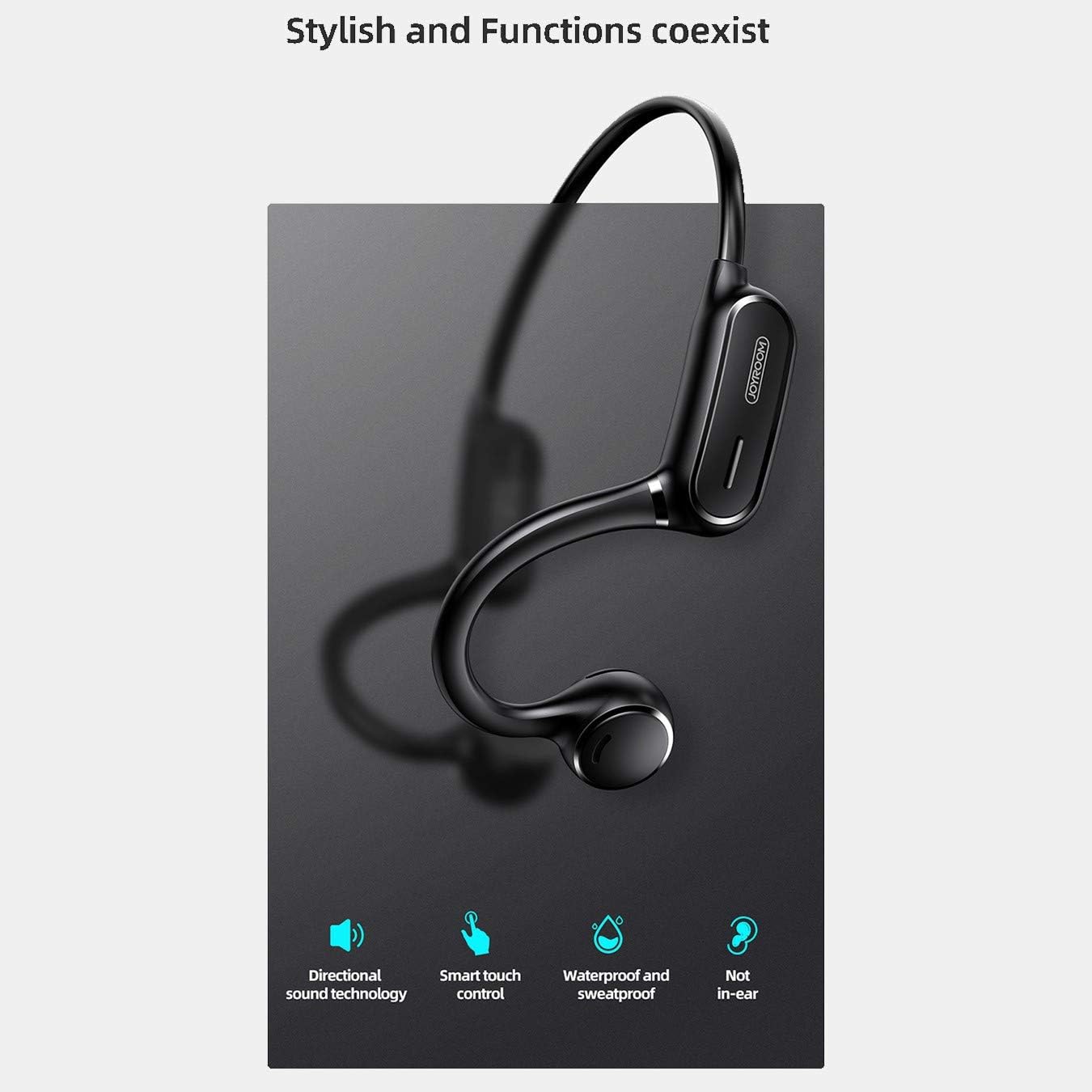
Figure 2: Key features of the JR-X1, including directional sound technology, smart touch control, waterproof and sweatproof design, and non-in-ear wearing style.
2. Setup
2.1. Charging the Earphones
Before first use, fully charge your JR-X1 earphones. Connect the charging cable to the charging port on the earphones and a compatible USB power source (5V/1A). The indicator light will show the charging status and turn off or change color once fully charged. A full charge takes approximately 2 hours.
2.2. Powering On/Off
- Power On: Press and hold the multi-function button for a few seconds until the indicator light flashes and you hear a power-on prompt.
- Power Off: Press and hold the multi-function button for a few seconds until the indicator light turns off and you hear a power-off prompt.
2.3. Bluetooth Pairing
- Ensure the earphones are powered off.
- Press and hold the multi-function button until the indicator light flashes red and blue alternately, indicating pairing mode.
- On your device (smartphone, tablet, etc.), enable Bluetooth and search for available devices.
- Select "JR-X1" from the list of found devices.
- Once connected, the indicator light will stop flashing and you will hear a connection confirmation.
The earphones will automatically power off after 5 minutes if not connected to a device.

Figure 3: The JR-X1 earphones are designed for comfortable, non-in-ear wearing, utilizing bone conduction technology.
3. Operating Instructions
3.1. Music Playback
- Play/Pause: Tap the multi-function button once.
- Next Track: Double-tap the multi-function button.
- Previous Track: Triple-tap the multi-function button.
3.2. Volume Control
The JR-X1 features volume control. Refer to the specific buttons or touch areas on your earphones for volume adjustment. Typically, there are dedicated volume up (+) and volume down (-) buttons or touch gestures.
3.3. Call Management
- Answer/End Call: Tap the multi-function button once.
- Reject Call: Press and hold the multi-function button for 2 seconds.
- Voice Assistant (Siri/Google Assistant): Tap the multi-function button three times to activate your device's voice assistant.

Figure 4: The JR-X1 features smart touch controls for easy operation, including managing calls and music playback.
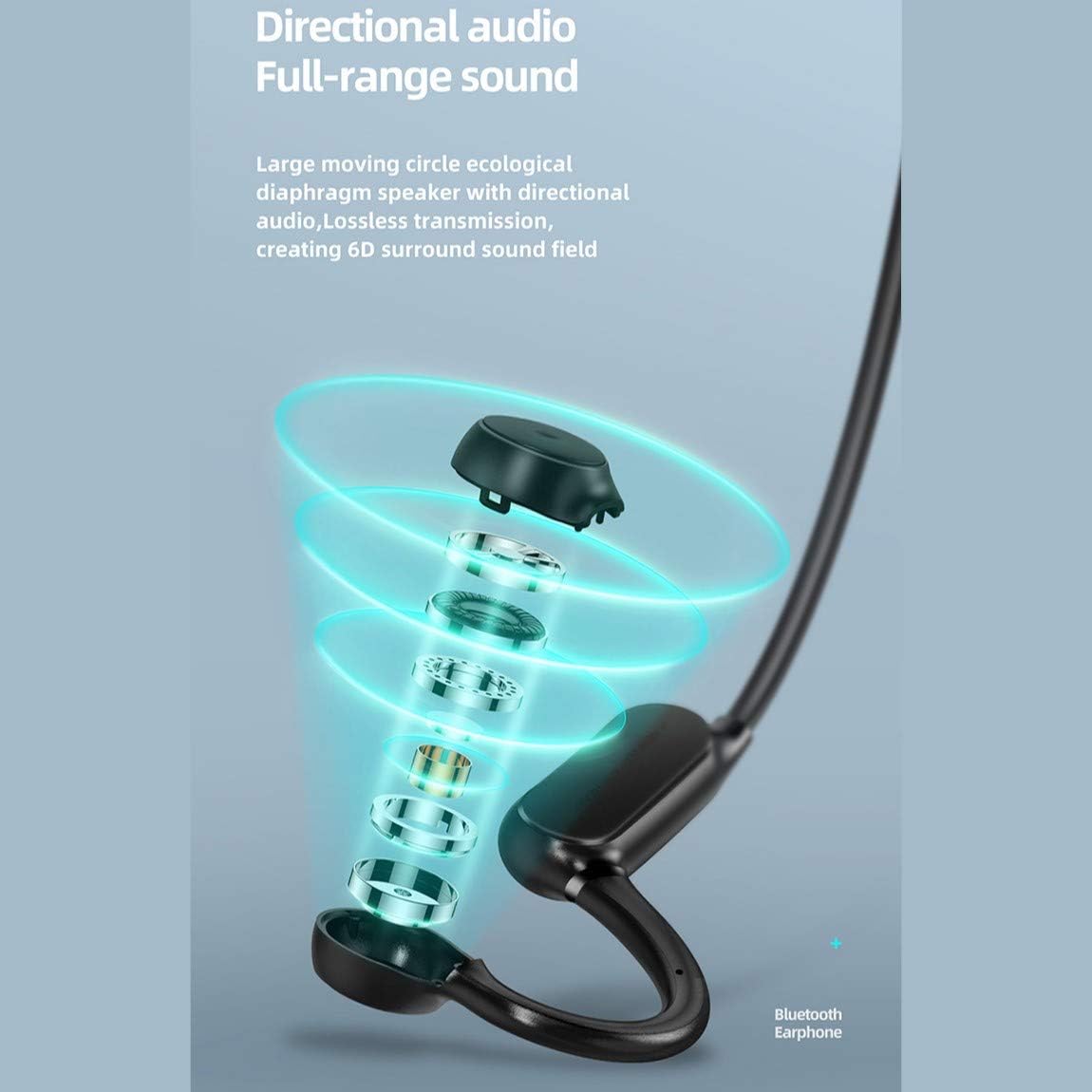
Figure 5: The directional audio technology provides full-range sound through a large moving circle ecological diaphragm speaker, ensuring lossless transmission and a 6D surround sound field.
4. Maintenance
4.1. Cleaning
Regularly clean your earphones to ensure optimal performance and hygiene. Use a soft, dry, lint-free cloth to wipe the surfaces. Do not use harsh chemicals, cleaning solvents, or strong detergents.
4.2. Storage
When not in use, store the earphones in a cool, dry place, away from direct sunlight and extreme temperatures. Avoid placing heavy objects on them or storing them in a tangled state.
4.3. Water Resistance
The JR-X1 earphones are designed to be waterproof and sweatproof. However, they are not intended for submersion in water. Avoid prolonged exposure to heavy rain or swimming. After exposure to sweat or light rain, wipe them dry before charging.
5. Troubleshooting
5.1. Earphones Not Powering On
- Ensure the earphones are fully charged. Connect them to a power source and check the charging indicator.
- Press and hold the power button for a longer duration (5-7 seconds) to ensure it's not a brief press.
5.2. Cannot Pair with Device
- Make sure the earphones are in pairing mode (indicator flashing red and blue alternately).
- Ensure Bluetooth is enabled on your device and it is within range (typically 10 meters).
- Turn off and on your device's Bluetooth.
- If previously paired, try forgetting "JR-X1" from your device's Bluetooth settings and re-pairing.
- Ensure no other devices are currently connected to the earphones.
5.3. No Sound or Low Volume
- Check the volume levels on both the earphones and your connected device.
- Ensure the earphones are properly connected to your device.
- Try playing different audio sources to rule out an issue with the media file.
5.4. Intermittent Connection
- Move closer to your connected device to reduce interference.
- Avoid environments with strong Wi-Fi signals or other Bluetooth devices that might cause interference.
- Ensure the earphones are fully charged.
6. Specifications
| Feature | Specification |
|---|---|
| Brand | Joyroom |
| Model Number | JR-X1 |
| Type | Wireless Earphones (Bone Conduction) |
| Color | White |
| Materials | ABS + Silicone |
| Bluetooth Version | 5.0 |
| Sensitivity | 84 ± 3 dB |
| Frequency Response Range | 20 Hz - 20 kHz |
| Microphone Sensitivity | -38 dB |
| Earphone Battery Capacity | 230 mAh |
| Impedance | 10 Ohm ± 15% (800 Hz) |
| Rated Power | 1 Watt |
| Playtime | Approx. 6 hours (70-80% volume) |
| Talk Time | Approx. 6 hours |
| Standby Time | Approx. 10 days |
| Auto Power Off | 5 minutes if not connected |
| Charging Input | 5V/1A |
| Charging Time | Approx. 2 hours |
| Special Features | Lightweight, Microphone Included, Waterproof, Sweatproof |
| Control Method | Touch Control, Volume Control |
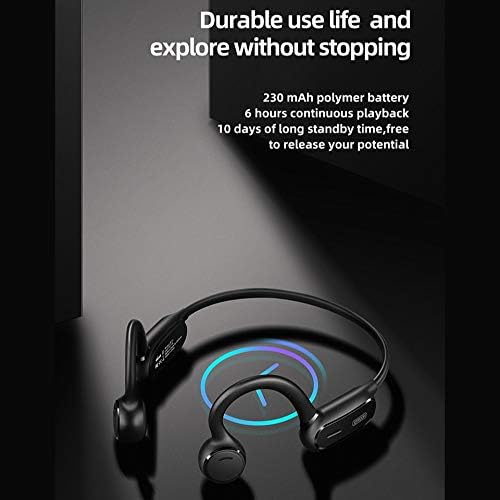
Figure 6: The JR-X1 features a 230 mAh polymer battery, offering approximately 6 hours of continuous playback and up to 10 days of standby time.

Figure 7: Equipped with Bluetooth 5.0 and a QCC master chip, the JR-X1 ensures fast, stable connection, low latency, and efficient power consumption.
7. Warranty & Support
7.1. Warranty Information
The Joyroom JR-X1 Bluetooth Wireless Earphones come with a standard manufacturer's warranty. Please refer to the warranty card included in your product packaging for specific terms, conditions, and duration. Keep your purchase receipt as proof of purchase for warranty claims.
7.2. Customer Support
For any technical assistance, troubleshooting not covered in this manual, or warranty inquiries, please contact Joyroom customer support. Contact details can typically be found on the official Joyroom website or on the product packaging.

