
1. Product Overview
The Carlinkit Wired CarPlay Dongle is designed to integrate Apple CarPlay, Android Auto, and screen mirroring functionalities into compatible Android car radio systems. This device allows users to access navigation, music, phone calls, and other smartphone features directly from their car's display.
Key Features:
- Supports Wired Apple CarPlay
- Supports Wired Android Auto
- Enables Screen Mirroring for iOS and Android devices
- Voice Control compatibility (Siri)
- Real-time GPS Navigation App support
- Online Music App and Phone Call integration
- Online upgradeable system for APK and dongle firmware
2. Compatibility Requirements
This product is specifically designed for Android car radio systems. Please ensure your vehicle's head unit meets the following criteria for proper functionality:
- Android Version: Your car's Android system must be version 4.4.2 or above.
- APK Installation Capability: The car radio must be able to successfully install and run the AutoKit APK application. If your car system cannot install APK files, this product is not compatible.
- Not for Stock Head Units: This dongle is not compatible with factory-installed (stock) car head units that do not run on an Android operating system.
How to Check Compatibility:
1. Verify your car's Android version by navigating to 'About device' or 'System Information' in your car radio's settings.

Image: Car radio screen showing Android version 4.4.2+ for compatibility, contrasted with an incompatible original car screen.
2. Attempt to install the AutoKit APK. If installation fails, the product is not suitable for your system.

Image: Q&A confirming compatibility only with car models capable of APK installation.
3. Setup Instructions
Follow these steps to install the AutoKit APK and connect your Carlinkit dongle:
- Connect to Network: Ensure your car radio is connected to the internet (Wi-Fi or mobile hotspot).
- Download AutoKit APK: Open the web browser on your car screen and enter the following URL to download the AutoKit APK: http://121.40.123.198:8080/AutoKit/AutoKit.apk. Alternatively, you can download the APK to a USB flash drive and install it from there.
- Install APK: Install the downloaded AutoKit APK file on your car radio. You may need to enable 'Unknown Sources' in your Android settings to allow installation of apps outside the Play Store.
- Connect Dongle: Plug the Carlinkit Wired CarPlay Dongle into a USB port on your Android car radio.
- Run Detection: Open the AutoKit application. Navigate to Settings > Detection. All three items (Microphone, USB, Decode) should show a checkmark (✓), indicating your car system is compatible with the product.
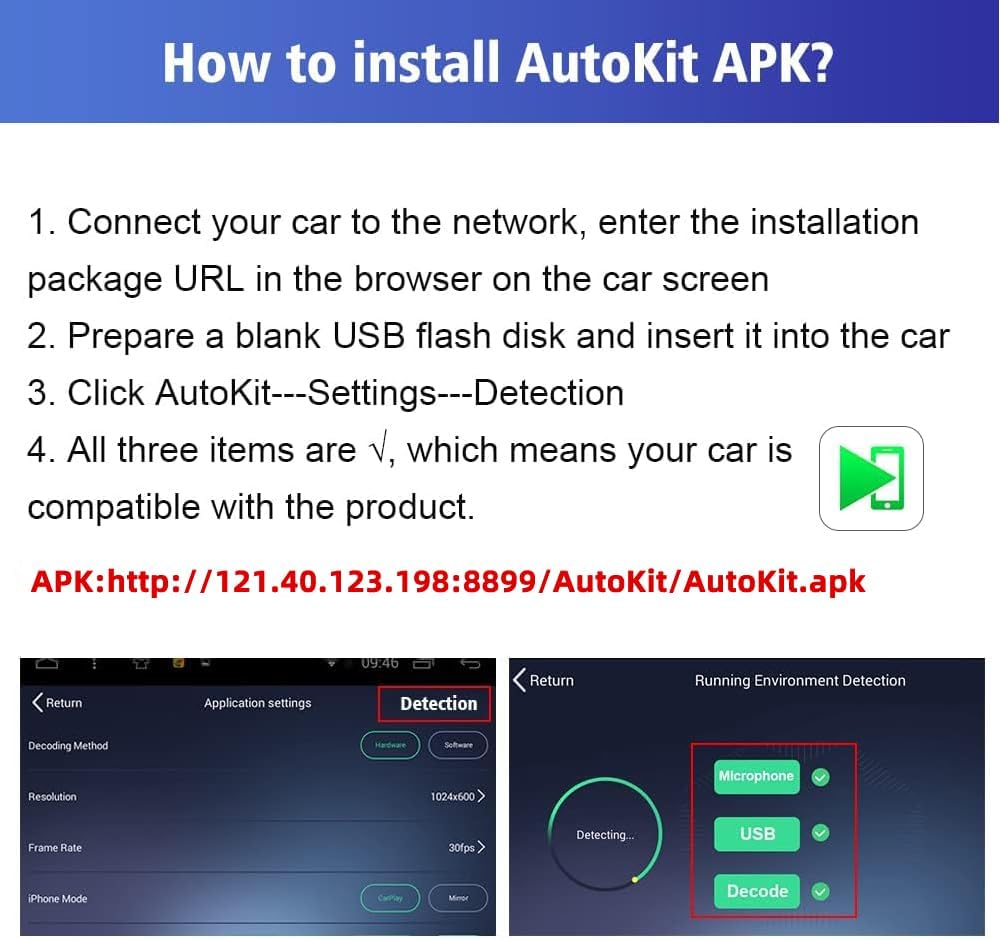
Image: Visual guide for AutoKit APK installation and compatibility detection.

Image: Android car head unit with Autokit app and dongle connection.
Note: If the application does not launch automatically or your phone is not recognized, you may need to enable USB debugging in your phone's developer options.
Setup Video Guide
Video: A detailed guide on the initial setup and installation process of the Carlinkit dongle.
4. Operating Instructions
Once the dongle is connected and the AutoKit APK is running, you can use the following functions:
4.1. Wired CarPlay (for iPhone)
Connect your iPhone to the dongle using a USB cable. The AutoKit app will automatically launch CarPlay, displaying your iPhone's compatible applications on the car screen. This includes navigation, music, messages, and more.

Image: iPhone connected to the dongle, showing Wired CarPlay on the car display.
4.2. Wired Android Auto (for Android Phones)
Connect your Android phone to the dongle using a USB cable. The AutoKit app will launch Android Auto, providing access to Google Maps, Spotify, phone calls, and other Android Auto compatible apps on your car's display.

Image: Android phone connected to the dongle, showing Wired Android Auto on the car display.
4.3. Screen Mirroring
The dongle supports screen mirroring for both iOS and Android devices. This allows you to cast your phone's screen directly to the car radio display, enabling viewing of videos, photos, and other content.

Image: iPhone screen mirrored to the car display, showing video content.
4.4. Voice Control and Navigation
Utilize voice commands (e.g., Siri for iOS) for hands-free operation. Access popular navigation apps like Google Maps, Apple Maps, and Waze for real-time directions.

Image: Voice control interface and navigation app options on the car display.
5. Maintenance and Updates
The Carlinkit system supports online updates for both the AutoKit APK and the dongle's firmware to ensure optimal performance and access to the latest features.
- Update AutoKit APK: Enter AutoKit Settings, then click "Recheck updates" to update the software version. Do not plug in the dongle during this step.
- Update Dongle Firmware: After updating the APK, click "Box upgrade" to update the dongle's firmware version. Ensure the dongle is plugged in for this step.

Image: Steps for online updates of AutoKit APK and dongle firmware.
6. Troubleshooting
If you encounter issues, consider the following common solutions:
- Dongle Not Recognized: Ensure the dongle is securely plugged into a functional USB port on your Android car radio. Try a different USB port if available.
- Phone Not Connecting/Recognized:
- Verify your phone's USB cable is not damaged.
- For Android phones, ensure USB debugging is enabled in Developer Options.
- For iPhones, ensure you accept any prompts on the phone to allow CarPlay.
- Lag or Choppy Audio (especially with navigation): This can sometimes occur, particularly with iPhones. Ensure your phone's iOS is up to date. The operating speed of the device is influenced by your phone's processing speed.
- Interference with Bluetooth: Avoid connecting your phone to the car's Bluetooth system simultaneously with the wired dongle, as this can cause audio conflicts (e.g., music starting/stopping abruptly).
- AutoKit App Issues: If the app is glitchy or not launching, try restarting the car radio or reinstalling the AutoKit APK. Ensure the app and dongle firmware are updated to the latest versions.
- "Please connect product" message: If the dongle is connected but the app displays this message, try unplugging and replugging the dongle. If the issue persists, restarting the car may resolve it.
7. Specifications
| Feature | Detail |
|---|---|
| Model Name | 6972185563639 |
| Brand | Carlinkit |
| Connectivity Technology | USB |
| Connector Type | USB |
| Special Feature | Wired CarPlay dongle |
| Resolution | 1024 x 600 |
| Supported Internet Services | Maps |
| Controller Type | Android, iOS |
| Form Factor | TV Stick |
| Color | Black |
| Item Weight | 2.82 ounces |
8. Packing List
The product package includes the following items:
- Packing box x 1
- Carlinkit Wired CarPlay Dongle x 1
- Product Manual x 1
Note: No additional parts are included beyond those listed above.

Image: Contents of the product package.
9. Support
For further assistance or inquiries, please refer to the official Carlinkit support channels or the contact information provided with your purchase.


