
1. Product Overview
The Carlinkit CPC200 Wireless CarPlay USB Dongle is designed to integrate your smartphone with your car's Android head unit, enabling access to CarPlay, Android Auto, and screen mirroring functionalities. This device allows for voice control, navigation, music playback, and phone calls directly from your car's display, enhancing your driving experience.
Package Contents:
- 1 x USB CarPlay Dongle
- 1 x User Manual
2. Compatibility
This dongle is compatible with a range of devices and car systems:
- iPhone: Requires iOS 9 or above, iPhone 5 or newer models.
- Android Phones: Requires Android version 4.4 or above.
- Car Head Unit: Must be an Android system with version 4.4.2 or above.
Before purchasing, ensure your car's Android screen can install the Autokit application. You can download the AutoKit software, enter settings, and perform an environment detection. If it indicates compatibility, the product can be used.

Image: AutoKit APK installation and environment detection on an Android car unit.
3. Setup Instructions
3.1. Installing AutoKit APK on your Android Car Unit
- On your car's browser, enter the URL: http://121.40.123.198:8080/AutoKit/AutoKit.apk to download the AutoKit APK. Your car must be connected to the internet.
- Navigate to the car's "Download Directory" to locate the downloaded AutoKit APK file.
- Install the APK.
- After installation, open AutoKit settings and perform an environment detection. If all three options (Microphone, USB, Decode) show as available, your car can use the dongle.
3.2. Wireless CarPlay Connection
- Ensure the AutoKit APK is installed and open on your car's display.
- Insert the CarPlay dongle into the USB port of your car's head unit.
- On your iPhone, go to Settings > Bluetooth. Search for the dongle's Bluetooth name (e.g., "Autokit-xxxx") and select it.
- Enter the pairing password "0000" if prompted, then click pair.
- Confirm the connection on your iPhone by selecting "Use CarPlay" when prompted.
- CarPlay will now be active on your car's screen.
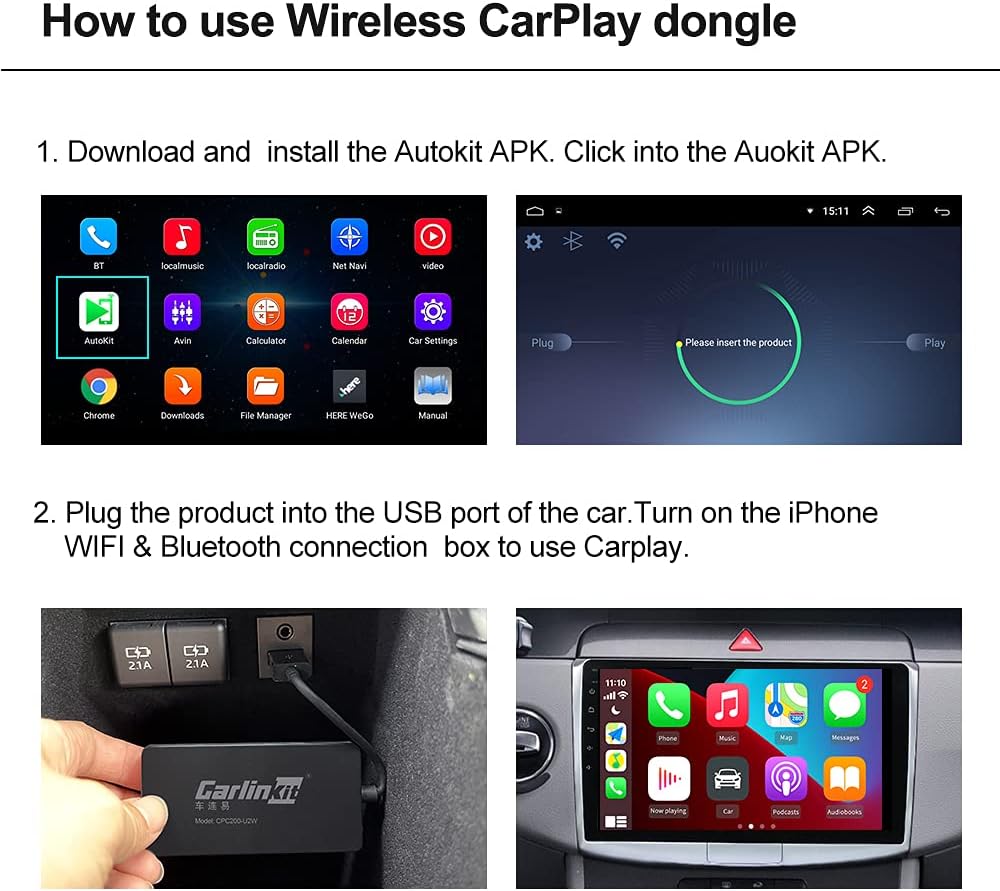
Image: Connecting the Wireless CarPlay dongle and pairing with an iPhone.
Video: Demonstrates the setup process for the Wireless CarPlay Dongle, including connecting the device and pairing with an iPhone for CarPlay functionality.
3.3. Wired Android Auto Connection
- Ensure the AutoKit APK is installed and open on your car's display.
- On your Android phone, ensure the "USB debugging" function is enabled in the developer options.
- Connect your Android phone to the CarPlay dongle using a high-quality USB cable.
- Open the Android Auto application on your phone.
- Android Auto will automatically launch on your car's screen.
Video: Illustrates the wired Android Auto connection process, showing how to connect an Android phone to the dongle and activate Android Auto on the car's display.
3.4. Screen Mirroring (Mirrorlink)
The dongle supports wired screen mirroring for both iOS and Android devices.
- Open the AutoKit application on your car's display.
- In the AutoKit settings, select the "Mirrorlink" option.
- Connect your smartphone to the dongle using a high-quality USB cable.
- Your phone's screen will be synchronized and displayed on the car's screen.

Image: Screen mirroring functionality, displaying a phone's content on the car's head unit.
4. Operating Instructions
Once connected, the Carlinkit CPC200 dongle allows you to use various smartphone features directly from your car's display.
4.1. Voice Control (Siri)
- Activate Siri through your car's controls or by saying "Hey Siri" (if enabled).
- Use voice commands to make phone calls, send messages, get directions, and control music.

Image: Siri voice control interface on the car display.
4.2. Navigation
- Access navigation apps like Google Maps, Apple Maps, or Waze directly from the car's screen.
- Receive real-time navigation instructions and traffic updates.

Image: CarPlay interface displaying various applications, including navigation.
4.3. Music and Media
- Play music from apps like iTunes, Apple Music, Spotify, or other installed media applications.
- Control playback, browse libraries, and select songs using the car's interface.
4.4. Phone Calls and Messaging
- Make and receive phone calls hands-free.
- Access messages and have them read aloud, or dictate replies using voice commands.
5. System Updates
The CarPlay dongle supports online updates to ensure optimal performance and access to the latest features.
- Open the AutoKit application on your car's display.
- Navigate to "Settings" within the AutoKit app.
- Click "Recheck updates" to check for new software versions.
- If a software update is available, select "Software version" to update the application first (do not plug in the dongle during this step).
- After the software update, click "Box upgrade" to update the dongle's firmware (plug in the dongle for this step).

Image: AutoKit application update interface.
6. Troubleshooting
6.1. Wireless CarPlay Connection Issues
- Verify if a wired connection works.
- Check if your mobile phone has access restrictions enabled.
- Confirm your phone's Wi-Fi is on.
- When connecting via Bluetooth, ensure you click "Enable Wireless CarPlay" if prompted. Check the Bluetooth settings on your phone for a CarPlay icon next to the dongle's name.
- Try re-pairing your mobile phone.
6.2. Deleting a Paired Device
- Tap the "WIFI icon" in the upper left corner of the product's main interface in the AutoKit app.
- Long-press the phone name to delete the pairing.
- On your phone, ignore the current Bluetooth name for the dongle.
6.3. Black Screen After Mobile Phone Connection
- Turn off the "Handbrake setting" or enable "Watch video while driving" in your car's system settings.
- Adjust the "Run Mode" or "Rendering Mode" in the AutoKit application settings.
6.4. Android Auto Phone Restart Issues
This issue may be caused by Google Chrome browser updates. Ensure your dongle's firmware is updated to the latest version online as described in the System Updates section.
6.5. Unstable Connection
If the product connection is unstable, it may be due to an outdated firmware version. Perform an online update to the latest version as described in the System Updates section.
7. Specifications
| Item Model Number | CPC200 |
| Brand | Carlinkit |
| Compatible Devices | iPhone (iOS 9+), Android Phones (Android 4.4+), Android Car Head Units (Android 4.4.2+) |
| Connector Type | USB Type A |
| Color | White |
| Number of Ports | 1 |
| Item Weight | 3.27 ounces |
| Package Dimensions | 9.25 x 3.78 x 1.38 inches |
8. Warranty and Support
Carlinkit performs strict quality control to ensure product functionality. If you encounter any installation difficulties or other issues, please contact Carlinkit customer support for professional assistance. Specific warranty details may be provided with your purchase documentation.


