
1. Introduction
Thank you for choosing the muvit iO Wireless Mesh RGB+CCT Floodlight. This smart outdoor lighting solution offers versatile illumination with RGB color options, tunable white light (CCT), and smart control capabilities via a mobile application and voice assistants. Designed for outdoor use, it features a robust construction and a ground spike for easy installation. This manual provides essential information for the safe and efficient use of your floodlight.
2. Safety Information
Please read all safety instructions carefully before installation and use. Failure to follow these instructions may result in electric shock, fire, or other injuries.
- Ensure the power supply is disconnected before installation or maintenance.
- This product is designed for outdoor use and is rated IP65 for protection against dust and water jets. However, do not submerge the device in water.
- Use only with a compatible 230V AC power source.
- Do not attempt to disassemble or modify the floodlight. Refer all servicing to qualified personnel.
- Keep away from flammable materials.
- Ensure proper grounding during installation.
3. Package Contents
Verify that all components are present in the package:
- muvit iO Wireless Mesh RGB+CCT Floodlight Unit
- Ground Spike Attachment
- User Manual (this document)

Image: Product packaging of the muvit iO Floodlight, highlighting its smart features and compatibility.
4. Product Overview
Familiarize yourself with the components of your muvit iO Floodlight.

Image: Front view of the muvit iO Floodlight, showcasing its RGB color capabilities.

Image: Side view of the muvit iO Floodlight, demonstrating the ground spike attachment for outdoor installation.
5. Setup
5.1 Physical Installation
- Choose a suitable outdoor location for the floodlight. Ensure the area is clear of obstructions and has access to a power outlet.
- Attach the ground spike securely to the floodlight unit.
- Carefully insert the ground spike into the soil. Ensure the floodlight is stable and positioned as desired.
- Connect the floodlight to a 230V AC power source.

Image: The muvit iO Floodlight installed in a garden, demonstrating its outdoor application.
5.2 App Installation and Pairing
The muvit iO Floodlight operates using Bluetooth Mesh technology and requires the muvit iO application for full functionality.
- Download the 'muvit iO Home' app from your smartphone's app store (available on Google Play and Apple App Store).
- Open the app and create an account or log in.
- Ensure your floodlight is powered on and your smartphone's Bluetooth is enabled.
- In the app, follow the on-screen instructions to add a new device. The app will typically detect nearby muvit iO devices automatically.
- Select the 'Floodlight' or 'Projector' option (Model MIOFLOD001) from the list of discoverable devices.
- Complete the pairing process as prompted by the app. You may need to confirm the connection.

Image: The muvit iO Floodlight shown alongside a smartphone running the muvit iO app, illustrating smart control.
5.3 Bluetooth Mesh Technology
The muvit iO Floodlight utilizes Bluetooth Mesh technology, which allows multiple devices to communicate with each other, extending the range and reliability of your smart lighting network. A muvit iO Hub (sold separately) can further enhance connectivity and enable remote control and voice assistant integration.

Image: Diagram explaining the Wireless (BT) Mesh Technology, showing how devices connect to a hub and router for extended range.
6. Operating Instructions
6.1 Basic Control via App
Once paired, you can control your floodlight through the muvit iO Home app:
- On/Off: Tap the power icon to turn the floodlight on or off.
- Brightness: Adjust the brightness slider to increase or decrease light intensity.
- Color Selection (RGB): Use the color wheel to choose from millions of colors.
- White Light (CCT): Switch to white light mode and adjust the color temperature from warm white to cool white.
- Scenes: Select pre-set lighting scenes or create custom ones for different moods or occasions.
- Schedules: Set timers or schedules for the floodlight to turn on/off automatically.

Image: Screenshot of the muvit iO app interface, displaying a color wheel for precise light color selection.
6.2 Voice Control
The muvit iO Floodlight is compatible with popular voice assistants like Google Assistant and Amazon Alexa (requires a muvit iO Hub for full integration). To enable voice control:
- Ensure your muvit iO Hub is set up and connected to your home network.
- Link your muvit iO account with your Google Home or Amazon Alexa app.
- Discover devices within the voice assistant app. Your floodlight should appear.
- You can now use voice commands such as:
- "Hey Google, turn on the garden light."
- "Alexa, set the floodlight to blue."
- "Hey Google, dim the outdoor light to 50%."
7. Maintenance
To ensure the longevity and optimal performance of your floodlight, follow these maintenance guidelines:
- Cleaning: Periodically wipe the floodlight's surface with a soft, damp cloth. Do not use abrasive cleaners or solvents.
- Inspection: Regularly check the power cable and connections for any signs of damage. If damage is found, discontinue use and contact customer support.
- Environmental: Ensure the floodlight is not covered by debris or foliage, which could impede light output or cause overheating.
8. Troubleshooting
If you encounter issues with your muvit iO Floodlight, refer to the following common problems and solutions:
| Problem | Possible Cause | Solution |
|---|---|---|
| Floodlight does not turn on. | No power supply; loose connection; device not paired. | Check power outlet and cable connection. Ensure the floodlight is properly paired with the app. |
| Cannot connect to the app. | Bluetooth off; floodlight out of range; app issue. | Ensure Bluetooth is enabled on your phone. Move closer to the floodlight. Restart the app or your phone. |
| Voice control not working. | Hub not connected; account not linked; incorrect commands. | Verify muvit iO Hub connection. Ensure muvit iO account is linked to your voice assistant. Use correct voice commands. |
| Light flickers or changes color unexpectedly. | Unstable power; interference; software glitch. | Check power supply stability. Move away from strong interference sources. Restart the floodlight by unplugging and replugging it. |
If the problem persists, please contact muvit iO customer support.
9. Specifications
| Feature | Specification |
|---|---|
| Brand | muvit iO |
| Model Number | MIOFLOD001 |
| Voltage | 230 Volts (AC) |
| Luminosity | 1600 lm |
| Light Source Power | 20 Watts |
| Mounting Type | Table mount (adaptable for ground spike) |
| Number of Light Sources | 1 |
| Batteries Included | No |
| ASIN | B08FFPPQ5G |
| Manufacturer | muvit iO |
| Software Updates Guaranteed Until | Information not available |
| Spare Parts Availability | Information not available |
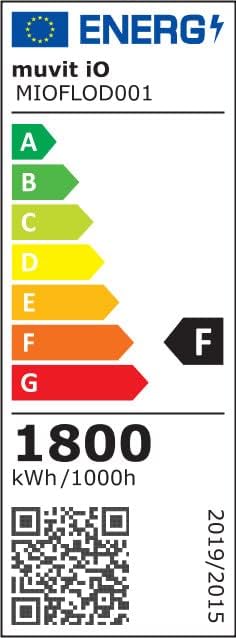
Image: Energy efficiency label for the muvit iO Floodlight (MIOFLOD001), indicating an energy class F and 1800 kWh/1000h consumption. For more details, visit the official EU EPREL database: eprel.ec.europa.eu/qr/865031
10. Warranty and Support
For warranty information and customer support, please refer to the documentation provided with your purchase or visit the official muvit iO website. Keep your proof of purchase for any warranty claims.
For technical assistance or troubleshooting beyond this manual, please contact muvit iO customer service.