
1. Introduction
This manual provides detailed instructions for setting up, operating, and maintaining your Huawei 4G LTE Router B312-926. Please read this manual thoroughly before using the device to ensure proper functionality and optimal performance. This router is designed to provide high-speed 4G LTE internet access and Wi-Fi connectivity for multiple devices.
2. Product Overview
Familiarize yourself with the components and indicators of your Huawei 4G LTE Router B312-926.
2.1 Front View

The front panel displays status indicators for power, network signal, and Wi-Fi activity.
2.2 Rear View (Ports and Connectors)

The rear panel includes the power input, a reset button, and a Gigabit WAN/LAN auto-negotiation Ethernet port for wired connections to devices like computers, TVs, or access points.
2.3 Bottom View (SIM Card Slot)
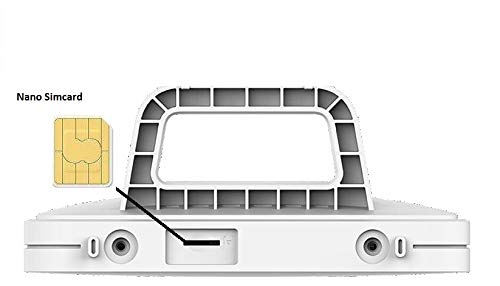
The bottom of the router features the Nano SIM card slot, essential for 4G LTE connectivity.
2.4 Side View

A sleek side profile of the router, designed for compact placement.
3. Package Contents
Verify that all items are present in your product package:
- Huawei 4G LTE Gateway (Router)
- Quick Start Guide and Safety Information
- Warranty Card
- Power Adapter (Charger)
- 1.5m Network Cable (Ethernet Cable)
4. Setup Instructions
4.1 SIM Card Installation
- Ensure the router is powered off.
- Locate the Nano SIM card slot on the bottom of the router.
- Insert a standard Nano SIM card into the slot with the gold contacts facing down and the notched corner aligned correctly. Push until it clicks into place.
4.2 Power Connection
- Connect the power adapter to the router's power input port.
- Plug the power adapter into a suitable electrical outlet.
- The router will automatically power on. Wait for the indicator lights on the front panel to stabilize.
4.3 Initial Configuration (Optional)
For initial setup or advanced settings, you can access the router's web interface:
- Connect your computer to the router via Wi-Fi or an Ethernet cable. The default Wi-Fi name (SSID) and password are usually printed on a label on the bottom of the router.
- Open a web browser and enter the default IP address (e.g.,
192.168.8.1) into the address bar. - Enter the default login username and password (usually
adminfor both, or as specified on the router label). - Follow the on-screen wizard to complete the initial setup, including changing the Wi-Fi name and password for security.
5. Operating Instructions
5.1 Connecting Devices via Wi-Fi
- On your device (smartphone, laptop, tablet), enable Wi-Fi.
- Search for available Wi-Fi networks and select the SSID of your Huawei router.
- Enter the Wi-Fi password when prompted.
- Once connected, your device should have internet access. The router supports connecting up to 32 devices simultaneously.
5.2 Connecting Devices via Ethernet Cable
- Connect one end of the provided Ethernet cable to the Gigabit WAN/LAN port on the router.
- Connect the other end of the Ethernet cable to the Ethernet port on your computer, smart TV, or other network-enabled device.
- The device should automatically establish a wired network connection.
6. Maintenance
- Regular Cleaning: Keep the router clean and free from dust. Use a soft, dry cloth.
- Firmware Updates: Periodically check for firmware updates through the router's web interface to ensure optimal performance and security.
- Placement: Place the router in an open area, away from obstructions and other electronic devices that may cause interference, to maximize Wi-Fi signal strength.
- Resetting: If the router is unresponsive, you can perform a soft reset by power cycling it. For a factory reset, press and hold the reset button on the rear panel for approximately 5-10 seconds while the router is powered on. Note that a factory reset will erase all custom settings.
7. Troubleshooting
| Issue | Possible Solution |
|---|---|
| No internet access |
|
| Weak Wi-Fi signal |
|
| Cannot access web interface |
|
| Router is unresponsive |
|
8. Specifications
| Feature | Detail |
|---|---|
| Model Name | B312-926 |
| Brand | Huawei |
| 4G LTE Speed | Up to 150Mbps Download / 50Mbps Upload |
| Wi-Fi Speed | Up to 300Mbps (802.11n) |
| Connectivity Type | Wi-Fi, Ethernet |
| Wireless Standard | 802.11n |
| Frequency Band Class | Single-Band (2.4GHz) |
| Ethernet Port | 1 x Gigabit WAN/LAN Auto-negotiation Port |
| SIM Card Type | Nano SIM |
| Max Connected Devices | Up to 32 devices |
| Dimensions (LxWxH) | 12.5 x 1.5 x 12.5 cm |
| Item Weight | 390 g |
| Color | White |
| Operating System | Versatile Routing Platform |
9. Warranty and Support
Your Huawei 4G LTE Router B312-926 comes with a warranty. Please refer to the included Warranty Card in your package for detailed terms and conditions. For technical support, product inquiries, or service, please contact Huawei customer support through their official channels. Contact information can typically be found on the Huawei website or in the documentation provided with your product.


