1. Introduction
The Fodsports M1-S Plus is a Bluetooth motorcycle headset designed for communication and entertainment during rides. It supports group intercom for up to 8 riders, music sharing, FM radio, and hands-free calling. This manual provides detailed instructions for installation, operation, and maintenance of your M1-S Plus headset.

Image 1.1: Fodsports M1-S Plus Bluetooth Motorcycle Headset.
2. Safety Information
- Always prioritize road safety. Do not operate the device in a manner that distracts from riding.
- Ensure the device is securely mounted to your helmet before riding.
- Avoid prolonged exposure to high volume levels to prevent hearing damage.
- Do not attempt to disassemble or modify the device, as this may void the warranty and cause damage.
- Keep the device away from extreme temperatures and direct sunlight.
3. Package Contents
Verify that all items are present in your package:
- 1 x M1-S Plus Bluetooth Motorcycle Intercom Headset (Blue)
- 1 x Detachable Boom Microphone
- 1 x Soft Button Microphone with Speakers
- 1 x USB-C Charge Cable
- 1 x Metal Clip
- 2 x Sticky Pads
- 2 x EVA Rubbers
- 1 x User Manual
- 1 x 2.5mm to 3.5mm Audio Cable

Image 3.1: Included components in the M1-S Plus package.
4. Product Overview
The M1-S Plus features an intuitive design with large buttons for easy operation even with gloves. It integrates Bluetooth 5.0 for stable connections and CVC noise cancellation for clear audio.
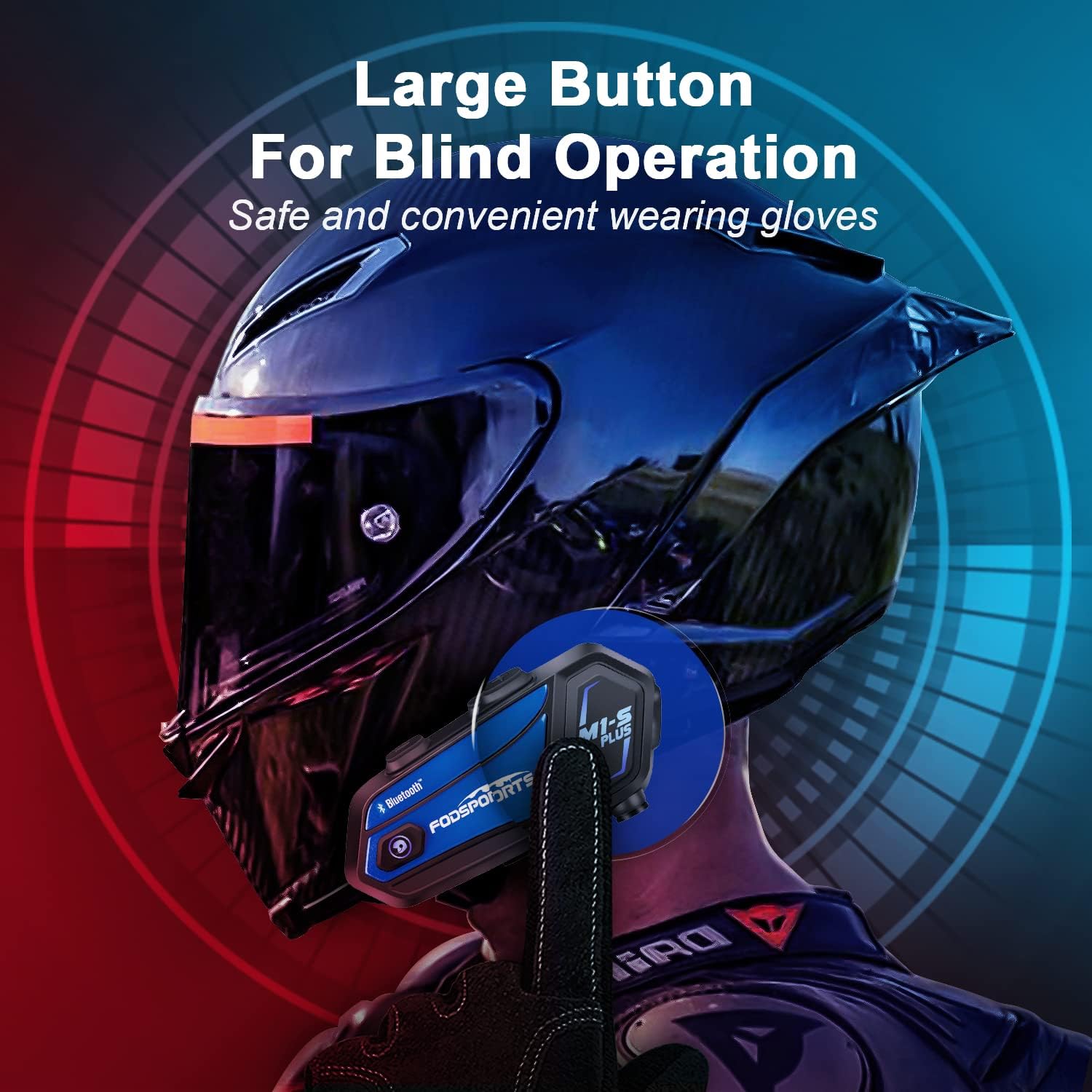
Image 4.1: M1-S Plus unit highlighting large buttons for blind operation.
5. Installation
The M1-S Plus is designed for versatile installation on various helmet types. Choose between the metal clip or adhesive mount, and select the appropriate microphone for your helmet style.
5.1. Mounting the Main Unit
You can mount the M1-S Plus using either the metal clip or the 3M adhesive sticker.
- Metal Clip Installation: Slide the metal clip between the helmet shell and the inner padding. Secure the M1-S Plus unit onto the clip.
- Adhesive Mount Installation: Clean the desired area on the helmet surface. Attach the 3M adhesive sticker to the unit base, then firmly press the base onto the helmet.
5.2. Microphone and Speaker Installation
The M1-S Plus includes two types of microphones to suit different helmet designs:
- Boom Microphone: Recommended for open-face, flip-up, and modular helmets. Position the microphone close to your mouth.
- Soft-Wire Microphone: Suitable for full-face helmets. Attach the microphone inside the helmet near your mouth using the adhesive.
Install the speakers inside the helmet's ear pockets. Use the provided EVA rubbers to adjust the speaker position for optimal sound and comfort, ensuring they are as close to your ears as possible.
Important: The speaker cable uses a Type-C interface. Ensure the microphone icon on the connector faces you when plugging it in to ensure both speakers function correctly.

Image 5.1: M1-S Plus compatibility with various helmet types and microphone options.

Image 5.2: Two-way installation guide for the M1-S Plus on a helmet.
6. Setup and Pairing
6.1. Power On/Off
- Power On: Press and hold the Power button for 3 seconds until the indicator light flashes.
- Power Off: Press and hold the Power button for 3 seconds until the indicator light turns off.
6.2. Bluetooth Pairing with Phone
- Ensure the M1-S Plus is powered off.
- Press and hold the Power button for approximately 5-7 seconds until the indicator light flashes red and blue alternately, indicating pairing mode.
- On your mobile phone, enable Bluetooth and search for available devices.
- Select "Fodsports M1-S Plus" from the list.
- Once paired, the indicator light will flash blue slowly.
6.3. Group Intercom Pairing (Up to 8 Riders)
The M1-S Plus supports intercom communication for up to 8 riders over a range of up to 2000 meters in open terrain.
- Ensure all M1-S Plus units are powered on and not connected to other devices.
- On the first unit, press and hold the Intercom button until the indicator light flashes red rapidly.
- On the second unit, press the Intercom button once. The units will search and connect.
- Repeat step 3 for additional units, pairing them one by one to the previously paired unit.
- Once all units are paired, a successful connection will be indicated by a voice prompt and a slow blue flash.

Image 6.1: M1-S Plus supporting group intercom for up to 8 riders.
6.4. Music Sharing
The M1-S Plus allows two M1-S Plus units to share music from a single source.
- Ensure two M1-S Plus units are paired via Bluetooth intercom.
- On the unit playing music, press and hold the Volume + button for 3 seconds to initiate music sharing.
- The music will then be streamed to the second paired M1-S Plus unit.
- To stop sharing, press and hold the Volume + button for 3 seconds again.
Note: Music sharing is only supported between two M1-S Plus units.

Image 6.2: Music sharing functionality between two M1-S Plus units.
7. Operating Instructions
7.1. Volume Control
- Increase Volume: Press the Volume + button.
- Decrease Volume: Press the Volume - button.
7.2. Phone Calls
- Answer Call: Press the Power button once.
- Reject Call: Press and hold the Power button for 2 seconds.
- End Call: Press the Power button once during a call.
- Redial Last Number: Double-press the Power button.
- Voice Dial (Siri/Google Assistant): Press the Volume + and Volume - buttons simultaneously.

Image 7.1: Voice command functionality for hands-free calls.
7.3. Music Playback
- Play/Pause: Press the Power button once.
- Next Track: Press the Volume + button twice.
- Previous Track: Press the Volume - button twice.
7.4. Intercom Usage
- Initiate Intercom: Press the Intercom button once.
- End Intercom: Press the Intercom button once.
- Reconnect Intercom: If a rider drops out of range for more than 5 minutes, press the Intercom button once to reconnect.
7.5. FM Radio
- Turn On/Off FM: Press the FM button once.
- Scan Channels: Press and hold the FM button for 2 seconds.
- Next Station: Press the Volume + button.
- Previous Station: Press the Volume - button.

Image 7.2: M1-S Plus with built-in FM radio functionality.
7.6. Microphone Mute/Unmute
During a call or intercom conversation, you can mute your microphone for privacy.
- Mute Microphone: Press and hold the Volume + button for 2 seconds.
- Unmute Microphone: Press and hold the Volume + button for 2 seconds again.
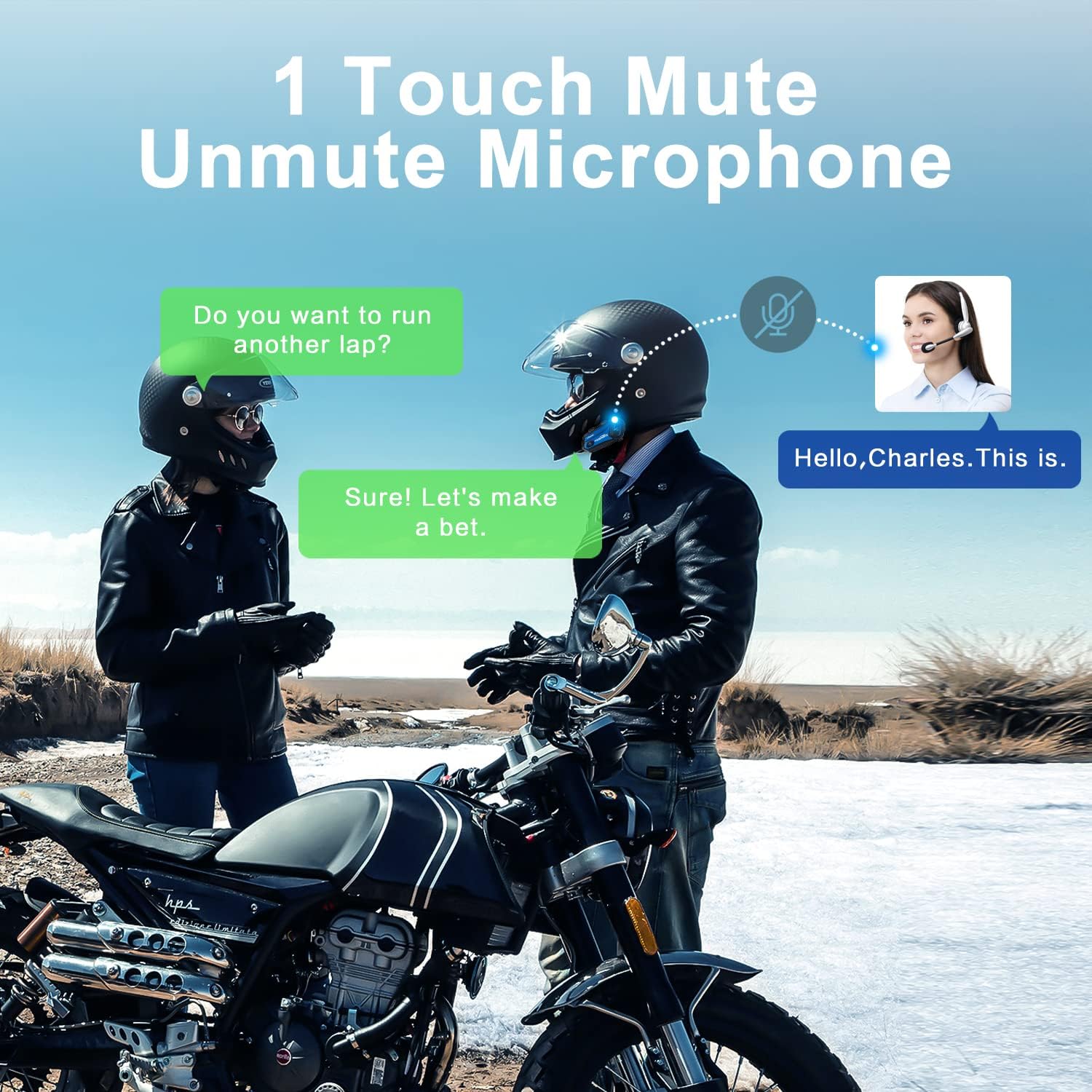
Image 7.3: One-touch mute/unmute microphone feature.
8. Maintenance
- Charging: Connect the device to a USB power source using the provided USB-C cable. The indicator light will be red during charging and turn blue when fully charged. Charging time is approximately 2-3 hours.
- Battery Life: A full charge provides approximately 12-20 hours of talk time, 15 hours of music streaming, and 300 hours of standby time.
- Cleaning: Use a soft, dry cloth to clean the device. Avoid using harsh chemicals or abrasive materials.
- Storage: Store the device in a cool, dry place when not in use.
- Water Resistance: The M1-S Plus is waterproof, designed to handle various weather conditions.
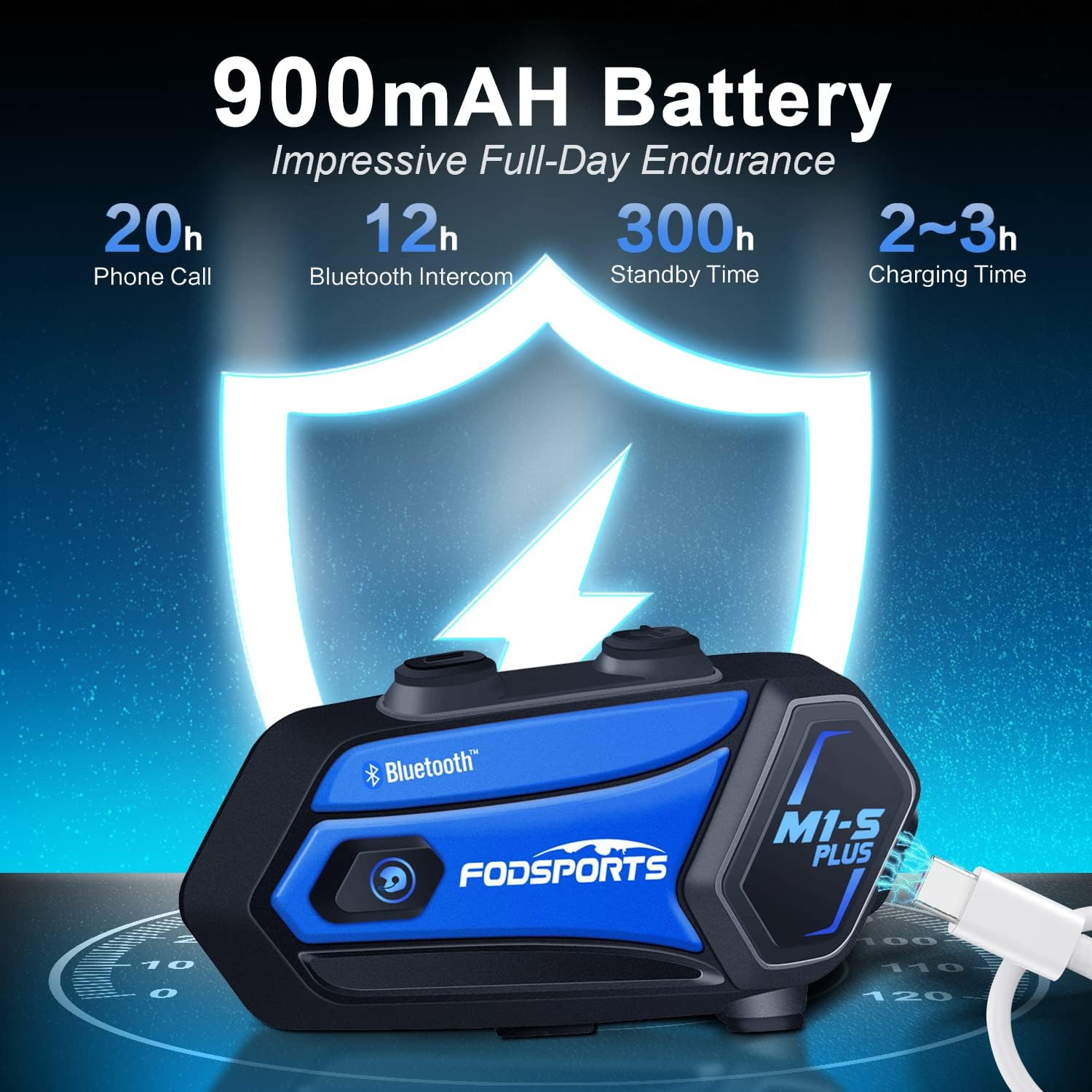
Image 8.1: M1-S Plus battery endurance and charging information.
9. Troubleshooting
- No Sound from One Speaker: Ensure the Type-C speaker cable is fully inserted and the microphone icon on the connector faces you.
- Low Volume: Adjust the speaker position closer to your ears using the provided thicken pads. Ensure the device volume and your phone's volume are both set appropriately.
- Cannot Pair with Phone: Ensure the M1-S Plus is in pairing mode (red and blue flashing light) and your phone's Bluetooth is enabled. Try restarting both devices.
- Intercom Disconnects: If riders go out of range, they can reconnect by pressing the Intercom button once when back in range (within 5 minutes).
- FM Radio Reception Poor: FM reception can vary based on location. Try scanning for channels again or moving to an area with better signal.
- Device Not Responding: Try a soft reset by pressing and holding the Power button for 10 seconds. If issues persist, ensure the device is charged.
10. Specifications
| Feature | Detail |
|---|---|
| Model Name | M1-S Plus |
| Connectivity Technology | Bluetooth 5.0 |
| Intercom Group Size | Up to 8 riders |
| Intercom Range | Up to 2000 meters (open terrain) |
| Battery Capacity | 900mAh |
| Charging Time | 2-3 Hours |
| Talk Time | 12-20 Hours |
| Music Streaming Time | 15 Hours |
| Standby Time | 300 Hours |
| Noise Control | Advanced CVC Noise Cancellation |
| Water Resistance Level | Waterproof |
| Headphones Jack | USB-C Port |
| Material | ABS Plastic |
| Item Weight | 12.4 ounces |
11. Warranty and Support
For any missing accessories, quality issues, or operational problems, please contact Fodsports customer support. Refer to the contact information provided with your purchase or visit the official Fodsports website for assistance.
Please retain your proof of purchase for warranty claims.