
ORDRO EP7
ORDRO EP7 4K 60FPS Head-Mounted Video Camera User Manual
Model: EP7
Introduction
The ORDRO EP7 is a lightweight, head-mounted 4K camcorder designed for hands-free video recording. Featuring 4K resolution at 60 frames per second, a 2-axis gimbal stabilizer, Wi-Fi connectivity for app control, and an IP65 waterproof rating, it is suitable for various activities such as vlogging, cooking, and outdoor adventures. This manual provides detailed instructions for the proper use and maintenance of your EP7 camcorder.

Image: The ORDRO EP7 camera unit attached to its head-mounted bracket, alongside a 64GB MicroSD card and a wrist remote control.
What's in the Box
Carefully unpack all components and ensure the following items are included:
- ORDRO EP7 Camera Unit
- Headband (Two-Way Adjustable)
- W1 Wrist Remote Control
- 64GB MicroSDXC U3 Card
- Micro USB Cable
- Manual
- Screw Head (x2)
- Soft Rubber Sleeve
- Hook
- Headband Bracket (x2)
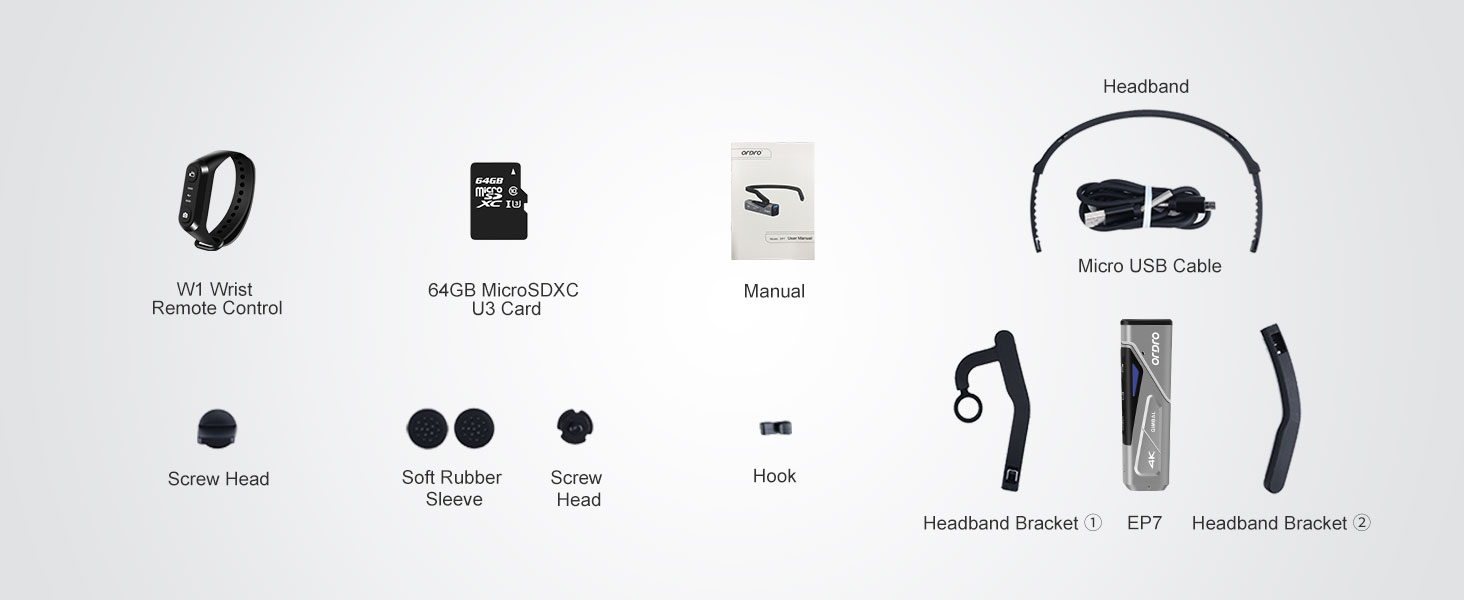
Image: A visual representation of all accessories and parts included with the ORDRO EP7 camcorder, clearly labeled.
Product Overview
Familiarize yourself with the main parts and controls of your ORDRO EP7 camcorder:

Image: An annotated diagram highlighting key features of the ORDRO EP7, including the Power/WiFi button, Photo button, Video button, Status light, HD port, and 1/4" Threaded Interface, along with the Two-Way Adjustable Headband.
- Power/WiFi Button: Used to power the device on/off and activate Wi-Fi.
- Photo Button: Press to capture still images.
- Video Button: Press to start/stop video recording.
- Status Light: Indicates device status (e.g., recording, charging, Wi-Fi active).
- HD Port: For connecting to an external display.
- 1/4" Threaded Interface: For mounting on tripods or other accessories.
- Two-Way Adjustable Headband: Ensures a comfortable and secure fit for various head shapes.
Setup
1. Charging the Battery
Before first use, fully charge the camcorder's internal battery. Connect the Micro USB cable to the camcorder's charging port and the other end to a USB power adapter (not included) or a computer's USB port. The status light will indicate charging status.

Image: The ORDRO EP7 camcorder connected to a charging cable, illustrating the charging process.
2. Inserting the Memory Card
The ORDRO EP7 requires a MicroSD card for storing recordings. Insert the provided 64GB MicroSDXC U3 card into the designated slot until it clicks into place. Ensure the card is inserted correctly to avoid damage.

Image: A MicroSD card positioned next to a slot, indicating the process of inserting it into the device.
3. Assembling the Head-Mounted Unit
Attach the EP7 camera unit to the headband brackets. The headband is designed for two-way adjustment to fit various head sizes comfortably and securely.

Image: The ORDRO EP7 camera unit securely attached to its head-mounted headband, viewed from the side.
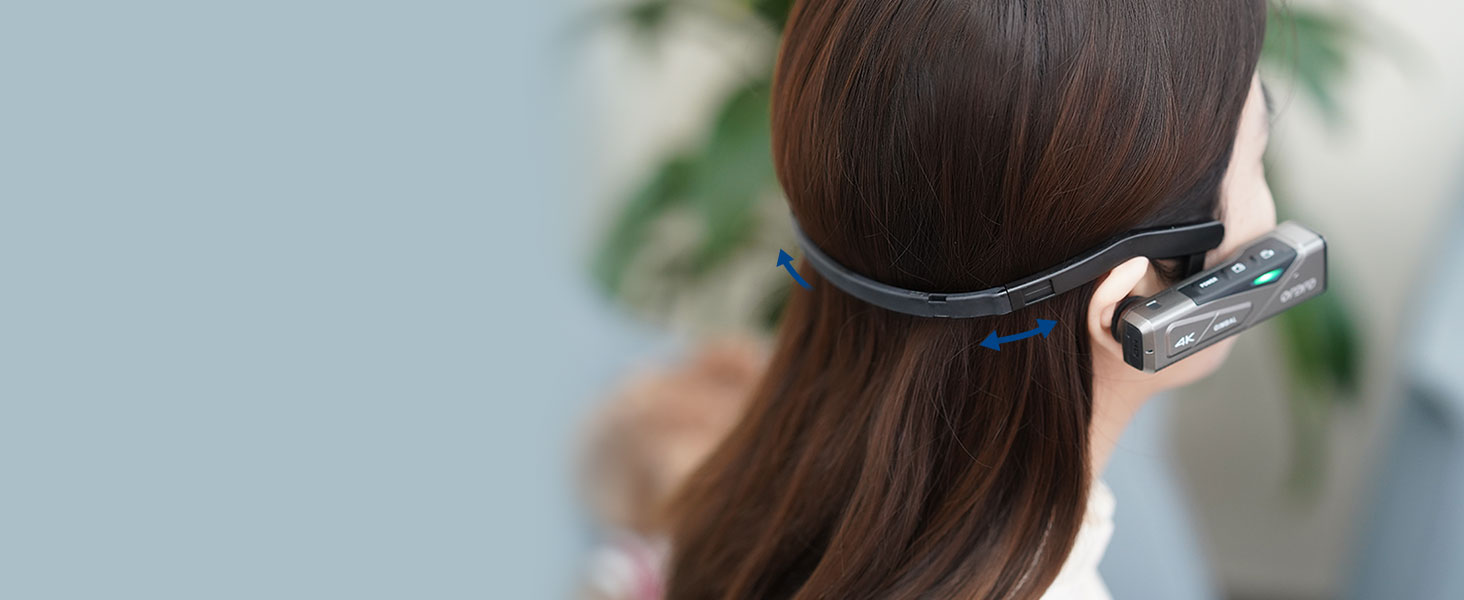
Image: A person wearing the ORDRO EP7 camcorder, demonstrating the adjustable nature of the headband for a secure fit.
Operating Instructions
Power On/Off
Press and hold the Power/WiFi Button for a few seconds to turn the camcorder on or off. The status light will illuminate when the device is powered on.
Video Recording
With the camcorder powered on, press the Video Button once to start recording. The status light will change to indicate active recording. Press the Video Button again to stop recording.
Photo Capture
To take a still photo, press the Photo Button once. The camcorder will capture an image and save it to the MicroSD card.
Using the W1 Wrist Remote Control
The W1 Wrist Remote Control allows for convenient operation without touching the camera. Ensure the remote is paired with the camcorder. Use the buttons on the remote to start/stop recording or capture photos.

Image: A person's wrist wearing the ORDRO W1 remote control, demonstrating its use for camera operation.
Wi-Fi APP Control (OD Cam App)
The ORDRO EP7 can be controlled via the 'OD Cam' app on your smartphone or tablet. This allows for real-time preview, changing settings, and downloading media.
- Download the 'OD Cam' app from your device's app store (available on App Store and Google Play).
- Turn on the EP7 camcorder and activate Wi-Fi by pressing the Power/WiFi Button briefly. The status light will indicate Wi-Fi is active.
- On your smartphone/tablet, go to Wi-Fi settings and connect to the EP7's Wi-Fi network (e.g., 'ORDRO_EP7_XXXX').
- Open the 'OD Cam' app. You should now be able to see a live preview and control the camera.

Image: A smartphone screen displaying the 'OD Cam' app interface, showing options for video preview, effects, and editing.

Image: A smartphone showing the 'OD Cam' app icon and download options from the App Store and Google Play.
Image Stabilization
The EP7 features a 2-axis gimbal stabilizer to reduce camera shake and produce smoother footage. This feature is automatically active during recording to enhance video quality.
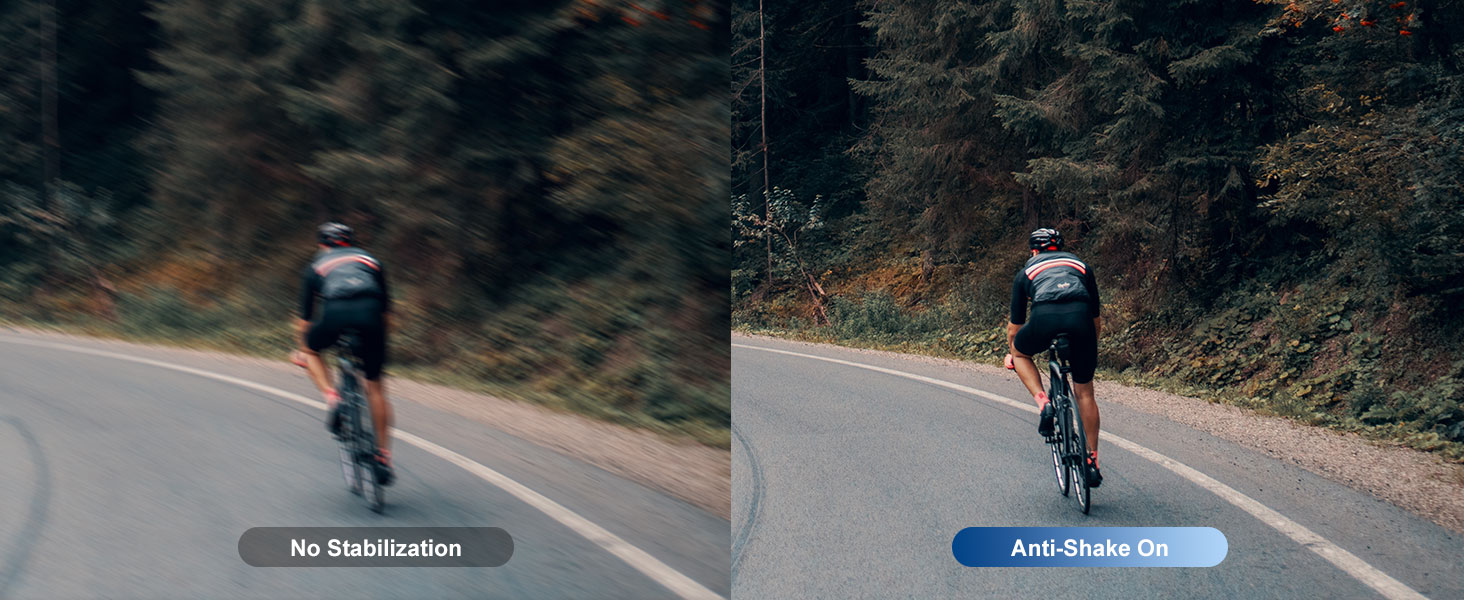
Image: A side-by-side comparison demonstrating the effectiveness of the anti-shake stabilization feature, showing a clear image on the right (Anti-Shake On) versus a blurred image on the left (No Stabilization).
Connecting to a Display (HD Port)
You can connect the EP7 to an external display using an HD cable (not included) via the HD port to view your recordings or live feed on a larger screen.
Water Resistance (IP65)
The EP7 is rated IP65, meaning it is protected against dust ingress and low-pressure water jets from any direction. It is suitable for use in light rain or dusty environments but should not be submerged in water.

Image: The ORDRO EP7 camcorder with water droplets splashing on its surface, visually representing its IP65 water resistance rating.
Official Product Video
Watch this official video from Ordro US for a quick overview of the EP7's features and usage:
Video: An official product video from Ordro US demonstrating the features and operation of the ORDRO EP7 camcorder.
Maintenance
Cleaning
Use a soft, dry cloth to clean the camera body. For the lens, use a specialized lens cleaning cloth and solution. Avoid using abrasive materials or harsh chemicals.
Storage
When not in use, store the camcorder in a cool, dry place, away from direct sunlight and extreme temperatures. Remove the MicroSD card if storing for extended periods.
Troubleshooting
| Problem | Possible Cause | Solution |
|---|---|---|
| Camera does not power on. | Low battery; Power button not pressed correctly. | Charge the battery fully; Press and hold the Power button for several seconds. |
| Cannot record video/take photos. | No MicroSD card; Card full; Card error. | Insert a MicroSD card; Delete old files or use a new card; Format the card (backup data first). |
| Wi-Fi connection fails. | Wi-Fi not activated on camera; Incorrect network selected; App issue. | Briefly press Power/WiFi button to activate Wi-Fi; Ensure correct network is selected on phone; Restart app and camera. |
| Video footage is shaky. | Excessive movement; Stabilization limits exceeded. | Minimize sudden head movements; Ensure camera is securely mounted. |
Specifications
- Model: EP7
- Video Resolution: 4K (3840x2160) at 30-60FPS
- Weight: Approximately 76g (camera unit) / 10.6 ounces (total item weight)
- Stabilization: 2-Axis Gimbal Stabilizer
- Connectivity: Wi-Fi (2.4G)
- Waterproof Rating: IP65
- Battery: 1000mAh Lithium Polymer (approx. 1.5-2 hours battery life)
- Storage: Micro SD (up to 256GB, 64GB included)
- Photo Sensor Technology: CMOS
- Video Capture Format: MP4
- Supported Audio Format: AAC
- Dimensions: 3.7 x 1 x 1 inches (camera unit)
Warranty and Support
For warranty information and technical support, please refer to the official ORDRO website or contact ORDRO customer service directly. Details can typically be found on the product packaging or the manufacturer's official online channels.
Contact Information:
- Brand: ORDRO
- Seller: Ordro US
- Amazon Store: Visit the ORDRO Store on Amazon
Related documentsEP7

Ask a question about this manual
Ask about setup, troubleshooting, compatibility, parts, safety, or missing instructions. Manuals+ will review the question and use this page’s manual context to help answer it.