
Arteck HB086MB158-UK
Contents
Arteck Bluetooth Keyboard and Mouse Combo User Manual
Models: HB086 (Keyboard), MB158 (Mouse)
1. Product Overview
The Arteck Bluetooth Keyboard and Mouse Combo offers a compact, slim, and ergonomic solution for various operating systems. Designed for quiet and comfortable typing, the keyboard features low-profile keys and a durable stainless steel construction. The ergonomic mouse reduces stress during extended use. Both devices connect wirelessly via Bluetooth, providing a cable-free experience with an operating distance of up to 10 meters (33 feet).

Image: The Arteck Bluetooth Keyboard and Mouse Combo, showcasing the full-size keyboard and ergonomic mouse.
This combo is fully compatible with major operating systems including Windows, Android, and Mac OS, offering system-specific function keys for quick access to common controls like volume, playback, and text manipulation. Both the keyboard and mouse are equipped with built-in rechargeable Li-polymer batteries, providing extended usage on a single charge.
2. Package Contents
- Arteck HB086 Bluetooth Keyboard
- Arteck MB158 Bluetooth Mouse
- USB Charging Cable
- Welcome Guide
3. Setup Instructions
3.1 Initial Charging
Before first use, ensure both the keyboard and mouse are fully charged. Connect the provided USB charging cable to the charging port on each device and to a USB power source (e.g., computer USB port, USB wall adapter). The charging indicator light will typically turn off or change color when fully charged.
3.2 Powering On/Off
Locate the power switch on the back of the keyboard and the bottom of the mouse. Slide the switch to the "ON" position to power on the devices. Slide to "OFF" when not in use to conserve battery life.

Image: The underside of the Arteck keyboard, highlighting the power switch and silicone non-slip pads.
3.3 Bluetooth Pairing
To pair the keyboard and mouse with your device:
- Ensure both the keyboard and mouse are powered on.
- For the keyboard, press the Fn key and the C key simultaneously. The Bluetooth indicator light on the keyboard will begin to flash, indicating it is in pairing mode. If the keyboard has multiple Bluetooth icons (e.g., for different profiles), long-press the desired Bluetooth icon to enter pairing mode.
- For the mouse, press the pairing button located on the bottom of the mouse. The indicator light will flash.
- On your computer, tablet, or smartphone, navigate to the Bluetooth settings.
- Search for available Bluetooth devices. You should see "Arteck Keyboard" (or similar) and "Arteck Mouse" (or similar) appear in the list.
- Select each device to complete the pairing process. Follow any on-screen prompts, such as entering a pairing code if requested.

Image: The Arteck keyboard and mouse illustrating the Bluetooth connectivity process, specifically highlighting the Fn + C key combination for pairing.
4. Operating Instructions
4.1 Keyboard Functions
The keyboard features a standard QWERTY layout with additional function keys. Many keys have dual functions, accessed by pressing the Fn key in combination with another key. These include:
- F1-F12: Standard function keys.
- Media Controls: Play/Pause, Previous/Next Track, Volume Up/Down/Mute (accessed via Fn key combinations).
- System-Specific Keys: The keyboard includes keys optimized for Windows, Android, and Mac OS, allowing quick access to common functions relevant to each operating system.
- Hot Keys: Dedicated hot keys provide quick access to frequently used functions, enhancing productivity.
The whisper-quiet, low-profile keys are designed for comfortable typing, and the scissor-kick key construction ensures durability, rated for over 3 million continuous presses.
4.2 Mouse Usage
The ergonomic mouse is designed for comfortable use, reducing strain during prolonged periods. It features standard left and right click buttons and a scroll wheel for navigation. The mouse operates silently, providing a quiet clicking experience.
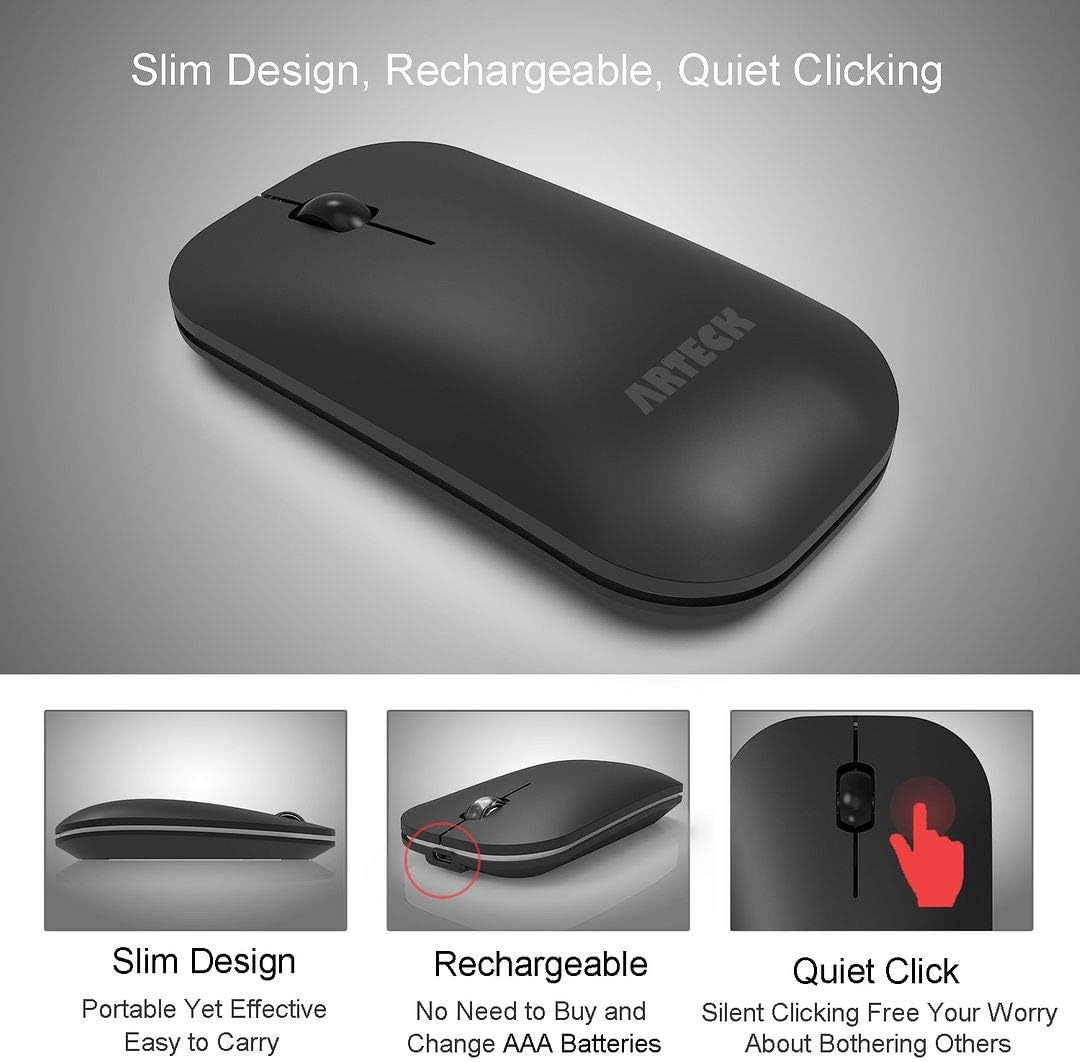
Image: The Arteck mouse, emphasizing its slim design, rechargeable capability, and quiet click feature.
5. Charging and Battery Life
Both the Arteck keyboard and mouse are equipped with high-capacity rechargeable Li-polymer batteries. A single full charge provides extended usage:
- Keyboard: Up to 6 months of use (based on 2 hours of non-stop use per day).
- Mouse: Up to 4 months of use (based on 2 hours of non-stop use per day).
To charge, connect the included USB charging cable to the micro-USB port on the devices and a standard USB power source. The charging indicator will illuminate during charging and typically turn off or change color when the battery is full.

Image: The Arteck keyboard and mouse, illustrating their long battery life and rechargeable capabilities.
6. Maintenance
To ensure the longevity and optimal performance of your Arteck keyboard and mouse combo, follow these maintenance guidelines:
- Cleaning: Use a soft, dry, lint-free cloth to clean the surfaces of the keyboard and mouse. For stubborn dirt, slightly dampen the cloth with water or a mild, non-abrasive cleaner. Avoid excessive moisture.
- Storage: When not in use for extended periods, power off both devices to conserve battery life. Store them in a cool, dry place away from direct sunlight and extreme temperatures.
- Avoid Liquids: Do not expose the devices to liquids. Spills can cause internal damage.
- Handle with Care: Avoid dropping or subjecting the devices to strong impacts, which can damage internal components.
7. Troubleshooting
If you encounter issues with your Arteck keyboard and mouse combo, please refer to the following common troubleshooting steps:
- Device Not Connecting:
- Ensure both the keyboard and mouse are powered on and fully charged.
- Verify that Bluetooth is enabled on your host device (computer, tablet, etc.).
- Try re-pairing the devices by following the "Bluetooth Pairing" instructions in Section 3.3.
- Move the devices closer to your host device to ensure they are within the 10-meter operating range.
- Restart your host device and try pairing again.
- Lag or Intermittent Connection:
- Ensure there are no strong interference sources (e.g., Wi-Fi routers, other Bluetooth devices) nearby.
- Check battery levels and recharge if necessary.
- Update Bluetooth drivers on your host device.
- Keys Not Responding / Mouse Not Moving:
- Check battery levels.
- Ensure the devices are properly connected via Bluetooth.
- Clean any debris from around the keys or the mouse sensor.
- Charging Issues:
- Ensure the USB charging cable is securely connected to both the device and the power source.
- Try a different USB port or power adapter.
- Inspect the charging port for any visible damage or debris.
If these steps do not resolve the issue, please contact Arteck customer service for further assistance.
8. Specifications
| Feature | Specification |
|---|---|
| Brand | Arteck |
| Model (Keyboard) | HB086 |
| Model (Mouse) | MB158 |
| Connectivity Technology | Bluetooth |
| Compatible Devices | Laptop, Personal Computer, Tablet (Windows, Android, Mac OS) |
| Special Features | Ergonomic, Rechargeable, Quiet Typing/Clicking |
| Keyboard Battery Life | Up to 6 months (2 hours/day use) |
| Mouse Battery Life | Up to 4 months (2 hours/day use) |
| Keyboard Dimensions | Approx. 28 cm x 13.5 cm x 0.43 cm (11.1 in x 5.3 in x 0.16 in) |
| Mouse Dimensions | Approx. 10.5 cm x 5.8 cm x 2.2 cm (4.13 in x 2.28 in x 0.87 in) |
| Keyboard Weight | Approx. 310 g (10.2 oz) |
| Mouse Weight | Approx. 68.1 g (2.4 oz) |
| Batteries Required | 1 Lithium Ion (included) |

Image: Detailed measurements and weights for both the Arteck keyboard and mouse.
9. Warranty and Customer Support
Arteck provides a 24-month warranty for this product, covering manufacturing defects and malfunctions under normal use. For warranty claims, technical support, or any inquiries regarding your Arteck Bluetooth Keyboard and Mouse Combo, please contact our friendly customer service team. Refer to the welcome guide included in your package for specific contact details or visit the official Arteck website.
Documents and downloads
Ask a question about this manual
Ask about setup, troubleshooting, compatibility, parts, safety, or missing instructions. Manuals+ will review the question and use this page’s manual context to help answer it.