
Brydge BRY7032
Brydge SPX+ Wireless Keyboard User Manual
Model: BRY7032
1. Introduction
Thank you for choosing the Brydge SPX+ Wireless Keyboard with Precision Touchpad. This manual provides detailed instructions for setting up, operating, and maintaining your keyboard, designed specifically for seamless integration with your Microsoft Surface Pro X. Enjoy a full laptop experience with enhanced productivity and comfort.
2. What's in the Box
- Brydge SPX+ Wireless Keyboard
- USB-C Charging Cable
- User Guide (this document)
3. Setup
3.1 Initial Charging
Before first use, fully charge your Brydge SPX+ keyboard. Connect the supplied USB-C charging cable to the keyboard's charging port and to a USB power source. The charging indicator light will show the charging status.
3.2 Attaching Your Surface Pro X
Align your Microsoft Surface Pro X with the Brydge SPX+ keyboard's hinges. Gently push the Surface Pro X into the hinges until it is securely seated. The keyboard is designed to hold your device firmly, transforming it into a functional laptop.
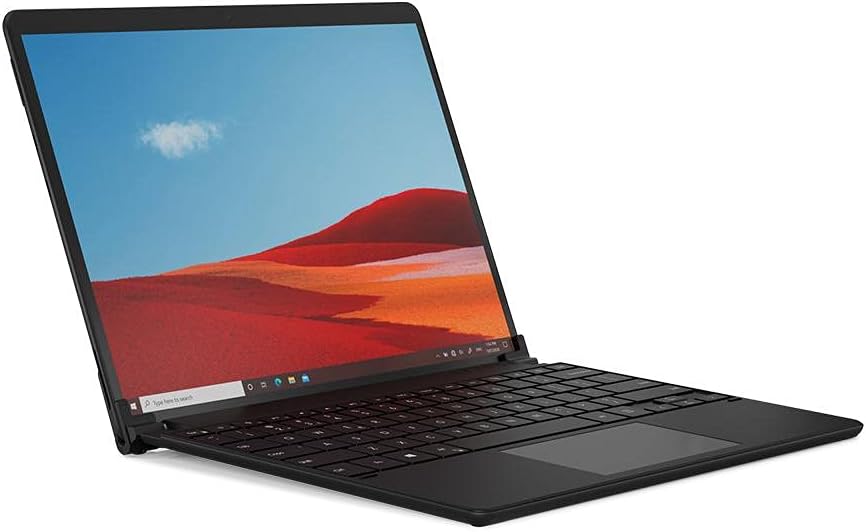
Image: Brydge SPX+ Wireless Keyboard attached to a Microsoft Surface Pro X, forming a laptop-like setup.

Image: The Brydge SPX+ Wireless Keyboard separated from the Microsoft Surface Pro X, showing the hinge mechanism.
3.3 Bluetooth Pairing
- Ensure your Brydge SPX+ keyboard is charged and turned on.
- On your Surface Pro X, go to Settings > Devices > Bluetooth & other devices.
- Turn on Bluetooth.
- On the keyboard, press and hold the Bluetooth pairing key (often indicated by a Bluetooth symbol) until the indicator light flashes, signifying it's in pairing mode.
- On your Surface Pro X, click Add Bluetooth or other device > Bluetooth.
- Select "Brydge SPX+" from the list of available devices.
- Follow any on-screen prompts to complete the pairing process. The indicator light on the keyboard will turn solid when successfully paired.
Video: Official product video demonstrating the Brydge SPX+ Wireless Keyboard's features and integration with the Surface Pro X.
4. Operating Instructions
4.1 Keyboard Functions
The Brydge SPX+ features a full QWERTY layout with dedicated function keys for quick access to common commands. These include media controls, screen brightness, and Windows-specific functions.

Image: Top-down view of the Brydge SPX+ Wireless Keyboard, highlighting the key layout and precision touchpad.
4.2 Backlight Control
The keyboard features adjustable backlighting. Use the dedicated backlight keys (often F10/F11 or similar, check keyboard legends) to cycle through brightness levels or turn the backlight off.
4.3 Precision Touchpad Gestures
The integrated precision touchpad supports multi-touch gestures for enhanced navigation:
- One-finger tap: Left-click
- Two-finger tap: Right-click
- Two-finger scroll: Scroll up/down or left/right
- Pinch to zoom: Zoom in/out
- Three-finger swipe up: Task View
- Three-finger swipe down: Show Desktop
- Three-finger swipe left/right: Switch between open windows
5. Maintenance
To ensure the longevity and optimal performance of your Brydge SPX+ keyboard, follow these maintenance guidelines:
- Cleaning: Use a soft, lint-free cloth to wipe down the keyboard and touchpad. For stubborn marks, slightly dampen the cloth with water or a mild, non-abrasive cleaner. Avoid excessive moisture.
- Battery Care: For best battery health, avoid fully discharging the keyboard frequently. If storing for an extended period, charge the battery to about 50% before storage.
- Storage: Store the keyboard in a cool, dry place away from direct sunlight and extreme temperatures.
6. Troubleshooting
6.1 Keyboard Not Pairing/Connecting
- Ensure the keyboard is charged and turned on.
- Verify Bluetooth is enabled on your Surface Pro X.
- Put the keyboard into pairing mode by pressing and holding the Bluetooth pairing key.
- Remove any previous "Brydge SPX+" entries from your Surface's Bluetooth devices list and attempt to re-pair.
- Restart both your Surface Pro X and the keyboard.
6.2 Keys Not Responding
- Check battery level and charge if necessary.
- Ensure the keyboard is properly connected via Bluetooth.
- Restart the keyboard and your Surface Pro X.
6.3 Touchpad Issues
- Ensure the touchpad surface is clean and free of debris.
- Check Bluetooth connection stability.
- Verify touchpad settings in Windows (Settings > Devices > Touchpad).
6.4 Poor Battery Life
- Reduce backlight brightness or turn it off when not needed.
- Ensure the keyboard is fully charged before use.
- Turn off the keyboard when not in use for extended periods.
7. Specifications
| Model Number | BRY7032 |
| Product Dimensions | 11.32 x 8.2 x 0.28 inches |
| Item Weight | 2.44 pounds |
| Connectivity | Bluetooth |
| Compatible Devices | Microsoft Surface Pro X |
| Battery Type | 1 Lithium Polymer battery (included) |
| Material | Aluminum |
8. Warranty and Support
Your Brydge SPX+ Wireless Keyboard comes with a manufacturer's warranty. For detailed warranty information, product support, or to register your product, please visit the official Brydge website or contact their customer service. Keep your proof of purchase for warranty claims.
Related documentsBRY7032


Ask a question about this manual
Ask about setup, troubleshooting, compatibility, parts, safety, or missing instructions. Manuals+ will review the question and use this page’s manual context to help answer it.