
1. Introduction
The G-LAB Kult NITROGEN Core is a high-performance wired gaming mouse designed for precision and customization. It features an advanced Avago 10,000 DPI optical sensor, vibrant RGB backlighting with 11 light effects, 11 programmable buttons, and an adjustable weight system to suit individual preferences. This manual provides detailed instructions for setting up, operating, and maintaining your gaming mouse.

Figure 1: G-LAB Kult NITROGEN Core Gaming Mouse
2. Setup
To begin using your G-LAB Kult NITROGEN Core mouse, follow these steps:
- Connect the Mouse: Plug the USB connector of the mouse into an available USB port on your PC, PS4, or Xbox One. The mouse is plug-and-play compatible for basic functionality.
- Install Customization Software (PC Only): For full customization of DPI settings, programmable buttons, and RGB lighting, download the official G-LAB software from the manufacturer's website. Ensure you select the correct software version for the Kult NITROGEN Core model.

Figure 2: Customization Software Interface (Windows Only)
Video 1: Overview of Kult NITROGEN series features, including software customization and ergonomic design.
3. Operating Instructions
3.1 DPI Adjustment
The Kult NITROGEN Core features an Avago optical sensor with adjustable DPI from 200 to 10,000. You can cycle through 8 custom DPI steps using the dedicated DPI button located behind the scroll wheel. Use the software to define your preferred DPI levels.

Figure 3: Location of the DPI button for on-the-fly sensitivity adjustments.
3.2 Programmable Buttons
The mouse is equipped with 11 programmable buttons. Utilize the customization software to assign macros, keyboard functions, or multimedia controls to each button, enhancing your gaming and productivity.
3.3 RGB Backlighting
Experience dynamic lighting with 11 distinct RGB light effects. The RGB backlight can be customized through the software, allowing you to choose colors, effects, and intensity to match your setup or mood.

Figure 4: The mouse showcasing its full RGB backlight capabilities.
3.4 Adjustable Weight System
Tailor the mouse's weight to your preference with the adjustable weight system. The mouse's weight can be adjusted between 105-120 grams by adding or removing small weights located in a compartment on the underside of the mouse.
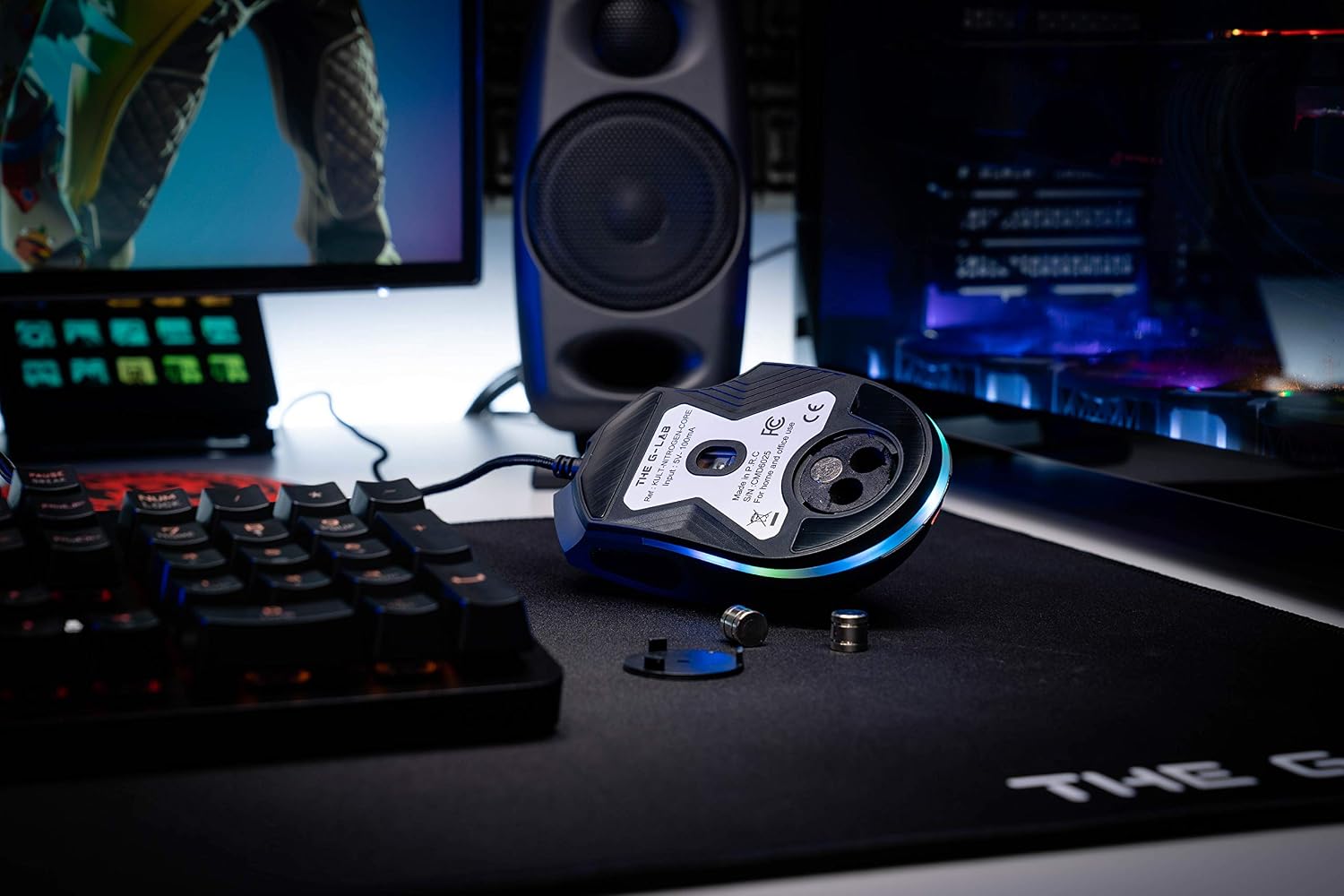
Figure 5: Accessing the adjustable weight compartment on the mouse.
3.5 Ergonomic Design and Grip Styles
The Kult NITROGEN Core is designed for comfort during extended gaming sessions, featuring a soft-touch coating and silicone grips. Its ergonomic shape accommodates various grip styles, including palm, claw, and fingertip grips, ensuring a secure and comfortable hold.

Figure 6: Highlighting the ergonomic design features of the mouse.

Figure 7: Visual representation of different grip styles supported by the mouse.
4. Maintenance
Proper maintenance ensures the longevity and optimal performance of your mouse:
- Cleaning: Use a soft, dry cloth to wipe the mouse surface. For stubborn dirt, slightly dampen the cloth with water or a mild cleaning solution. Avoid harsh chemicals or abrasive materials.
- Sensor Cleaning: Periodically clean the optical sensor area on the bottom of the mouse with a cotton swab to prevent tracking issues.
- Cable Care: Avoid sharp bends or excessive pulling on the braided cable to prevent damage.
- Storage: Store the mouse in a clean, dry environment away from extreme temperatures and direct sunlight when not in use.
5. Troubleshooting
If you encounter issues with your G-LAB Kult NITROGEN Core mouse, refer to the following common solutions:
- Mouse Not Responding:
- Ensure the USB cable is securely plugged into the port.
- Try plugging the mouse into a different USB port.
- Restart your computer or gaming console.
- Tracking Issues:
- Clean the optical sensor on the bottom of the mouse.
- Ensure you are using the mouse on a suitable surface (e.g., a mouse pad).
- Software Not Working (PC Only):
- Verify that you have downloaded the correct software version for your specific mouse model from the official G-LAB website.
- Uninstall and reinstall the software.
- Check for firmware updates for the mouse on the G-LAB support page.
- RGB Lighting Malfunction:
- Check lighting settings within the customization software.
- Ensure the mouse firmware and software are up to date.
For further assistance, please visit the official G-LAB support website or contact customer service.
6. Specifications
| Feature | Description |
|---|---|
| Brand | THE G-LAB |
| Model Number | KULT-NITROGEN-CORE |
| Hardware Platform | PC |
| Operating System | Not specific (Windows compatible for software) |
| Item Weight | 5.4 ounces (approx. 153g) |
| Product Dimensions (LxWxH) | 4.84 x 2.99 x 0.04 inches |
| Color | Black |
| Power Source | Corded Electric (USB) |
| Movement Detection Technology | Optical (Avago 10,000 DPI) |
| Special Feature | Lightweight, RGB Backlight, Programmable Buttons, Adjustable Weight |
| Lifespan | 30,000,000 clicks (approx.) |
7. Warranty and Support
The G-LAB Kult NITROGEN Core Gaming Mouse comes with a manufacturer's warranty. Please refer to the warranty card included in the product packaging or visit the official G-LAB website for detailed warranty terms and conditions.
For technical support, product inquiries, or warranty claims, please contact G-LAB customer service through their official website or the contact information provided in your product documentation.