
1. Introduction
Thank you for choosing the Hella DR850 Dual-Channel Dash Cam. This device is designed to record your driving journey in Full HD, providing crucial evidence in case of incidents. It features Wi-Fi connectivity for seamless smartphone integration, G-Sensor for automatic incident recording, and advanced night vision capabilities. This manual provides detailed instructions for installation, operation, maintenance, and troubleshooting to ensure optimal performance of your dash cam.
2. Product Features
- Dual-Channel Recording: Simultaneous recording from front and rear cameras (rear camera sold separately).
- Full HD 1080P Front Camera: Captures clear video with a 145-degree wide-angle view.
- Built-in Wi-Fi: Allows wireless transfer and playback of footage on a smartphone via a dedicated app.
- G-Sensor: Automatically detects sudden impacts or braking and locks the current recording to prevent overwriting.
- 24-Hour Parking Monitoring: Provides uninterrupted recording even when the vehicle is parked (requires continuous power supply).
- Night Vision: Superior video recording quality in low-light environments.
- Format-Free Technology: Reduces the need for regular SD card formatting.
- Micro SD Card Support: Supports up to 128GB capacity.
- External GPS Module (Optional): Provides location and speed tracking (sold separately).
3. Component Identification
Familiarize yourself with the various components of your Hella DR850 Dash Cam.
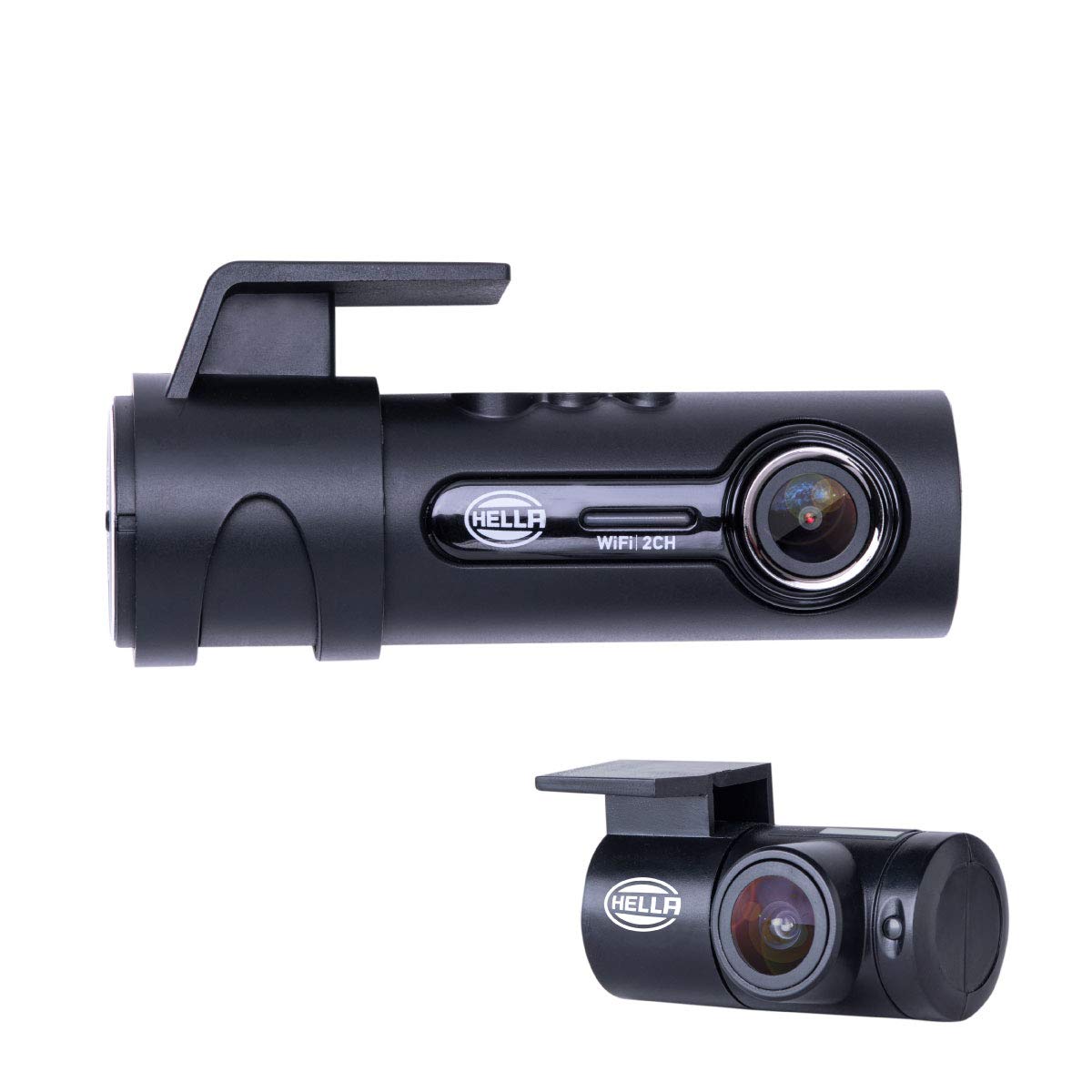
Figure 3.1: Front View
Shows the main camera lens and the Hella branding on the device body.

Figure 3.2: Side View with Ports
Illustrates the R-CAM (rear camera), GPS (external GPS module), and DC-IN (power input) ports.

Figure 3.3: Side View with SD Card Slot
Displays the Micro SD card slot and the built-in microphone opening.
4. Setup and Installation
4.1 Mounting the Dash Cam
- Clean the windshield area where you intend to mount the dash cam. Ensure it is free from dust and grease.
- Attach the mounting bracket to the dash cam.
- Peel off the protective film from the adhesive pad on the mounting bracket.
- Firmly press the dash cam onto the chosen spot on the windshield, ideally behind the rearview mirror for an unobstructed view. Hold for 30 seconds to ensure strong adhesion.
- Adjust the camera lens angle to capture the road ahead clearly.
4.2 Connecting Power
- Connect the power cable to the DC-IN port on the dash cam.
- Route the power cable neatly along the edge of the windshield and dashboard to the vehicle's 12V power outlet (cigarette lighter socket).
- Plug the power adapter into the 12V power outlet. The dash cam will power on automatically when the vehicle's ignition is turned on.
4.3 Inserting the Micro SD Card
- Ensure the dash cam is powered off.
- Insert a Class 10 or higher Micro SD card (up to 128GB) into the SD card slot until it clicks into place.
- Power on the dash cam. The device will prompt you to format the SD card if it's new or incompatible. Follow the on-screen instructions or use the mobile app to format the card.
4.4 Rear Camera Connection (Optional)
If you have purchased the optional rear camera, follow these steps:
- Mount the rear camera on the rear windshield, ensuring a clear view.
- Connect the rear camera cable to the R-CAM port on the main dash cam unit.
- Route the cable neatly along the vehicle's interior trim.
4.5 Wi-Fi and App Setup
- Download the dedicated Hella DR850 app from your smartphone's app store (iOS or Android).
- Turn on the dash cam.
- On your smartphone, go to Wi-Fi settings and connect to the dash cam's Wi-Fi network (SSID usually starts with 'Hella_DR850_XXXX'). The default password can be found in the app or on the device itself.
- Open the Hella DR850 app. You can now view live footage, access recorded videos, change settings, and format the SD card.
5. Operating Instructions
5.1 Automatic Recording
Once powered on, the Hella DR850 will automatically begin continuous loop recording. Older files will be overwritten by new recordings when the Micro SD card is full, except for locked emergency files.
5.2 G-Sensor Function
The built-in G-Sensor detects sudden impacts or rapid acceleration/deceleration. When triggered, it automatically saves and locks the current video segment, preventing it from being overwritten during loop recording. The sensitivity of the G-Sensor can be adjusted via the mobile app.
5.3 Parking Monitoring Mode
The DR850 supports 24-hour parking monitoring. When the vehicle is parked and the ignition is off, the dash cam can continue to record in a low-power mode or activate recording upon detecting motion or impact. This feature requires a continuous power supply (e.g., hardwire kit, sold separately) to prevent draining the vehicle's battery.
5.4 Using the Mobile App
The Hella DR850 mobile app provides comprehensive control and access:
- Live View: Stream real-time video from the dash cam to your smartphone.
- Video Playback: Browse and play back recorded videos directly on your phone.
- File Download: Download important video clips to your smartphone's gallery.
- Settings Adjustment: Configure various dash cam settings, including video resolution, G-Sensor sensitivity, parking mode, and Wi-Fi password.
- SD Card Management: Format the Micro SD card directly from the app.
6. Maintenance
6.1 Micro SD Card Management
Although the DR850 features format-free technology, it is recommended to format the Micro SD card periodically (e.g., once a month) to maintain optimal recording performance and prevent data corruption. This can be done via the mobile app or the dash cam's settings.
6.2 Cleaning the Device
To ensure clear video quality, regularly clean the camera lens with a soft, lint-free cloth. Do not use abrasive cleaners or solvents. Wipe the dash cam body with a dry or slightly damp cloth as needed.
7. Troubleshooting
| Issue | Possible Solution |
|---|---|
| Dash cam does not power on. | Check the power cable connection to the dash cam and the vehicle's 12V outlet. Ensure the vehicle's ignition is on. Test the 12V outlet with another device. |
| Recording stops or freezes. | Ensure you are using a Class 10 or higher Micro SD card. Format the SD card. Try a different SD card. |
| Wi-Fi connection issues. | Ensure the dash cam's Wi-Fi is enabled. Restart both the dash cam and your smartphone. Re-enter the Wi-Fi password. Ensure you are within close proximity to the dash cam. |
| Video footage is blurry or unclear. | Clean the camera lens. Ensure the protective film has been removed from the lens. Check if the windshield area in front of the camera is clean. |
| G-Sensor is too sensitive or not sensitive enough. | Adjust the G-Sensor sensitivity settings via the Hella DR850 mobile app. |
| Parking monitoring not working. | Ensure the dash cam is receiving continuous power (e.g., via a hardwire kit). Verify parking mode settings in the mobile app. |
8. Specifications
| Feature | Detail |
|---|---|
| Model | DR850 |
| Front Camera Resolution | Full HD 1080P |
| Field of View | 145 Degrees |
| Optical Sensor Technology | CMOS |
| Optical Sensor Size | 1/3 inch |
| Special Features | Built-in Wi-Fi, G-Sensor, Night Vision, 24-hour Parking Monitoring |
| Storage | Micro SD card, up to 128GB (Class 10 or higher recommended) |
| Compatible Devices | Smartphone (iOS/Android) |
| Installation Type | Surface Mount |
| Product Dimensions | 10.41 x 6.6 x 13.97 cm |
| Item Weight | 600 g |
| Manufacturer | Hella |
9. Warranty and Support
The Hella DR850 Dash Cam comes with a standard manufacturer's warranty. For specific warranty terms and conditions, please refer to the warranty card included with your product or visit the official Hella website. For technical support, troubleshooting assistance, or service inquiries, please contact Hella customer support through their official channels.


