
Introduction
This manual provides essential information for setting up, operating, and maintaining your Amazon Fire HD 10 Kids Tablet. Designed for children aged 3-7, this 10.1-inch Full HD tablet offers a safe and engaging experience with robust parental controls and a durable Kid-Proof Case.
Please read these instructions carefully to ensure proper use and to maximize your tablet's features.
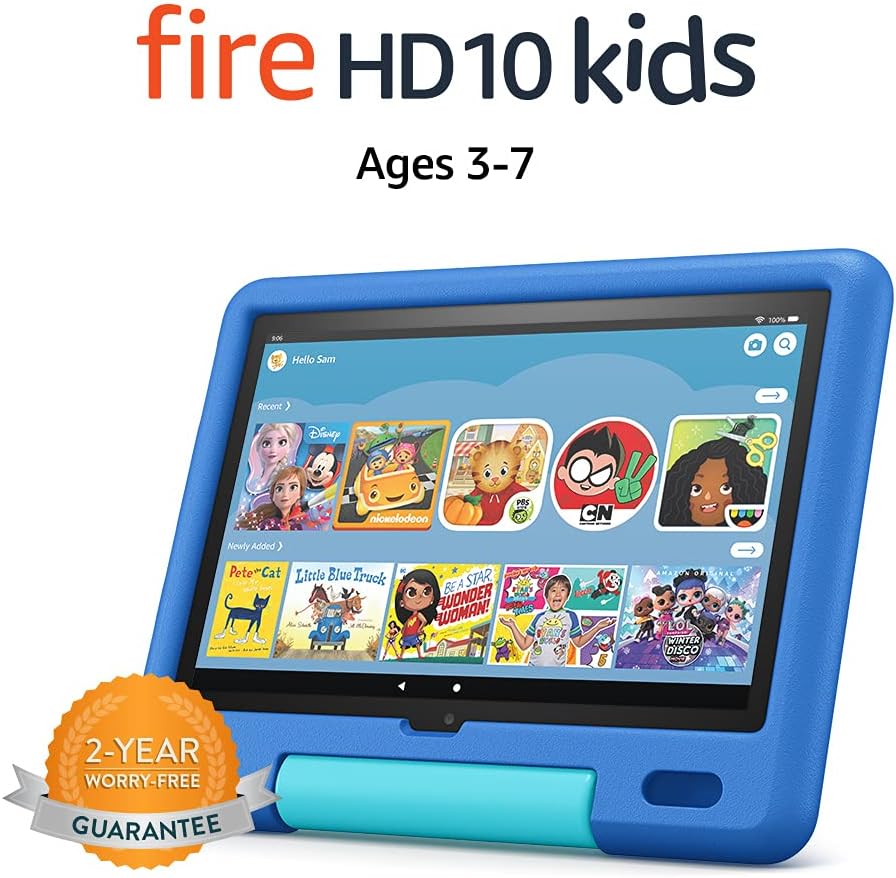
Image: The Amazon Fire HD 10 Kids Tablet, shown in its Sky Blue Kid-Proof Case, displaying the Amazon Kids+ user interface with various educational and entertainment apps.
What's Included
Your Amazon Fire HD 10 Kids Tablet package includes:
- Fire HD 10 tablet (11th Generation)
- Amazon Kid-Proof Case with stand/handle
- Amazon 9W power adapter
- USB-C (2.0) charging cable
- Built-in rechargeable battery
- 1-year Amazon Kids+ subscription (auto-renews at applicable rate)
Setup
1. Initial Charging
Before first use, fully charge your Fire HD 10 Kids Tablet. Connect the provided USB-C cable to the tablet's USB-C port and the 9W power adapter to a wall outlet. A full charge from 0% to 100% typically takes approximately 4 hours while the device is in standby mode.
2. Powering On and Off
- To Power On: Press and hold the power button located on the side of the tablet until the Amazon logo appears.
- To Power Off: Press and hold the power button until a power-off dialog appears on the screen. Select "Power Off" or "Shut Down".
- To Restart: If the tablet is unresponsive, press and hold the power button for approximately 40 seconds until it restarts.
3. Initial Configuration
Upon first power-on, follow the on-screen instructions to:
- Select your language.
- Connect to a Wi-Fi network. The tablet supports dual-band 802.11a/b/g/n/ac standards (2.4 GHz and 5.0 GHz networks).
- Register your tablet to an Amazon account. If you do not have one, you will be prompted to create one.
- Set your time zone.
4. Setting Up Amazon Kids+ and Parental Controls
The Fire HD 10 Kids Tablet includes a 1-year subscription to Amazon Kids+, offering thousands of ad-free books, games, videos, and apps. Parental controls are integrated to manage your child's experience.
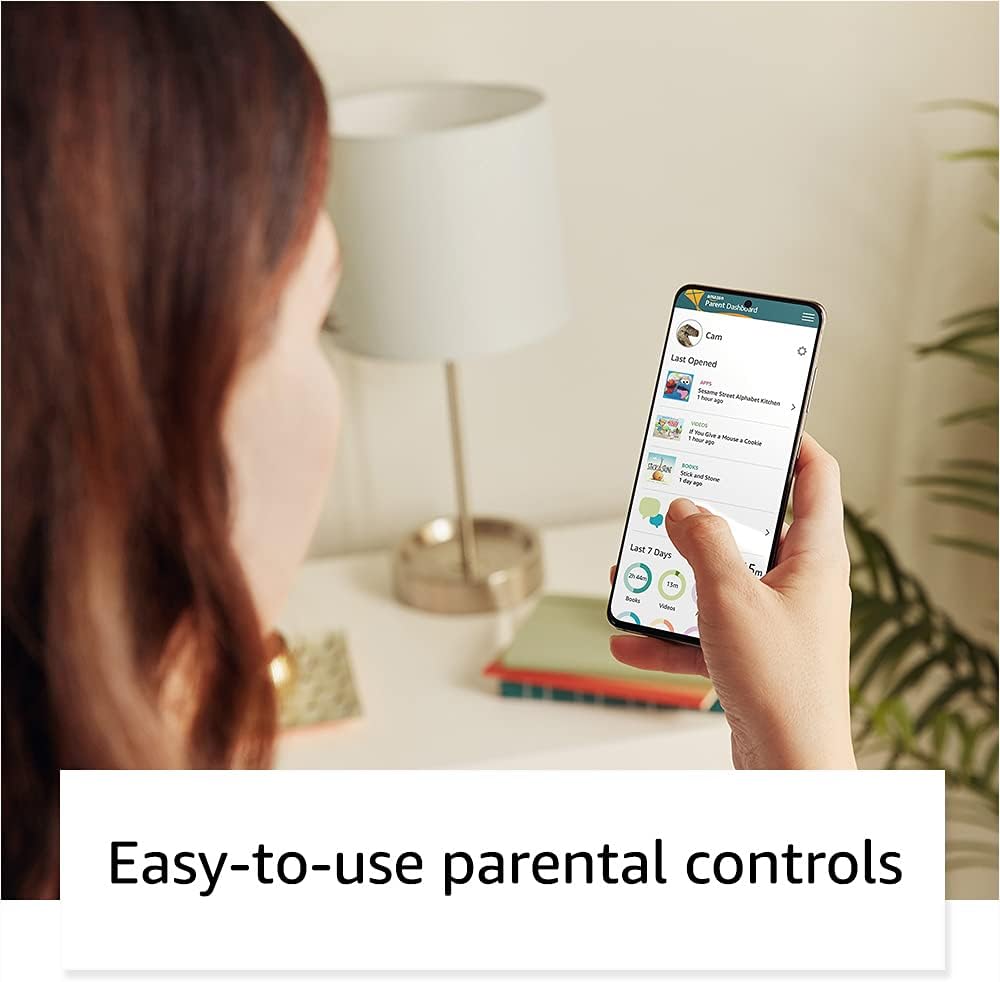
Image: A parent interacting with the Amazon Parent Dashboard on a smartphone, demonstrating the ease of managing parental controls for the Fire Kids Tablet.
To set up profiles and parental controls:
- After registering your tablet, you will be guided to create child profiles.
- Access the Amazon Parent Dashboard from any web browser or the Amazon Kids+ app on your own device.
- From the Parent Dashboard, you can:
- Filter content based on your child's age.
- Set daily time limits for tablet usage.
- Establish educational goals.
- Grant access to additional content from your Amazon library or third-party apps like Netflix and Disney+.
- Manage web browser access and approved contacts for communication.
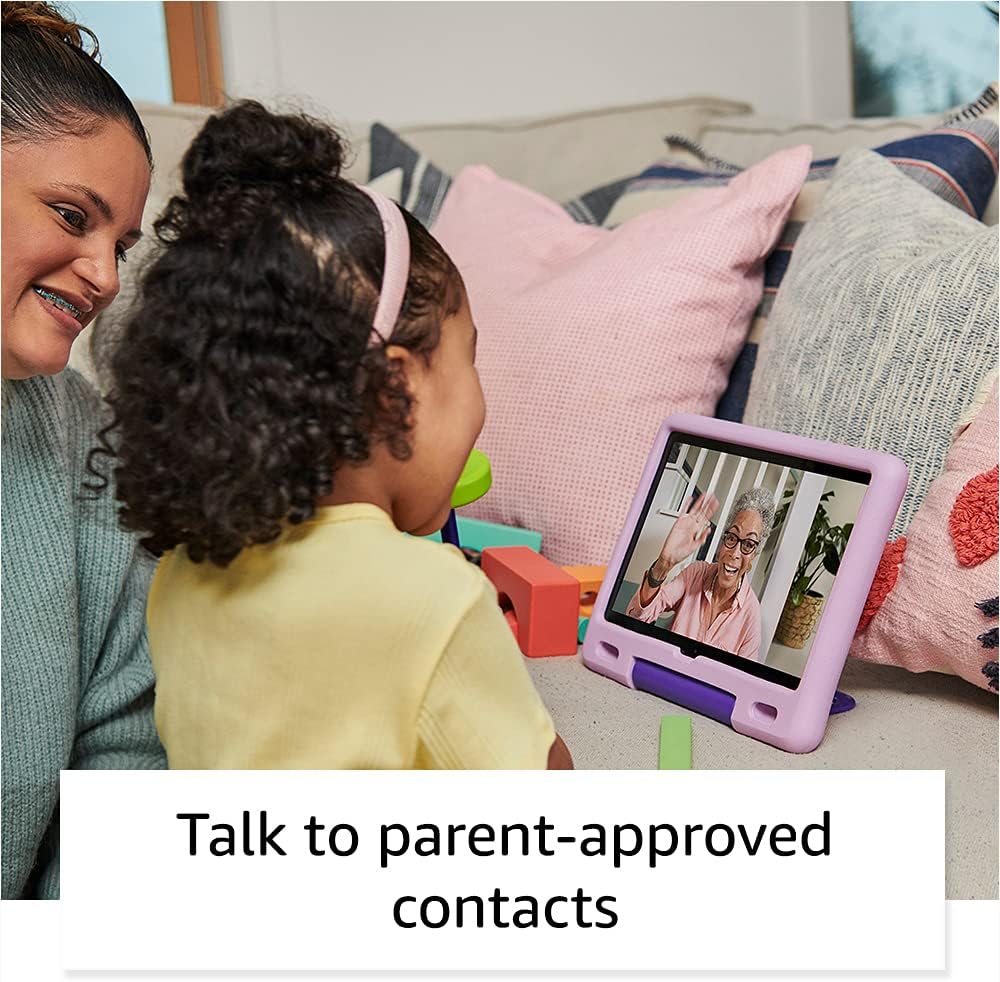
Image: A child happily engaged in a video call with a grandparent on the Amazon Fire HD 10 Kids Tablet, highlighting the communication features with parent-approved contacts.
Operating the Tablet
1. Navigating the Interface
The Fire HD 10 Kids Tablet features a touch-sensitive screen. Use gestures such as tapping, swiping, and pinching to interact with the device.
- Home Screen: Displays apps, books, videos, and games available to the child.
- Swipe Down: Access quick settings and notifications.
- Swipe Up: Return to the home screen (if applicable in certain apps).

Image: A child holding and interacting with the Amazon Fire HD 10 Kids Tablet, which displays an educational game, illustrating the tablet's design for young users.
2. Using Amazon Kids+
Amazon Kids+ provides a curated selection of age-appropriate content. Content is categorized for easy discovery.

Image: A vibrant grid of various app icons, including characters from popular children's media and educational titles, representing the wide range of content available through Amazon Kids+.
- Browsing Content: Navigate through categories like "Books," "Videos," "Apps," and "Games."
- Downloading Content: Tap on an item to download it for offline use. Ensure sufficient storage is available.
- Managing Content: Parents can add or remove content via the Parent Dashboard.
3. Camera Functionality
The tablet is equipped with a 2 MP front-facing camera and a 5 MP rear-facing camera, both capable of 720p HD video recording.
- Open the Camera app from the home screen.
- Tap to switch between front and rear cameras.
- Tap the shutter button to take photos or start/stop video recording.
4. Audio and Volume Control
The tablet features dual integrated speakers and a 3.5 mm stereo jack for headphones. External volume controls are located on the side of the tablet.
- Press the volume up/down buttons to adjust audio levels.
- Connect headphones to the 3.5 mm jack for private listening.
Maintenance
1. Cleaning the Tablet
To clean your tablet:
- Power off the device and unplug it from any power source.
- Use a soft, lint-free cloth slightly dampened with water to wipe the screen and exterior.
- Avoid using abrasive cleaners, solvents, or aerosol sprays.
- Do not allow moisture to enter any openings.
2. Battery Care
To prolong battery life:
- Avoid exposing the tablet to extreme temperatures (hot or cold).
- Charge the tablet regularly, but avoid leaving it fully discharged for extended periods.
- For optimal performance, use the provided Amazon 9W power adapter and USB-C cable.
3. Storage
The tablet comes with 32 GB of internal storage (24.2 GB available to user). You can expand storage up to 1 TB using a microSD card.
- Insert a microSD card into the designated slot to add additional storage for photos, videos, and some apps.
- Regularly manage downloaded content to free up space if needed.
Troubleshooting
Common Issues and Solutions
| Issue | Solution |
|---|---|
| Tablet does not turn on. | Ensure the tablet is charged. Connect to the power adapter for at least 30 minutes. If still unresponsive, perform a hard reset by holding the power button for 40 seconds. |
| Screen is unresponsive. | Restart the tablet. If the issue persists, ensure the screen is clean and free of debris. |
| Wi-Fi connection issues. | Check if other devices can connect to the Wi-Fi network. Restart your Wi-Fi router. On the tablet, go to Wi-Fi settings, forget the network, and reconnect. |
| Apps are slow or crashing. | Close unused apps. Clear app cache (via Parent Dashboard). Ensure sufficient storage space is available. Restart the tablet. |
| Battery drains quickly. | Reduce screen brightness. Close background apps. Disable Wi-Fi when not in use. Check for app updates. |
Factory Reset
A factory reset will erase all data on your tablet and restore it to its original factory settings. This should be a last resort for persistent issues.
- Go to the Parent Profile.
- Navigate to Settings > Device Options > Reset to Factory Defaults.
- Confirm your decision.
Specifications
| Display | 10.1” 1080p Full HD (1920 x 1200) with 224 ppi, aluminosilicate glass |
| Size | 8.2” x 10.6” x 1.1” (209mm x 269mm x 27mm) |
| Weight | 25.2 ounces (716 grams) |
| CPU & RAM | Octa-core 2.0 GHz with 3 GB of RAM |
| Storage | 32 GB internal (24.2 GB user available), expandable up to 1 TB via microSD |
| Battery Life | Up to 12 hours of mixed use |
| Charge Time | Approximately 4 hours with included 9W adapter |
| Wi-Fi Connectivity | Dual-band 802.11a/b/g/n/ac (2.4 GHz and 5.0 GHz), WEP, WPA, WPA2 security |
| Ports | USB-C (2.0) for charging, microSD slot |
| Audio | 3.5 mm stereo jack, dual integrated speakers |
| Sensors | Accelerometer, ambient light sensors |
| Cameras | 2 MP front-facing, 5 MP rear-facing, 720p HD video recording |
| Microphones | 2 built-in microphones |
| Age Range | 3-7 years (WARNING: CHOKING HAZARD – Small parts. Not for children under 3 years.) |
| Generation | 11th generation, 2021 release |
Warranty and Support
1. 2-Year Worry-Free Guarantee
Your Amazon Fire HD 10 Kids Tablet comes with a 2-year worry-free guarantee. If the tablet breaks, you can return it, and Amazon will replace it for free. This guarantee covers defects in materials and workmanship under normal use.
For detailed terms and conditions, please refer to the warranty information provided with your purchase or visit the Amazon website.
2. Customer Support
For further assistance, technical support, or warranty claims, please contact Amazon Customer Service. You can find support options on the official Amazon website:
You can also visit the Amazon Device Support page for FAQs and troubleshooting guides specific to Fire tablets.


