
ZTE MF928
ZTE MAX Connect Mobile WiFi Hotspot MF928 User Manual
Model: MF928
1. Product Overview
The ZTE MAX Connect MF928 is an unlocked mobile WiFi hotspot designed to provide portable internet access. It allows connection for up to 10 WiFi-enabled devices to any compatible GSM 4G LTE network. This device offers a secure and private network connection, suitable for both home and on-the-go use.

Figure 1.1: Front and back view of the ZTE MAX Connect MF928 Mobile WiFi Hotspot.
Key Features:
- Unlocked Connectivity: Compatible with various GSM networks including T-Mobile, Metro by T-Mobile, Sprint, Gen Mobile, Boost Mobile, Simple Mobile, Ultra Mobile, Red Pocket, and Republic Wireless.
- High-Speed Internet: Supports 4G LTE with download speeds up to 150Mbps and upload speeds up to 50Mbps.
- Dual-Band Wi-Fi: Features 2.4 GHz and 5GHz Wi-Fi (802.11 b/g/n/ac) for reliable connections.
- Multiple Device Support: Connects up to 10 devices simultaneously.
- Secure Network: Provides Wi-Fi Protected Access (WPA and WPA2) for encrypted connections.
- User-Friendly Interface: Features 4 LED indicators for battery, Wi-Fi, messages, and network strength. Device management is available through an online interface.
- Long Battery Life: Equipped with a 2000mAh Lithium-Ion battery, offering up to 10 hours of use time and up to 1 week of standby time.
2. What's Included
Upon unboxing your ZTE MAX Connect MF928, please verify that all components are present:
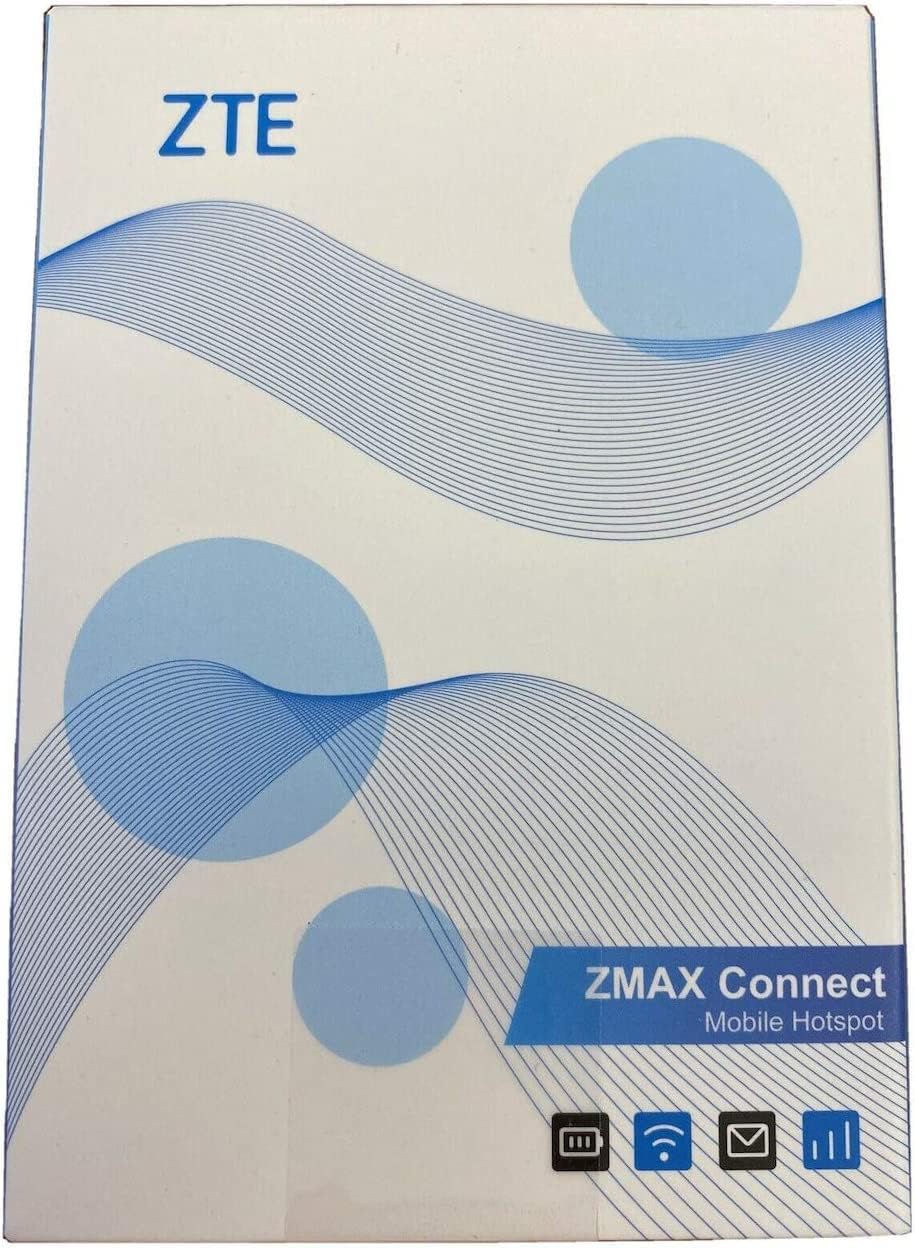
Figure 2.1: Packaging of the ZTE MAX Connect MF928.
- ZTE MAX Connect Unlocked Mobile Hotspot
- ZTE Wall Charger
- ZTE USB Cable
Note: A Nano SIM card is required for network connectivity and is not included with the device.
3. Setup Guide
3.1 Physical Features

Figure 3.1: Various angles of the ZTE MAX Connect MF928.
- Power Button: Located on the side, used to turn the device on/off.
- WPS Button: For quick Wi-Fi Protected Setup.
- SIM Card Slot: For inserting the Nano SIM card.
- USB Port: For charging the device.
- Reset Button: A small pinhole button for factory reset.

Figure 3.2: Side view highlighting the power and WPS buttons.
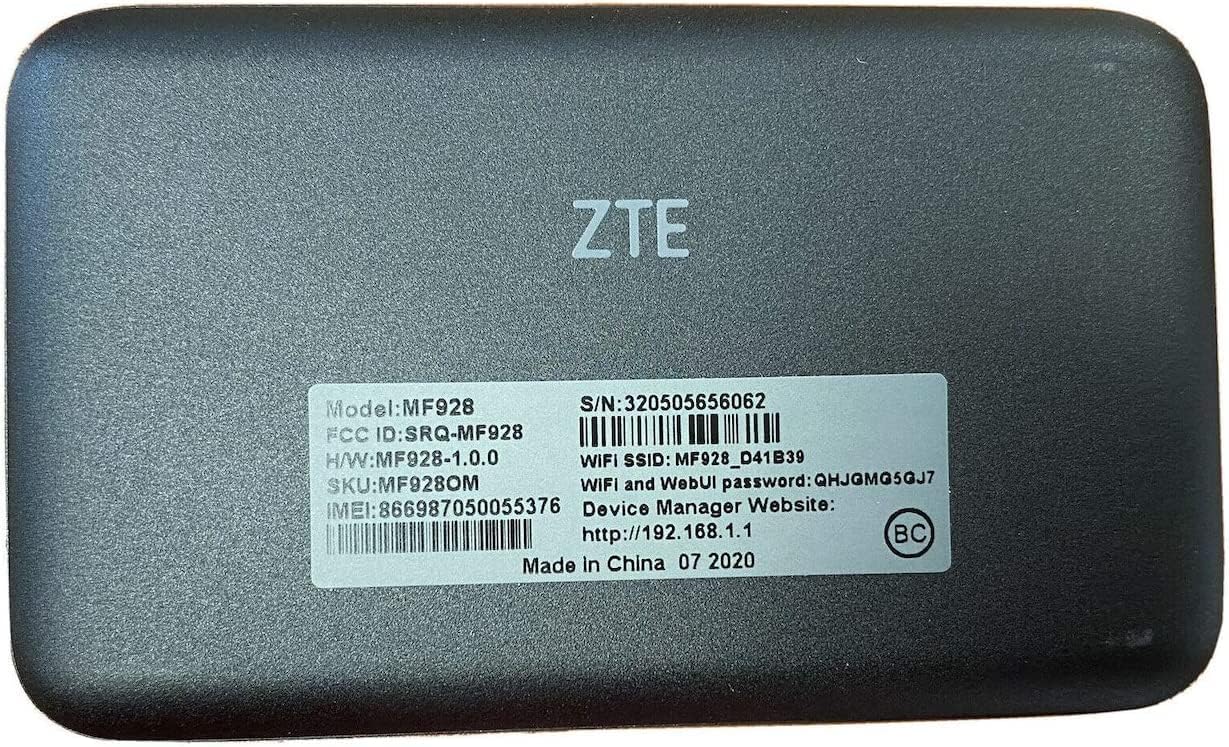
Figure 3.3: Back view with product information label, including model and serial number.
3.2 Inserting the SIM Card
- Ensure the device is powered off.
- Locate the SIM card slot on the side of the device.
- Insert a Nano SIM card into the slot with the gold contacts facing down and the notched corner aligned correctly. Push gently until it clicks into place.
3.3 Charging the Device
- Connect the ZTE USB cable to the hotspot's USB port.
- Connect the other end of the USB cable to the ZTE wall charger.
- Plug the wall charger into a power outlet. The battery indicator LED will show charging status.
- Allow the device to fully charge before first use (approximately 2-3 hours).
4. Operating Instructions
4.1 Powering On/Off
- To Power On: Press and hold the Power button for a few seconds until the LED indicators light up.
- To Power Off: Press and hold the Power button until the device shuts down.
4.2 LED Indicators

Figure 4.1: Top view displaying the four LED indicators.
| Indicator | Status | Meaning |
|---|---|---|
| Battery | Solid Green | Battery level is sufficient. |
| Flashing Green | Charging. | |
| Solid Red | Low battery. | |
| Wi-Fi | Solid Blue | Wi-Fi is active and broadcasting. |
| Flashing Blue | WPS pairing in progress. | |
| Messages | Solid Blue | New message received. |
| Network | Solid Blue | Connected to 4G LTE network. |
| Solid Green | Connected to 3G/2G network. | |
| Flashing Red | No network signal or SIM error. |
4.3 Connecting Devices to the Hotspot

Figure 4.2: The hotspot actively broadcasting a Wi-Fi signal.
- Ensure the ZTE MAX Connect MF928 is powered on and has an active network connection (Network LED is solid blue).
- On your device (smartphone, tablet, laptop), open the Wi-Fi settings.
- Search for available Wi-Fi networks. The default SSID (network name) and password are typically found on a label on the back of the hotspot (refer to Figure 3.3).
- Select the hotspot's SSID from the list and enter the Wi-Fi password when prompted.
- Once connected, your device will have internet access through the hotspot.
Using WPS (Wi-Fi Protected Setup)
For devices that support WPS:
- Press the WPS button on the ZTE MAX Connect MF928. The Wi-Fi LED will flash blue.
- Within two minutes, activate WPS on your client device. The devices will automatically connect without needing to enter the password.
4.4 Accessing the Web Management Interface
The hotspot features a web-based management interface for advanced settings, monitoring data usage, and changing Wi-Fi settings.
- Connect your device to the ZTE MAX Connect MF928's Wi-Fi network.
- Open a web browser and enter the default IP address: http://192.168.1.1 (This address is also found on the label on the back of the device).
- Enter the login credentials. The default username and password are typically "admin" (check the device label or manual for specifics if different).
- From the interface, you can manage settings such as Wi-Fi name (SSID), password, APN settings, and view connected devices.
5. Maintenance
- Cleaning: Use a soft, dry cloth to clean the device. Avoid liquid cleaners or aerosols.
- Storage: Store the device in a cool, dry place away from direct sunlight and extreme temperatures.
- Battery Care: To prolong battery life, avoid fully discharging the battery frequently. If storing for extended periods, charge the battery to about 50% and power off the device.
- Software Updates: Periodically check the web management interface for available firmware updates to ensure optimal performance and security.
6. Troubleshooting
| Problem | Possible Cause | Solution |
|---|---|---|
| No network signal / Network LED flashing red. | No SIM card, incorrect SIM insertion, out of network coverage, or APN settings incorrect. |
|
| Cannot connect to Wi-Fi. | Incorrect Wi-Fi password, Wi-Fi disabled, or device too far from hotspot. |
|
| Slow internet speed. | Weak signal, too many connected devices, network congestion, or data cap reached. |
|
| Hotspot frequently restarts or freezes. | Overheating, software glitch, or battery issue. |
|
Factory Reset
If the device is experiencing persistent issues, a factory reset may resolve them. This will restore the device to its original factory settings, including Wi-Fi name and password.
- Ensure the device is powered on.
- Locate the small reset pinhole on the device (refer to Figure 3.1).
- Using a paperclip or a similar pointed object, press and hold the reset button for approximately 5-10 seconds until the device restarts.
- After the reset, you will need to reconnect your devices using the default Wi-Fi credentials.
7. Specifications
| Feature | Detail |
|---|---|
| Model Name | MAX Connect (MF928) |
| Processor | Qualcomm MDM9207 |
| SIM Type | Nano SIM |
| Battery | 2000mAh Lithium-Ion |
| Use Time | Up to 10 Hours |
| Standby Time | Up to 1 Week |
| Memory | 256MB RAM + 512MB ROM |
| 4G LTE Frequencies | Cat4 Band 2, 4, 5, 12, 66, 71 |
| Wi-Fi Standard | 802.11 b/g/n/ac (2.4GHz & 5GHz) |
| Data Speed | Download up to 150Mbps, Upload up to 50Mbps |
| Connected Users | Up to 10 |
| Encryption | WPA, WPA2 |
| Operating System | Linux 3.18 |
| Supported OS | Windows 8, Windows 7, Windows 10, Mac OS, Linux |
| Dimensions (L x W x H) | 4.17 x 2.52 x 0.59 inches |
| Weight | 3.63 oz |
8. Warranty and Support
The ZTE MAX Connect Unlocked Mobile Hotspot comes with a 1-year USA warranty from the manufacturer.
For technical support, warranty claims, or further assistance, please refer to the official ZTE support channels or contact your retailer.
For general inquiries or to access the device's web management interface, please visit http://192.168.1.1 when connected to the hotspot's Wi-Fi network.
Ask a question about this manual
Ask about setup, troubleshooting, compatibility, parts, safety, or missing instructions. Manuals+ will review the question and use this page’s manual context to help answer it.