
Ipega PG-SW020
iPega PG-SW020 Wireless Game Controller User Manual
Model: PG-SW020 | Brand: iPega
1. Introduction
Thank you for purchasing the iPega PG-SW020 Wireless Game Controller. This manual provides detailed instructions on how to set up, operate, and maintain your controller. Please read this manual carefully before use to ensure proper functionality and to maximize your gaming experience. This controller is compatible with N-Switch, Android devices, PS3, and PC Windows 7/8/10.
2. Package Contents
- 1 x iPega PG-SW020 Wireless Controller
- 1 x Type-C Charging Cable
- 1 x User Manual
3. Product Overview
Familiarize yourself with the layout and buttons of your iPega PG-SW020 controller.
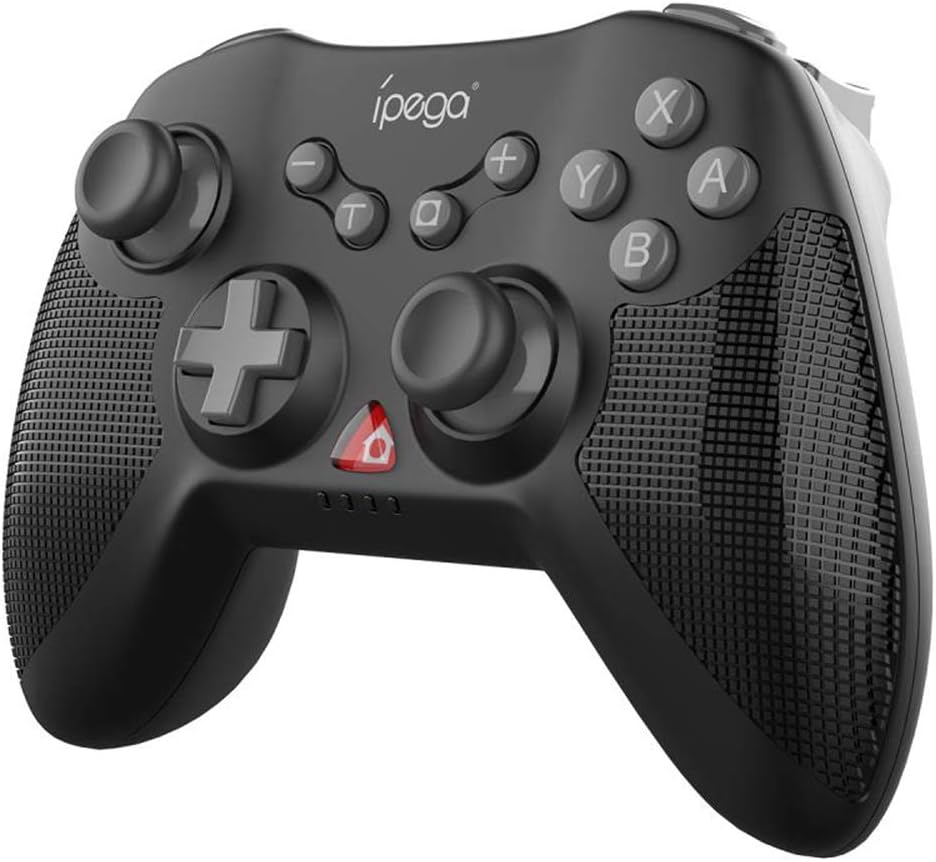
Figure 3.1: Front view of the iPega PG-SW020 Wireless Game Controller, showing joysticks, D-pad, action buttons (A, B, X, Y), and function buttons.

Figure 3.2: The PG-SW020 controller is available in Black, Blue, and Yellow color options.
4. Setup
4.1. Charging the Controller
Before first use, ensure the controller is fully charged. Connect the provided Type-C charging cable to the controller's charging port and the other end to a USB power source (e.g., computer USB port, USB wall adapter). The charging indicator lights will show the charging status. A full charge takes approximately 3 hours.
4.2. Pairing and Connection Modes
The PG-SW020 supports multiple connection modes for different devices:
- N-Switch Mode:
- On the N-Switch console, go to 'Controllers' > 'Change Grip/Order'.
- Press and hold the 'L1' + 'HOME' buttons on the PG-SW020 controller until the indicator lights flash rapidly.
- The controller will automatically pair with the N-Switch. Once connected, the corresponding player indicator light will remain solid.
- Android Mode:
- On your Android device, enable Bluetooth.
- Press and hold the 'A' + 'HOME' buttons on the PG-SW020 controller until the indicator lights flash rapidly.
- On your Android device, search for Bluetooth devices and select 'PG-SW020' to pair. Once connected, the indicator light will remain solid.
- Note: Vibration and six-axis gyroscope features are not available in Android Mode.
- PS3 Mode:
- Connect the PG-SW020 controller to the PS3 console using the Type-C charging cable.
- Press the 'HOME' button on the controller. The controller will automatically connect to the PS3.
- Once connected, you can unplug the cable for wireless play.
- PC (Windows 7/8/10) Mode:
- Connect the PG-SW020 controller to your PC using the Type-C charging cable.
- The PC will automatically detect and install the necessary drivers.
- The controller will function as a wired gamepad. For wireless connection, a Bluetooth adapter may be required, and the controller can be paired in Android mode (X-input mode for PC games).
5. Operating Instructions
5.1. Special Features
- Dual-Motor Vibration: The controller features dual shock motors that provide real-time vibration feedback based on in-game actions, enhancing immersion. This feature is active in N-Switch, PS3, and PC modes.

Figure 5.1: Illustration of the dual-motor vibration feature providing immersive feedback.
- Six-Axis Gyroscope: Built-in six-axis gyroscope chip allows for precise aiming and motion-sensing control, enabling tangible interaction with game environments. This feature is active in N-Switch, PS3, and PC modes.

Figure 5.2: The six-axis gyroscope enables motion sensing and directional control for enhanced gameplay.
- Repeating Turbo Function: To activate the AUTO FIRE function, press the 'TURBO' button followed by the desired function key (e.g., 'B'). This will enable rapid, continuous input for that button. To clear the Turbo setting, repeat the process or press the 'TURBO' button again.
- High Sensitive 3D Joysticks: The controller is equipped with high-sensitive 3D joysticks for smooth and precise movement and direction control.
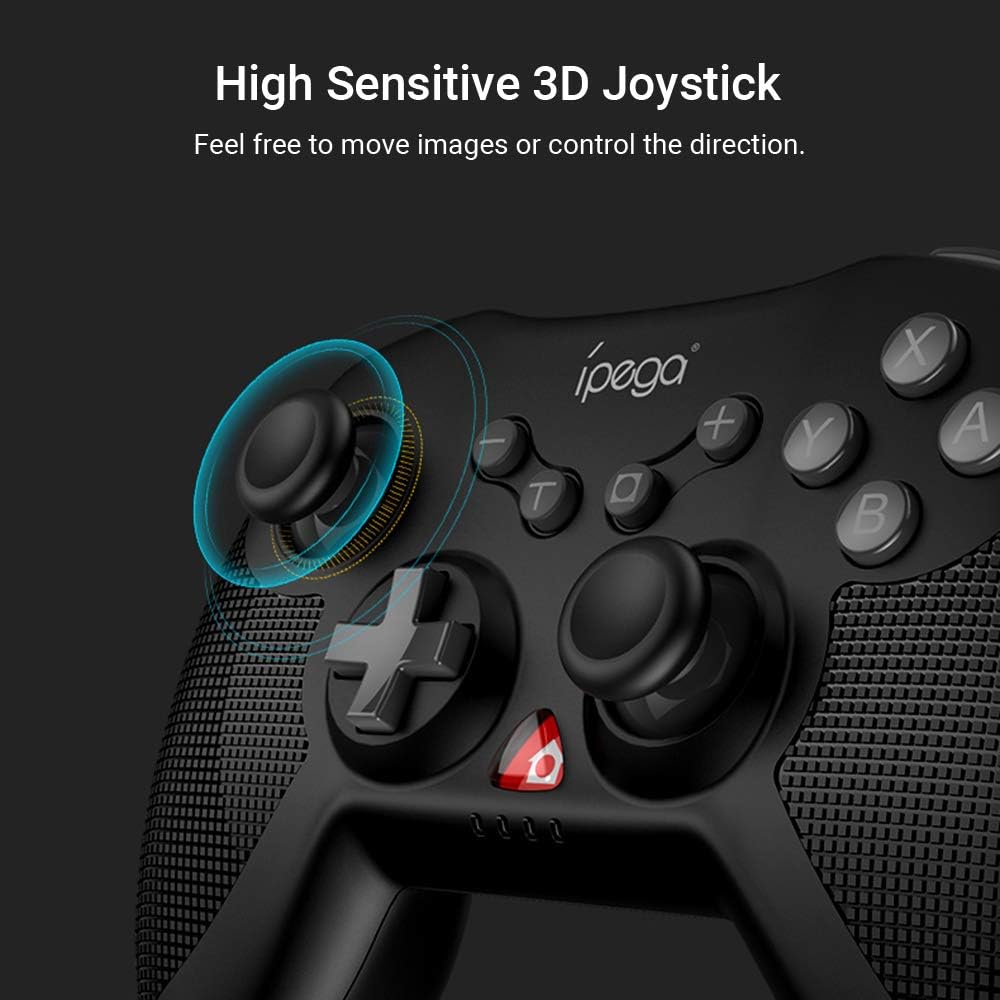
Figure 5.3: Close-up view of the high sensitive 3D joystick, designed for precise control.
- Ergonomic Handle: The controller features an ergonomic design with a fine grid texture on the side of the handles, providing a comfortable grip for extended gaming sessions.
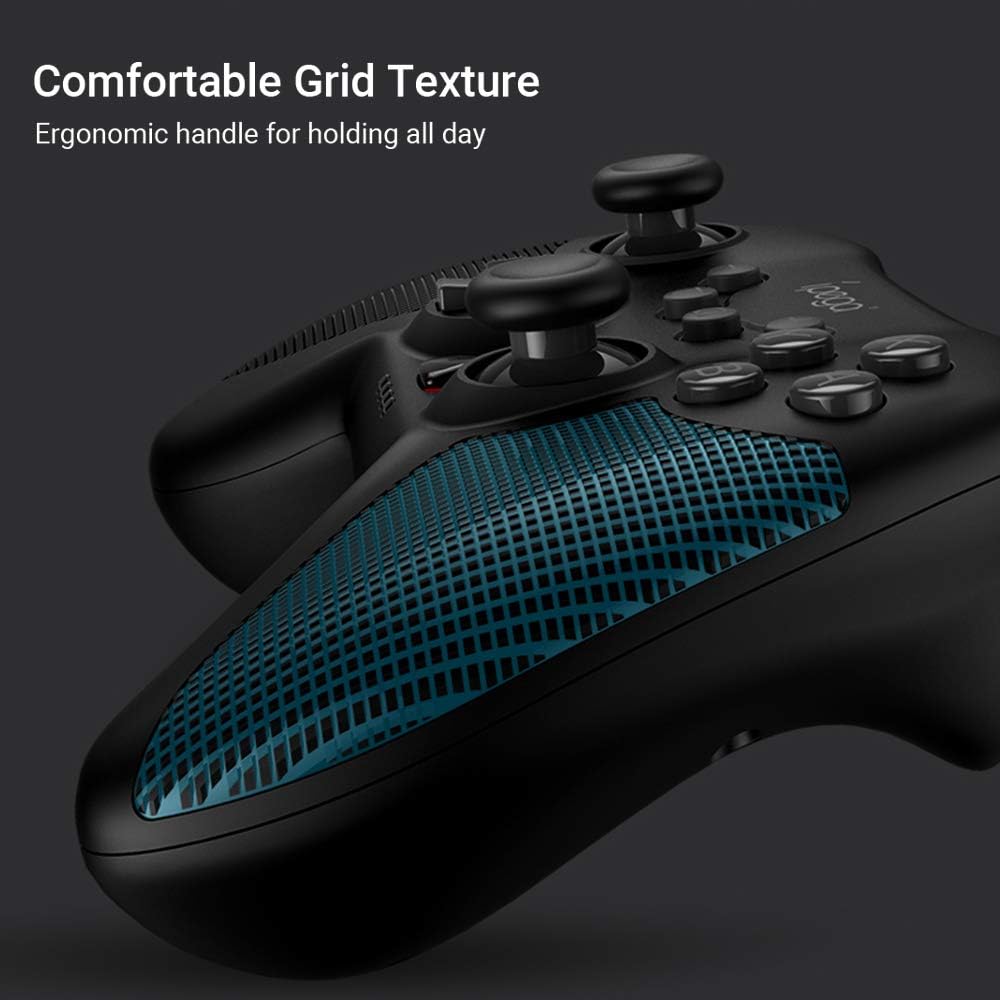
Figure 5.4: The ergonomic handle with comfortable grid texture for improved grip.
6. Maintenance
- Keep the controller dry. Avoid exposure to humidity, rain, or liquids.
- Do not expose the controller to extreme temperatures.
- Clean the controller with a soft, dry cloth. Do not use harsh chemicals or abrasive cleaners.
- Store the controller in a clean, dust-free environment when not in use.
- Avoid dropping or subjecting the controller to strong impacts.
7. Troubleshooting
- Controller does not power on: Ensure the controller is charged. Connect it to a power source using the Type-C cable.
- Controller does not connect:
- Ensure the correct pairing mode is selected for your device (N-Switch, Android, PS3, PC).
- Make sure Bluetooth is enabled on your device (for wireless connections).
- Try restarting both the controller and your device.
- Clear previous Bluetooth pairings on your device and try pairing again.
- Input lag or disconnection:
- Ensure the controller is within the effective wireless range (up to 8 meters).
- Minimize interference from other wireless devices.
- Ensure the controller is fully charged.
- Vibration or Gyroscope not working: These features are not available in Android Mode. Ensure you are in N-Switch, PS3, or PC mode.
8. Specifications
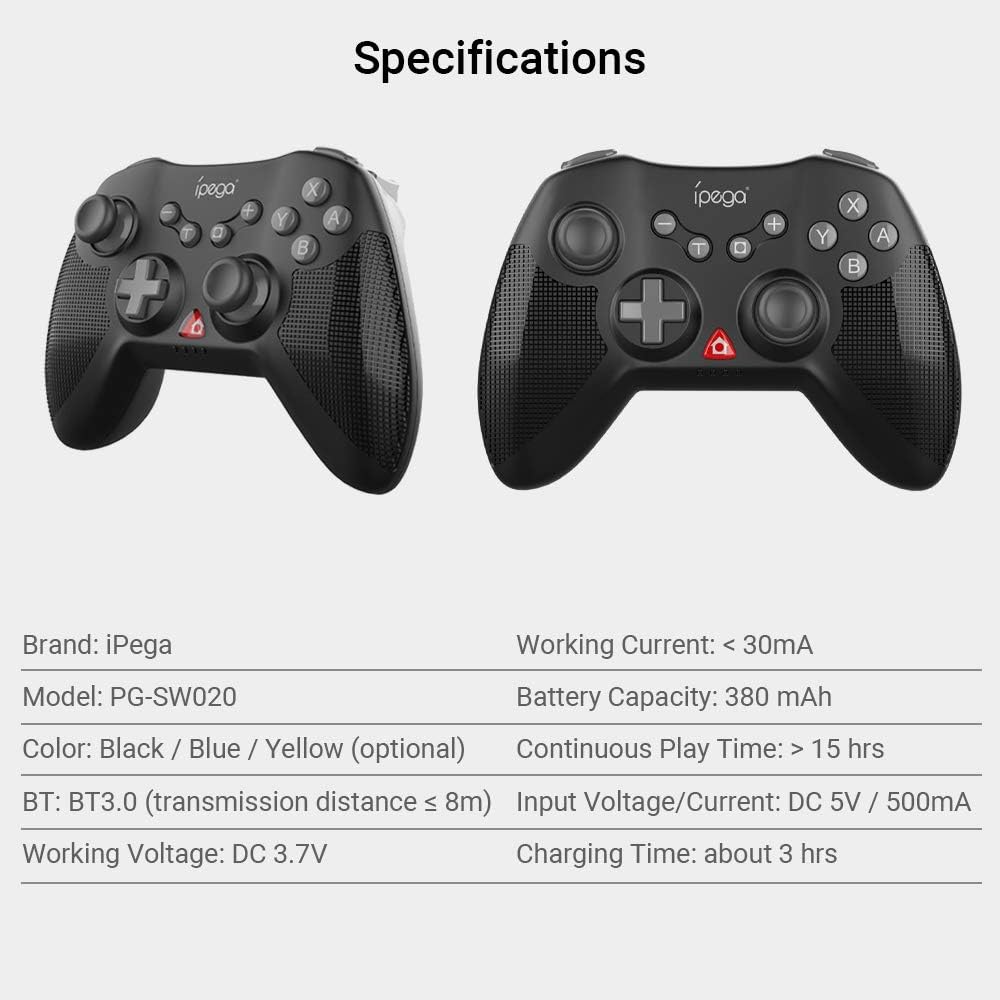
Figure 8.1: Visual representation of the controller's specifications.
| Feature | Detail |
|---|---|
| Brand | iPega |
| Model | PG-SW020 |
| Material | ABS |
| Color Options | Black, Blue, Yellow |
| Bluetooth Version | BT3.0 |
| Transmission Distance | ≤ 8m |
| Working Voltage | DC 3.7V |
| Working Current | <30mA |
| Battery Capacity | 380 mAh |
| Continuous Play Time | > 15 hrs |
| Input Voltage/Current | DC 5V / 500mA |
| Charging Time | About 3 hrs |
| Item Size | 14.5 x 11 x 6 cm (5.7 x 4.33 x 2.36 in) |
| Item Weight | 212g (7.47 oz) |
9. Warranty and Support
This product is typically covered by the retailer's return and warranty policy at the point of purchase. For specific warranty details, please refer to the documentation provided by your retailer or visit the official iPega website for the most up-to-date support information and contact options.
For technical support or inquiries, please contact iPega customer service through their official channels.
Related documentsPG-SW020


Ask a question about this manual
Ask about setup, troubleshooting, compatibility, parts, safety, or missing instructions. Manuals+ will review the question and use this page’s manual context to help answer it.