
1. Product Overview
The Ink Permanent Aurora 2 II Tattoo Machine Power Supply is designed to provide stable and reliable power for both coil and rotary tattoo machines. This second-generation power supply features a compact design, intuitive controls, and a unique color-coded voltage indicator to enhance your tattooing experience.
Key features include:
- Compatibility with all coil and rotary tattoo machines.
- Anti-slip base with built-in magnets and silicone grips for secure placement on various surfaces.
- Simple rotary control push knob for power, mode switching, output, and voltage adjustment.
- Unique light codes indicate different voltage values.
- Provides a strong and stable current for consistent machine operation.

Figure 1: Aurora 2 II Power Supply with included accessories.
2. Setup Instructions
Follow these steps to set up your Aurora 2 II Power Supply:
- Connect the Power Adapter: Plug the provided power adapter into the power supply unit and then into a suitable electrical outlet.
- Connect Your Tattoo Machine: Use the adapter clip cord to connect your tattoo machine to the appropriate input port on the power supply. The Aurora 2 II is compatible with both coil and rotary machines.
- Secure Placement: Place the power supply on a stable, flat surface. The anti-slip base with built-in magnets and silicone grips will help secure it in place.
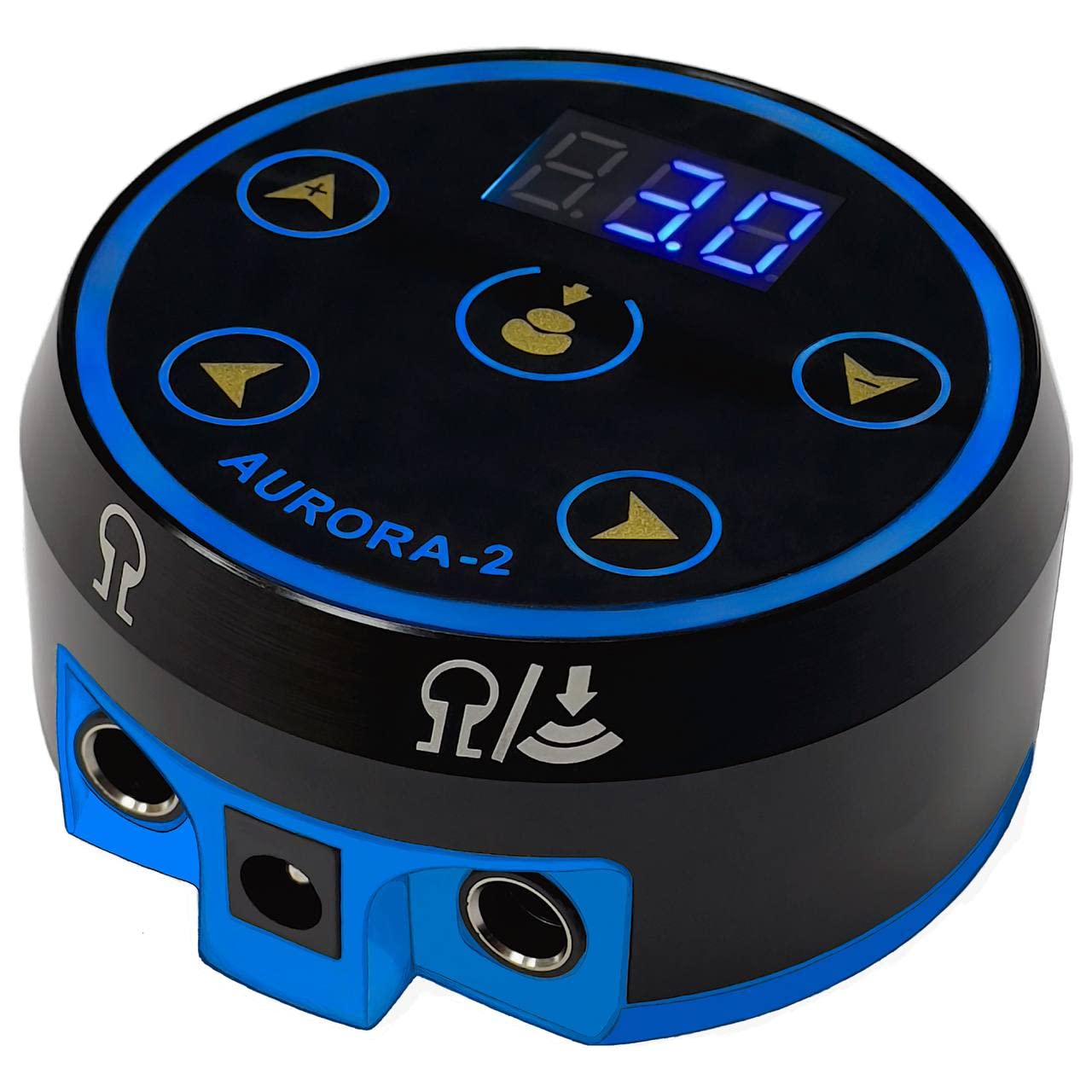
Figure 2: Connection ports for the power supply and tattoo machine.
3. Operating Instructions
The Aurora 2 II Power Supply features an intuitive interface for easy operation.
3.1 Power On/Off
- To turn on the power supply, press the central push knob. The digital display will illuminate.
- To turn off the power supply, press and hold the central push knob for a few seconds until the display turns off.

Figure 3: Using the central push knob for power control.
3.2 Adjusting Voltage
- Once powered on, the digital display shows the current voltage.
- Rotate the central push knob clockwise to increase the voltage and counter-clockwise to decrease it.
- The LED light ring around the power supply will change color to indicate the voltage range. Refer to the voltage color code chart for specific ranges.

Figure 4: Voltage color code guide for the Aurora 2 II.
3.3 Switching Modes and Output
The Aurora 2 II allows for switching between different modes and outputs. Use the directional buttons (up, down, left, right) around the central knob to navigate and select options as needed for your specific tattoo machine and operation.

Figure 5: Control panel with push knob and directional buttons.

Figure 6: The power supply can manage multiple machine connections.
4. Maintenance
Proper maintenance ensures the longevity and optimal performance of your Aurora 2 II Power Supply.
- Cleaning: Regularly wipe the surface of the power supply with a clean, damp cloth. Avoid using harsh chemicals or abrasive cleaners. Ensure the unit is unplugged before cleaning.
- Storage: Store the power supply in a dry, cool place away from direct sunlight and extreme temperatures when not in use.
- Cable Care: Inspect power cords and clip cords regularly for any signs of wear or damage. Replace damaged cables immediately to prevent electrical hazards.
- Avoid Liquid Exposure: The unit is water-resistant, but it is not waterproof. Avoid submerging it in liquids or exposing it to excessive moisture.
5. Troubleshooting
If you encounter issues with your Aurora 2 II Power Supply, refer to the following common solutions:
- Power Supply Not Turning On:
- Ensure the power adapter is securely plugged into both the power supply and a working electrical outlet.
- Check if the electrical outlet is functional by plugging in another device.
- Verify that the central push knob is pressed firmly to power on the unit.
- Tattoo Machine Not Receiving Power:
- Confirm that the clip cord is properly connected to both the power supply and the tattoo machine.
- Check the clip cord for any visible damage. Try a different clip cord if available.
- Ensure the voltage is set to an appropriate level for your machine.
- Inconsistent Voltage Output:
- Ensure all connections are secure and free from debris.
- Avoid operating the unit in environments with extreme temperature fluctuations.
- If the issue persists, contact customer support.
For issues not covered here, please contact Ink Permanent customer support.
6. Product Specifications
| Feature | Detail |
|---|---|
| Voltage Output | Adjustable (indicated by color codes) |
| Current | 2.5A |
| Weight | 1.44 lbs (approximately 0.65 kg) |
| Dimensions | 2.8 x 1.6 inches (approximately 7.1 x 4.1 cm) |
| Housing Material | CNC-machined anodized aluminum |
| Base Features | Anti-slip devices, built-in magnets, silicone grips |
| Compatibility | All coil and rotary tattoo machines |
| Water Resistance Level | Water Resistant |
| Package Dimensions | 7.09 x 5.04 x 3.19 inches |
| Manufacturer | Ink Permanent |
Note: Specifications are subject to change without prior notice for product improvement.
7. Warranty and Customer Support
For warranty information, technical assistance, or customer support, please contact Ink Permanent directly through their official website or the retailer where the product was purchased.
Please have your product model number (Aurora 2) and purchase details ready when contacting support.
Manufacturer: Ink Permanent
Model: Aurora 2