
1. Introduction
Thank you for choosing the Ourlife Kids Camera OU-630. This digital camera is designed for children, offering 1080p Full HD video recording, 12MP photo resolution, and a unique 60x macro magnification function for exploring the micro-world. It features a 3.5-inch large screen, various creative filters, games, and music playback. Please read this manual carefully to ensure proper use and maintenance of your camera.
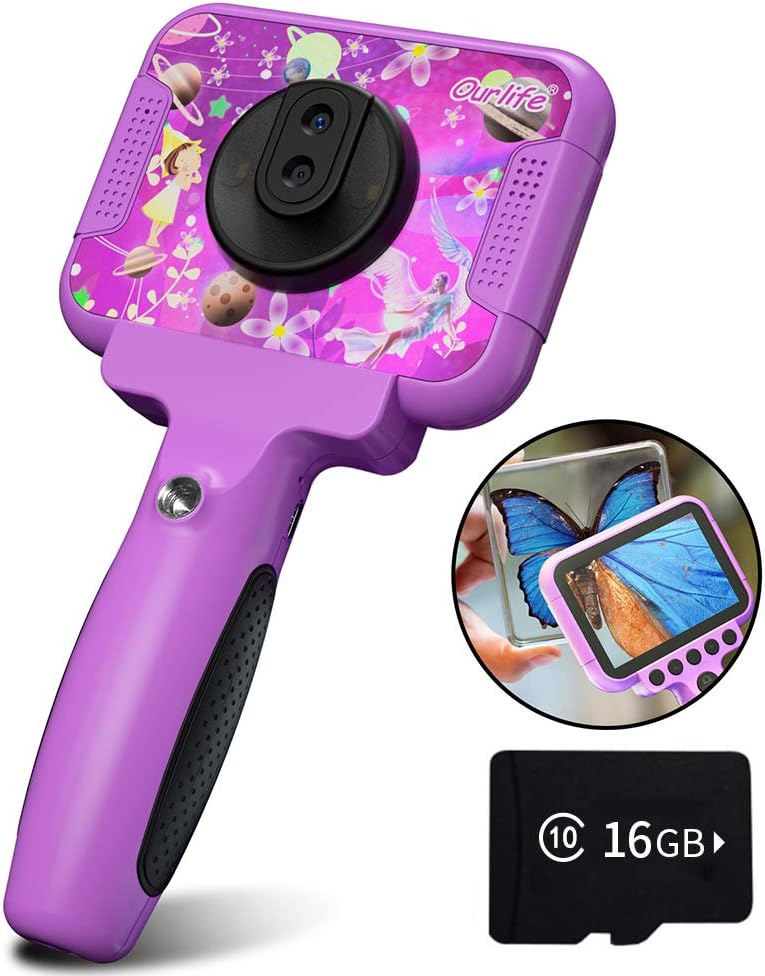
Image 1.1: The Ourlife Kids Camera OU-630, highlighting its design and macro capability.
2. Package Contents
Please check the package to ensure all items are present:
- Kids Camera x 1
- 16GB TF Card x 1
- Base Bracket x 1
- USB Charging Cable x 1
- User Manual x 1
- Neck Lanyard x 1
- Hand Strap x 1

Image 2.1: Contents of the Ourlife Kids Camera OU-630 package.
3. Product Overview
Familiarize yourself with the camera's components and controls:
- Display Screen: 3.5-inch color screen for viewing photos, videos, and navigating menus.
- Main Lens: For standard photography and video.
- Macro Lens: Dedicated lens for 60x magnification.
- Control Buttons: M (Menu), Up, OK, Down, Power, Shutter/LED.
- Handle: Ergonomically designed for child-friendly grip.
- USB Port: For charging and data transfer.
- TF Card Slot: For memory card insertion.

Image 3.1: Key features and specifications of the Ourlife Kids Camera OU-630.
Button Function Table
| Button | Camera Mode | Recording Mode | Music Mode | Game Mode | Playback Mode |
|---|---|---|---|---|---|
| M | Back to Menu | ||||
| ▲ | Change filters/Frames Long press: Zoom in | Change filters/Frames | Previous song | Move left | Previous photo |
| OK | Long press: Open/Close LED light | OK | Choose music/story | OK | Play / Pause |
| ▼ | Change filters/Frames Long press: Zoom out | Change filters/Frames | Next song | Move right | Next photo |
| ⏻ | Switch to Splicing mode | Back to Menu | NULL | NULL | Delete |
| ◎ | Take Photo | Back to Menu | NULL | NULL | NULL |
Image 3.2: Detailed functions of each button across different modes.
4. Setup
4.1. Charging the Camera
Before first use, fully charge the camera. Connect the included USB charging cable to the camera's USB port and to a compatible USB power source (e.g., computer, wall adapter). The charging indicator light will show the charging status. A full charge provides approximately 3 hours of use.
4.2. Inserting the TF Card
The camera requires a TF (MicroSD) card to store photos and videos. A 16GB TF card is included. Locate the TF card slot on the side of the camera. Gently insert the TF card with the metal contacts facing down until it clicks into place. To remove, push the card in again until it springs out.
5. Operating Instructions
5.1. Power On/Off
- To power on, press and hold the Power button (⏻) until the screen lights up.
- To power off, press and hold the Power button (⏻) until the screen turns off.
5.2. Menu Navigation
Use the Up (▲) and Down (▼) buttons to navigate through menu options. Press the OK button to confirm a selection. Press the M (Menu) button to return to the previous menu or the main menu.
5.3. Taking Photos
- From the main menu, select the Camera icon and press OK.
- Frame your shot using the screen.
- Press the Shutter button (◎) to take a photo.
- Use the Up (▲) and Down (▼) buttons to change filters or frames. Long press Up (▲) to zoom in, long press Down (▼) to zoom out.
5.4. Recording Videos
- From the main menu, select the Video icon and press OK.
- Press the Shutter button (◎) to start recording.
- Press the Shutter button (◎) again to stop recording.
- Use the Up (▲) and Down (▼) buttons to change filters or frames during recording.
5.5. Macro Function
The camera features a dedicated macro lens for 60x magnification, ideal for observing small objects. The optimal focal length for macro photography is 20-40mm.
- To switch between the main lens and macro lens, long press the Shutter button (◎).
- When in macro mode, position the camera close to the subject (20-40mm distance).
- Use the included base bracket for stability during macro shots to prevent hand shake.
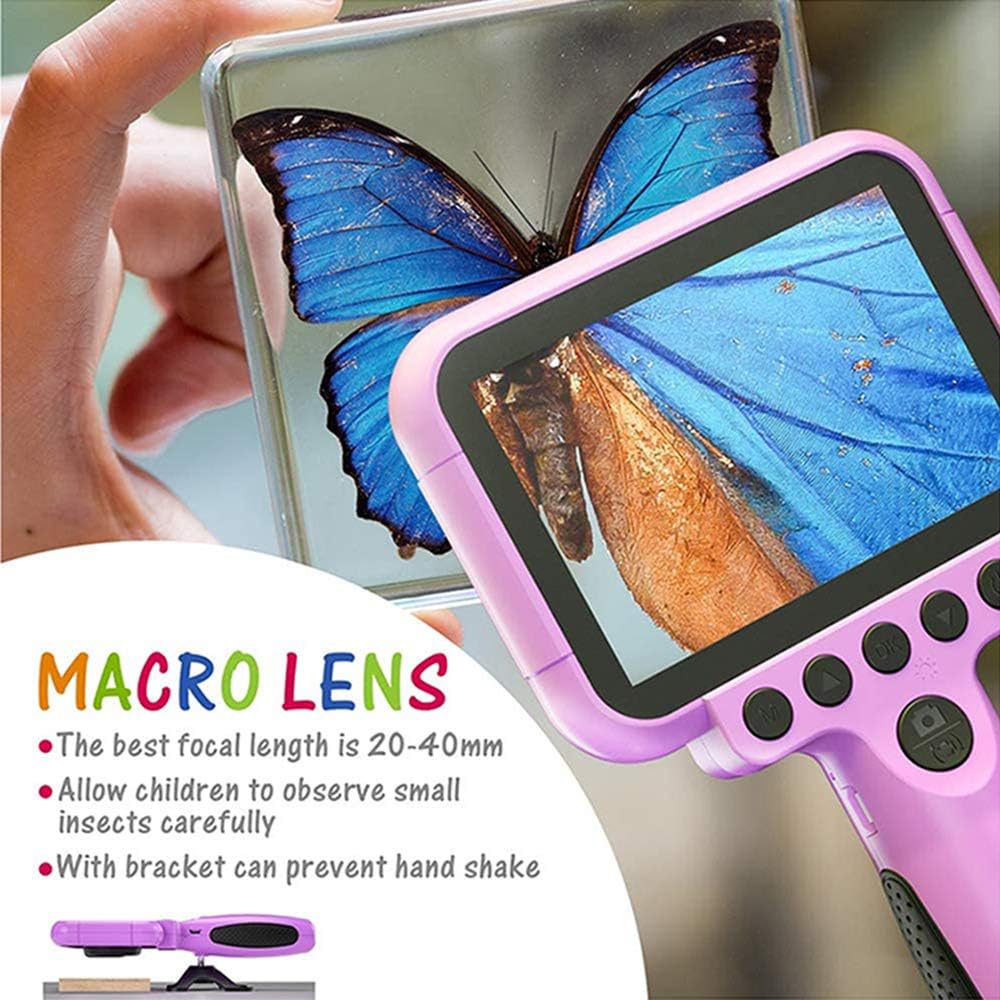
Image 5.1: Demonstrating the macro lens function for detailed observation.

Image 5.2: Switching between HD and Macro lenses.
5.6. Patchwork Mode (Splicing Mode)
This mode allows you to combine two separate photos into one. It includes various border patterns.
- In Camera Mode, press the Power button (⏻) to switch to Splicing (Patchwork) mode.
- Follow the on-screen prompts to take two photos that will be merged.
- Select from 9 available border patterns.

Image 5.3: Using the Patchwork Mode to combine images.
5.7. Music Mode
The camera supports MP3 music playback. Store your favorite music files on the TF card. From the main menu, select the Music icon and press OK. Use the Up (▲) and Down (▼) buttons to select songs, and OK to play/pause.
5.8. Games
The camera includes pre-installed games for entertainment. From the main menu, select the Game icon and press OK. Use the navigation buttons to play.
5.9. Playback Mode
To view your captured photos and videos, select the Photos/Video Playback icon from the main menu and press OK. Use the Up (▲) and Down (▼) buttons to browse, and OK to play videos or view photos. To delete a file, press the Power button (⏻) while viewing it.
5.10. Settings
Access camera settings by selecting the Settings icon from the main menu. Here you can adjust various parameters such as date/time, language, resolution, and more.
6. Maintenance
- Keep the camera clean by wiping it with a soft, dry cloth.
- Avoid exposing the camera to extreme temperatures, direct sunlight, or moisture.
- Do not attempt to disassemble or repair the camera yourself.
- Ensure the TF card is inserted correctly to prevent data loss.
- Charge the camera regularly to maintain battery health.
7. Troubleshooting
- Camera not turning on: Ensure the battery is charged. Connect to a power source and try again.
- Cannot take photos/videos: Check if a TF card is inserted and if it has sufficient storage space.
- Poor image quality: Ensure the lens is clean. Check lighting conditions. For macro shots, ensure correct focal distance (20-40mm).
- Camera freezes: Press and hold the Power button to force a restart.
- TF card error: Reinsert the TF card. If the issue persists, try formatting the card (this will erase all data) or use a different TF card.
8. Specifications
| Feature | Detail |
|---|---|
| Model Number | OU-630 |
| Effective Still Resolution | 12 MP |
| Video Resolution | 1080p |
| Screen Size | 3.5 Inches |
| Image Stabilization | Digital |
| Lens Type | Macro (60x zoom) |
| Battery Type | 1 Lithium Polymer (included) |
| Connectivity Technology | USB |
| Supported Media Type | SD Card |
| Shooting Modes | Loop recording, Continuous shooting, Timed photo, Macro photography, Filter photos |
| Item Dimensions (D x W x H) | 3.94"D x 7.28"W x 0.79"H |
9. Warranty & Support
This Ourlife Kids Camera OU-630 comes with a 12-month warranty from the date of purchase. This warranty covers manufacturing defects and workmanship. It does not cover damage caused by misuse, accidents, unauthorized repairs, or normal wear and tear.
For technical support, warranty claims, or any questions regarding your product, please contact Ourlife customer service. Refer to the contact information provided on the product packaging or the official Ourlife website.


