
Logitech G 910-005974
Logitech G PRO Wireless Gaming Mouse - Shroud Edition User Manual
Model: 910-005974
Introduction
The Logitech G PRO Wireless Gaming Mouse - Shroud Edition is engineered for extreme performance, designed with direct input from professional esports players. This manual provides comprehensive instructions for setting up, operating, maintaining, and troubleshooting your new gaming mouse.
It features Lightspeed wireless technology for a super-fast 1ms report rate, eliminating latency and ensuring a rock-solid connection. Equipped with the HERO 25K sensor, it offers pixel-precise targeting with 1:1 tracking, 400+ IPS, and a DPI range of 100-25,600, free from smoothing, filtering, or acceleration. Its ultra-lightweight design, weighing only 80 grams, and ergonomic shape enhance maneuverability and comfort. The mouse also includes removable side buttons and programmable LIGHTSYNC RGB lighting for personalized customization.
Setup Guide
Follow these steps to set up your Logitech G PRO Wireless Gaming Mouse:
- Unpack the Mouse: Carefully remove the mouse and its accessories from the packaging. Ensure all components are present: the Logitech G PRO Wireless Gaming Mouse, LIGHTSPEED USB receiver, charging/data cable, and optional side buttons.
- Locate the USB Receiver: The LIGHTSPEED USB receiver is typically stored inside the mouse for convenience during transport.

Image: Bottom view of the Logitech G PRO Wireless Gaming Mouse, highlighting the LIGHTSPEED USB receiver storage and other components like the DPI button, ON/OFF switch, and charging port.
- Connect the USB Receiver: Plug the LIGHTSPEED USB receiver into an available USB port on your computer. For optimal performance, use a direct USB port on your PC or the included USB extension cable if the receiver is far from the mouse.
- Power On the Mouse: Locate the ON/OFF switch on the bottom of the mouse and slide it to the ON position. The mouse should automatically connect to the receiver.
- Install Logitech G HUB Software: For full customization, including DPI settings, button assignments, and LIGHTSYNC RGB lighting, download and install the Logitech G HUB software from the official Logitech G website (www.logitechg.com/ghub).
- Charge the Mouse: Before first use, or if the battery is low, connect the mouse to your computer using the provided charging/data cable. The mouse can be used while charging.
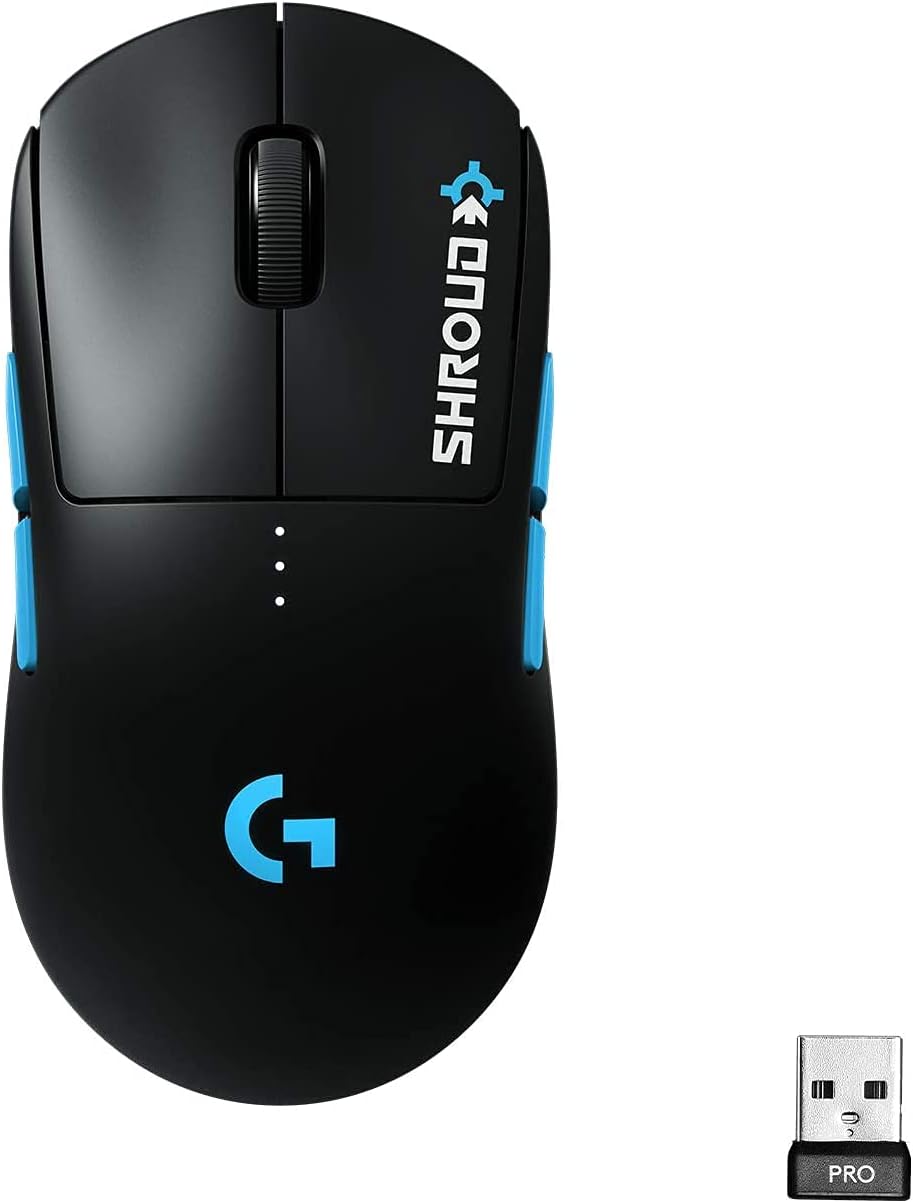
Image: The Logitech G PRO Wireless Gaming Mouse and its compact LIGHTSPEED USB receiver, ready for connection.
Operating Instructions
The Logitech G PRO Wireless Gaming Mouse is designed for intuitive use with advanced features. Here's how to operate it:
Basic Operation
- Left and Right Click: Standard mouse buttons for primary interactions.
- Scroll Wheel: Used for vertical scrolling and acts as a middle click button.
- Side Buttons: The mouse comes with removable side buttons. You can configure up to four side buttons (two on each side) using Logitech G HUB. These are ideal for in-game commands or productivity shortcuts.

Image: A user's hand demonstrating the comfortable grip and accessible side buttons of the Shroud Edition mouse.
- DPI Cycle Button: Located on the bottom of the mouse, this button allows you to cycle through pre-set DPI (Dots Per Inch) sensitivity levels. Default settings can be customized via Logitech G HUB.
Advanced Features (via Logitech G HUB)
- DPI Customization: Adjust DPI sensitivity from 100 to 25,600 DPI in increments of 50. Create multiple DPI profiles for different games or applications.
- Button Assignment: Reassign any button to perform various functions, including keyboard macros, system commands, or multimedia controls.
- LIGHTSYNC RGB Lighting: Customize the RGB lighting effects and colors. Synchronize lighting with other Logitech G LIGHTSYNC devices.
- Surface Tuning: Optimize the sensor's performance for your specific mouse pad surface.
- Power Management: Monitor battery life and adjust power-saving settings. The mouse supports up to 48 hours of battery life with default lighting.

Image: The mouse showcasing its LIGHTSPEED Wireless capability, ensuring a fast and reliable connection.
Maintenance
Proper maintenance ensures the longevity and optimal performance of your Logitech G PRO Wireless Gaming Mouse:
- Cleaning:
- Use a soft, lint-free cloth slightly dampened with water or a mild cleaning solution to wipe the mouse surface.
- Avoid harsh chemicals, abrasive cleaners, or solvents, as these can damage the finish.
- For the optical sensor, use a cotton swab lightly dampened with isopropyl alcohol to gently clean the lens. Ensure no liquid enters the sensor opening.
- Battery Care:
- Charge the mouse regularly using the provided USB cable.
- Avoid completely draining the battery frequently, as this can reduce its overall lifespan.
- If storing the mouse for an extended period, charge it to about 50% before storage and recharge every few months.
- Storage:
- Store the mouse in a cool, dry place away from direct sunlight and extreme temperatures.
- When not in use, consider turning off the mouse using the ON/OFF switch to conserve battery life.
- Keep the USB receiver stored safely, preferably inside the mouse's dedicated storage compartment.

Image: An exploded view of the mouse, illustrating its internal components such as the lightweight endoskeleton, 48H LiPo battery, and HERO 16K sensor.
Troubleshooting
If you encounter issues with your Logitech G PRO Wireless Gaming Mouse, refer to the following common solutions:
| Problem | Possible Cause | Solution |
|---|---|---|
| Mouse not responding/connecting | Low battery, USB receiver not connected, mouse turned off, driver issue. |
|
| Lag or intermittent connection | Interference, distance from receiver, low battery. |
|
| Inaccurate tracking or cursor jumpiness | Dirty sensor, unsuitable surface, G HUB settings. |
|
| Buttons not responding or double-clicking | Software issue, physical defect. |
|
For more detailed troubleshooting or persistent issues, please refer to the official Logitech G support resources.

Image: The underside of the mouse, highlighting the HERO Gaming Sensor for precise tracking.
Specifications
| Feature | Detail |
|---|---|
| Brand | Logitech G |
| Series | PRO |
| Model Number | 910-005974 |
| Color | Shroud Edition |
| Connectivity Technology | LIGHTSPEED Wireless (Wi-Fi) |
| Movement Detection Technology | Optical (HERO 25K Sensor) |
| DPI Range | 100 - 25,600 DPI |
| IPS (Inches Per Second) | 400+ IPS |
| Report Rate | 1 ms |
| Power Source | Battery Powered (1 Lithium Polymer battery included) |
| Battery Life | Up to 48 hours (with default lighting) |
| Item Weight | 2.8 ounces (approx. 80 grams) |
| Product Dimensions (LxWxH) | 6.77 x 2.65 x 4.53 inches |
| Hardware Platform | PC |
| Operating System Compatibility | Windows, macOS, Linux |
| Special Features | Lightweight, Rechargeable, Wireless, Removable Side Buttons, LIGHTSYNC RGB |
Warranty and Support
Logitech G products are built to high standards and come with a manufacturer's warranty. For specific warranty terms and conditions, please refer to the warranty information included with your product packaging or visit the official Logitech G website.
Customer Support
If you require technical assistance, have questions about your product, or need to initiate a warranty claim, please contact Logitech G customer support through their official website:
- Logitech G Support Website: support.logitech.com/category/gaming
- User Manual (PDF): A detailed PDF user manual is also available for download: Download PDF Manual
Please have your product model number (910-005974) and serial number ready when contacting support.
Related documents910-005974


Ask a question about this manual
Ask about setup, troubleshooting, compatibility, parts, safety, or missing instructions. Manuals+ will review the question and use this page’s manual context to help answer it.